clipoven
Stop picking an editor by feature count. On a Chromebook, that advice fails at export, when you discover a watermark, a clip length cap, or a timeline that stalls because your device can’t decode the footage locally. The better question is what constraint will hit you first.
Most free editors look alike on a landing page. They all promise trimming, captions, music, and vertical formats. The differences are whether your footage uploads to a server, whether 9:16 export is usable without paying, how much work your Chromebook does itself, and whether a long gaming session or podcast can be cut into many Shorts before a quota runs out.
That’s how this list sorts editing software free for Chromebook users. ChromeOS editing grew around the browser rather than desktop installs, and Google’s December 2020 ChromeOS update already pointed Chromebook users to browser editors such as WeVideo, Kapwing, and Clipchamp. That history still shapes what works today.
Practical rule: Export a 30 second test clip before you edit a full project. Check the corners for a watermark, check the resolution, and check whether captions survived.
Test for your real bottleneck, not the demo. If you reframe horizontal footage, publish daily, or handle private client files, the right free tool changes completely.
Table of Contents
- 1. Microsoft Clipchamp
- 2. CapCut
- 3. Canva Video Editor
- 4. Adobe Express
- 5. OpenCut
- 6. wide.video
- 7. Gusta Video
- 8. InVideo Editor
- 9. Kapwing
- 10. OpenShot
- Free tier, setup effort, and best use case for each Chromebook editor
- Choosing a Free Chromebook Editor for Your Short-Form Workflow
1. Microsoft Clipchamp
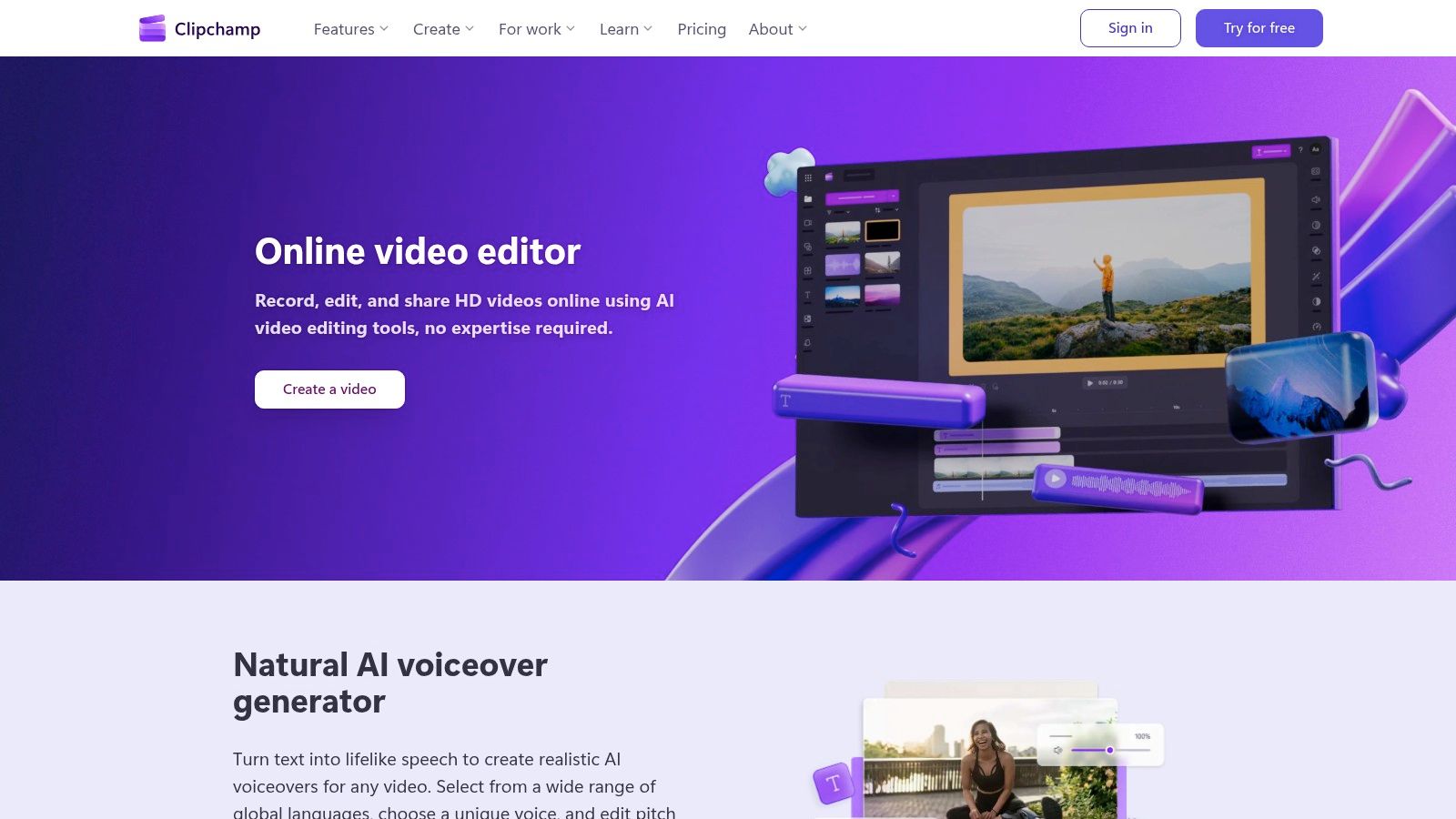
Microsoft Clipchamp is a practical starting point for a Chromebook editor with a familiar timeline and no installation. In Chrome, you can trim and crop clips, resize the frame, add text and audio, then export. For straightforward short-form edits, the workflow is easy to follow.
Clipchamp’s free plan lists exports up to 1080p, with no watermark when you use free assets and features. That makes it a useful option when a clean export matters more than access to extra effects. Check that your chosen stock and features are included before building an edit around them.
Where It Breaks Down
Clipchamp still depends on browser performance for demanding edits. A case study on Clipchamp’s Chrome focused Progressive Web App reports that more than 12 million creators use Clipchamp globally, and that WebAssembly SIMD optimization improved demanding 4K decoding and encoding workloads by 2.3x. That optimization helps with intensive footage, but it cannot remove the limits of an entry-level Chromebook, especially with several tabs open.
- Use it for: talking-head clips, simple gaming highlights, and first Shorts that need captions, silence removal, and a clean export.
- Watch for: premium stock, some AI features, and 4K export, which require an upgrade.
- Hardware note: Close other tabs before scrubbing a busy timeline. If playback stutters, the Chromebook’s available memory may be the bottleneck.
I recommend Clipchamp for beginners who want a browser-based editor and a straightforward free export. Limitation: frequent use of 4K masters or premium assets can make the free plan a poor fit.
2. CapCut
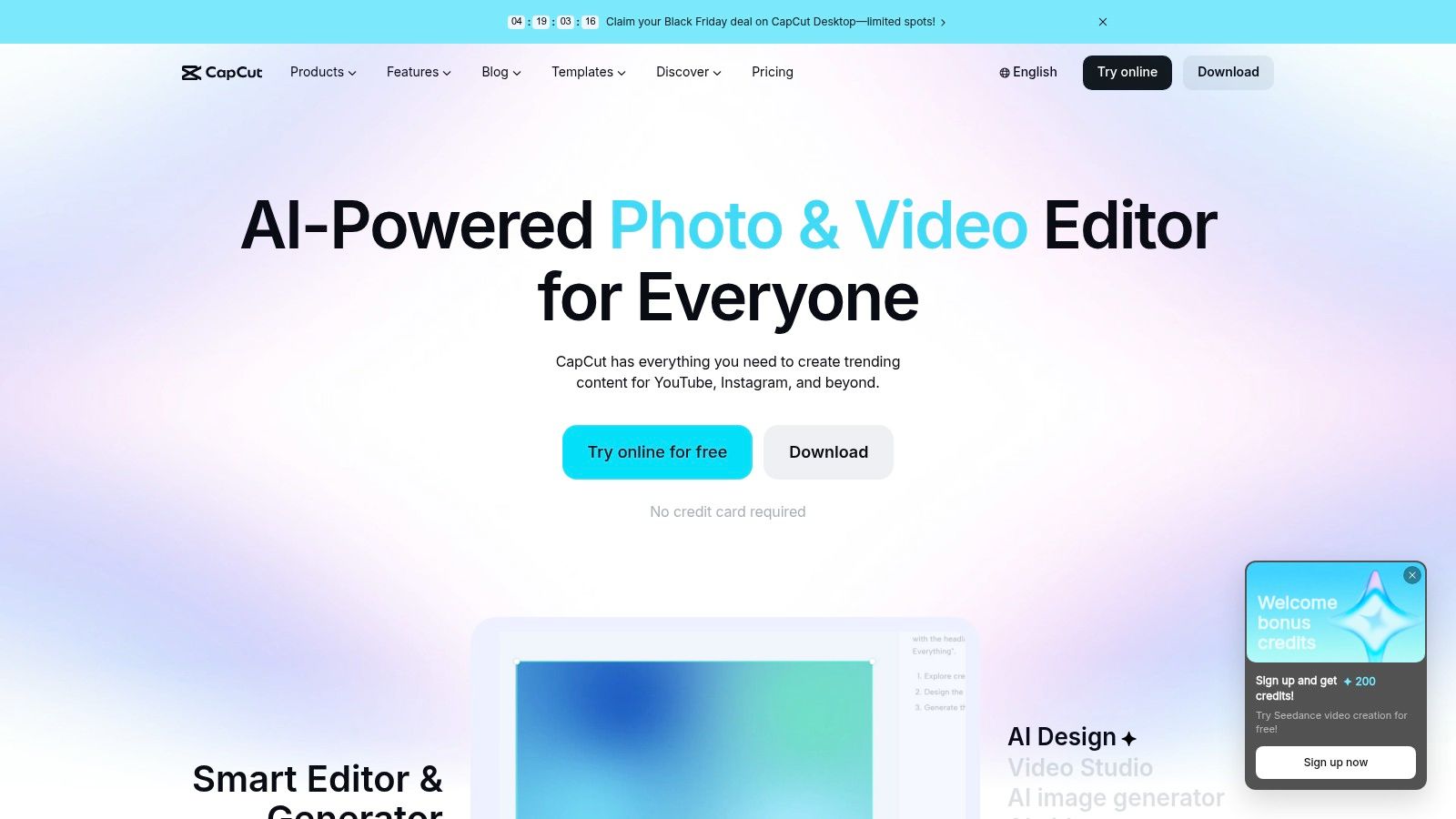
If your feed is TikTok, Reels, and Shorts, CapCut matches the format better than a general editor does. Open the web editor in Chrome and you get cuts, effects, transitions, text, music, and automatic subtitles built for vertical viewing. Templates do a lot of the pacing work for you.
That speed is real, but it’s also the trade-off. You’re editing inside an online system that assumes a stable connection and a steady supply of its own assets. Some features and assets require payment, and a project built around a paid effect isn’t free anymore.
Don’t assume the Android route fixes that. Google Play availability and performance vary by Chromebook model, and a touch first interface can feel clumsy with a trackpad. On a school managed device, access can also be blocked entirely. Check before you build a workflow around it.
For short-form specifics, this guide to video editing software for TikTok workflows covers the vertical format decisions that matter beyond the editor itself.
- Strongest fit: trend driven clips, beat cuts, and captioned Shorts made from a phone recording or a stream highlight.
- Weakest fit: offline work, private footage you don’t want to upload, and long timelines you need to revisit for months.
Limitation: CapCut is strongest when you stay inside its social template system. Step outside it, and the web editor feels less like a precision timeline tool.
3. Canva Video Editor
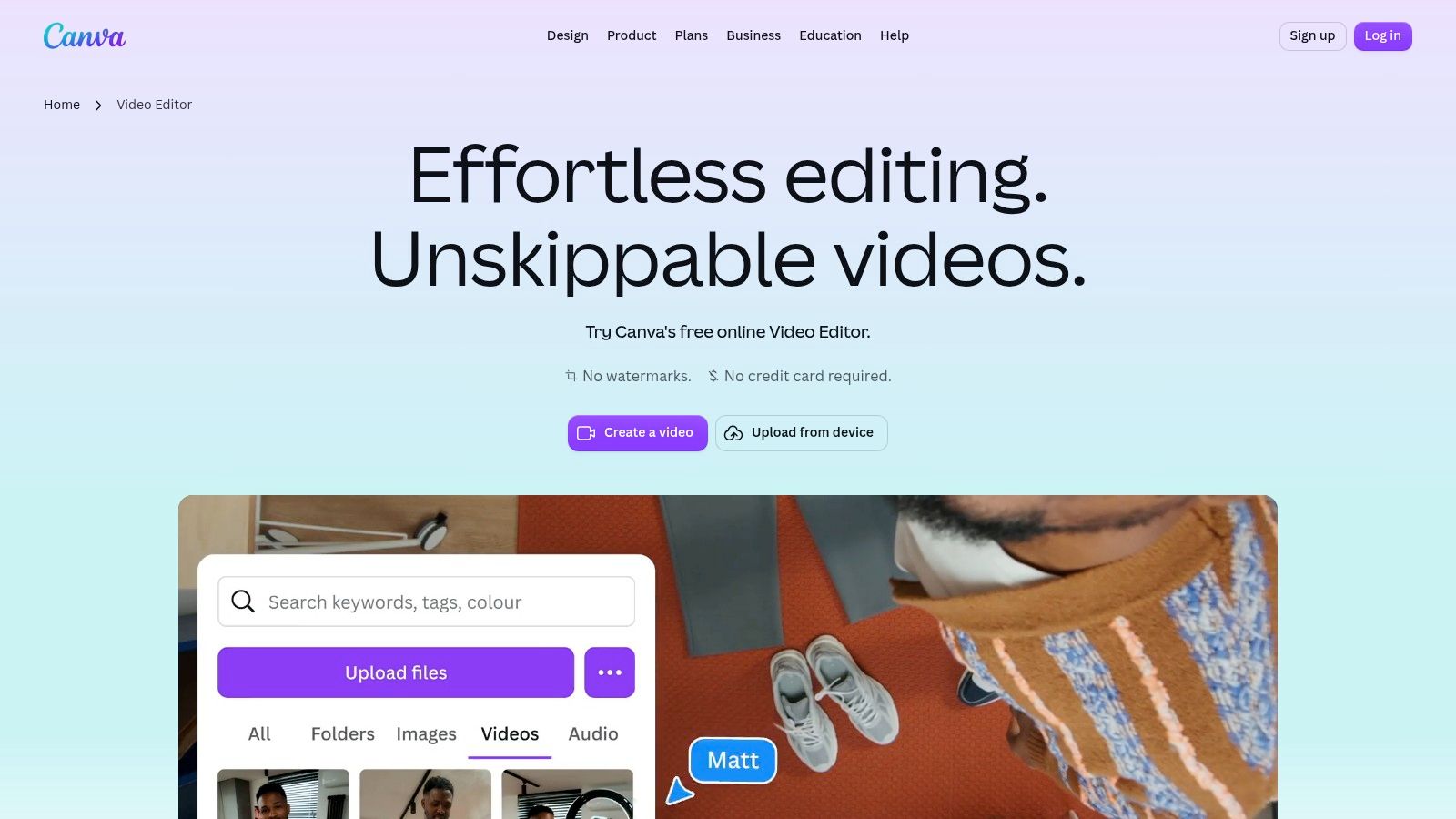
Canva Video Editor works best when the video is really a design piece that moves. Titles, brand colors, lower thirds, and consistent graphics matter more than frame accurate cuts. That’s a legitimate use case for social managers and small brands.
You get a multi-layer timeline, social formats, captions, animations, transitions, and graphics in the same workspace where you probably already make thumbnails or posts. Videos built with free elements can export without a watermark, which keeps the free plan genuinely usable.
The Template Trap
Canva makes it easy to start from something that looks finished. It also makes it easy to finish something that looks like everyone else’s template. Swap fonts, change pacing, and replace stock shots early, or your Short reads as an ad template within two seconds.
Performance is the other limit. Large projects with many layers get uncomfortable on a modest Chromebook, and premium assets and some AI tools require a paid plan. One premium element left on the timeline can change your export options.
Use case: a creator repurposing one clip into a branded Reel, a promo, and a story in an afternoon. Limitation: detailed, frame-by-frame editing of gameplay or dialogue isn’t what this editor was built for.
4. Adobe Express
Think of Adobe Express as a quick assembly tool, not a timeline editor you live in. Combine clips, trim scenes, add text and animation, resize for Reels or TikTok, and export an MP4. Auto-save in the browser keeps the process low friction.
The free offer is clear. Adobe advertises a free plan and watermark-free video sharing, plus templates, graphics, music, and stock assets to fill gaps. For a student, teacher, or social manager who needs a clean clip today, that’s enough.
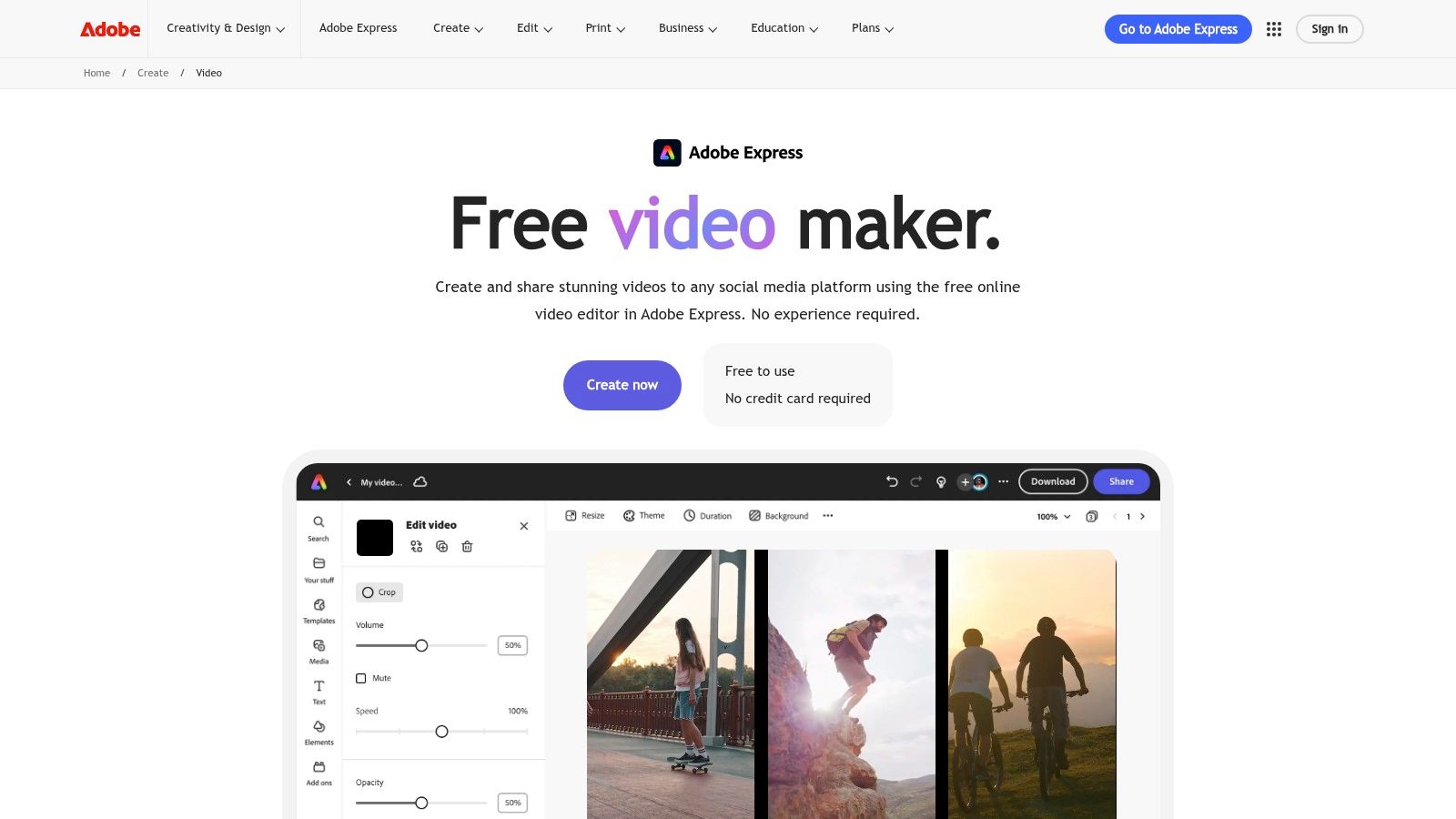
Where it breaks down is control. It’s less focused on advanced multi-track editing than Clipchamp or a Linux editor, so layered audio, precise caption timing, and complex overlays get awkward. Premium assets may also require a subscription.
A simple editor you finish in is better than a powerful one you abandon. Adobe Express wins when speed is the actual requirement.
Memory is the practical warning. Large files or limited system memory can make Chromebook playback slow, even in a browser tool. Trim source clips before import when you can. Don’t upload a two hour recording to pull out 40 seconds if you can cut a smaller section first.
Use case: quick promotional clips and classroom videos with titles and music. Limitation: frequent Shorts creators who need tight caption control and repeatable vertical reframing will outgrow it.
5. OpenCut
Privacy changes the ranking. OpenCut is a free, open-source browser editor that emphasizes local processing, with footage staying on your device. For client work, unreleased gameplay, or family footage, avoiding an upload isn’t a preference. It’s the requirement.
The basics are here. Cut, trim, split, merge, and arrange clips on a timeline, with no required installation. The project carries an MIT license, and no subscription or watermark is advertised. That makes it one of the few truly free options in this list, not a free trial wearing a different label.
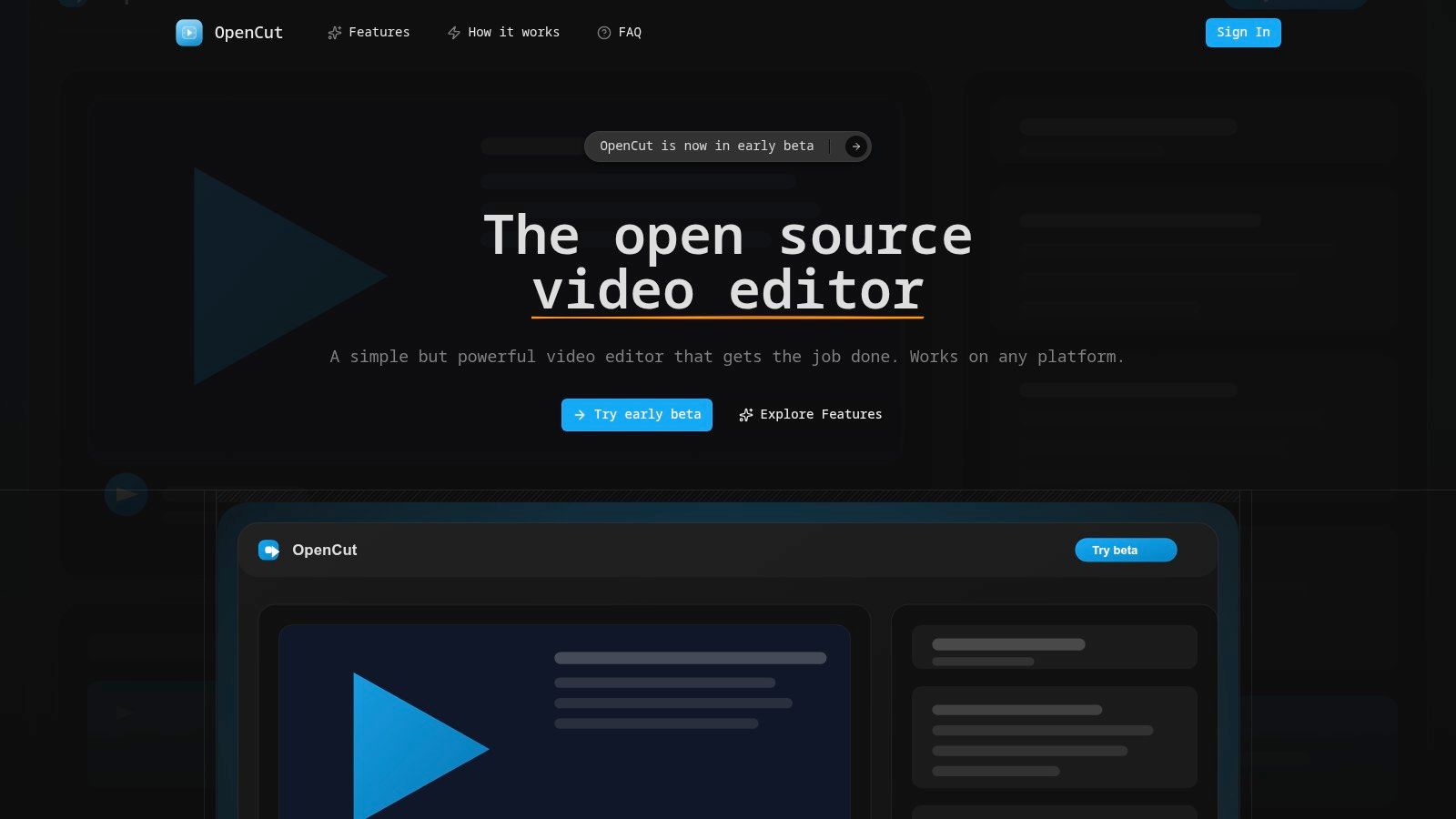
Local processing has a cost your Chromebook pays. Without a server doing the rendering, your hardware handles decode, preview, and export. A short 1080p clip is reasonable. A stack of effects or high bitrate footage will expose a weak processor quickly.
Support is also thinner than a commercial product. Features may be less mature, and when something breaks, you’re reading project documentation rather than opening a support ticket. This roundup of free AI video editor options helps if you want to compare that trade-off against cloud tools.
Use case: privacy sensitive short clips and simple offline style workflows on a capable Chromebook. Limitation: don’t expect the asset libraries, AI captions, or polish of Clipchamp or CapCut.
6. wide.video
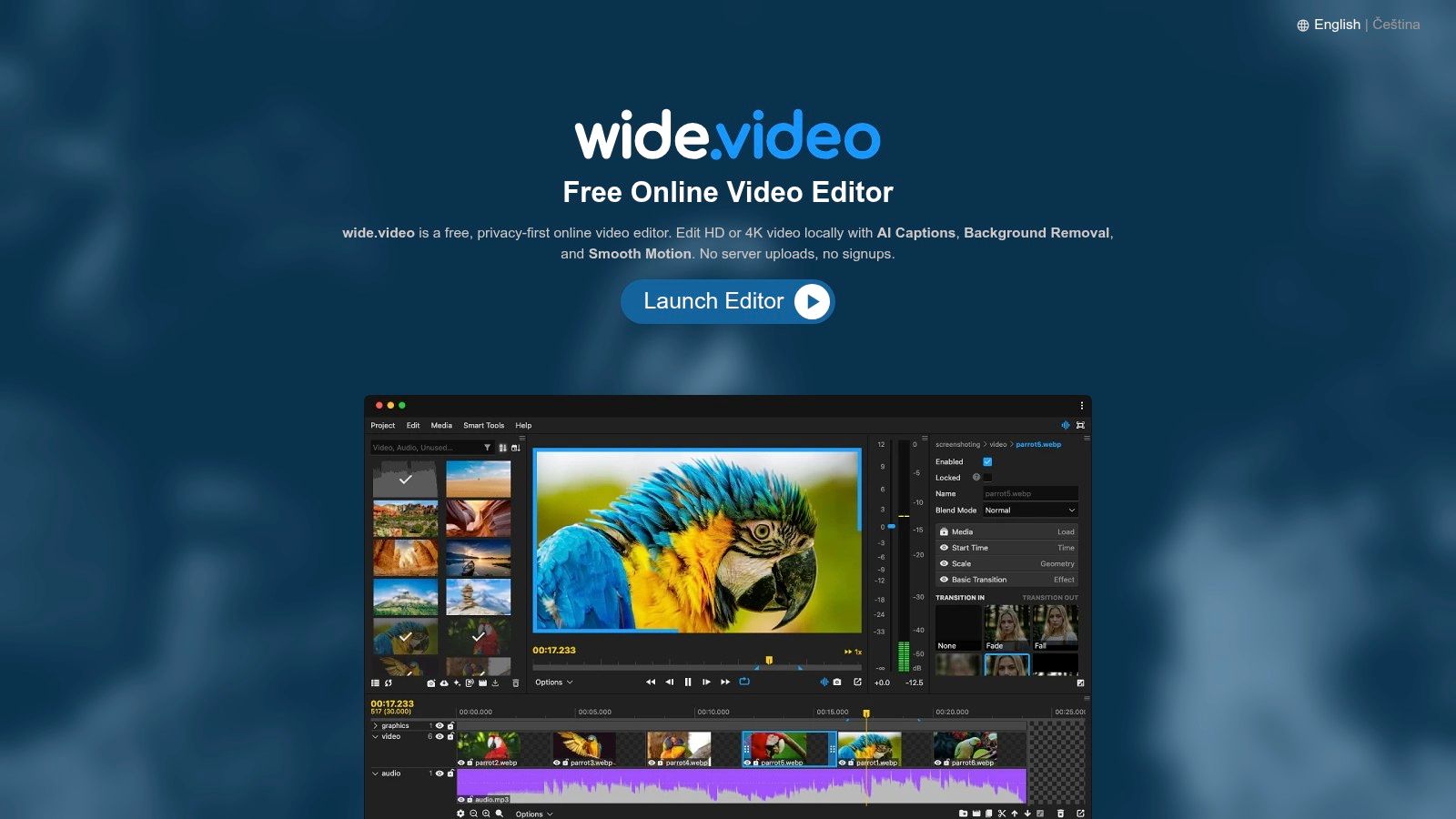
No account, upload, or subscription is part of the pitch from wide.video. The editor says it processes files locally in the browser, without server uploads or sign-up. That can suit creators using a borrowed or school Chromebook who want to avoid creating an account.
Its advertised tools include multi-layer compositions in portrait, widescreen, and square formats, along with auto captions, text-based editing, and background removal. For short-form work, portrait output is a practical advantage over editors built around widescreen projects.
Test Compatibility First
Browser performance affects how smoothly an editor runs, and wide.video’s published system requirements specify WebGL2. Check compatibility before building a project: open a source clip, add captions, then export. That quick test can reveal whether your browser and Chromebook handle the workflow without a long editing session.
- Best for: quick private edits, sensitive footage, and vertical projects without another account.
- Risk: AI features may put more demand on your browser or hardware than your Chromebook can handle.
- Workflow tip: use source files at a suitable resolution. Local editing still depends on your device to process them.
Limitation: advertised features may not run smoothly on every Chromebook. Choose wide.video when local processing and flexible formats matter more than predictable performance across devices.
7. Gusta Video
Gusta Video is the local processing option that thinks in vertical from the start. Projects can be 9:16, widescreen, or square, with video, title, image, and audio tracks on a proper timeline. The company says imported media stays on the device and editing and export happen locally.
It adds an AI copilot for rough cuts and editing prompts on top of trimming, transitions, titles, sound, and basic color adjustments. Core editing and exports are advertised as free and watermark-free, which puts it ahead of several better known names for Shorts work.
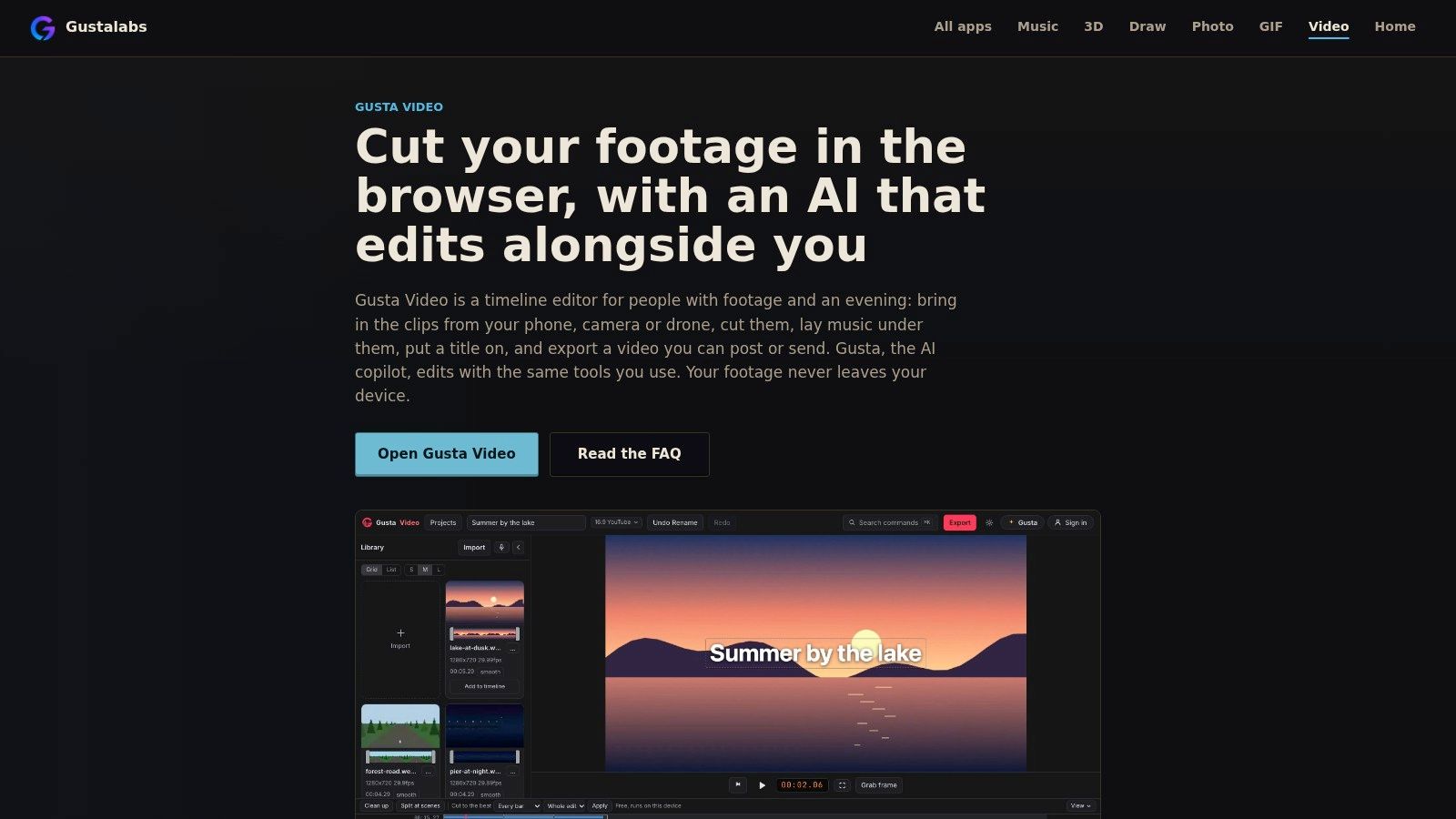
Now the caveats, because they matter. The editor is in open beta, so features and behavior can change under you. Some AI copilot features require an account and use tokens, which means the AI layer isn’t the same as the free core editor.
Local export also means local heat, local fan noise, and local waiting. On a low-end Chromebook, a captioned vertical clip with transitions can take noticeably longer than a cloud export of the same file. That’s the privacy trade in plain terms.
Use case: a creator who wants vertical projects, no watermark, and footage that stays on the device. Limitation: beta software is a poor place for a client deadline you can’t move.
8. InVideo Editor
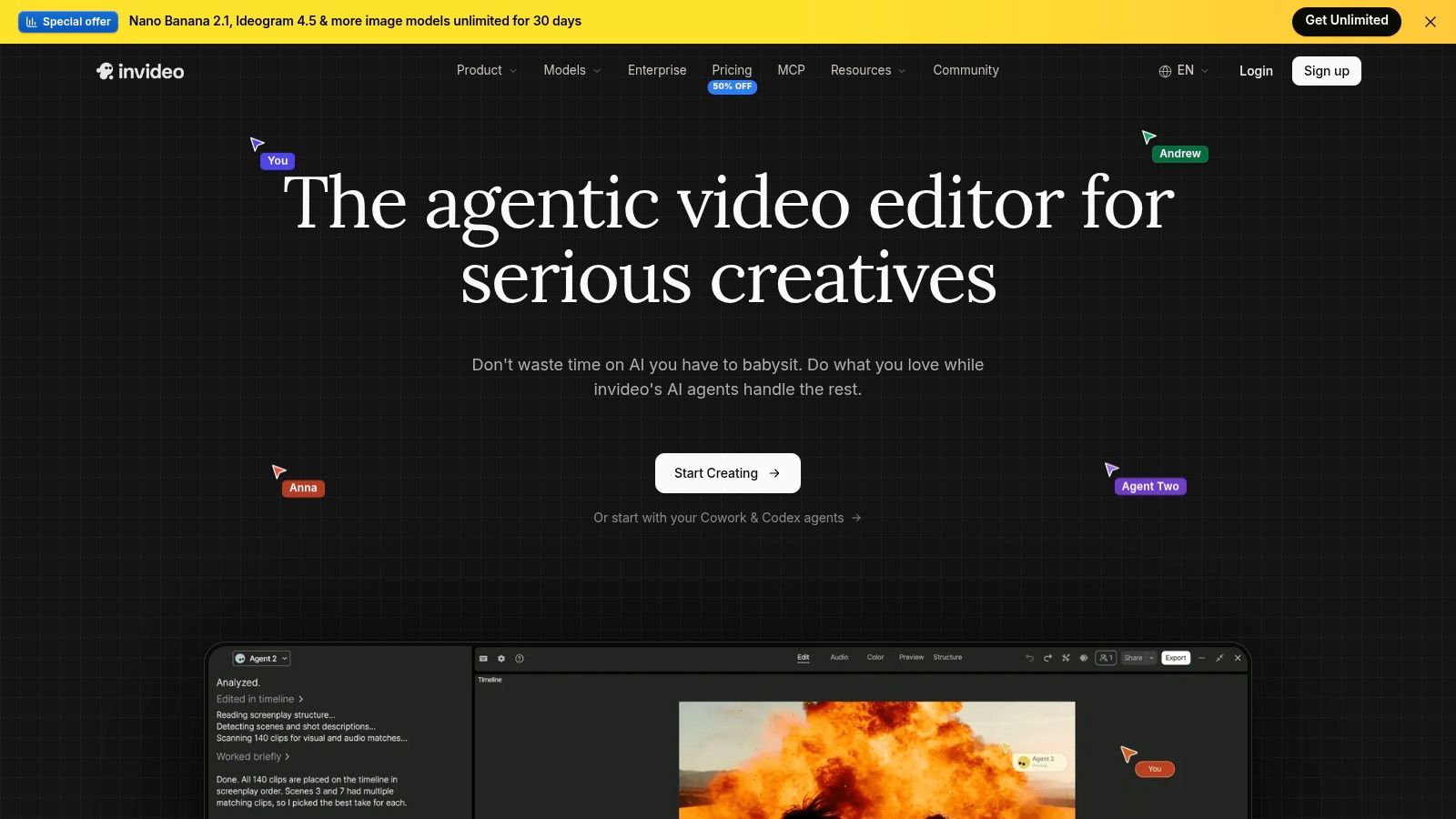
InVideo Editor combines a manual browser editor with separate AI features. The company says manual editing and export are free and watermark-free. Its AI agent and generated media use credits, so the free manual workflow does not mean unlimited AI access.
For short-form work, the manual editor handles a timeline, clip trimming, audio and picture adjustments, merging, resizing, and cropping. It runs in Chrome, with no installation or Linux setup. That keeps setup simple, though editing still depends on a stable browser session and internet access.
Where Free Ends
Use the AI agent to review footage or create a first draft, and credits come into play. That can help when you have a long recording to search, but it adds a per-output limit to an otherwise free manual workflow. Plan details vary across InVideo products and pages, so check which offer applies before relying on AI for a project.
Budget check: Price an editor by the clip you publish, not the month you subscribe. AI credits and export quotas are per-output costs, even when manual editing is free.
Use case: creators who want a watermark-free manual timeline for regular clips, with occasional AI help finding a first cut. Limitation: frequent AI-assisted editing means tracking credits, and the browser workflow is not a local-footage option.
9. Kapwing
Kapwing’s strongest free-tier advantage is collaboration, not finished exports. Its browser editor includes a drag-and-drop timeline, trimming, splitting, transitions, layers, effects, AI subtitles, and shared workspaces. That makes it useful for a small social team passing drafts between people, though the editing happens online rather than staying on the Chromebook.
The free plan has limits. Exports carry a watermark and have lower resolution and shorter length limits than paid exports. Check Kapwing’s current plans before committing to a publishing workflow. Free project access is limited too, so this works better for testing an idea than producing a steady run of finished Shorts.
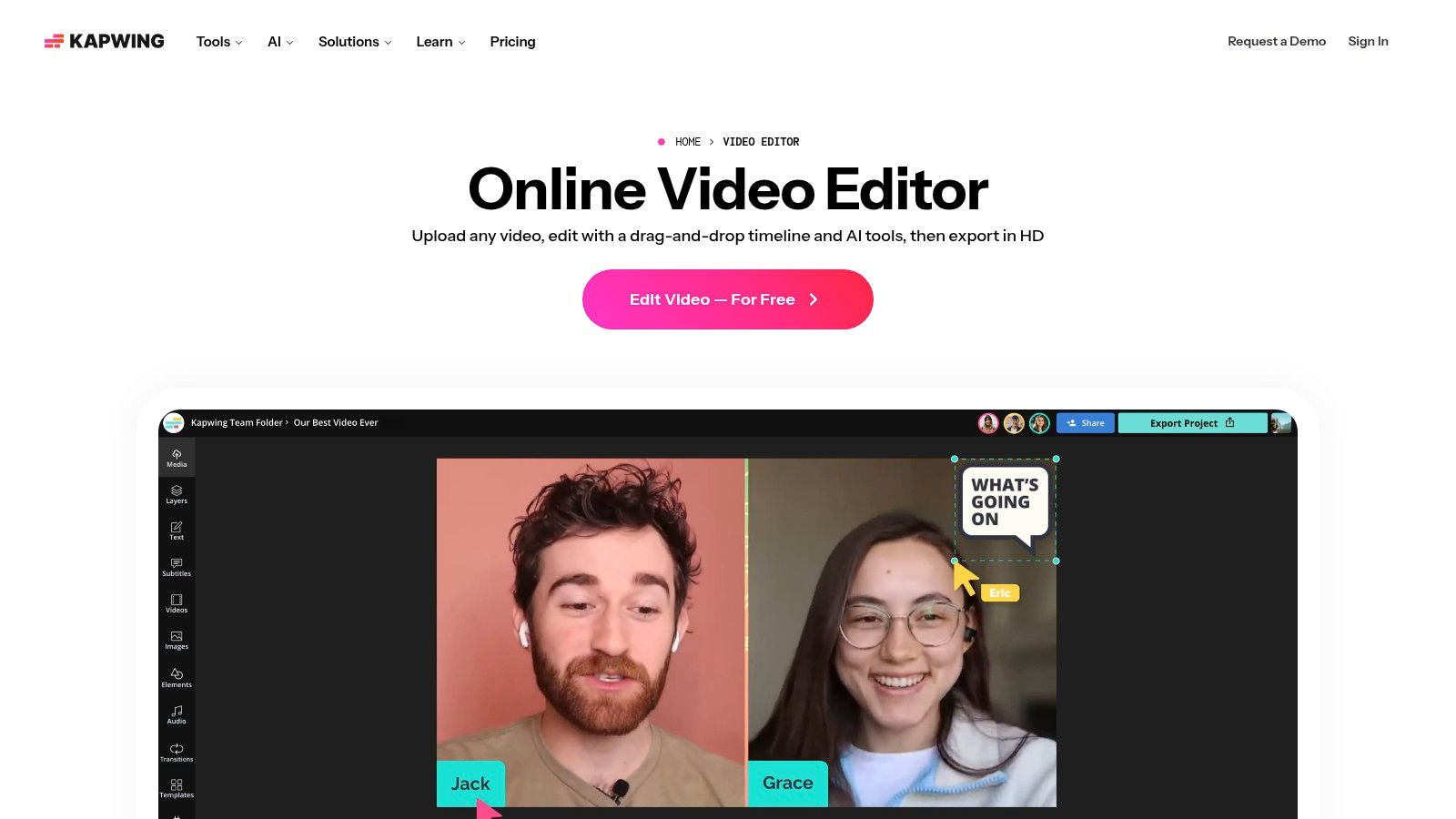
Free Chromebook editors often restrict uploads, export length, or monthly output, as this roundup of free-plan limits illustrates. Kapwing’s trade-off is straightforward: useful browser-based editing and collaboration, but a free export is better suited to a draft than a public post.
- Works for: shared drafts, subtitle tests, memes, and internal previews where a watermark is acceptable.
- Fails for: scheduled public posting, client delivery, or projects that need clean, high-resolution exports.
Limitation: plan for a paid export if you need publish-ready work. Otherwise, you may have to redo the export when the free tier no longer fits.
10. OpenShot
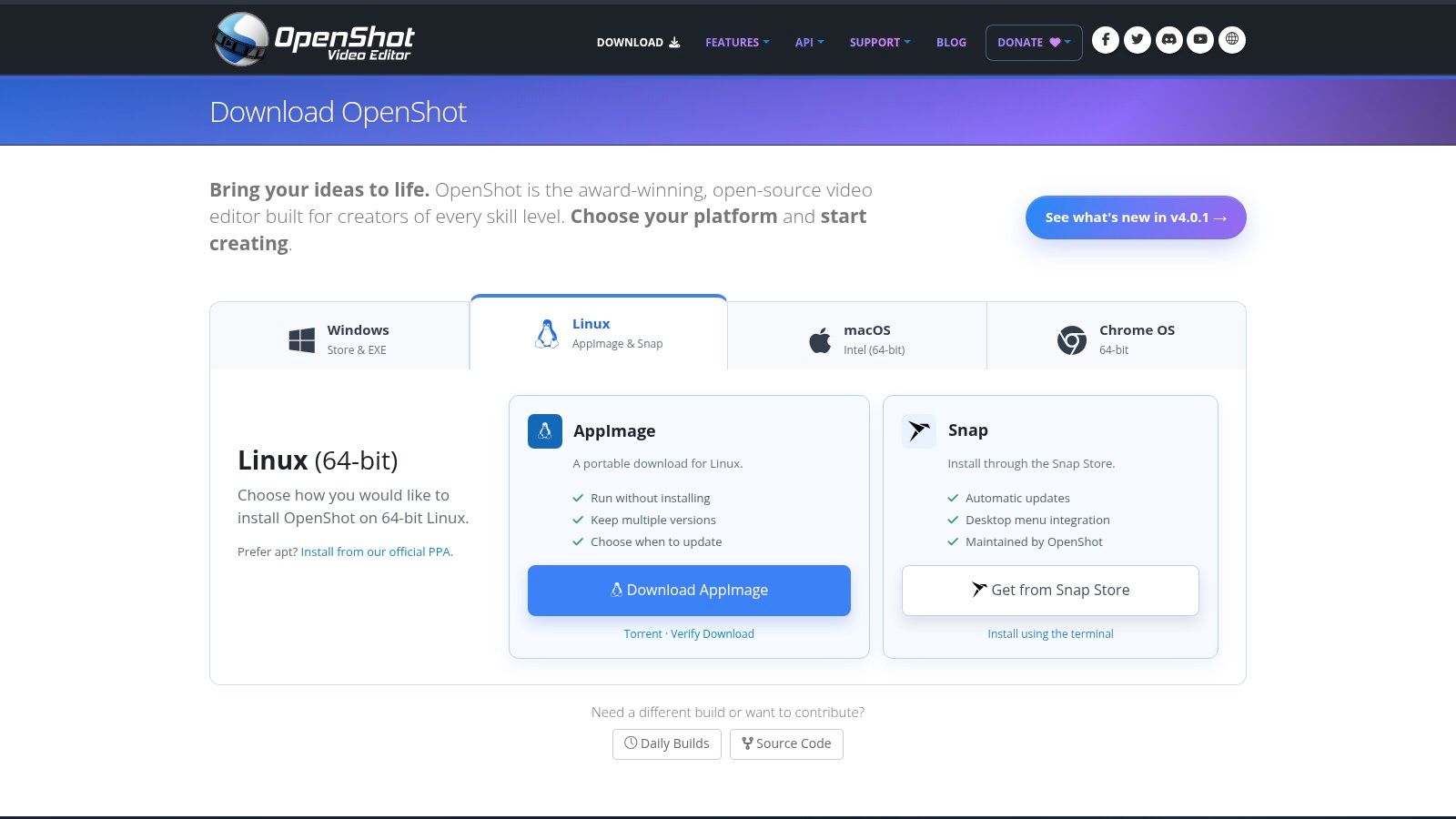
OpenShot is a desktop-style editor, so setup takes more work than opening a browser tool. On supported Chromebooks, the Linux development environment lets you edit with tracks, titles, transitions, and local project files, without a subscription. Keeping footage on the device is its main advantage for users who avoid cloud editors.
First, confirm your Chromebook supports Linux and download an OpenShot build that matches its processor, whether x86_64 or ARM. Then enable Linux, follow the terminal instructions, and leave enough disk space for projects. A guide to Chromebook video editing across browser, Android, and Linux tools notes that many Linux containers lack effective GPU or video-decode acceleration. That can make heavier projects impractical.
Be Honest About Hardware
An 8 GB Chromebook can handle cuts and titles on a simple 1080p timeline. A 4 GB machine, 4K source footage, or editing without proxies can make the work slow. Offline access trades cloud convenience for longer renders and fussier codec support.
For context on how Linux tools fit among video editing software categories, consider the trade-off: OpenShot gives you local control, but asks more of your setup and hardware.
Use case: technically comfortable users who want a traditional editor and prefer to keep footage local. Limitation: daily Shorts production involving frequent reframing and captions becomes slow manual work.
Free tier, setup effort, and best use case for each Chromebook editor
| Item | Free Tier Notes | Setup Effort | Best For |
|---|---|---|---|
| Microsoft Clipchamp | Free exports up to 1080p without a watermark when using free assets and features | Low; works in a browser | General-purpose editing and basic creator workflows |
| CapCut | Free access available; some features and assets may require payment | Low; use the web editor, with app compatibility varying | Social-first short-form videos |
| Canva Video Editor | Free-element videos can be exported without a watermark; some tools and assets are paid | Low; works in a browser | Template-led clips and graphics-rich social videos |
| Adobe Express | Free plan and watermark-free sharing are advertised; some assets and features are paid | Low; works in a browser | Simple, template-based video projects |
| OpenCut | Free and open source; no subscription or watermark is advertised | Low; browser-based with no installation required | Basic timeline editing and local processing |
| wide.video | No account or subscription is advertised | Low; browser-based, but requires WebGL2 compatibility | No-account editing and local file processing |
| Gusta Video | Core editing and watermark-free exports are advertised as free; some AI features use tokens | Low; browser-based, though still in open beta | Short-form clips and AI-assisted rough cuts |
| InVideo Editor | Manual editing and exports are advertised as free and watermark-free; AI features use credits | Low; works in a browser | Manual timeline editing with optional AI assistance |
| Kapwing | Free exports include a watermark and are limited to 4 minutes and 720p | Low; works in a browser | Social videos and collaborative projects |
| OpenShot | Free and open source; no subscription required | High; requires Linux setup and a compatible Chromebook | Traditional desktop-style timeline editing |
Choosing a Free Chromebook Editor for Your Short-Form Workflow
Start with your constraint, not the feature list. Every tool above trims video. They differ on the things that actually stop a Short from shipping, so name your blocker first and let it cut the list in half.
If privacy is the blocker, test OpenCut, wide.video, or Gusta Video. Your footage stays on the device, but your Chromebook does all the rendering, so match the tool to your hardware. A short 1080p clip on a midrange device is a fair test. A long recording on an entry level model isn’t, and you’ll blame the editor for a hardware problem.
If clean exports are the blocker, start with Clipchamp and check the watermark and resolution rules before you touch a real project. Canva and Adobe Express also work when you stay with free elements. Kapwing doesn’t, and no amount of timeline polish fixes a watermark on a published clip. Export one finished Short, view it full screen on a phone, and only then commit your templates and presets.
If hardware is the blocker, stay in the browser with cloud processing and avoid Linux editors. OpenShot rewards patience and a compatible Intel or AMD machine. It doesn’t reward hope. The same logic applies to local browser editors, where your device carries the export even though nothing was installed.
If volume is the blocker, count outputs, not features. A streamer cutting one long session into twelve clips hits upload caps, credit limits, and monthly quotas long before a casual editor does. That’s the hidden cost of free. The editor costs nothing. The workflow costs hours of uploading, re-exporting, and manually reframing every clip from horizontal to vertical.
That last job is worth separating from general editing. Reframing 16:9 footage to 9:16, keeping the subject centered, adding readable captions, and tightening pacing for a vertical feed is specialized work. A dedicated service such as ClipOven, which automates that reframing and captioning and offers 2K export on paid credit plans, can sit alongside a free editor rather than replace it. Use the free tool for assembly and finishing touches you control. Use automation for the repetitive conversion you don’t want to redo twelve times a week.
The Chromebook itself isn’t the weak link people assume. The platform reached a mass audience through education and low cost hardware, and browser editing grew up to serve exactly those machines. What limits you now is bandwidth, quotas, and how much processing you ask a small laptop to do alone. Pick the tool that moves that work to the right place, verify the export on a test clip, and your free editor stops being a compromise and starts being a workflow.
If turning long horizontal recordings into captioned vertical Shorts is the part eating your week, clipoven automates the 16:9 to 9:16 reframing, captions, and cut assembly, then hands you a full editor to refine timing and effects before a 2K export. Bring a clip you’ve already trimmed in one of the free editors above and see how much of the Shorts workflow you can stop doing by hand.