clipoven
Searching for an AI video editor free often leads to the wrong comparison. These products don’t solve the same editing job. Some prepare files before editing, some find Shorts inside long recordings, some let you cut spoken content from a transcript, and others generate visual assets rather than polish footage you already have.
A useful comparison needs to examine the job each tool handles, the supported workflow, export restrictions, usage allowances, watermark and resolution limits, and the point where upgrading becomes necessary. A free editor that creates a watermarked 720p preview may be useful for testing, but it isn’t equivalent to a tool that delivers a clean, publishable vertical file. Recent comparison testing found that many free AI editors impose restrictions such as watermarks, 720p caps, short project limits, or expiring projects, while a smaller group offers clean exports on free tiers (comparison testing of free AI editors).
ClipOven is relevant for a specific job, converting horizontal footage into polished vertical Shorts for TikTok and YouTube Shorts. It shouldn’t be treated as the universal winner. The practical question is which bottleneck you need to remove first.
Table of Contents
- 1. Free Online Video Tools, Compress and Merge Videos from ClipOven
- 2. CapCut
- 3. VEED
- 4. Kapwing
- 5. Descript
- 6. Runway
- 7. Adobe Express
- 8. YouTube Create
- 9. Opus Clip
- 10. Wisecut
- Top 10 Free AI Video Editors, Feature Comparison
- Choose by Bottleneck, Then Test the Free Tier
1. Free Online Video Tools, Compress and Merge Videos from ClipOven
Before captions, reframing, or AI cuts, creators often need to make footage manageable. Large files can slow uploads, and separate recordings sometimes need to become one continuous source file. ClipOven’s free online video tools handle those two preparation tasks in the browser, without turning a simple file operation into a full editing project.
The compressor exports to MP4, while the merger joins multiple clips into one file. Both tools require no account and don’t add a watermark. Processing happens client-side in the browser rather than through a server upload, which makes the workflow useful for sensitive recordings, private client footage, or teams that don’t want raw media leaving the device during preparation.
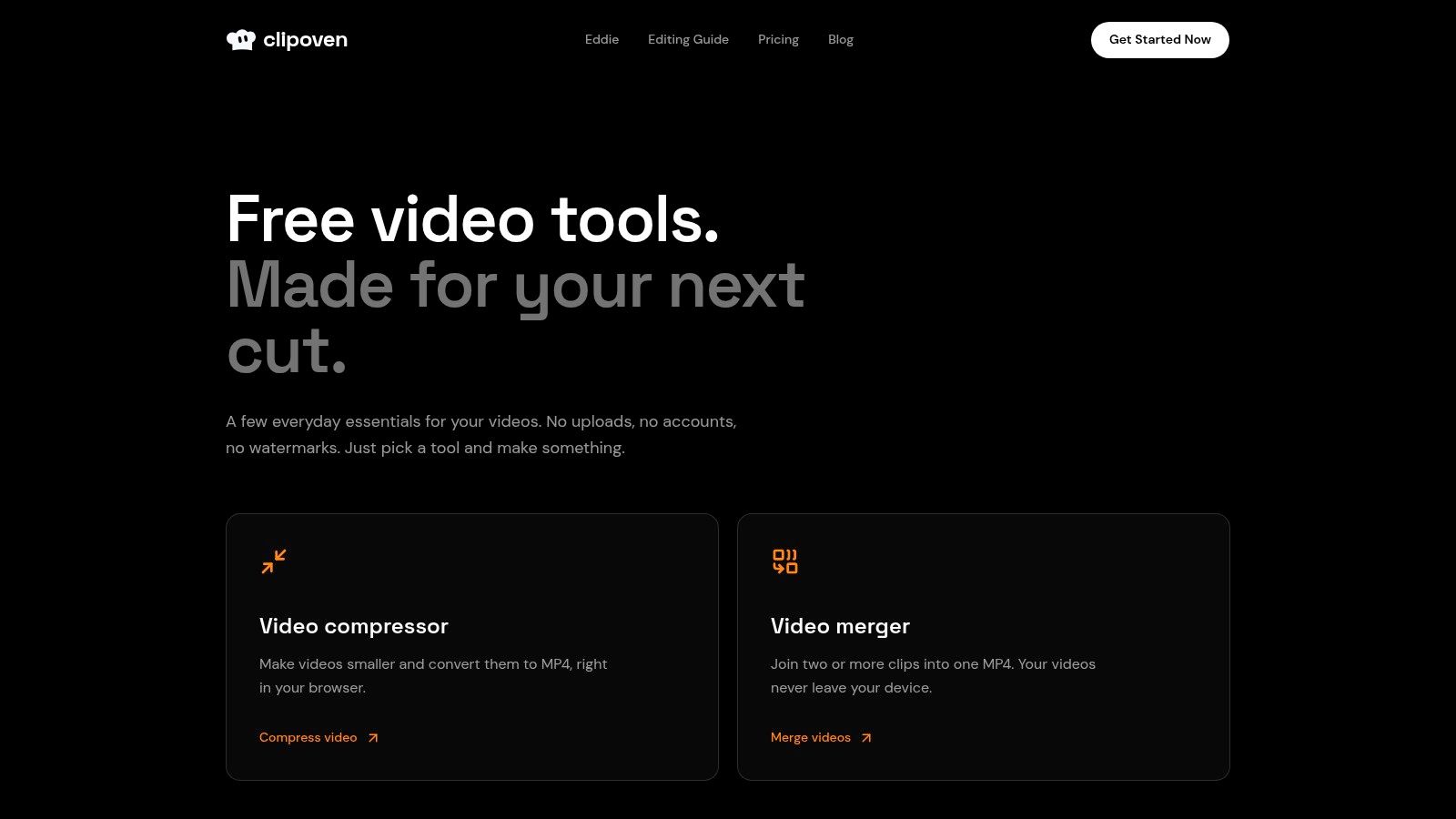
Best fit for file preparation
This isn’t a replacement for a timeline editor. It doesn’t provide trimming, captions, subject reframing, transitions, or AI enhancements. That limitation is also the point. If your next step is to upload a smaller MP4, combine camera angles into a single source, or prepare media for another editor, a focused browser utility avoids unnecessary setup.
Practical rule: Use the smallest tool that solves the current bottleneck. Don’t open a full editor when compression or merging is all you need.
The trade-off is local performance. Very large files can be slower in a browser and may depend heavily on the device’s available memory and processing capacity. Once the file is prepared, creators can send it into an AI-driven vertical workflow or another downstream editor.
ClipOven’s free tools are strongest when “free” means no account, no watermark, and no server upload. They become insufficient when the job changes from preparation to actual storytelling.
2. CapCut
CapCut is the most natural choice for creators who want one social-first workspace across mobile, desktop, and web. Its workflow is built around quick publishing rather than the complexity of a professional non-linear editor. Auto captions, caption styling, silence removal, background removal, audio enhancement, social templates, and 9:16 resizing all target the common path from raw footage to a short post.
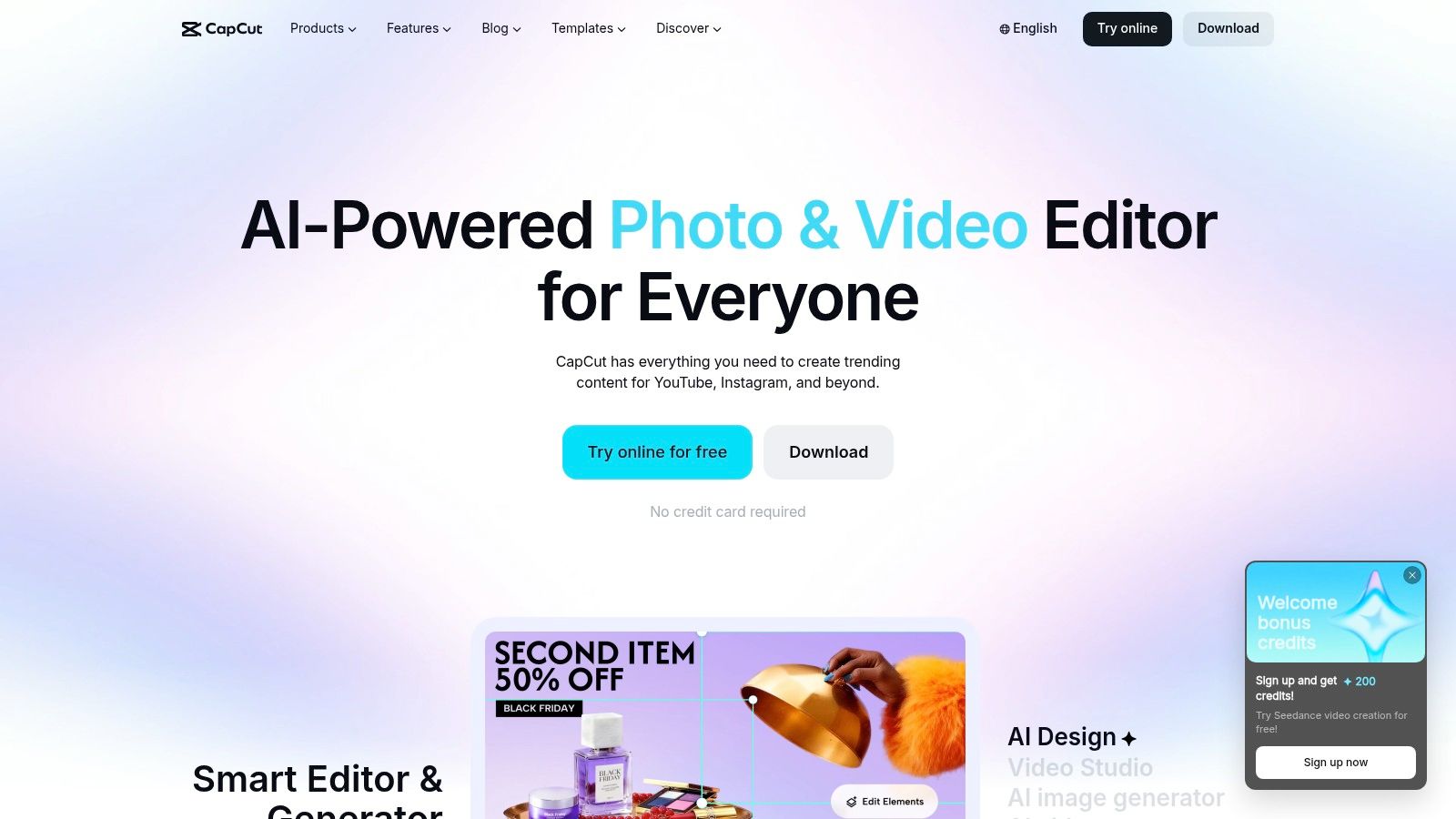
Best fit for fast social assembly
The free plan is useful for creators who need quick cuts, captions, and presets without learning a professional editor. Its availability across web, desktop, and mobile also makes it practical when footage moves between devices. Text-to-speech, audio tools, AI avatars, script-to-video options, and background removal extend the workflow beyond basic trimming.
CapCut is also a significant example of AI moving into mainstream editing software rather than remaining limited to specialist products. One source cites 736 million monthly active users for CapCut and says its most popular features rely on generative AI (AI video adoption statistics). That scale matters because it explains why social templates and automated features feel native to the product’s workflow.
Where the free tier stops
Some advanced AI functions sit behind the paid Pro tier, and free access to particular features can be limited by attempts or time. The upgrade trigger arrives when a recurring workflow depends on a specific locked AI function rather than on basic editing.
CapCut works well when speed and preset-driven production matter more than fine manual control. Before committing, test a representative project and confirm that the exact AI feature you rely on remains available under the free plan.
3. VEED
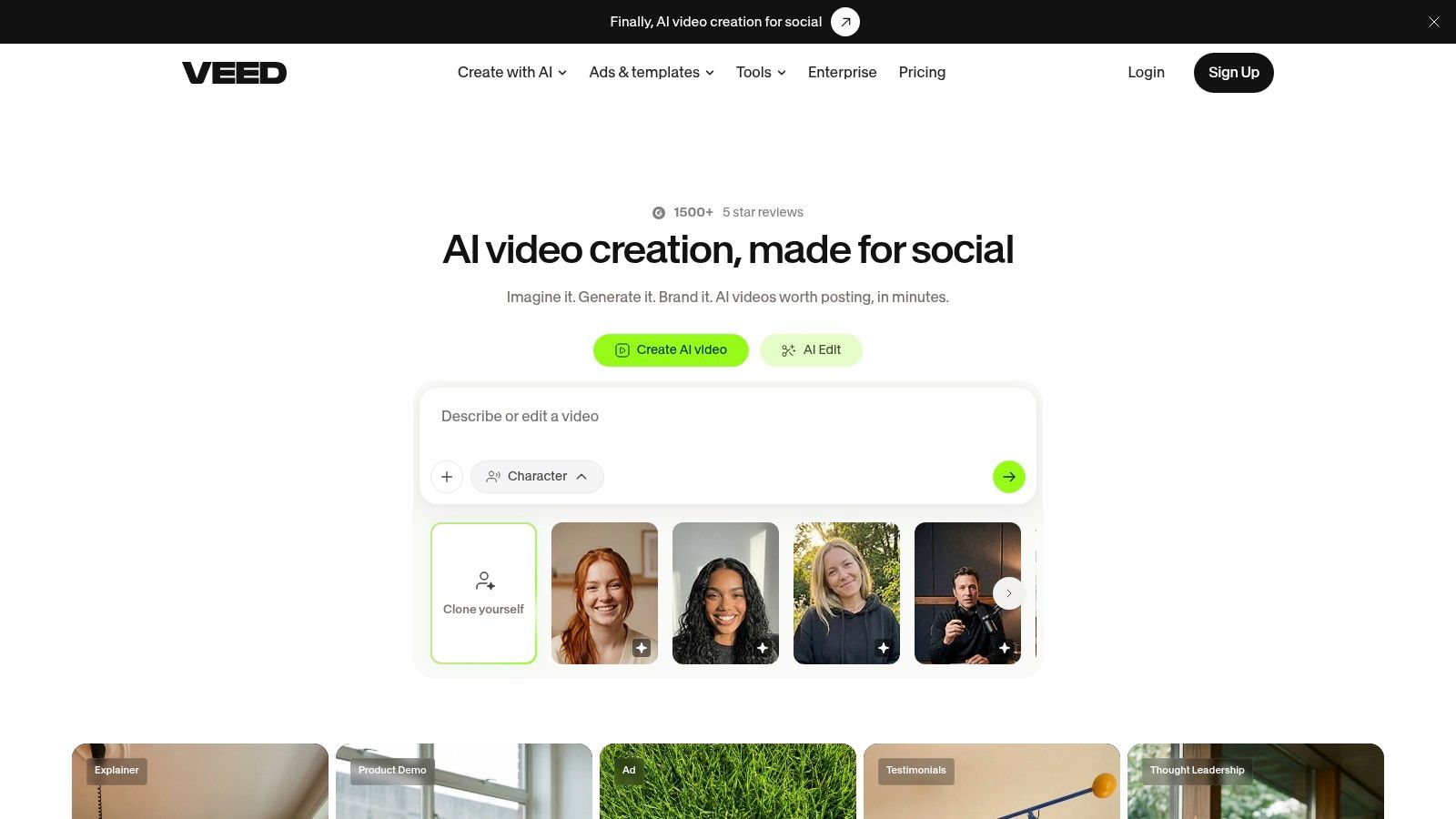
VEED is strongest when the editing job starts with speech and ends with a captioned, localized social video. Its browser editor and mobile apps support automatic subtitles, translation and dubbing, audio cleanup, eye-contact correction, text-based editing, and in-editor stock assets. That combination makes it easier to produce variants for different audiences without rebuilding every cut manually.
Best fit for captions and localization
A creator can use VEED when the main value lies in turning a spoken recording into a readable, shareable clip. The low learning curve suits marketers, educators, and small social teams that need captions and translations more than deep timeline engineering. Web, Android, and iOS access also reduces the friction of working away from a desktop.
The free plan is viable for testing simple exports and AI-assisted workflows, but its output has visible limits. Free exports include a VEED watermark and are restricted to 720p, with file-size and length limits also applying. Those restrictions change the meaning of “free” for anyone publishing client work or branded content.
A free export is only useful if its resolution, branding, and duration match the destination.
VEED becomes a paid consideration when clean exports are required repeatedly, when 720p isn’t sufficient for the intended delivery, or when file and length limits interrupt normal production. It’s a good caption and localization tool, but the free tier is better treated as a trial environment than as a complete publishing plan.
4. Kapwing
Kapwing earns its place through collaboration. The browser-based editor combines auto-subtitles, dubbing, translation, text-to-speech, cloud sharing, and real-time teamwork. That makes it more suitable for a social manager, editor, and reviewer who need to work around the same project than for a solo creator who only wants the fastest possible export.
Best fit for team review
Kapwing’s cloud workflow reduces the need to pass files back and forth during feedback. A team can share a project, review a captioned cut, and use AI-assisted language features without moving immediately into a heavier desktop application. The free plan’s limits are also relatively clear, which helps teams test the workflow before making a purchasing decision.
The quality boundary is straightforward. Free exports carry a Kapwing watermark and are limited to 720p, while length and other usage restrictions apply. Higher-quality exports and watermark removal require a paid plan, with 4K output available on paid plans.
The practical upgrade trigger
Kapwing is worth testing when collaboration is the bottleneck. It becomes difficult to justify as a long-term free publishing tool once every approved video needs clean branding, higher resolution, or a longer runtime.
Its free tier can still support short social experiments and internal reviews. The important distinction is between using it to coordinate a draft and using it to deliver the final asset. Teams should make that distinction before they build a repeatable workflow around the platform.
5. Descript
Descript changes the editing surface from a timeline to a transcript. That makes it particularly effective for interviews, tutorials, podcasts, commentary, and other talk-driven recordings where removing a sentence should remove the matching video section. Automatic transcription, filler-word removal, dead-air cleanup, and AI co-editing features can compress the first-pass editing process.
Best fit for transcript editing
Descript is useful when the creator knows what should be said but doesn’t want to hunt through waveforms and footage to find every pause or repeated phrase. Editing the transcript gives spoken content a familiar, document-like interface. Its cloud rendering and publish or share links can also speed delivery when collaborators need to review a cut remotely.
The AI co-editor, referred to as Underlord, can assist with edits and effects, while text-to-speech and dubbing consume resources through the platform’s Media Minutes and AI Credits systems. That resource model is more important than the feature list. A creator may have access to the editor but still run out of the allowance needed for heavier projects or AI effects.
Why free testing can be misleading
The free tier includes watermarked exports limited to 720p. Heavier projects also consume Media Minutes quickly, so a short test may not represent the cost of a regular interview or podcast workflow.
Descript becomes a paid tool when clean delivery, longer source recordings, or repeated AI processing matters. It remains one of the clearest choices for transcript-led editing, but it isn’t the best answer for every visual-first short.
6. Runway
Runway is designed for creators who need generated visual material, stylization, or effects rather than only faster conventional editing. Its suite includes generative video models, style transfer, background removal, motion tracking, and timeline-based asset work. That makes it a better fit for AI b-roll, visual experiments, and short sequences that would be difficult to capture or assemble manually.
Best fit for generative effects
Runway’s free account provides a one-time credit grant for testing. This is valuable for evaluating whether a prompt, style, or effect fits a real project, but it isn’t the same as an ongoing free editing allowance. Generative workflows consume credits, and the cost depends on the type and volume of generation.
Creators working with a presenter, streamer, or product clip can use Runway to create supplementary visuals, remove backgrounds, or experiment with motion. It works less well as the only editor when the main job is repeated captioning, precise pacing, and frequent clean exports.
Use generative tools for the shots you can’t easily capture, then keep human control over the story and final sequence.
Runway’s documentation makes credit usage and plan changes visible, which helps with planning. The upgrade point is clear: ongoing generation requires purchased monthly credits or a paid plan. If you only need occasional AI b-roll, the free grant may be enough to assess the fit. If generation is central to every deliverable, the free tier won’t carry the workflow.
For a different approach to automating the final short-form edit, see this guide to an automated video editor.
7. Adobe Express
Adobe Express targets quick, branded content rather than deep post-production. Its templates, Adobe Stock integration, social scheduling, and web and mobile access make it practical for teams that need consistent visual output across channels. AI Assistant features in beta, Generate Video, and Clip Maker add prompt-led and automated starting points to the workflow.
Best fit for branded social production
Express is a sensible choice when templates, brand consistency, and access to Adobe’s wider ecosystem matter as much as the edit itself. A social manager can start from a template, add footage, apply branded elements, and schedule or publish from the same platform. Mobile access keeps the workflow available outside a desktop environment.
Adobe’s own 2026 survey of 384 US creators found that 71% had used AI video generation or editing tools, 41% used them weekly, and 56% said those tools save more than 30 minutes per video (Adobe Express survey of creators and AI video tools). The figures describe creator adoption broadly, not a guaranteed result from Express, but they support the practical reason to test AI assistance in a real workflow rather than judge it from a feature list.
Free access and upgrade pressure
The free plan includes limited daily generative access. Advanced generative functions and additional credits require Premium, while AI Assistant access and some features may roll out gradually.
Express is a strong candidate for teams already using Adobe tools. It becomes less attractive as a standalone free editor when the project depends heavily on generative credits or specialized editing control rather than branded assembly.
8. YouTube Create
YouTube Create is the most direct option for creators whose publishing destination is YouTube. The free mobile app supports Shorts and longer videos, with auto captions, noise removal, beat-matched music, and an “Edit with AI” function that assembles a first draft from selected clips, music, and captions.
Best fit for mobile YouTube production
The product’s advantage is focus. A creator can select clips on a phone, generate a starting edit, refine captions and sound, and stay close to the YouTube publishing workflow. It doesn’t try to be a universal professional editor, which is useful for a creator who mainly needs a practical mobile route to Shorts.
YouTube Create is 100% free and ad-free according to the product plan notes, but availability isn’t identical everywhere. Some AI features are experimental or region-limited, and caption generation and other tools can impose clip-length constraints.
The main upgrade trigger isn’t a paid tier described in the provided product information. It’s workflow scope. If you need advanced collaboration, extensive generative effects, complex asset layering, or editing outside a YouTube-first process, you’ll likely need another tool alongside it.
Choose YouTube Create when the phone is your production desk and YouTube is the destination.
It makes less sense for a team that needs shared projects or for a creator whose main source is a long recording that must become many independently optimized clips. For that job, a dedicated repurposing tool is more aligned.
9. Opus Clip
Opus Clip is built around one specific transformation, turning long videos into multiple short social clips. It targets streamers, podcasters, and creators who already have substantial recordings but don’t want to watch every minute manually to locate possible highlights. Automatic clipping, captions, highlights, emoji styling, brand templates, and imports from YouTube or local files all support that repurposing workflow.
Best fit for long-form repurposing
The free tier includes a Free Forever plan with a monthly processing-minutes allowance, making it possible to test actual outputs rather than only preview the interface. The plan notes specify an allowance of 60 minutes per month, with watermark and export restrictions potentially applying depending on the plan (Opus Clip product information).
That allowance can be useful for validating whether the AI finds moments that match your content style. It becomes a throughput constraint for creators processing long streams or multiple podcast episodes. The free plan tests the selection engine, but it may not support a high-volume publishing calendar.
When manual refinement still matters
Opus Clip can identify candidate moments quickly, but a creator still needs to check context, pacing, captions, and framing. A highlight that makes sense inside a long conversation may need a human adjustment before it works as a standalone vertical post.
The upgrade point arrives when monthly processing minutes, watermark-free delivery, or export volume becomes the bottleneck. If you need a broader editing environment after clipping, combine it with a timeline editor rather than expecting repurposing automation to replace every finishing step.
A related workflow is described in this guide to an automatic video editor.
10. Wisecut
Wisecut focuses on cleaning up talking-head footage. It detects silence, creates jump cuts, adds subtitles, and selects background music to produce a tighter first pass from a recording. That makes it useful for explainers, interviews, VODs, and other content where dead air is the main source of unnecessary runtime.
Best fit for automatic cleanup
The workflow is intentionally simple. Upload footage, let the system identify pauses and pacing opportunities, preview the result in the cloud, and decide whether the automatic edit is close enough to download or needs further work. Non-editors can get a useful first pass without learning a large timeline interface.
The free plan offers editing and preview access with processing-minute limits, but the plan notes indicate that downloads may require a paid plan. They also specify an allowance of 60 minutes per month, so the free experience can validate the cleanup process without necessarily supporting free final delivery (Wisecut product information).
Preview access isn’t the same as export access. Test the download step before building a workflow around any free editor.
Wisecut becomes a paid consideration when you need to download the finished file, process more source material, or rely on its automatic pacing repeatedly. It works best as a first-pass tightening tool. Creators who need animated captions, vertical reframing, asset layering, or detailed finishing may need a second editor after Wisecut.
Top 10 Free AI Video Editors, Feature Comparison
| Product | ✨ Core features | ★ UX / Quality | 💰 Price / Value | 👥 Best for |
|---|---|---|---|---|
| 🏆 ClipOven, Free Online Video Tools | ✨ Browser compressor & merger; client-side processing; MP4 exports | ★★★★☆ Fast, private, no watermarks | 💰 Free, no account required | 👥 Privacy-conscious creators; quick pre-edit prep |
| CapCut | ✨ Auto captions, 9:16 reframing, templates, background/silence removal | ★★★★☆ Intuitive; web/desktop/mobile | 💰 Free tier; Pro for advanced AI | 👥 Social creators; mobile-first editors |
| VEED | ✨ Auto-subtitles, translation/dubbing, audio clean-up | ★★★☆☆ Easy; quick captions; free watermark | 💰 Free with watermark/720p; paid for HD | 👥 Localization & caption-focused creators |
| Kapwing | ✨ Auto-subtitles, AI dubbing, TTS, real-time collaboration | ★★★☆☆ Collaborative cloud editor | 💰 Free w/ watermark/limits; paid for HD | 👥 Teams and casual social creators |
| Descript | ✨ Text-based editing, transcription, filler removal, AI co‑editor | ★★★★☆ Excellent for talk-driven edits | 💰 Free tier limited; paid for exports/credits | 👥 Podcasters, interview & tutorial creators |
| Runway | ✨ Generative video, style transfer, motion tracking, credit-based tools | ★★★★☆ Powerful effects; experimental models | 💰 One-time free credits; paid credits/subscription | 👥 Creators needing AI b-roll & stylized clips |
| Adobe Express | ✨ AI Assistant, Generate Video & templates, Adobe Stock integration | ★★★☆☆ Polished templates; brand-ready | 💰 Free limited use; Premium for full features | 👥 Brand-centric creators; Adobe users |
| YouTube Create | ✨ “Edit with AI”, auto-captions, beat-matched music, mobile-first | ★★★★☆ Seamless YouTube pipeline; mobile app | 💰 💰 100% free | 👥 Shorts creators; direct-to-YouTube publishers |
| Opus Clip | ✨ Auto clipping, highlights, captions, brand templates | ★★★☆☆ Fast repurposing; processing limits | 💰 Free forever tier with monthly minutes; paid for more | 👥 Streamers & repurposers of long-form content |
| Wisecut | ✨ Silence detection, jump cuts, smart background music, auto subtitles | ★★★☆☆ Simple, speedy first-pass cleanup | 💰 Free preview minutes; paid for exports | 👥 Talking-heads, VOD & interview creators |
Choose by Bottleneck, Then Test the Free Tier
The best AI video editor free choice depends on what slows production. Start with the job, not the brand name.
Use ClipOven’s browser tools when the immediate problem is private file preparation. Compress footage or merge clips before sending them into another workflow. Choose CapCut when you need fast social assembly across mobile, desktop, and web. VEED fits captioning and localization, while Kapwing is better when several people need to review and refine a cloud project.
For spoken content, Descript’s transcript editing can remove filler and dead air without forcing you to search through a timeline. Wisecut offers a more automated first pass for silence-heavy talking-head footage, but its free workflow may stop at preview rather than downloadable delivery. For long recordings that need to become many Shorts, Opus Clip is the more direct fit because its entire process is built around finding and formatting highlights.
YouTube Create is the clearest choice for a mobile-first creator publishing directly to YouTube. It keeps the workflow simple and free, but regional availability and experimental AI features mean you should confirm that the functions you need work in your location. Runway belongs in a different category. It’s the better test for generated b-roll, stylized sequences, background removal, and visual effects, not necessarily for routine captioned edits.
Adobe Express makes sense when branded templates, social scheduling, and Adobe ecosystem compatibility matter. Adobe’s 2026 creator survey found that AI video tools are already used by a substantial share of surveyed creators, with many using them weekly or reporting time savings (Adobe Express creator survey). That adoption doesn’t remove the need for judgment. AI can propose a cut, caption, or visual treatment, but a human still needs to check context, accuracy, pacing, and brand safety.
Run one representative project through any tool before committing. Check the actual export resolution, watermark status, processing minutes, AI credits, project and clip limits, file-size restrictions, regional availability, and whether the free workflow supports the destination where you publish. A tool can be excellent for making a draft and still be unsuitable for final delivery.
Creators starting with horizontal footage and targeting vertical Shorts have an additional production problem. The editor must preserve the subject during 16:9 to 9:16 reframing, keep captions readable, tighten pacing, and produce a file that doesn’t need another round of exports. ClipOven addresses that final production step with AI reframing, chat-based editing through Eddie, animated captions, a full timeline for manual refinement, layered audio and visual assets, and 2K vertical export. Its credit-based Hobby and Pro plans are designed for different creation volumes, while the same AI agent and editor features remain available across plans.
The practical decision is simple. Pick the tool that removes your current bottleneck, then verify the free tier with footage that resembles your real work. Free access is only valuable when it produces an output you can publish.
ClipOven turns horizontal footage into polished vertical Shorts with Eddie, its AI editing agent for cuts, captions, effects, and reframing, followed by full timeline control for final refinement. If your main challenge is preparing consistent TikTok or YouTube Shorts rather than merely testing an editor, visit clipoven and try the workflow with representative footage.