clipoven
Your vertical Short is almost ready. The cuts feel tight, the captions are readable, and the reaction lands, but your creator handle still needs a home somewhere that isn’t a face, a subtitle, or the game’s health bar. Drop a logo into the nearest corner without checking the full clip, and you can create another editing problem just before export.
Learning how to put a watermark on video is mostly about composition, not finding an overlay button. Prepare the right asset, choose what the mark needs to accomplish, and position it against the finished short-form layout before committing to an export.
Table of Contents
- Prepare the Video and Watermark Assets
- Choose the Right Watermark Method
- Add an Image Watermark in a Video Editor
- Add Text Across Short-Form Videos
- Refine Position Opacity and Size
- Compare Manual FFmpeg and Batch Workflows
- Verify and Export Your Final Watermarked Video
Prepare the Video and Watermark Assets
Start with footage that’s ready for finishing. You don’t need to lock every sound effect, but the framing, major cuts, and caption layout should be stable enough that you aren’t positioning a watermark against a composition you’ll replace.
Keep an untouched source or clean timeline version separate from the branded version. Treat the watermark as a finishing layer, not something you have to reconstruct whenever a client requests a different handle or an unbranded deliverable.
The preparation flow should look like this.
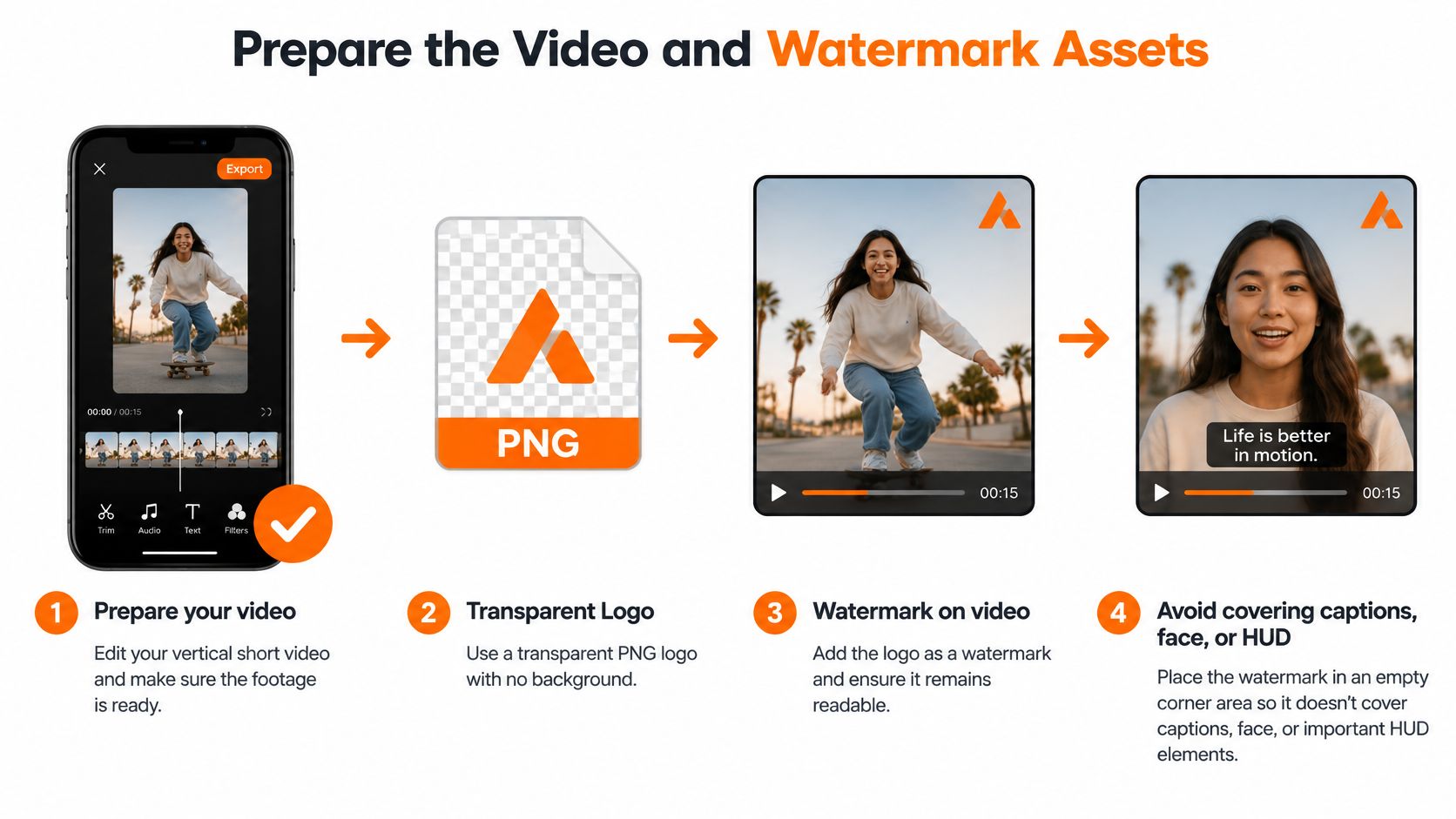
Build a usable asset kit
Have these items ready before opening the finishing timeline:
- Stable video master: Use the intended composition, with reframing decisions already made.
- Transparent artwork: Prepare a PNG in sRGB/RGBA rather than an image with a baked-in background, as recommended in this FFmpeg logo preparation workflow.
- Approved wording: If you’re using text, confirm the handle, capitalization, and spelling before duplicating it across projects.
- Placement reference: Identify an available area in the finished composition, not just an empty spot in the opening frame.
Inspect the artwork itself. Remove unnecessary empty canvas around the logo while leaving enough transparent margin to avoid cramped edges. A logo with excessive transparent padding can appear surprisingly small when an editor scales its overall image bounds.
Choose the simplest recognizable version of your identity. Tiny taglines, fine outlines, and elaborate badges are poor candidates for a persistent mark viewed on a phone. If the full logo becomes difficult to read, use an approved symbol or short handle instead.
Decide what the mark must accomplish
Visible branding and invisible watermarking aren’t interchangeable. A visible graphic identifies you to viewers; a forensic system embeds information that specialized software detects. Video watermarking developed around compressed-media distribution and tracing, not just on-screen logos, as this review of video watermarking techniques explains.
For a public Short, a restrained visible mark is usually the practical editing task. Confidential screeners or licensed distribution may require a separate rights-management workflow.
Choose the Right Watermark Method
Choose the method by the job, not by whichever button your editor makes easiest to find. A channel logo, a changeable campaign label, and a hidden distribution identifier solve different problems.
An image watermark works well when the artwork must remain consistent. A text watermark is more convenient when an editor needs to change handles, episode labels, or language versions without requesting new graphics.
Choose a watermark approach
| Option | Best For | Main Trade-Off |
|---|---|---|
| Transparent image | Fixed logos and approved brand artwork | Artwork changes require an updated asset |
| Editable text | Handles and changing campaign labels | Font and styling need careful consistency |
| Corner placement | Persistent, restrained identification | The mark can be cropped away |
| Center placement | Prominent attribution or review copies | Competes directly with the subject |
| Diagonal placement | Deliberately conspicuous marking | Covers more of the viewing area |
| Invisible watermark | Specialized tracing and rights management | Requires embedding and detection tools |
Placement should reflect the purpose of the export. A public gaming highlight benefits from restrained identification, while a review copy may justify a more conspicuous mark. Don’t make a public-facing clip look like a confidential preview unless that’s intentional.
A logo isn’t a forensic system. WIPO describes digital watermarking as embedded codes that authorized systems can extract to identify matters such as authorship, rights holders, distribution sources, or authenticity, without materially disturbing normal viewing. That’s a different capability from adding a graphic layer in an editor, as explained in WIPO’s discussion of watermarking and rights management.
Choose branding for recognition and a dedicated rights-management system for tracing. Don’t promise the second outcome from the first tool.
Separate your branding from inherited watermarks
Your own creator mark isn’t the same thing as another platform’s logo embedded in a downloaded clip. Guidance discussing watermarks and reused-content eligibility distinguishes TikTok’s treatment of unoriginal content carrying another person’s watermark from YouTube’s requirements around substantive modification.
That doesn’t establish that every watermark reduces Shorts reach. Don’t assume removing a logo makes copied footage original, either. Rights, substantive editing, and the underlying content still matter.
Retain a clean master and create a separate branded deliverable. That gives you control over attribution and publishing experiments without forcing you to erase your own graphics later.
Add an Image Watermark in a Video Editor
Use a timeline editor when you need to judge the logo against changing shots rather than apply identical coordinates blindly. The useful controls are straightforward: image import, an upper visual track, proportional scaling, opacity, and clip duration.
This editing view illustrates the basic overlay arrangement, although placement must be reassessed for your final vertical composition.

Assemble the overlay
Import the finished footage and the transparent logo. Put the logo on a dedicated visual track above the footage, then extend its duration across the portion that needs attribution. Don’t stretch a short image clip accidentally by changing playback controls; adjust the graphic’s timeline duration.
Enable proportional scaling before resizing. Dragging width and height independently can distort a familiar logo enough to make it look unofficial. Set an initial position using the actual vertical frame, with captions visible.
Layer order needs deliberate attention. A watermark below an opaque visual element can disappear; one above captions can obscure words. Keep captions readable by resolving the spatial conflict rather than merely moving the watermark higher in the layer stack.
If you’re choosing an application, compare video editing software options around those finishing controls and reusable styling, not just their transition libraries.
Follow the action through the timeline
Consider a streamer highlight with gameplay behind a face-camera window. Place the creator handle in an unused strip of gameplay only after checking whether scoreboards, inventory panels, or notifications occupy that strip later. An empty opening frame isn’t evidence that the area stays empty.
For related clips, duplicate the approved graphic layer or copy its transform and opacity settings. Preserve the artwork and appearance, but reassess the position when the composition changes. A reusable style is helpful; an unquestioned position isn’t.
A video demonstration can help you recognize the overlay controls in an editing interface.
Before rendering, play through cuts rather than inspecting only paused frames. Look for moments when the logo suddenly becomes visually dominant because the background changes or the subject moves underneath it.
- Duration: Confirm the image continues through the intended ending.
- Layer behavior: Check that transitions or nested sequences don’t hide it.
- Delivery view: Judge readability at the intended viewing size, not only in an enlarged editor preview.
Add Text Across Short-Form Videos
Text is the better choice when the identity changes more often than the design. A freelancer producing clips for different streamers can update an editable handle without rebuilding logo artwork, while a campaign editor can swap the label and retain the approved styling.
Keep the wording brief. A persistent watermark should identify the creator, not compete with the spoken message or act as another subtitle track.
Style the identity separately from captions
Create a plain text layer and enter the approved label. Choose a font weight that remains legible when the preview is reduced to phone size. Avoid decorative lettering that needs close inspection to distinguish similar characters.
Give the watermark its own visual hierarchy. If captions are large, animated, and colorful, make the handle quieter rather than styling both layers as competing headlines. This guide to on-screen text is useful when planning how labels and spoken-word captions share a frame.
- Content: Use the recognizable handle or creator name rather than a long promotional sentence.
- Color: Start with a restrained treatment that suits the footage, then inspect difficult backgrounds.
- Contrast support: Add a modest outline or shadow if needed, without turning the label into a heavy badge.
- Timing: Match the layer to the intended branded portion and inspect any unintended fades.
Keep gaming labels stable
For an esports highlight, position the streamer’s name in an available area outside the HUD and face-camera window. Duplicate the styled text across cuts when the layout remains consistent. If the crop changes, adjust the affected segment rather than forcing every shot to accommodate the original placement.
Don’t track the text to a moving player or object unless that motion serves a specific creative purpose. A persistent identity usually works better as a stable reference than as another animated element to follow.
A watermark should remain readable without asking viewers to stop watching the clip.
Preview the actual wording against bright and dark scenes. If the handle is too long to fit comfortably, shorten the approved label rather than squeezing the characters until they’re difficult to read.
Refine Position Opacity and Size
A watermark can be technically present and still be poorly composed. Increasing its size won’t solve a collision with captions, and lowering opacity won’t make a logo readable against every background.
Start with proportional size, then adjust position and contrast together. Judge how much attention the mark demands relative to the subject, not whether it looks impressive in isolation.
Use these controls as a review framework, not as a promise that the same settings suit every shot.
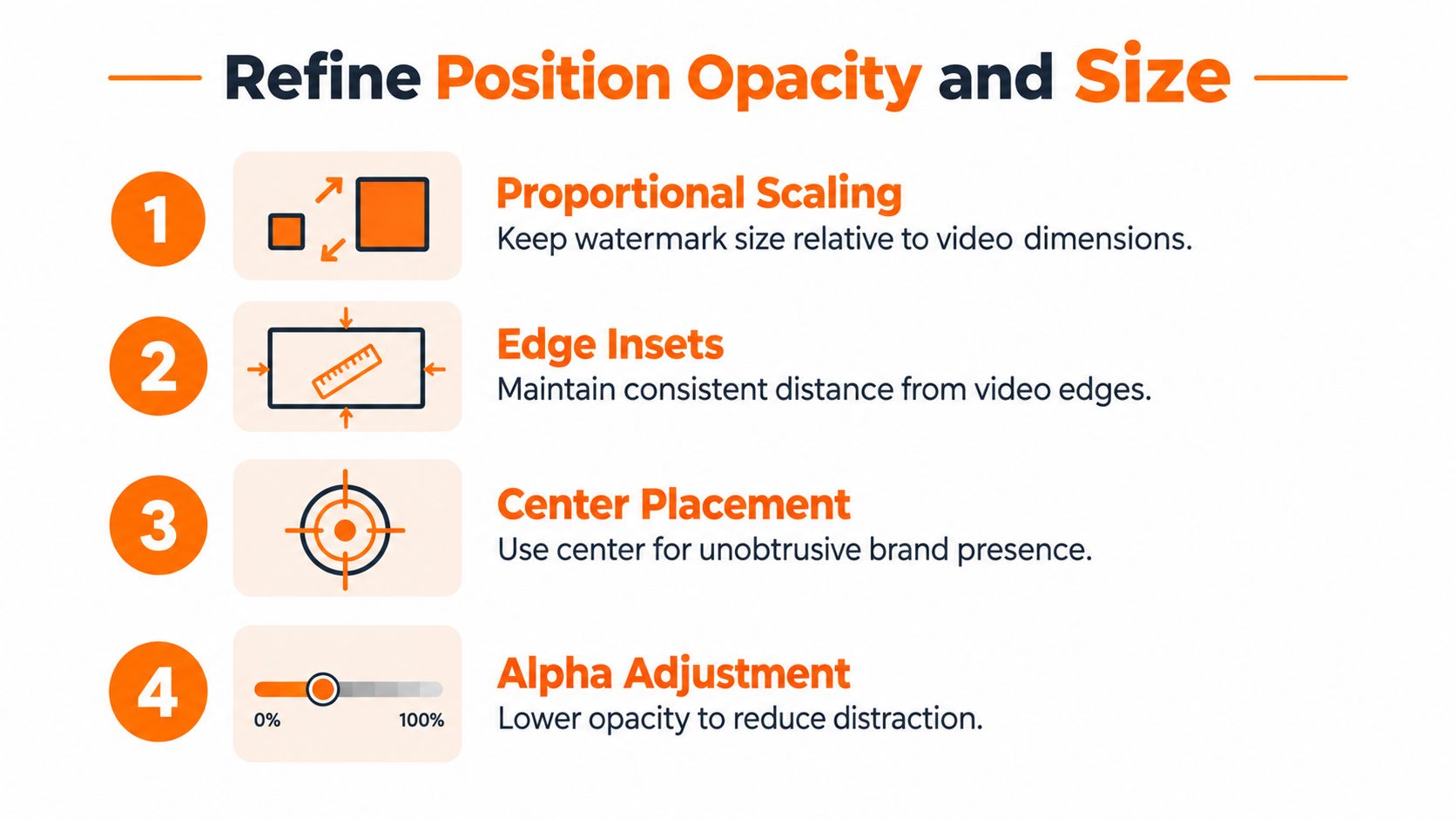
Size and position work together
Keep the watermark’s aspect ratio intact and establish a deliberate inset from the frame edge. For FFmpeg, proportional sizing uses scale=desired_width:-1; relative corner placement can use W-w-20:H-h-20, while centering uses (W-w)/2:(H-h)/2, as described in this guide to watermark scaling, placement, and alpha.
Those coordinates describe image geometry, not platform-safe areas. A mark can sit neatly inside the video frame and still land under upload-interface controls. Review the destination’s viewing interface rather than relying on a universal safe-zone assumption.
Centering also needs judgment. It may establish prominent attribution, but it isn’t unobtrusive. If the center contains the speaker’s face or the decisive gameplay action, choose another location or reconsider how conspicuous the mark needs to be.
Tune opacity against the footage
Test the same mark over a white sky, a dark title card, and a detailed game scene. On each background, ask whether the viewer can identify it without mistaking it for part of the content.
Opacity changes visibility, but it doesn’t guarantee contrast. A pale logo can disappear over bright footage even when it looks excellent over a dark scene. A restrained outline, alternate approved logo treatment, or different position may solve the problem better than increased opacity.
Composition check: If the watermark needs to become larger and darker to survive its location, first question the location.
Use a repeatable review sequence:
- Opening frame: Check immediate balance and brand legibility.
- Bright frame: Look for washed-out edges and disappearing letters.
- Dark frame: Check whether the mark becomes disproportionately prominent.
- Caption-heavy ending: Confirm the final message still has room.
Make these judgments at delivery resolution. An enlarged editing canvas can conceal the compromises viewers will notice on a phone.
Compare Manual FFmpeg and Batch Workflows
Manual editing gives you direct control over exceptions. FFmpeg gives you a repeatable instruction. A batch workflow gives you a way to apply approved decisions across related files, provided you’ve identified which files share a layout.
The comparison below separates hands-on composition from repeatable processing.
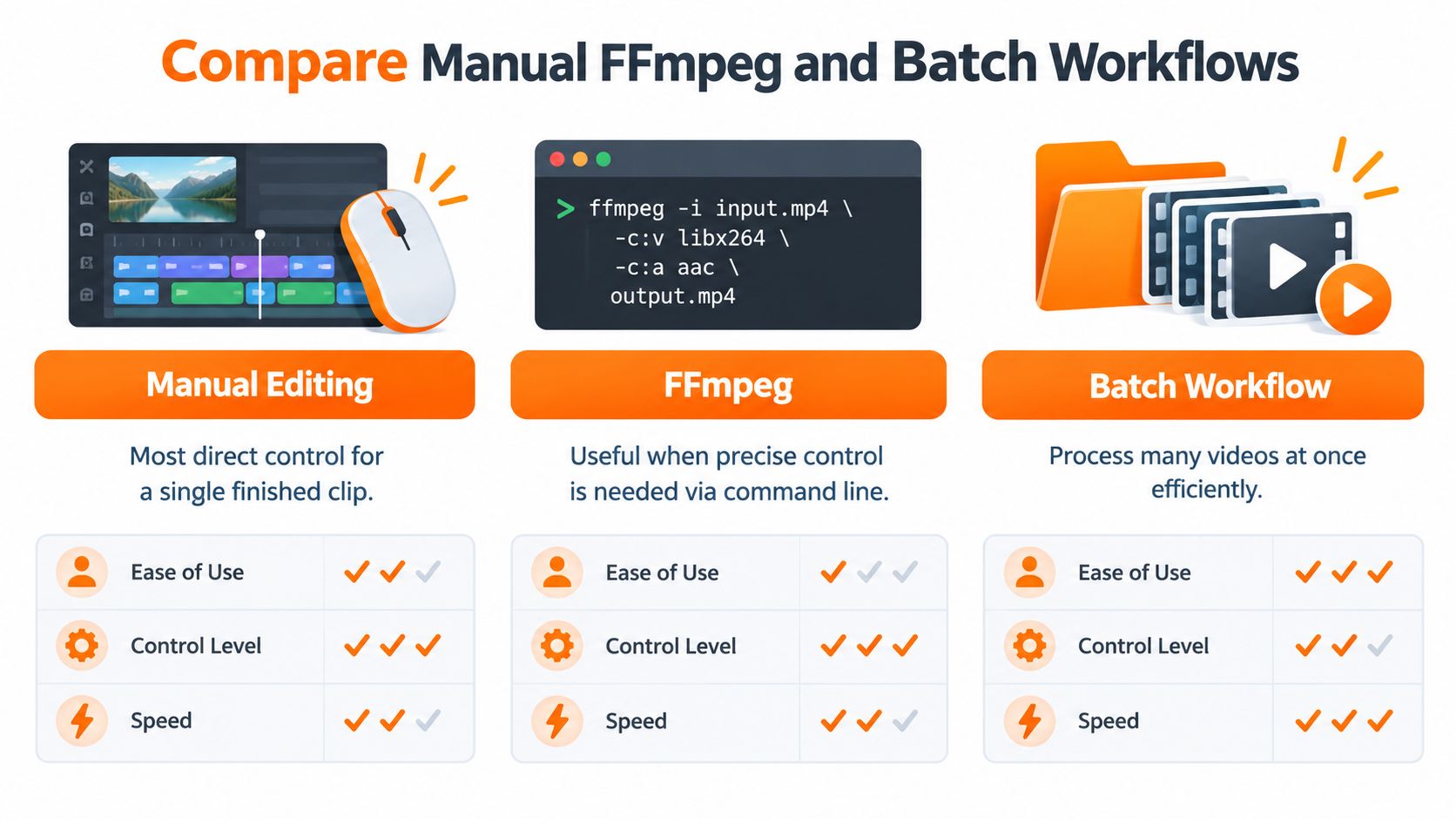
Watermark workflow comparison
| Workflow | Best Use | Main Check |
|---|---|---|
| Manual editing | Individual clips with changing compositions | Inspect placement through every layout change |
| FFmpeg | Reproducible overlays with explicit settings | Validate scaling, coordinates, and encoding |
| Batch workflow | Related clips using approved presets | Identify exceptions before processing the folder |
Use an explicit FFmpeg pattern
With the prepared RGBA PNG, this command illustrates a fixed logo width and relative lower-right placement:
ffmpeg -i input.mp4 -i logo.png -filter_complex "[1:v]format=rgba,scale=120:-1[wm];[0:v][wm]overlay=W-w-24:H-h-24" -c:v libx264 -crf 18 -preset medium -c:a copy output.mp4
The numeric settings are an example from the overlay workflow referenced under asset preparation, not a recommendation for every source. W and H represent the video dimensions; w and h represent the resized watermark dimensions. The overlay’s position follows the frame boundary, but the logo width remains fixed until you change the scale expression or value.
Relative placement isn’t proportional sizing. Inspect source dimensions and frame rate before applying the command to unrelated files. FFmpeg’s overlay filter doesn’t automatically shrink oversized artwork, so make scaling an explicit part of the filter chain.
Adding an overlay changes the picture, which means the video must be re-encoded. Compatible audio can usually be copied with -c:a copy, but container and codec compatibility still need checking. If the source is already heavily compressed, compare fine detail before accepting another encode.
Batch by composition, not just filename
Group clips by layout before automating: gameplay with a face-camera window, talking-head footage, and caption-heavy excerpts may need different presets. Test each layout group, then process matching files with the approved settings.
Keep the logo asset and processing settings alongside the project. That makes revisions reproducible and helps another editor understand what was applied. Automated delivery saves repetitive work only when you don’t create a folder full of identical placement mistakes.
Verify and Export Your Final Watermarked Video
Render a short test segment before committing to the full delivery. Choose a difficult passage with movement, captions, or busy detail rather than the easiest shot in the timeline.
Compare a matching before-and-after frame to check the watermark’s appearance and the surrounding picture quality. Then inspect the completed file outside the editor, where you’re reviewing the actual encoded result rather than a timeline preview.
Final delivery checklist
- Picture integrity: Confirm the intended resolution and frame rate remain intact.
- Overlay appearance: Check transparency, edges, spelling, and continuous duration.
- Content visibility: Verify that important captions, faces, and gameplay information remain readable.
- Audio synchronization: Watch a clear speech or action moment for timing problems.
- Playback compatibility: Confirm the exported format plays correctly, including the intended H.264 delivery when required.
- File size: Investigate unexpected growth rather than assuming a larger file means a better export.
Validate the final vertical version after reframing. A position approved in a horizontal master isn’t approval for the reframed Short. Use the export settings guide for YouTube Shorts when checking the delivery setup.
Keep the publishing package complete
Archive the source footage, watermark artwork, editable project, and clean master together. Name branded and unbranded outputs clearly so a collaborator doesn’t upload the wrong version.
Upload the appropriate export directly to each destination instead of downloading a platform-stamped copy for redistribution. If you’re comparing branded and clean versions, record which file you published so you can interpret the results without confusing the deliverables.
The finished workflow should be repeatable: an approved asset, a composition-aware placement decision, a tested processing method, and a verified output. That’s more dependable than adding a logo at the last minute and hoping it survives the upload.
Clipoven turns horizontal footage into vertical shorts with AI-assisted cuts, captions, and an editable timeline for final refinement. Visit clipoven to prepare your next Short, then use its image layering and manual controls to finish your brand mark against the actual vertical composition.