clipoven
You’ve found the moment, tightened the cut, and added captions. On your editing monitor, everything looks ready. Then you watch the export on your phone: the lettering disappears against a bright wall, a sentence changes before you finish reading, and the app’s buttons cover the punchline. The footage isn’t the problem. The text needs an editing pass of its own.
Table of Contents
- What On Screen Text Does in a Vertical Clip
- How Closed Captioning Became Required Infrastructure
- Captions and Decorative Overlays Explained
- Readability Rules for Phone-Sized Screens
- Timing Captions to Speech and Cuts
- Choosing a Caption Style for Vertical Clips
- Worked Examples from Three Short-Form Genres
- The Mute-Test Checklist Before You Publish
What On Screen Text Does in a Vertical Clip
A perfect cut can still be difficult to follow when the viewer can’t read the words. Treat on screen text as a visual accessibility system, not a decorative finish. Its job is to connect what viewers see with the meaning they would otherwise get from listening.
On a muted phone, that system includes more than dialogue. A viewer might need to know who’s speaking, why someone suddenly reacts, or which instruction belongs to the action currently visible. If the text leaves those relationships unclear, a technically accurate transcript can still produce a confusing clip.
This simple phone view captures the setting your captions need to survive.
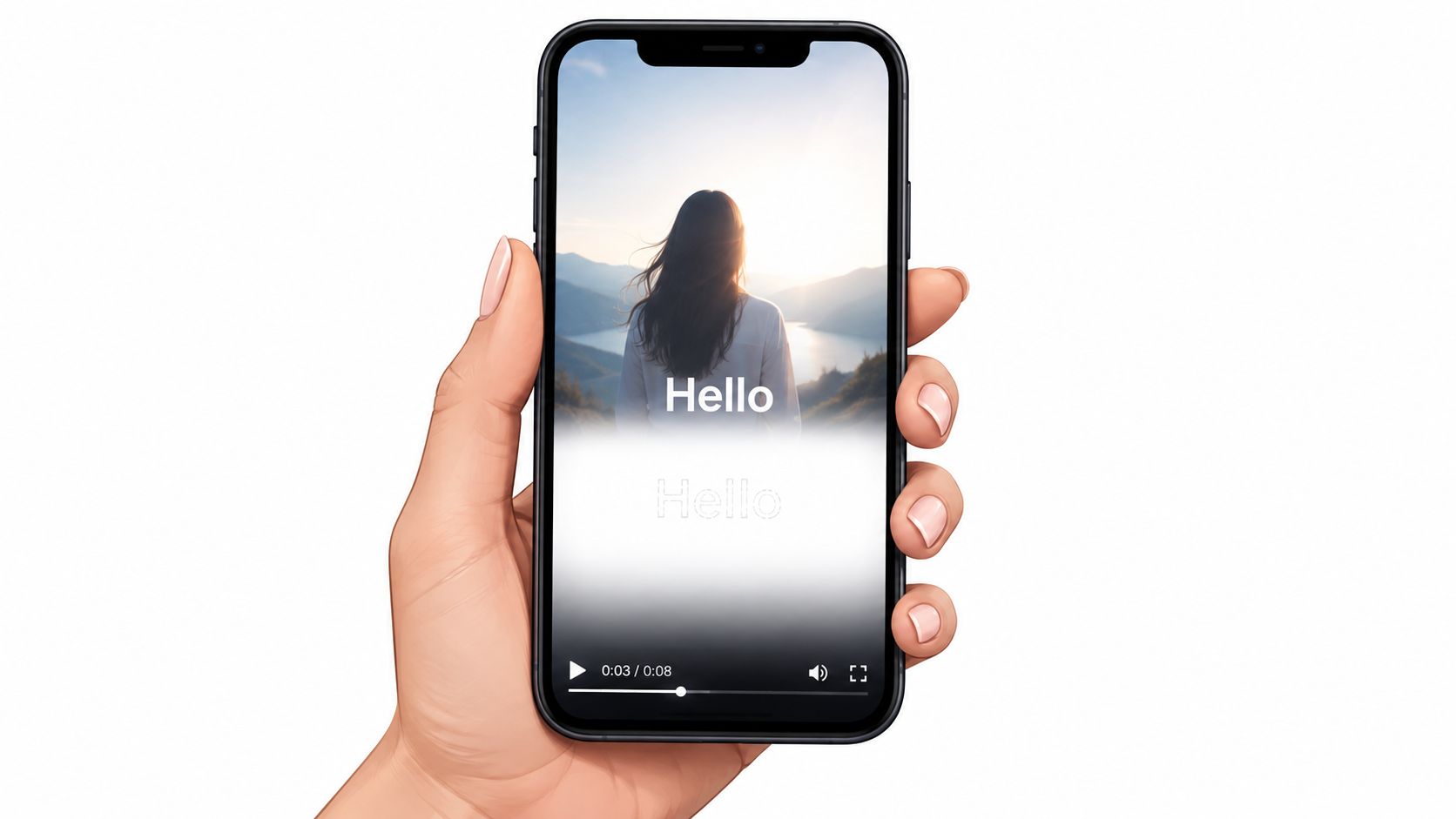
Give Each Text Element a Job
Before choosing a font, decide what the viewer needs from each layer:
- Understand the message. Captions carry dialogue and relevant audio information.
- Recognize the context. Speaker names and brief labels clarify what the cropped footage can’t show.
- Follow the action. Instructional callouts connect a spoken direction to the right control or object.
- Notice emphasis. A title or highlighted phrase can establish the premise without replacing the captions.
Subtitle availability already extends across substantial amounts of programming: Ofcom’s access-services reporting recorded 58.1% of programming hours subtitled in 2020, compared with 51.2% in 2019, as summarized in its television and on-demand access-services reporting. Those are programming figures, not evidence about short-form retention.
The editorial lesson is more direct: don’t require viewers to turn on sound just to understand the premise. Make the words visible, place them where readers can find them, and give them enough time to finish the thought.
How Closed Captioning Became Required Infrastructure
Captions didn’t begin as a social-video styling choice. Their broadcast history concerns access to information, including programming that viewers couldn’t understand through sound alone. That distinction matters whenever an editor treats captioning as something to add only if there’s room.
The timeline makes the sequence easier to see.
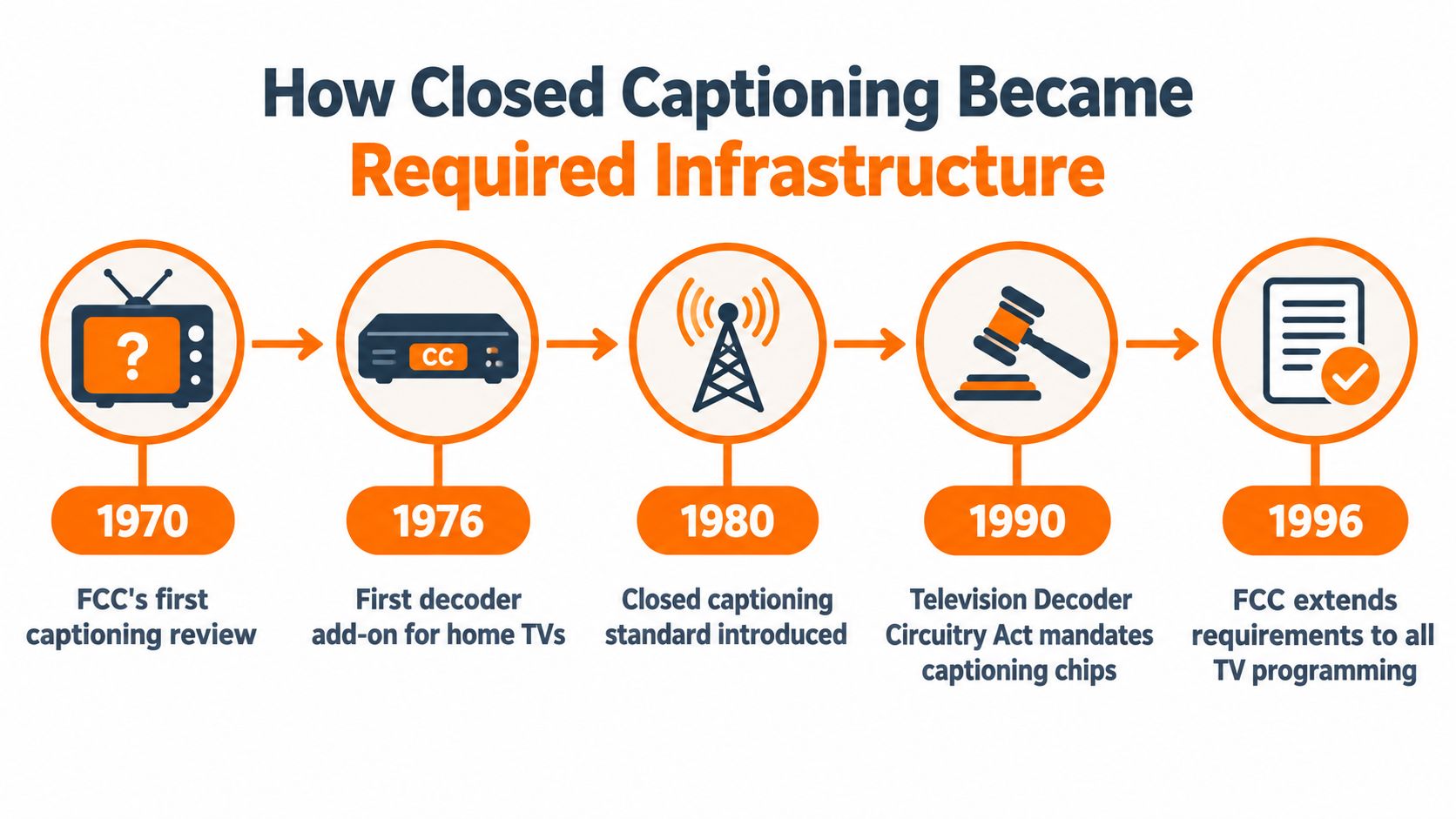
The FCC first examined captioning in 1970, approved closed-captioning technology in 1976, and saw the first closed-captioned broadcasts begin in 1980; the Television Decoder Circuitry Act of 1990 required caption-receiving and display capability in television receivers with screens of at least 13 inches, and the Telecommunications Act of 1996 directed the FCC to establish accessibility schedules through Section 713, as documented in the FCC’s captioning rulemaking record.
What Creators Should Take From That History
The important progression is from possibility to availability to expectation. A captioning system isn’t useful merely because engineers can produce text. Viewers also need equipment that displays it and programming that supplies it.
That history provides an editorial foundation, not a claim that every television regulation applies unchanged to every social clip. The practical responsibility is to make access part of production rather than leave it to the viewer to solve.
The embedded video offers another way to engage with the captioning topic.
Editorial perspective: A caption track isn’t complete just because words appear. It’s complete when the intended viewer can use those words to follow the program.
For vertical editors, that changes the order of decisions. Establish the essential caption layer before filling the frame with branding, stickers, or effects. When space gets tight, simplify the decoration first. Don’t make access the layer that gets squeezed out.
Captions and Decorative Overlays Explained
A viewer watches a vertical clip with the sound off. The opening hook, The mistake everyone makes, sets up the topic, but it cannot show what the speaker says next. That distinction matters: accessibility text and editorial overlays have different responsibilities, even when they use the same font or appear in the same part of the frame.
Captions carry relevant speech and meaningful sounds. Speaker labels identify who is talking. By contrast, hooks, titles, lower-thirds, branding, and callouts guide attention or add context. An overlay can share useful information, but it does not become a complete caption layer because it contains words.
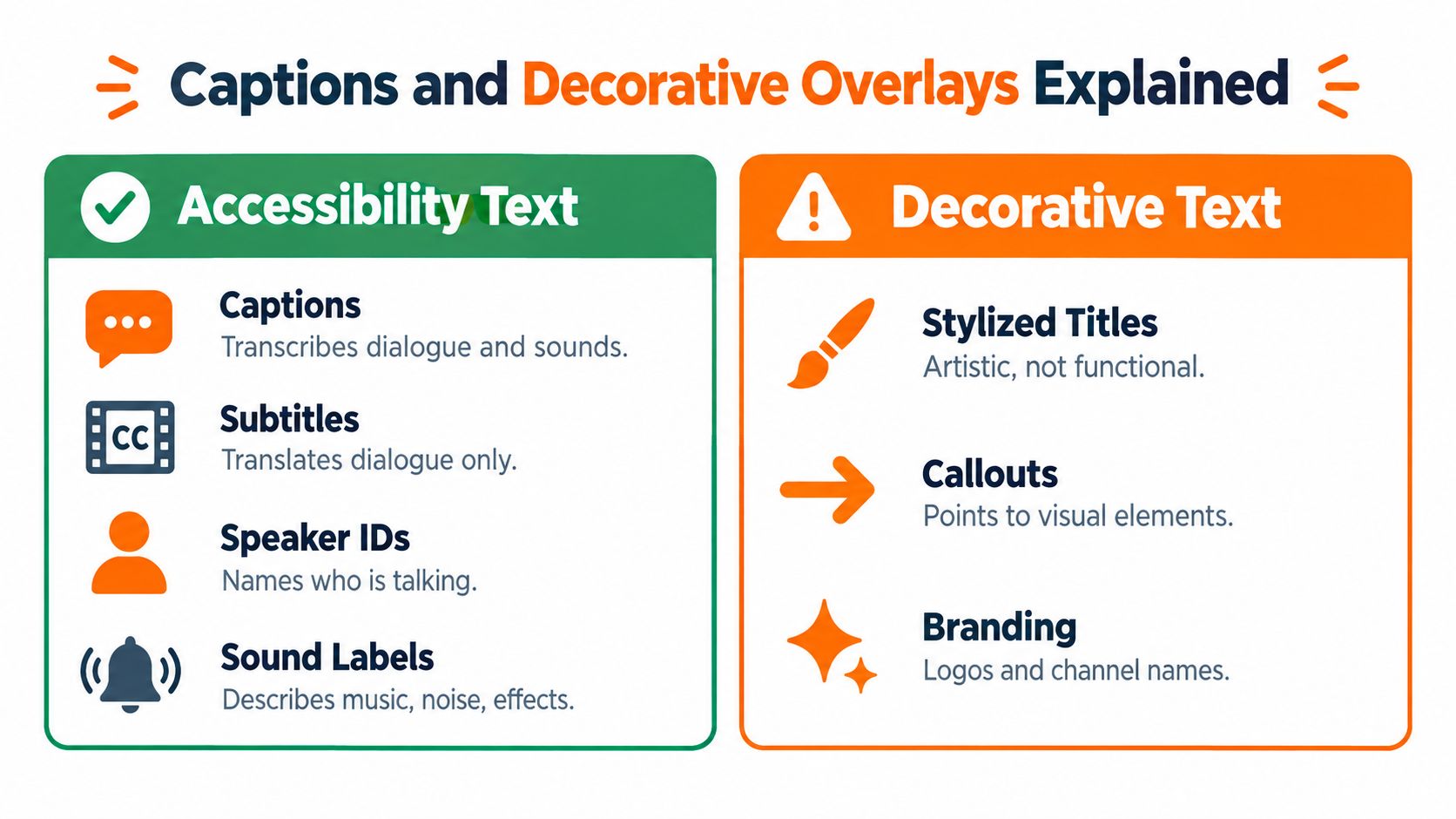
A podcast excerpt makes the difference clear. The title can name the topic; synchronized captions let viewers follow the speaker’s explanation. Highlighting a key phrase adds emphasis, while using it in place of the explanation leaves out meaning.
The same rule applies to a gaming clip. A large reaction word may suit the channel’s style, but it won’t tell viewers what an off-screen alarm sounds like or identify the teammate speaking. The W3C’s guidance on captions says captions should include necessary speaker identification and meaningful non-speech audio, as well as spoken words.
Use a simple mute test: turn off the sound and ask what information disappears. Captions should preserve the audio meaning a viewer needs to follow the clip. Subtitles may translate dialogue without identifying speakers or sounds, so check their scope. Overlays can add expression or context, but keep that role distinct from the caption layer.
A transcript offers a separate text version, while audio description conveys important visual information for people who cannot see it. Neither replaces captions synchronized with the clip. Keep captions steady in their role, then place hooks and callouts where they don’t compete. If a viewer has to choose between reading the dialogue and the hook, revise the composition.
Readability Rules for Phone-Sized Screens
A caption can pass a paused-frame check and still vanish during playback. White letters may stand out against a dark shirt, then disappear as the speaker moves in front of a bright window. Treat on-screen text as an accessibility system that must keep working as the image changes.
For caption text, follow the WCAG contrast requirements: aim for a minimum contrast ratio of 4.5:1, or 3:1 for large text. Check the finished text against the background viewers see, including the effects of any band, outline, or shadow. A style preset is a starting point, not proof of readability.
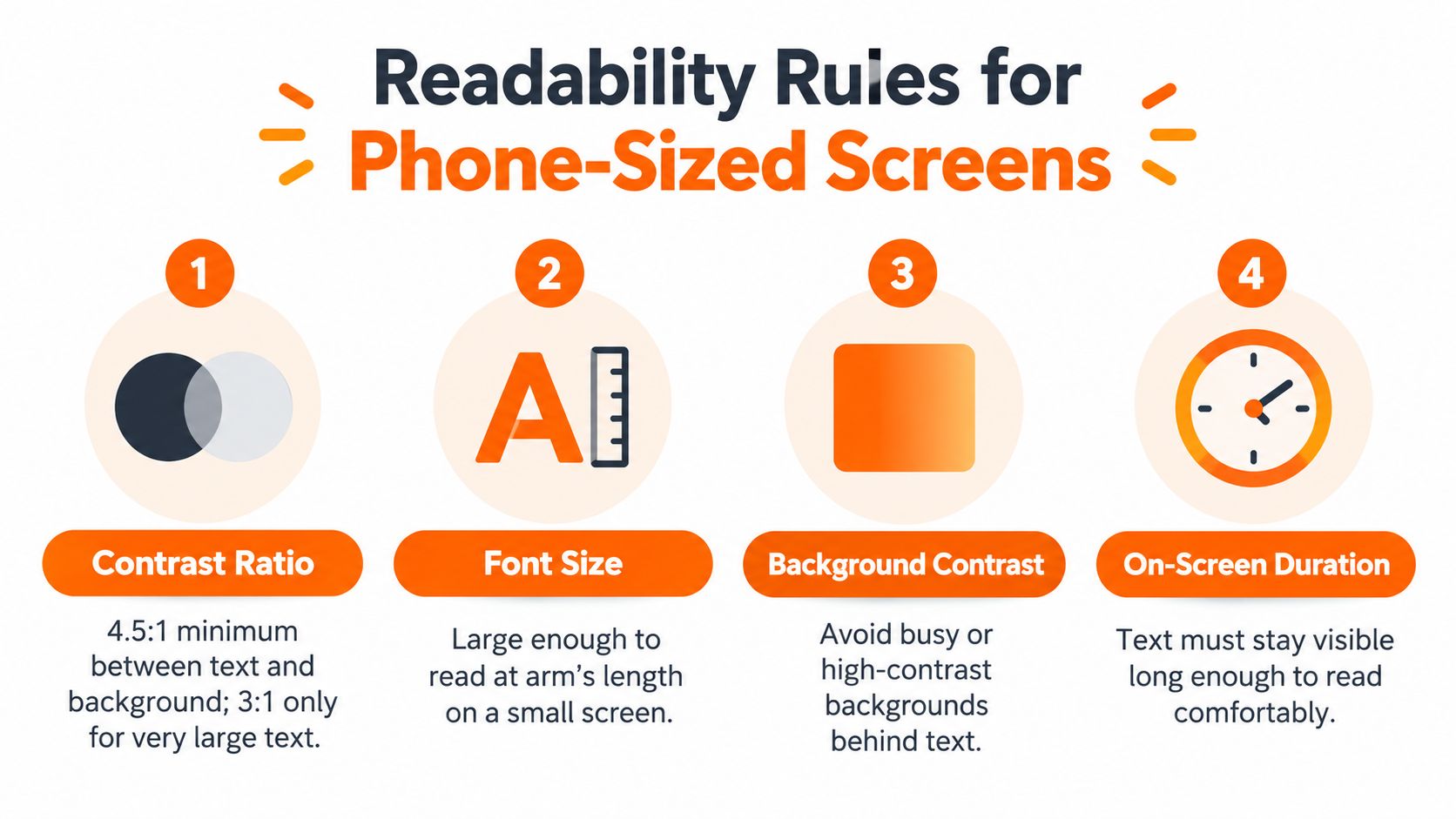
A caption band with some transparency stabilizes the background behind the words. An outline or shadow can help, too. Scrub through bright flashes, camera movement, scene changes, and objects passing behind the text. Read each moment, not just the cleanest frame.
Text also needs room to breathe. Choose letter shapes and weight that stay clear after export. If captions feel cramped, shrinking the font usually makes them harder to read. Rephrase a decorative overlay, divide dialogue at sensible phrase boundaries, or move an element that competes for space.
Before publishing, check the actual phone-sized export:
- Read at normal size. Don’t pinch to zoom.
- Break lines at natural boundaries. Keep related words together so viewers can follow the sentence without piecing it back together.
- Check the destination interface. Leave space for buttons, descriptions, and controls that won’t appear on an empty editing canvas.
- Keep important visuals visible. Avoid covering faces, game status indicators, or tutorial controls.
A crop changes the room available for captions and overlays. Use this guide to resizing videos to plan the framing, then check the text on the cropped version, not just the original horizontal footage.
If the caption looks readable only when the video is paused, it hasn’t passed the viewing test.
Make one final mute-test: play the clip on a phone with sound off. Can viewers read the text against every changing scene and follow the information it carries? If not, adjust contrast, placement, or wording before export.
Timing Captions to Speech and Cuts
A caption that arrives after the speaker has finished forces the viewer to reconcile competing moments. A caption that reveals the answer too early can spoil the beat. Synchronization is an editorial relationship, not a timestamp assigned during transcription.
Start with the spoken phrase. Bring the caption in with the relevant audio, and end it when that information no longer belongs on screen. Check the beginning and ending of each segment rather than assuming correct word recognition means correct timing.
Dwell Time Means Time Available to Read
Caption dwell time is how long a caption remains visible. There isn’t a universal duration that suits every line: a short reaction, an unfamiliar name, and a dense explanation require different reading effort. Use comfortable reading as the test, not a fixed timer.
When a line feels rushed, examine the edit before speeding up the text. You may need a longer shot, a cleaner phrase boundary, or a less crowded layout. Don’t remove important dialogue just to make an animated preset fit.
A cut doesn’t automatically require a caption change. If the same speaker continues the same phrase across a visual cut, the text can remain. If the cut moves to another moment or another speaker, an old caption may now misrepresent what’s happening.
| Editing Event | Caption Check |
|---|---|
| Jump cut | Does the surviving text still match the surviving audio? |
| Speed change | Have caption entry and exit moved with the speech? |
| Reaction insert | Is the text still attributed to the correct speaker? |
| Transition | Can readers finish the relevant phrase without losing its context? |
When working through transitions between shots, review the text separately from the visual effect. A smooth transition doesn’t prove that the sentence remains understandable.
Finish with a sound-on sync pass. Listen for clipped word beginnings, captions left behind after a cut, and labels attached to the wrong event. Those are small timeline errors with large consequences for meaning.
Choosing a Caption Style for Vertical Clips
A viewer watching a calm explanation can read differently from someone following fast gameplay. Choose a style that fits both the speech and the visual activity, while keeping channel identity secondary to comprehension. On-screen text is an accessibility system, not just a transcript with decoration: it should help viewers follow meaning, identify changes in speech, and stay oriented without sound.
A strong default is phrase-based captions. Grouping related words lets viewers take in an idea while its delivery unfolds. Keep the layout compact, but treat line limits as design choices rather than universal accessibility rules.
| Style | Best For | Readability Risk | Brand Feel |
|---|---|---|---|
| Word-by-word animation | Brief reactions and selective emphasis | Readers may struggle to assemble meaning when words vanish quickly | Energetic and expressive |
| Phrase chunks | Conversation, commentary, and most explanations | Poor segmentation can separate words that belong together | Controlled and adaptable |
| Full sentences | Deliberate delivery and information-led clips | Long sentences can crowd the picture or reveal speech early | Calm and editorial |
Word-by-word animation can work, but check whether each word replaces the last. Without the earlier words to refer back to, viewers have to assemble the phrase from memory. Keeping the whole phrase visible and highlighting each spoken word preserves context while still adding movement.
Full-sentence captions give viewers context at a glance. They can crowd detailed footage, especially when a sentence runs long or the speaker changes direction. Split the text at a meaningful clause instead of shrinking it until it fits.
Let the clip’s demands guide the choice:
- Choose phrase chunks for continuity. Keep complete ideas together without filling the frame.
- Use animation selectively. Highlight a key word rather than animating every syllable.
- Use longer captions for deliberate delivery. Match the amount of text to the pace of the speech.
For an accessibility check, mute the clip and watch once. Can you follow the main idea from the text, and can you tell when a speaker or thought changes? Then turn the sound back on to confirm the captions match what was said. A guide to automatic captions for TikTok can help with the workflow, but automatic generation is a starting point. Review the chosen style against the actual footage.
Style check: If the animation draws more attention than the meaning, simplify it.
Worked Examples from Three Short-Form Genres
These are hypothetical editing scenarios, not performance case studies. Each shows how the same text system changes when viewers need different kinds of information.
A Twitch Highlight With an Off-Screen Threat
A streamer is focused on the game when a warning sound prompts a sudden turn. A teammate calls out the threat, and the streamer reacts before the source becomes visible.
Use phrase captions for the conversation and identify the teammate when their voice can’t be matched to a visible person. Add a concise sound label such as [warning alarm] at the relevant event. Keep the text away from the game information viewers need to understand the decision.
A reaction sticker can sit elsewhere if it adds personality. Remove it if it competes with the warning label or obscures what the player does next. The viewer should understand the cause of the reaction, not just read its emotional summary.
An Interview With a Speaker Change
An interviewer asks a question, but the vertical crop shows only the guest. Without identification, the opening caption could look like something the guest said.
Use a speaker label when the question begins, then make the handoff clear when the guest responds. Keep the dialogue in a stable caption position. A lower-third can introduce the guest, while selective emphasis can draw attention to an important phrase without turning a paraphrase into a quotation.
If laughter changes the interpretation of the answer, label it. Don’t label unrelated room noise that contributes nothing to the exchange.
A Tutorial With Interface Callouts
A creator explains how to enable a setting. Spoken captions preserve the explanation, while a separate callout points to the control being demonstrated.
Don’t put the captions over that control. Position the instructional label close enough to establish the connection, and remove it when the demonstration moves elsewhere. If a confirmation sound is the only indication that the action succeeded, include that information in the caption layer.
The distinction is useful: captions explain what was said or heard; callouts show where to act. The reader shouldn’t have to infer which job a text element is doing.
The Mute-Test Checklist Before You Publish
Mute the finished export and watch from the beginning without pausing. Don’t test only the timeline preview. You need to see the version viewers will receive, with the final crop, text treatment, and pacing.
Ask whether you can explain the clip’s premise, follow the exchange, and understand why the important reaction or action occurs. Knowing the source footage can hide missing context, so review it as if you’ve never heard the original conversation.
Check Meaning Before Polish
- Premise. Can a new viewer tell what the clip is about without relying on the title alone?
- Speaker changes. Is it clear who says each important line, including off-screen voices?
- Audio events. Do meaningful alerts, laughter, music cues, or effects have appropriate labels?
- Reading effort. Can you finish the text while still following the picture?
- Visual clearance. Are captions readable in the phone preview and clear of important content and interface controls?
- Final synchronization. After the mute pass, restore sound and verify that edits haven’t separated text from its audio.
When the test fails, name the problem precisely. The warning isn’t represented is actionable. The captions need more energy isn’t.
Keep the scope honest. A muted viewing pass is useful for evaluating captions and visual comprehension, but it doesn’t replace audio description, transcripts, or a broader accessibility review. As Accessiway’s video-accessibility discussion emphasizes, these formats address different viewing and reading needs.
Fix the missing information before adding another effect. Then replay the export from the beginning. The aim isn’t to put more words on screen; it’s to let viewers understand the clip without fighting its presentation.
clipoven offers chat-based assembly of vertical shorts with Eddie, animated captions, and a full editor for refining text appearance, timing, and cuts. Visit it to turn horizontal footage into an editable short, then run the mute-test on your finished export before publishing.