clipoven
You’ve locked the cut, the captions finally land on beat, and the export dialog is open. That’s where most Shorts lose quality, not in the timeline. The file plays clean on your monitor, then looks soft, cropped, or strangely quiet in the feed. Getting the best export settings for YouTube Shorts right isn’t about chasing the highest numbers you can type into a box. It’s about handing YouTube a file its transcode pipeline doesn’t need to guess at, rescale awkwardly, or rebuild from thin detail.
Table of Contents
- What Good Shorts Export Settings Actually Solve
- The Four Dials That Drive Shorts Export Quality
- The Recommended 2026 Shorts Master Preset
- How Major Editors Map to the Master Preset
- Real Workflows for Shorts Creators
- When a 2K Vertical Master Is Worth the Extra Size
- Pre-Upload QA Checklist That Catches Real Failures
- The One Preset to Stop Overthinking
What Good Shorts Export Settings Actually Solve
You’re in the editor’s chair with a finished vertical cut and a vague memory that you should export for Shorts. Resist the default preset your editor offers first. Those defaults were built for horizontal uploads, client review files, or quick social shares, not for a portrait feed where your video is judged full screen on a phone. Your export has one job, and it’s platform readiness, not maximum theoretical quality.
Every upload gets transcoded. YouTube re-encodes your file into its own delivery ladder, creates lower resolution versions for weaker connections, and normalizes audio to a consistent playback level. You don’t control any of that. What you do control is how much clean information the pipeline has to work with, and whether you’ve forced it into avoidable conversions before it even starts.
Why a Good Timeline Export Still Fails in the Feed
A sharp timeline preview proves almost nothing. You’re watching your editor decode your source at full quality on a large screen. Your viewer sees a re-encoded portrait file, often on mobile data, with Shorts interface elements sitting over the top and bottom of the frame. That’s how a clean export arrives blurry, how captions you placed near the bottom disappear under the description, and how facecam gameplay detail gets covered by on-screen controls.
Interlacing, frame rate conversion, and thin bitrate cause the same category of damage. YouTube won’t deinterlace your poor decisions into a better result, and it won’t invent motion detail your bitrate starved out of fast camera moves. If the important content sits at the extreme edges, no codec setting rescues it.
Practical rule: Don’t ask whether your export is the sharpest file you can make. Ask whether it’s the file YouTube is least likely to ruin.
The Four Dials Worth Your Attention
Almost everything that matters reduces to canvas, frame rate, codec, and bitrate, with audio format sitting close behind them. Get the canvas wrong and you’re cropped or pillarboxed. Convert frame rate carelessly and you introduce judder. Pick a codec YouTube has to work harder to ingest and you gain nothing in the feed. Set bitrate without regard to motion and you either waste upload time or hand the encoder mush.
The remaining settings in a professional export dialog mostly deserve to be left alone once they’re sensibly configured. Pixel aspect, obscure color tags, and HDR flags on an SDR short rarely fix a real Shorts problem. Editors who ship volume learn to audit the big four every time and stop auditioning exotic options that don’t survive transcoding anyway.
Think of export as the last editorial pass. You’re deciding what stays legible at phone size, what motion stays smooth, and what audio stays intelligible on small speakers. A technically impressive file that fails those three tests is just a larger failure.
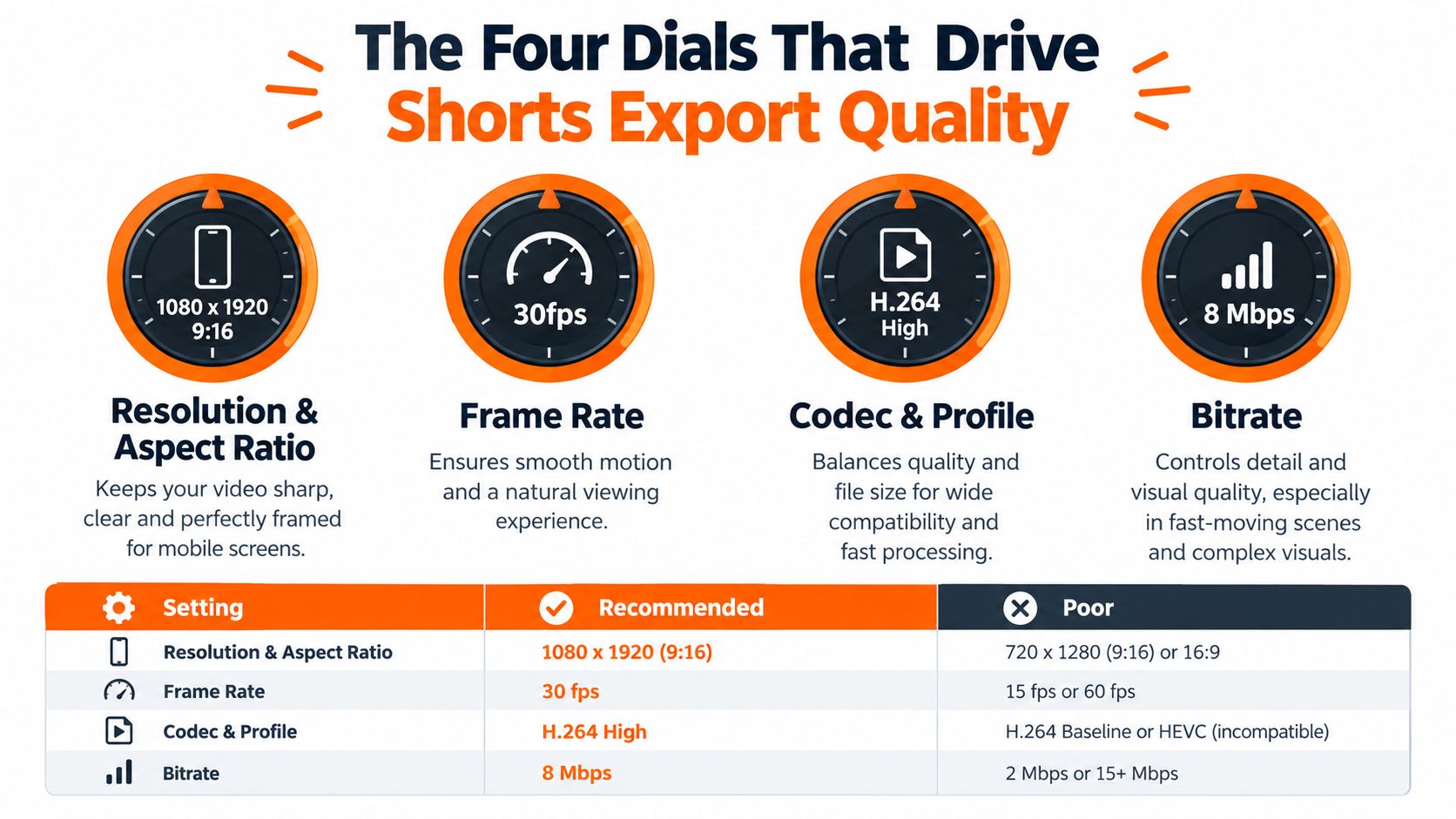
The Four Dials That Drive Shorts Export Quality
Treat these four controls as a connected system. Raising resolution without raising bitrate spreads the same data thinner. Raising frame rate without adjusting bitrate does the same. Choosing an efficient codec doesn’t fix a canvas that forces YouTube to rescale. If you learn to read the system, you can audit any preset you find online instead of copying numbers blindly.
Resolution and Aspect Ratio Come First
Your safe master canvas is 1080 × 1920 in a 9:16 frame, with the subject kept near the center so overlays don’t obscure faces, captions, or gameplay information. That’s the standard Full HD portrait shape, and it avoids unnecessary scaling during upload. Square uploads can also qualify in some cases, but a portrait master is the safer foundation when you’re converting horizontal footage for a vertical feed, a point covered in practical detail in this guide to YouTube video size and ratio decisions.
Canvas is also an editorial decision, not just a pixel count. If you build a horizontal timeline and merely change the export dimensions at the end, your reframing, captions, and graphics were all composed for the wrong frame. Build the sequence vertical from the start.
Frame Rate, Codec, and Bitrate Move Together
Export progressive footage at the same frame rate as your source. Don’t convert lower frame rate footage upward hoping for smoother playback. Your editor can only duplicate or interpolate frames, and interpolated motion often looks worse after transcoding than honest source motion does. Reserve higher frame rate exports for footage that was captured that way, especially fast gameplay and sports.
For codec, H.264 High Profile in an MP4 remains the dependable choice for Shorts delivery, paired with AAC audio. Newer codecs can produce smaller files, but smaller isn’t automatically better when YouTube is going to re-encode everything anyway. Compatibility and predictable ingest matter more than squeezing a delivery file you’ll upload once.
Bitrate should follow motion. A locked off talking head needs far less data per frame than a first person shooter with constant camera movement, particles, and fine texture. That’s why a single universal bitrate number misleads people. You’re budgeting data for change between frames, not paying for resolution in the abstract.
Four Export Dials and the Failures They Prevent
| Dial | Recommended Setting | Failure It Prevents |
|---|---|---|
| Resolution and aspect | 1080 × 1920, 9:16 | Cropping, pillarboxing, avoidable rescaling |
| Frame rate | Match the source, progressive | Judder and interpolation artifacts |
| Codec and profile | H.264 High Profile in MP4 | Ingest friction and unpredictable quality |
| Bitrate | Variable, scaled to motion and frame rate | Blocking and smearing in fast movement |
If you can only fix one thing on a rough export, fix the canvas. A beautifully encoded file in the wrong shape is still the wrong file.
The Recommended 2026 Shorts Master Preset
This is the preset to save in your editor and audit against, not a ritual to perform from memory. It’s built around YouTube’s own upload guidance, which recommends a progressive MP4 using H.264 High Profile, variable bitrate encoding, CABAC, and a closed GOP, as set out in YouTube’s recommended upload encoding settings.
The Preset Card
- Container and canvas: MP4 at 1080 × 1920, 9:16, progressive scan, square pixels.
- Video codec: H.264 High Profile with variable bitrate, CABAC entropy coding, and a closed GOP.
- Frame rate: Match your source. Supported common rates include 24, 25, 30, 48, 50, and 60 fps, and YouTube recommends not converting, for example, 30 fps footage up to 60 fps.
- Video bitrate: For 1080p SDR, the reference is 8 Mbps at 24 to 30 fps and 12 Mbps at 48 to 60 fps, which makes roughly 8 to 12 Mbps VBR a practical working range tied to frame rate.
- Audio: AAC-LC in the same MP4, mixed so dialogue stays clear on phone speakers rather than relying on YouTube to rescue a weak mix.
- Interlacing: None. If your source is interlaced, deinterlace it before export rather than sending the problem downstream.
Those numbers are deliberately unglamorous. They give YouTube’s encoder a clean, predictable source without bloating upload time. That’s the point. You’re feeding a transcoder, not archiving a master for a cinema.
The Two Variables That Legitimately Change It
Source frame rate is the first. A high frame rate gameplay capture deserves the higher end of the bitrate range because every additional frame needs data. A talking head recorded at a standard rate doesn’t become premium content because you exported it at a higher rate. It becomes a bigger file carrying duplicated frames.
Motion intensity is the second. Confetti, water, dense foliage, fast pans, and busy game effects all stress an encoder in ways a static podcast frame doesn’t. Variable bitrate helps here because it can spend more data on complex moments and less on still ones, instead of forcing one rigid rate across the whole clip.
If a setting only makes your file larger without giving the transcoder cleaner source detail, it’s not a quality setting. It’s upload time.
Settings That Look Important but Usually Aren’t
Don’t chase a much larger vertical canvas for a standard Short just because your editor allows it. Extra pixels from an upscaled source don’t contain extra real detail, and they can encourage you to make captions and graphics too small because they looked fine on your desktop monitor. Legibility on a phone is the test that counts.
The same goes for pushing bitrate far beyond the reference range. Past a sensible point, you’re mostly creating a heavier upload whose extra data will be discarded or compressed away in delivery. Save your effort for reframing, caption placement, and clean audio. Viewers notice those in the first seconds. They don’t reward you for an export dialog that looked impressive.
Build this once, save it as a named preset, and stop rebuilding it per clip. Consistency is part of quality when you’re publishing at volume.
How Major Editors Map to the Master Preset
You don’t need a new editor to use the master preset. You need to know where your current editor hides the same values, and where its defaults change them. The labels differ, sometimes deliberately, but the destination file should be identical in shape, codec, and data budget.
Master Preset Values Mapped to Each Editor
| Setting | Premiere Pro | DaVinci Resolve | Final Cut Pro | CapCut |
|---|---|---|---|---|
| Canvas | Custom sequence and export frame size, 1080 × 1920 | Timeline resolution set to vertical | Vertical project format | Project ratio set to 9:16 before editing |
| Format and codec | H.264 format, High profile where available | MP4 with H.264 codec on Deliver page | Master file or Compressor H.264 output | MP4 format, H.264 codec |
| Bitrate control | VBR target and maximum fields | Restrict to data rate control | Compressor gives direct control | Quality or bitrate tier, custom where available |
| Frame rate | Match sequence setting | Match timeline frame rate | Match project rate | Match project frame rate at export |
| Audio | AAC in export audio tab | AAC audio output | AAC audio output | AAC audio format |
Premiere Pro and DaVinci Resolve
In Premiere Pro, build a custom vertical sequence rather than reframing at export. Set the frame size to match the master, choose H.264, and check the bitrate encoding mode carefully. Editors often set a target while leaving the maximum somewhere unhelpful, or they copy a horizontal preset and only change the dimensions. Audit profile, VBR behavior, frame rate, and audio together before you save the preset.
DaVinci Resolve puts the key decisions on the Deliver page, where the data rate control does the work some editors expect to find under a plain bitrate label. Set a custom vertical timeline resolution first, then choose MP4 and H.264 for delivery. The trap is finishing a beautiful color pass on a horizontal timeline and asking the delivery settings to invent a vertical composition. Resolve will obey the numbers, but it won’t reframe your subject intelligently by default.
Final Cut Pro and CapCut
Final Cut Pro makes vertical projects straightforward, but its sharing presets are designed for convenience. If you need precise control over bitrate and profile, Compressor gives you the clearer audit trail. Watch automatic aspect handling when you bring horizontal source into a vertical project, and confirm that the output dimensions are what you intended rather than what the share destination assumed.
CapCut is fast, especially for captioned social clips, but its project settings matter as much as its export screen. Set the ratio before you edit, confirm the project frame rate, then choose MP4 and H.264 at export. Mobile first defaults can feel invisible because the preview looks sharp in the app. Check the exported file’s actual dimensions and quality tier rather than trusting that the project preview is the delivery file.
For teams converting horizontal footage at volume, ClipOven is one option alongside a conventional timeline editor. It converts horizontal video into vertical shorts with reframing, captions, and a timeline for manual refinement before export. That doesn’t replace the preset audit. It changes where the reframing and caption work happens before the final file is rendered.
Whichever tool you use, keep one exported master and document the preset values outside the app. When a file looks wrong after upload, you need to know exactly what you sent. Screenshots of export settings are unfashionable, but they solve arguments quickly.
Real Workflows for Shorts Creators
The workflow below is typical for a streamer turning long horizontal footage into one vertical clip on a tight turnaround.
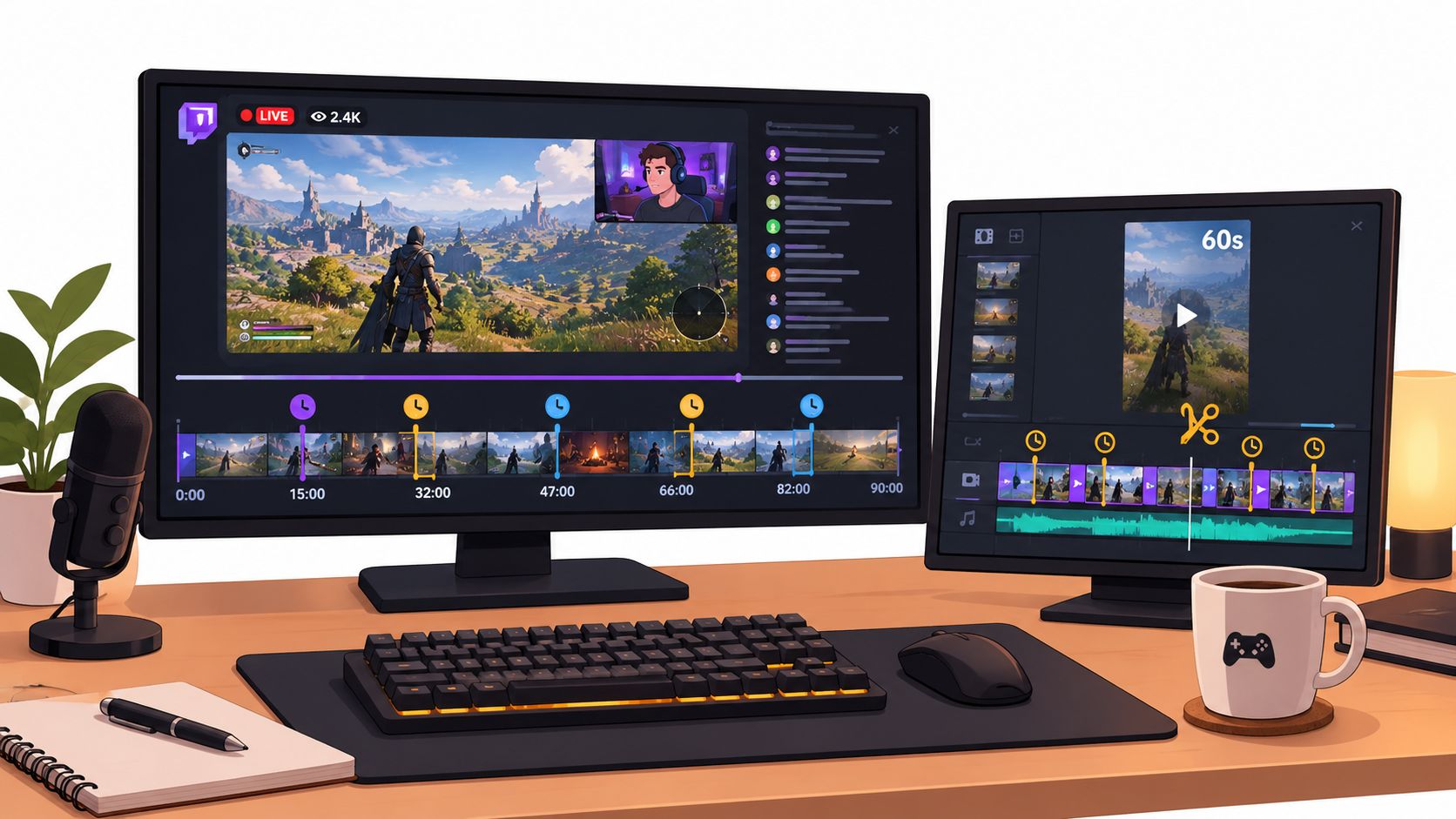
A Twitch Highlight Cliper Working at Speed
A cliper pulls one strong sequence from a long stream, removes the loading screen, the repeated explanation, and the pause while the streamer reads chat, then rebuilds the moment for a vertical frame. The gameplay needs to stay readable, the facecam needs a deliberate position, and burned in captions can’t sit where Shorts interface elements will cover them. That reframe is editorial work, and a guide on how to resize videos for different formats is useful when the horizontal composition doesn’t translate cleanly.
When the source gameplay was captured at a high frame rate, the clipper keeps that rate and uses the higher end of the bitrate range. Fast aiming, particle effects, and quick camera turns punish a thin encode. Duration stays disciplined even though vertical or square uploads longer than 60 seconds and up to 3 minutes can qualify as Shorts for uploads made from October 15, 2024 onward, while the original creation tools supported videos of up to 60 seconds. Extra permitted time isn’t a reason to preserve dead air.
The practical workflow in the next clip shows how much of Shorts quality is decided by pacing and reframing before the render ever starts.
A Brand Social Manager Repurposing a Podcast
The brand workflow looks calmer but fails in different places. A social manager cuts a long podcast recording into a weekly Short, usually with one speaker, modest movement, and dialogue carrying the whole clip. Matching the original standard frame rate is fine here. Forcing a higher rate adds file size without adding visual information.
The priorities shift to subtitle size, speaker framing, and audio clarity. Captions need to remain readable at phone scale without covering the speaker’s face. Room tone and uneven dialogue levels become more obvious when there’s no gameplay sound covering them. The manager uses the lower, frame rate appropriate end of the bitrate range and spends the saved time checking captions on a phone.
Neither workflow needs a separate philosophy. The cliper bends the preset toward motion, the podcast editor bends it toward legibility, and both keep the same vertical H.264 MP4 foundation. Find where your content sits between those poles and override only the dial with a clear reason.
When a 2K Vertical Master Is Worth the Extra Size
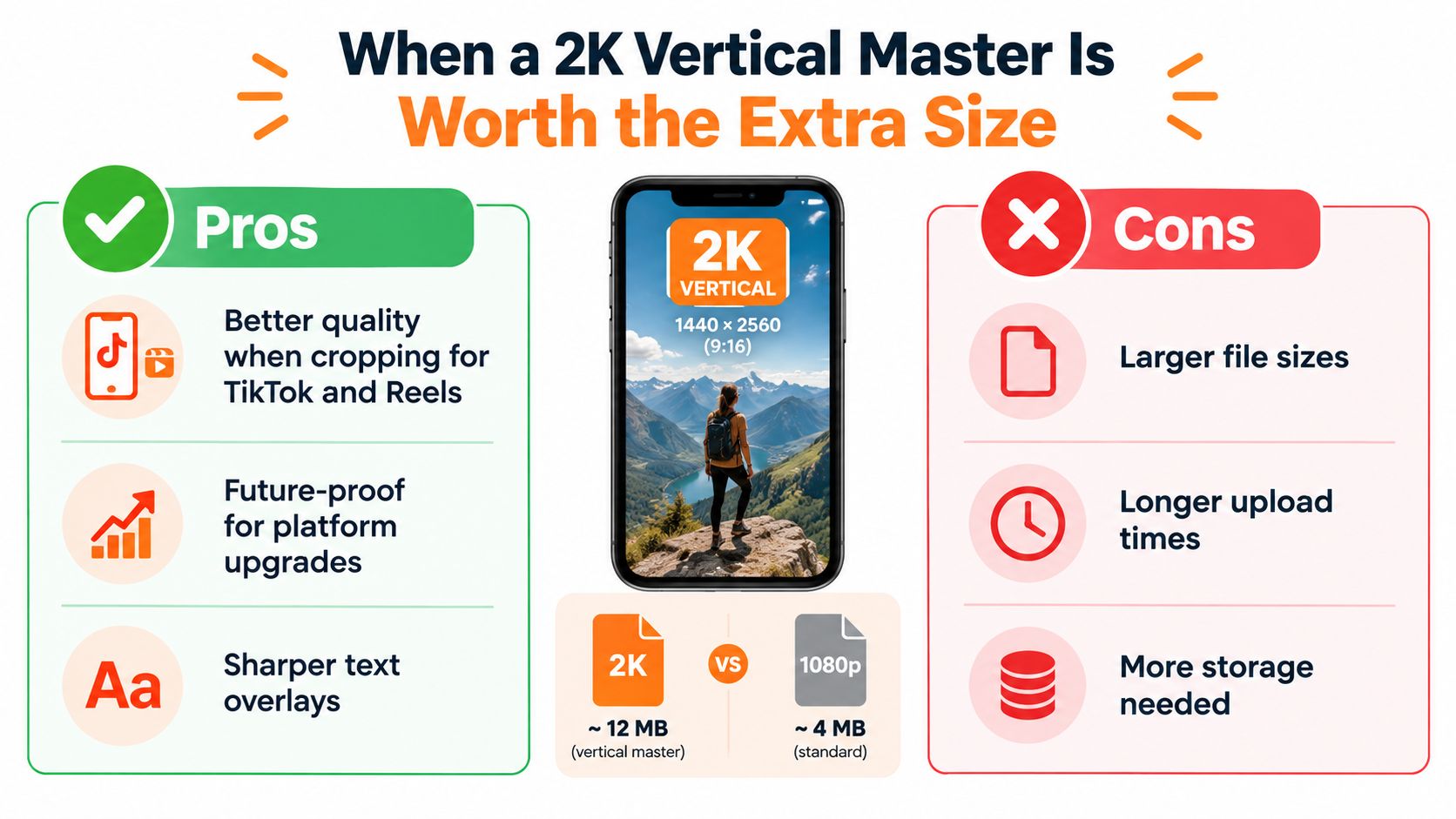
A 2K vertical master is a production asset, not a badge of seriousness. It gives you reframing headroom when the same clip must become a Short, a Reel, and a TikTok with slightly different crops, text placement, or punch ins. It can also help when you know you’ll return to the footage and derive more than one vertical composition from the same moment.
When the Extra Headroom Pays
Choose a larger vertical master when additional reframing or platform compression is expected, when several people will handle the file, or when text and graphics may be regenerated for another platform. Agencies and multi-platform creators benefit because the master isn’t only feeding YouTube. It’s feeding a small distribution system.
The format ceiling still applies. YouTube’s creator guidance describes Shorts as vertical videos of up to 3 minutes, with longer Shorts support covering vertical or square uploads no longer than 3 minutes from October 15, 2024 onward. A bigger canvas doesn’t change duration, framing discipline, or the need to keep critical details away from interface overlays.
When 1080 by 1920 Is the Smarter File
For a single platform talking head clip with no planned reframing, stay with the standard portrait master. You’ll upload faster, store less, and avoid pretending that upscaled source footage gained detail it never had. Slow, clean footage that already looks good at phone size rarely reveals a meaningful improvement just because the master got larger.
- Export 2K when: You expect reframing, punch ins, multi-platform crops, or another edit pass from the same master.
- Stay at 1080 × 1920 when: The Short is final, the source doesn’t justify more pixels, and speed matters more than future flexibility.
- In both cases: Keep the file 9:16, progressive, H.264 in MP4, and visually legible on a mobile screen.
Decision rule: Buy headroom only when you have a named future use for it. Otherwise, you’re paying storage and upload time for a hypothetical.
That rule keeps the choice honest. A 2K master is worth it for reuse. It’s wasted size for a one off clip that will never be reframed again.
Pre-Upload QA Checklist That Catches Real Failures
Watch the rendered file on a phone in portrait before you upload. Not the timeline, not a desktop preview, the actual exported MP4. That single habit catches wrong orientation, unreadable captions, awkward subject framing, and critical details placed where the Shorts interface will cover them.
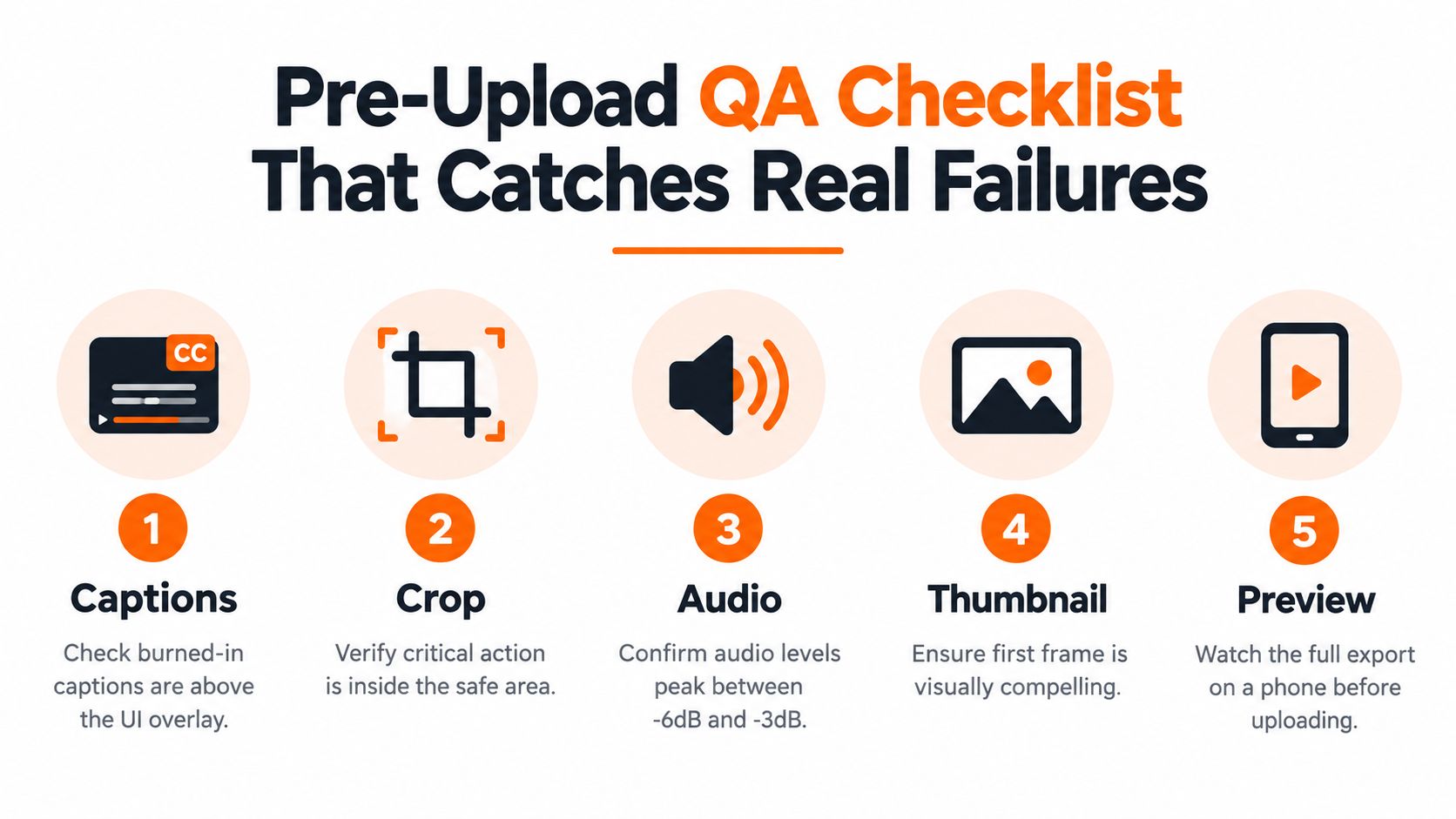
- Check orientation and framing: Confirm the file is vertical and the subject sits in the safe central area.
- Read every caption: Shrink your attention to phone scale and look for text near the top or bottom edges.
- Listen without headphones: Dialogue should stay intelligible on phone speakers, not only in your edit suite.
- Inspect fast motion: Look for smearing or judder that suggests a bitrate or frame rate mismatch.
- Check file practicality: If storage or upload size becomes a problem during delivery, a video compressor for preparing files is more sensible than blindly lowering quality in your main preset.
If a caption fails at phone size, fix the edit and render again. YouTube’s transcode won’t move your text, enlarge your type, or recover a face you cropped poorly. Those are publishing defects, not export mysteries.
The One Preset to Stop Overthinking
Save one card and use it until your content gives you a reason not to. Export a progressive 1080 × 1920, 9:16 MP4 with H.264 High Profile, variable bitrate in the frame rate appropriate 8 to 12 Mbps range, source matched frame rate, and AAC-LC audio. Keep faces, captions, and gameplay information away from the extreme top and bottom, then check the rendered file on a phone.
Canvas, codec, and bitrate are the decisions that matter most. Frame rate follows your source. Everything else is refinement.
Stop pixel peeping settings your viewer will never isolate. Spend that time on tighter pacing, removing dead air, and making captions readable. Those choices change whether someone keeps watching. Your export preset should be boring, consistent, and correct.
If your bottleneck is turning long horizontal streams, podcasts, or gameplay into captioned vertical clips without rebuilding every export by hand, clipoven can handle the reframing, captioning, and vertical assembly, then leave you with an editable timeline for final tweaks. Try it on your next clip and spend your QA time on pacing and framing instead of export guesswork.