clipoven
You’ve got a 25-minute horizontal recording on your PC, one strong 45-second moment buried somewhere in the middle, and a Shorts upload due today. The cut itself isn’t the hard part. The hard part is everything around it. You need to find the moment without scrubbing forever, reframe it to 9:16 without losing a face or the gameplay, then fix captions and export a file YouTube accepts the first time.
That path matters because Shorts didn’t stay a phone experiment for long. YouTube launched its initial Shorts creation tools in India in September 2020, rolled out the beta in the United States on March 18, 2021, and expanded worldwide in July 2021, according to YouTube’s one-year Shorts retrospective. Desktop workflows followed because creators already had streams, podcasts, and screen recordings sitting on hard drives.
Every YouTube Shorts editor for PC below answers the same three jobs differently. Some make you find the moment yourself but give you clean timeline control. Some find moments for you in a browser, then leave you to clean up framing and captions. Judge them by that full path, not by effect counts.
Table of Contents
- 1. ClipOven
- 2. CapCut
- 3. Wondershare Filmora
- 4. OpusClip
- 5. Descript
- 6. VEED
- 7. Microsoft Clipchamp
- How the seven YouTube Shorts editors compare on platform, auto reframing, free access, and best use
- Choosing Your PC Workflow for Shorts Without Re-Exporting Twice
1. ClipOven
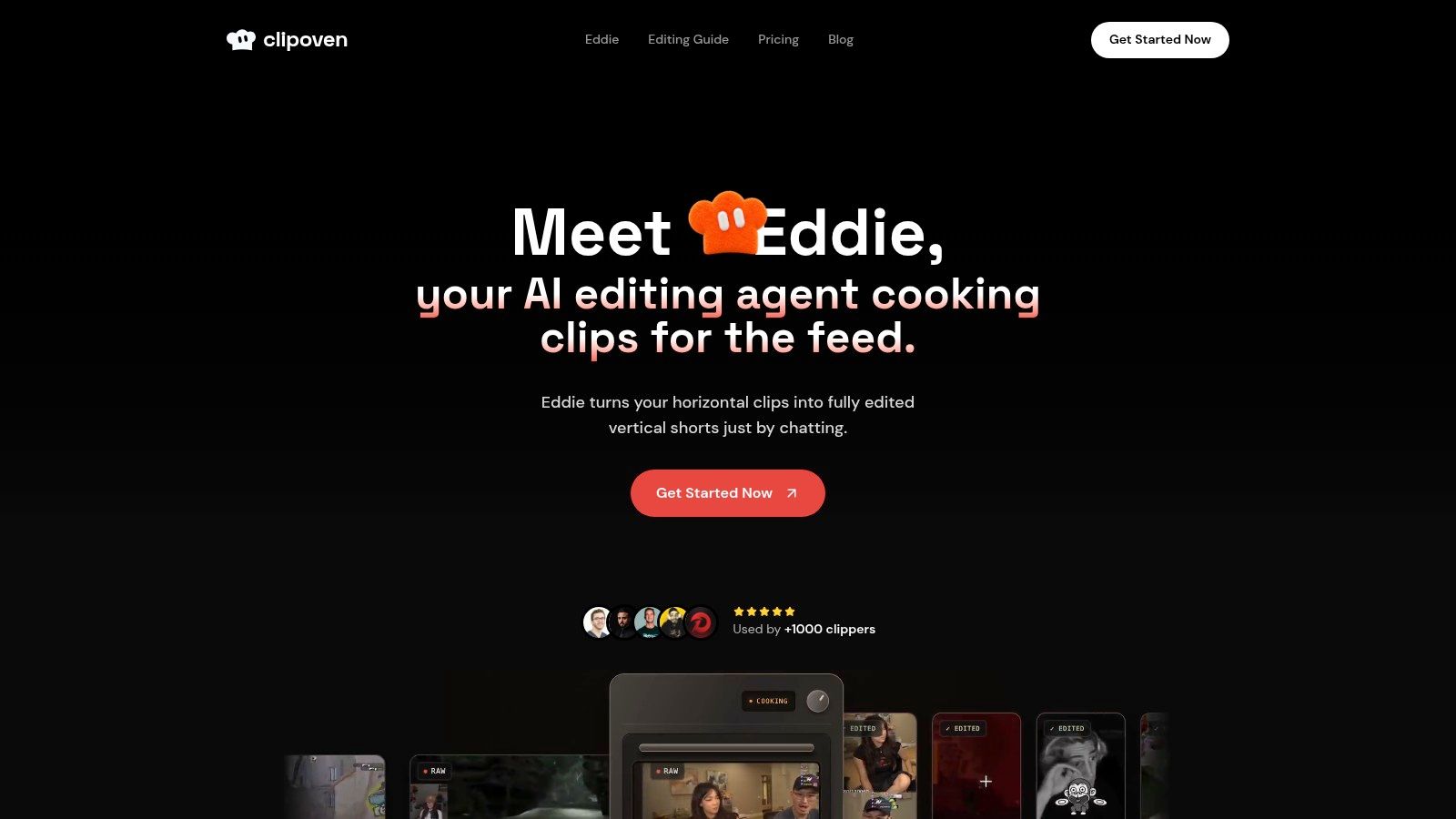
ClipOven is an AI agentic clip editor built around one path: turning horizontal footage into publishable 9:16 shorts for YouTube Shorts and TikTok. You bring the recording, describe the result you want in chat, and Eddie converts the source into a vertical draft with subject-focused reframing, cuts, animated captions and effects.
Where Eddie helps and where you take over
Eddie does the slow first pass for you. It assembles the clip, reframes the 16:9 source for a vertical feed and sets caption timing instead of leaving you to build a subtitle track. Its effects are built for short-form edits: Hook, Zoom, Sound effect, Shake and Grayscale.
The draft remains fully editable. You can keep asking Eddie for a different pace or mood, or open the full editor and adjust cuts, timing, captions and effects yourself. That is where you trim a beat that lands late, correct a misheard name or layer audio effects, images, GIFs and stickers. I recommend treating Eddie’s output as a fast assembly that still gets a human review.
Practical rule: Let the agent find and frame the clip, but never let it publish unchecked. One wrong name in a caption costs more trust than the two minutes you saved.
Plans, credits, and exports
Both Hobby and Pro include Eddie, full editor access, unlimited daily projects and 2K exports. Hobby includes 1,000 credits per month, enough for around eight one-minute clips. Pro carries a larger monthly credit allowance. Treat clip estimates as planning guides rather than quotas, because credit use changes with the model and editing complexity. Monthly and yearly billing are available.
You keep intellectual-property ownership of submitted footage. The terms grant ClipOven a non-exclusive, royalty-free, worldwide license to use it, which ends when you delete the content, except for commercial or sponsored material already in use until that use is discontinued.
Its scope is narrow. Long-form edits, multi-cam podcasts and detailed color work belong in a larger editor. ClipOven earns its place when the repeated task is moving a horizontal recording through reframing, caption correction and a platform-ready 2K export without rebuilding the same Short by hand.
2. CapCut
CapCut’s desktop editor is the hands-on option. It’s an installed app for Windows and Mac, and it feels familiar if you’ve used any timeline editor. You set a vertical canvas, place your horizontal clip, scale and position it, then cut, caption, and style everything yourself. Nothing happens behind your back.
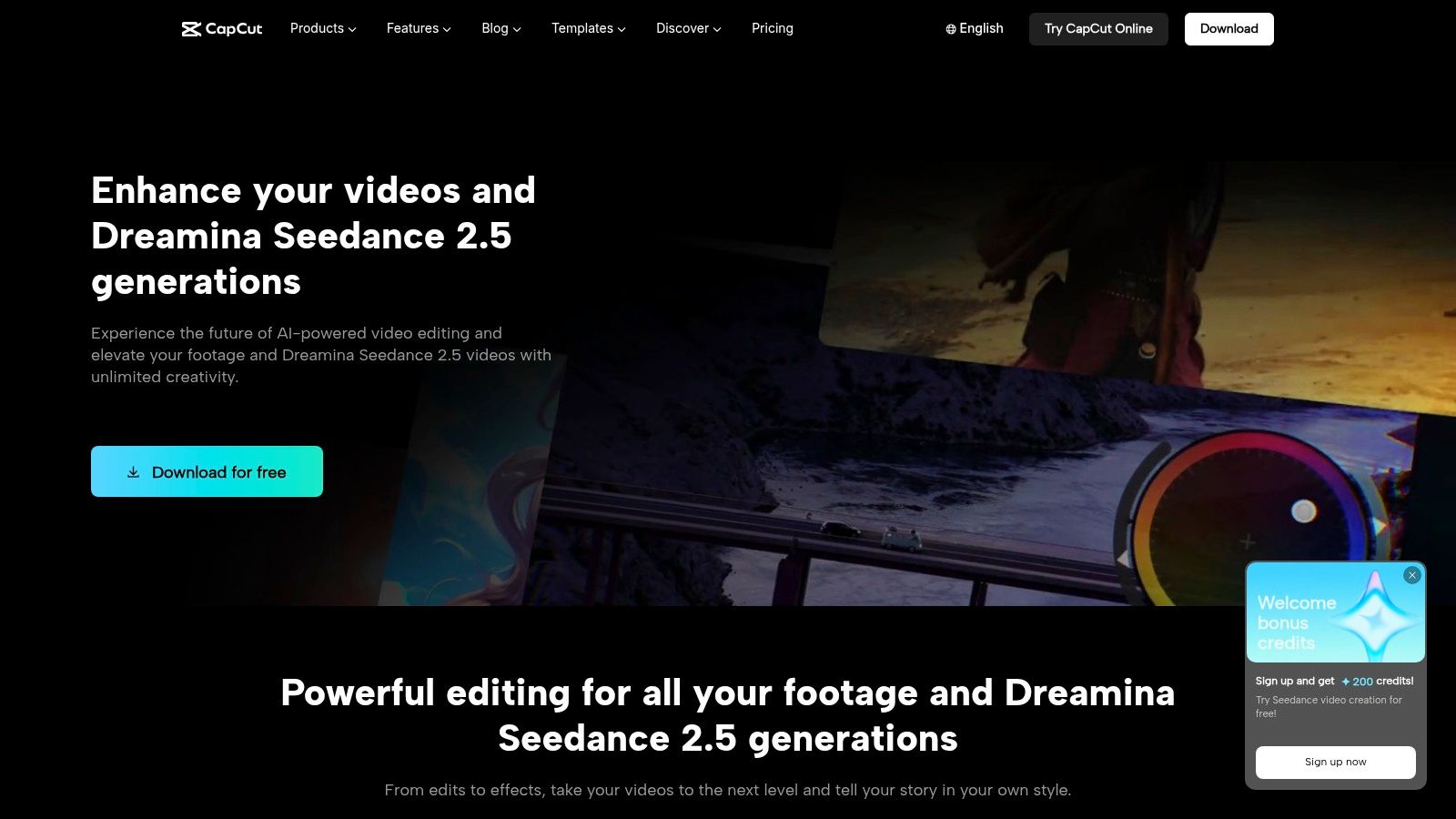
That control is the appeal. AI-generated captions land on the timeline where you can edit wording, timing, and style line by line. Effects, transitions, stickers, and templates sit in the same app, so finishing a clip doesn’t require a second tool. Export controls cover resolution, frame rate, and format, which matters more than most creators admit.
Export settings worth checking
For Shorts, your practical target is a 9:16 canvas at 1080×1920 pixels, using MP4 with H.264 video and AAC audio, at about 8 Mbps for 24 to 30 fps and 12 Mbps for 48 to 60 fps, per CapCut Guide’s Shorts size and encoding guidance. Keep your source frame rate instead of converting it. Unnecessary conversion creates motion artifacts you can’t fix after upload.
- Reframing: Manual positioning is free, but Auto Reframe requires Pro according to CapCut’s help information
- Captions: Generated for you, then fully editable on the timeline
- Cost: A free plan covers basic editing, though features and prices vary by region, plan, or platform
CapCut’s limit is time. It won’t find your best moment inside a long recording, and manual reframing across a moving subject means keyframes and patience. For one or two crafted Shorts a week, that’s fine. For daily clipping volume, the manual work adds up fast.
3. Wondershare Filmora
Filmora takes the opposite bet from a pure manual editor. It’s a full desktop timeline for Windows and macOS, but its Smart Short Clips feature scans longer footage using speech and visuals, pulls out candidate moments, and builds vertical clips with subtitles and templates already applied. You review, then polish.
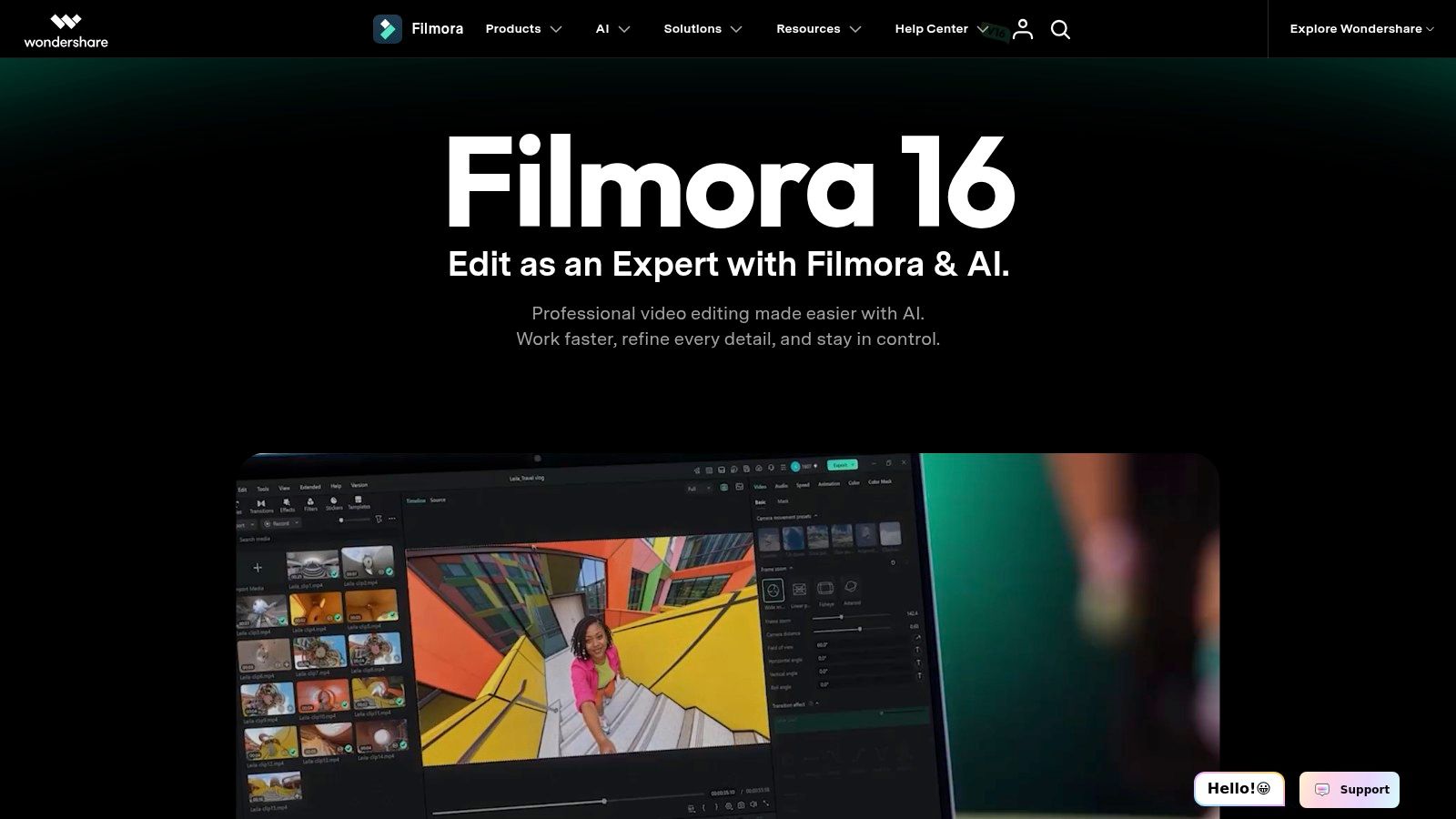
That combination suits creators who edit long videos and Shorts in the same app. Your main upload and its clips live in one project library, with one asset collection and one set of templates. Auto Reframe handles 9:16 and other aspect ratios, and the timeline is right there when the AI crop drifts or a subtitle needs fixing.
What to watch in practice
Smart Short Clips runs on AI credits, so your output depends on your plan and remaining balance. Budget for that before a heavy clipping week, not during it. The broader issue is learning curve. Filmora carries a large feature set, effects, templates, an asset library, and AI tools, and finding a fast repeatable Shorts routine inside it takes longer than in a purpose-built social editor.
If you’re deciding how much of that routine to automate, this breakdown of Shorts editing workflows from long footage to vertical export maps the steps worth standardizing. Use it to build one Filmora template with your caption style and export preset locked in.
A generated clip you still have to rebuild isn’t automation. Check reframing and subtitles on the first three outputs before trusting the batch.
Pick Filmora if you want AI moment-finding plus a real timeline in one installed product and you’re willing to learn it once. Skip it if you only make Shorts and don’t want a general editor’s weight.
4. OpusClip
OpusClip runs in your browser, not as an installed PC app, and that shapes everything. There’s no local timeline to master and no project files to manage. You feed it a long video, and it returns multiple short clips with vertical reframing, animated captions, and ratings meant to rank which cuts deserve your attention first.
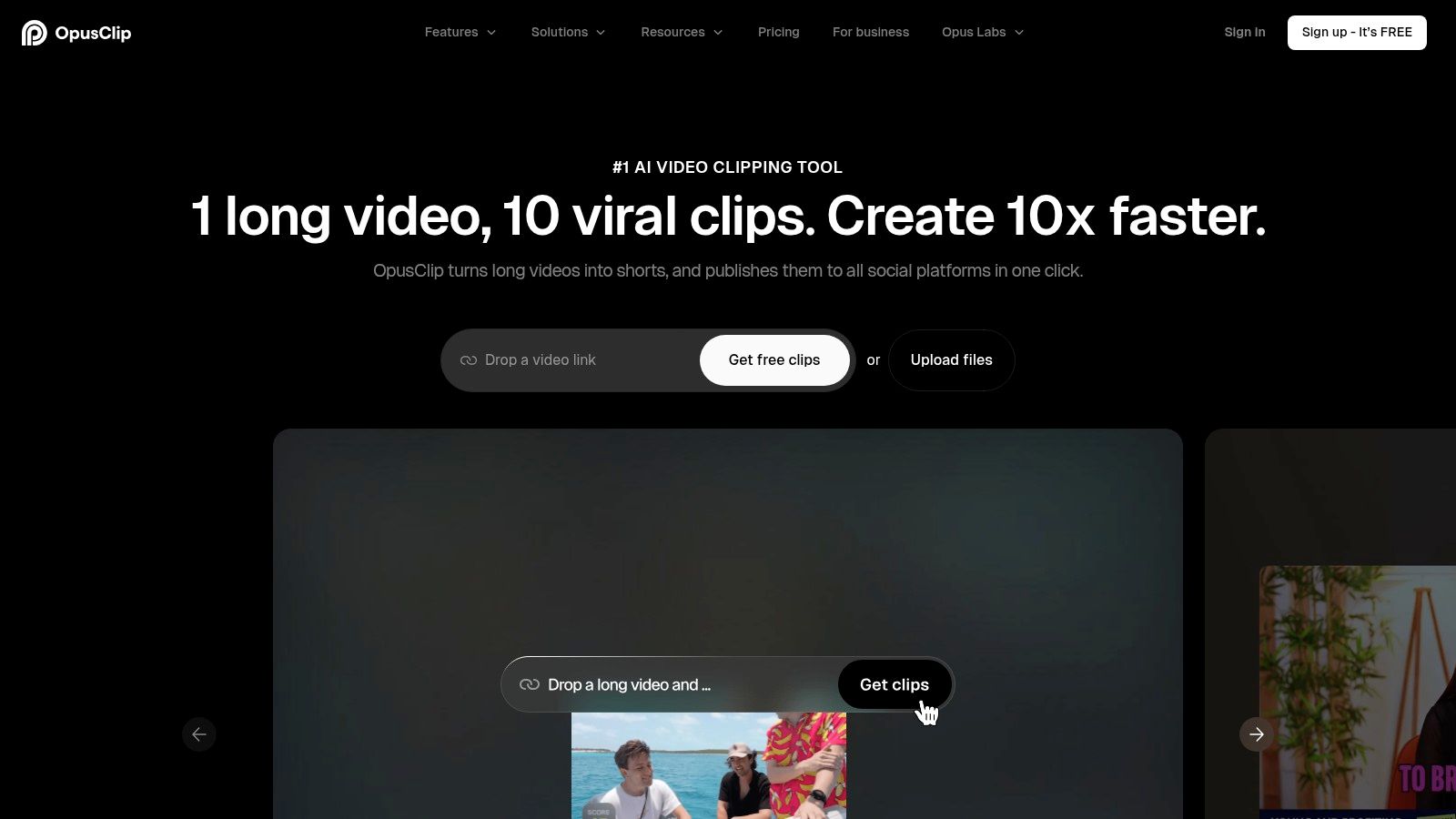
Prompt-based selection helps when you know what you’re hunting. Ask for clips about a topic instead of accepting whatever the model finds loudest. Imports include Twitch and other video sources on qualifying plans, and the service says its clipping model supports gaming alongside other genres. For streamers, pulling several candidate clips from one session without opening an editor is a real time saver.
The review burden doesn’t disappear
AI selection guesses at highlights. It doesn’t know your audience, your running jokes, or which moment sets up tomorrow’s stream. Expect clips that start mid-thought or cut the payoff. The built-in editing tools let you trim and adjust captions, but it’s refinement, not frame-level timeline work. If a clip needs surgery, you’ll feel the browser ceiling quickly.
- Access: Free access includes a monthly credit allowance, enough to test on real footage
- Volume: Heavy use pushes you into a higher paid tier with more monthly credits
- Best fit: Several decent clips fast, not one perfect clip crafted by hand
For context on how AI clippers differ in selection quality and cleanup work, see this comparison of AI video clippers for turning long recordings into shorts. OpusClip earns its place when finding moments is your bottleneck and you’ll accept drafts that need a human verdict before posting.
5. Descript
Descript edits video the way you edit a document. It’s a desktop app for Windows and Mac built around a transcript. Delete a sentence and the video cuts with it. For talking-head videos, interviews, and podcasts, that single shift removes most timeline scrubbing from your day.
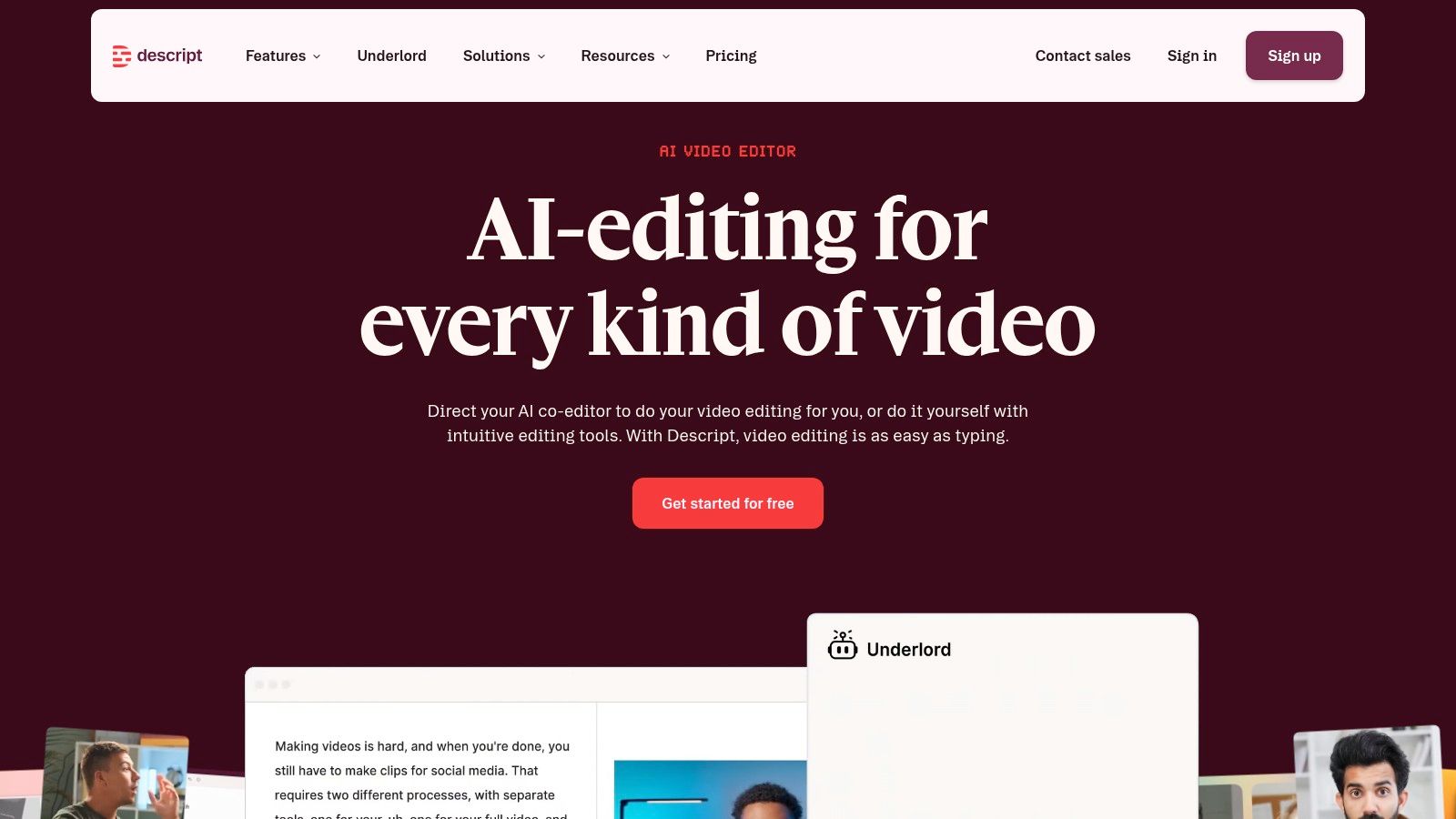
Its AI co-editor Underlord finds highlights and builds social clips, which you then revise by editing text, captions, and layout. Because you’re reading the words, you catch problems a timeline hides. Repeated phrases, filler, and a strong answer buried under a weak intro all show up on the page before you commit to a cut.
Captions as a quality problem, not a style
Descript’s transcript workflow forces a correction pass, and that’s healthy. YouTube describes captions as an accessibility feature and recommends them for Shorts, while guidance summarized in Hootsuite’s YouTube Shorts guide confirms desktop-created Shorts can be edited outside YouTube and uploaded after. Names, gaming slang, and speaker changes still break automated transcription. Reading the transcript against the audio catches those errors while they’re cheap to fix.
The limits are clear. Center-active-speaker reframing is a beta feature, so verify framing on multi-person footage instead of trusting it. Some AI features are credit-limited or plan-dependent. And Descript isn’t built for fast-cut gameplay or effects-heavy edits where pictures matter more than words. The free plan lets you test whether text-first editing suits your footage. For speech-led Shorts, I consider it the most accurate caption workflow here.
6. VEED
Say your footage is a webinar, a podcast recording, or a founder talking to camera. VEED handles that well. It’s browser-based, so your PC just needs a tab open, and its AI Clips feature finds highlights, centers speakers, adds subtitles, and removes filler words in one pass.
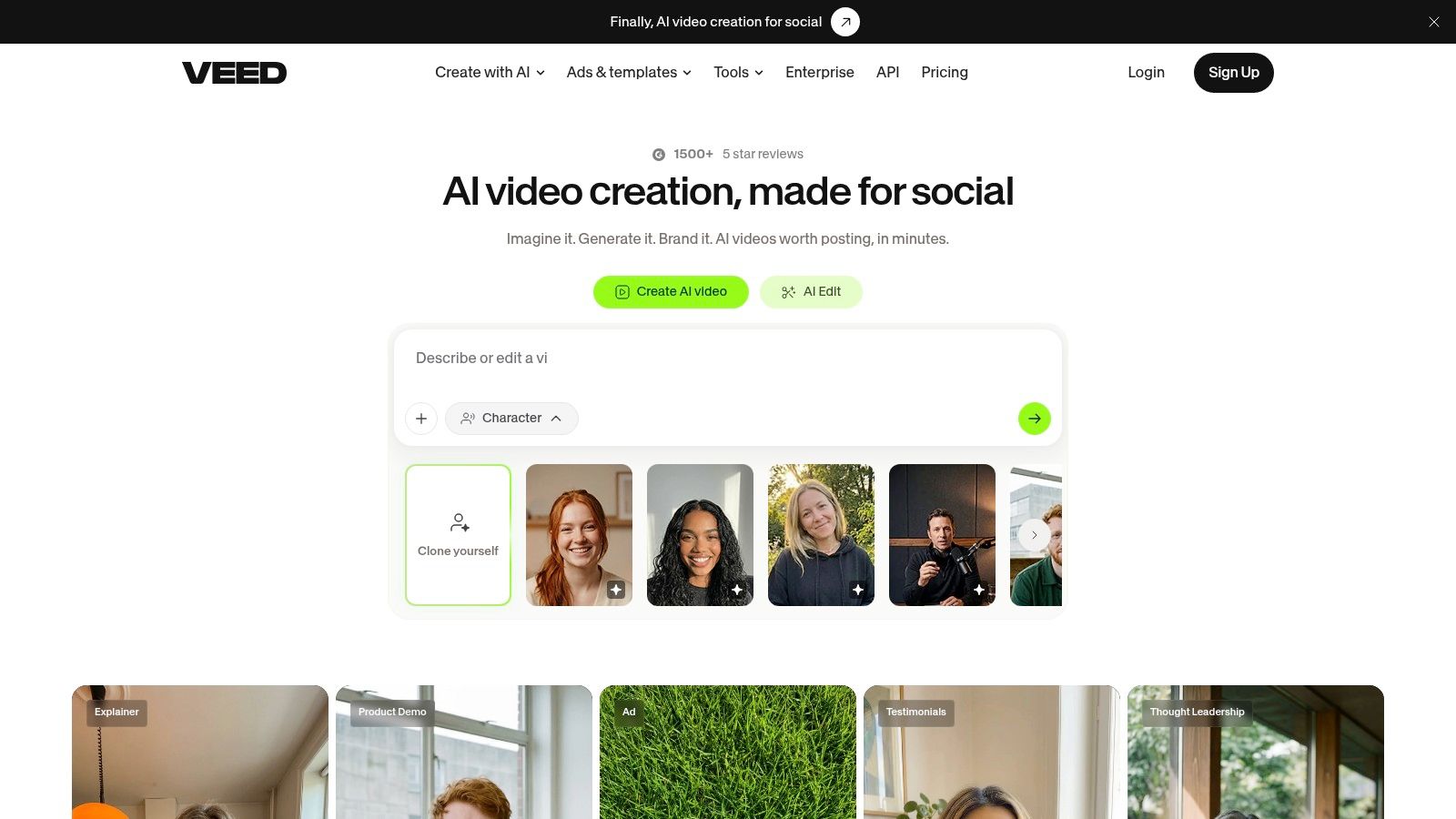
Unlike a clip-only tool, VEED keeps a general-purpose editor behind the AI step. After generation you can trim, restyle, and adjust the clip without exporting to another app. Clip goals and optional prompts guide what the AI looks for, and clip-length controls keep outputs inside the range you post. Check the reframing and subtitle timing before export anyway. Automated passes get you to a draft fast, but the draft still earns a review.
Speech is the entry requirement
VEED requires at least one minute of speech for AI Clips, and free access to AI Clips is limited to one use. That rules out silent gameplay, music-led footage, and montage material. The tool listens for meaning in words, so footage without words gives it nothing to judge. Know your source before you commit a workflow to it.
- Framing: Auto-framing centers speakers for vertical layouts
- Cleanup: Filler-word removal tightens spoken clips without manual hunting
- Testing: A free plan lets you try the editor, though the AI Clips trial is restricted, so spend it on footage that represents your real source
VEED fits social teams repurposing spoken content who don’t want to install or maintain desktop software. It doesn’t fit creators whose best moments are visual. If your highlights happen on screen instead of in dialogue, pick a tool that watches the picture, not the transcript.
7. Microsoft Clipchamp
A horizontal clip can become a Short here in one sitting: import, resize the canvas to 9:16, crop around the subject, trim, caption, export. Clipchamp runs as a Windows app and in a browser, so it is often the first practical option on a PC that cannot take heavy desktop software.
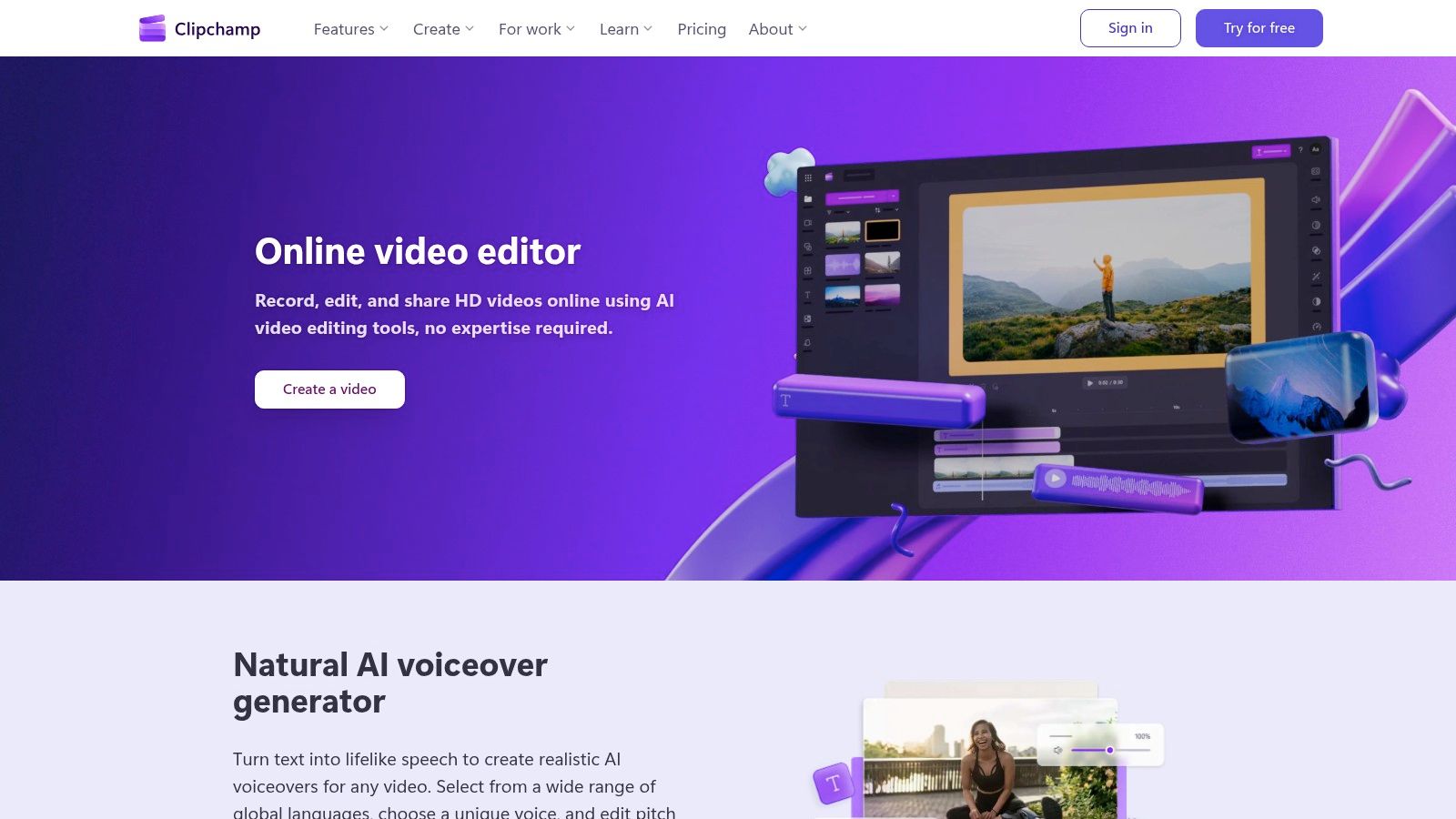
The free tier covers basic editing and captions, while higher-resolution exports and premium assets sit behind a paid plan. The useful extra is the downloadable SRT transcript: correct it once, reuse the text for descriptions or accessibility, and keep a record of what shipped. Auto-compose and silence removal can rough in an assembly, but they still leave you to decide whether the moment was funny, clear, or worth posting.
Where you’ll outgrow it
Clipchamp is designed for accessible general editing, not automated highlight discovery. In a two-hour stream VOD, the search is still yours: scrub, mark, cut, then rewatch the vertical crop for faces drifting out of frame. That manual pass is the main cost, because reframing is mostly a crop decision rather than a subject-tracking step.
It makes sense for occasional Shorts, school or work clips, and beginners learning vertical timing. If the machine is a Chromebook rather than a Windows PC, this guide to free editing software for Chromebooks fits better than forcing a desktop install. Daily clipping calls for moment-finding assistance that Clipchamp does not provide.
How the seven YouTube Shorts editors compare on platform, auto reframing, free access, and best use
Read the columns as the full path on a PC: where each tool runs, whether it reframes horizontal footage for you, what you get without paying, and which job it handles best.
| Item | Platform | Auto Reframing | Free Plan | Best For |
|---|---|---|---|---|
| ClipOven | Browser-based web app | Yes, subject-focused vertical reframing | Paid Hobby and Pro plans only | Creating and refining vertical shorts with AI and timeline controls |
| CapCut | Windows and Mac desktop | Yes; requires Pro | Yes, basic editing | Hands-on editing of social videos |
| Wondershare Filmora | Windows and macOS desktop | Yes, for multiple aspect ratios | Paid plans; AI credits apply to Smart Short Clips | Generating and polishing short clips in a full editor |
| OpusClip | Browser-based | Yes, vertical reframing | Yes, with monthly credits | Extracting multiple shorts from longer videos |
| Descript | Windows and Mac desktop | Speaker centering is in beta | Yes | Editing interviews, podcasts, and other speech-led videos |
| VEED | Browser-based | Yes, auto-framing | Yes; AI Clips limited to one use | Repurposing speech-led videos into social clips |
| Microsoft Clipchamp | Windows app and browser | Manual resizing and cropping | Yes | Accessible, low-cost editing of Shorts |
The reframing column is the main divider. ClipOven, OpusClip, VEED, and Filmora convert horizontal footage to 9:16 automatically. CapCut gates that behind Pro, Descript’s speaker centering is still in beta, and Clipchamp leaves resizing to you. On free access, five of the seven let you start without paying; ClipOven and Filmora are paid from the first clip.
Choosing Your PC Workflow for Shorts Without Re-Exporting Twice
Start with your bottleneck, not a feature list. If you already know your moments and want control over every caption and cut, a timeline-first app like CapCut or Filmora fits. If your footage is talking heads and interviews, a transcript-led tool like Descript, or VEED’s speech-driven clips, cuts faster than any timeline. If finding moments inside long recordings eats your week, an AI-first option earns its cost, provided you still review framing, context, and caption spelling before posting.
The export handoff decides whether that work survives upload. YouTube permits computer uploads through Studio for videos up to 3 minutes with square or vertical aspect ratios, allows up to 15 Shorts to be selected at once, and states that Shorts uploaded from a computer have a maximum resolution of 1080p, according to YouTube’s computer upload guidance for Shorts. Read that carefully. A square video can qualify. A higher-resolution master still helps your archive and other platforms, but Studio sets the platform ceiling.
Before you upload: Check aspect ratio, duration, caption safe areas at phone size, and audio on the exported file itself, not in your editor’s preview.
Scale explains why this discipline pays. YouTube reported in March 2024 that Shorts averaged more than 70 billion views per day, and one third-party industry estimate puts Shorts at more than 200 billion daily views in 2025 with more than 52 million channels having uploaded Shorts content by 2025, per XtendedView’s YouTube creator statistics. Treat the second figure as directional, not audited. Either way, you’re publishing into a feed where weak framing and unreadable captions get skipped instantly.
My recommendation is a 60-second test clip on your own footage before paying for anything. Time the full path. Finding the moment, reframing, fixing captions, exporting, uploading. Compare that time against each plan’s credit estimate and your monthly output. ClipOven fits creators who want to skip manual reframing and first assembly while keeping a full editor for final tweaks, with 2K vertical exports ready for Shorts and TikTok. Whichever tool wins your test, lock one export preset, reuse it, and stop re-exporting twice.
Turn your next horizontal recording into a vertical Short without hand-building the reframe, captions, and cuts from scratch. ClipOven’s agent Eddie assembles the first draft by chat, then hands you a full timeline editor for final fixes and 2K exports ready to upload. Start your first test clip today at clipoven and time the full path against your current editor.