clipoven
Most advice about Hebrew narration tells you to paste your English into a translator, press the speaker icon, and publish what you hear. Don’t. That shortcut skips the step where Hebrew voiceovers usually fail, which is pronunciation control.
When you translate English to Hebrew with sound, the written sentence and the spoken sentence aren’t the same job. Text can leave vowels implied. Audio can’t. A voice has to choose a vowel, place stress on a syllable, and match gender and number out loud, even when the spelling gives it little help.
Treat translation accuracy as the first pass, not the finish line. You’ll get better clips by building a separate speech layer, choosing an accent for a specific listener, and checking names and mixed-language lines before you export anything.
Table of Contents
- Why Correct Hebrew Text Can Still Sound Wrong
- Choosing the Right Hebrew Accent for Your Audience
- Tools for Each Stage of Hebrew Voiceover
- How to Turn English Text into Checked Hebrew Audio
- Fixing Mispronounced Hebrew Words in Audio
- Exporting Hebrew Audio for Captions and Short Clips
- Test One Hebrew Clip Before You Scale
Why Correct Hebrew Text Can Still Sound Wrong
Say a creator pastes a clean English line into a translator. The Hebrew reads well on screen, so they generate the voiceover. Then a place name comes out with the wrong vowel and stress, and viewers notice before they notice the good translation.
That’s not a mystery bug. Ordinary Hebrew is normally written without vowel marks, called niqqud, so the same letters can point to several pronunciations. A text-only review can confirm the meaning while missing how the word should sound.
Four things change once the line is spoken:
- Vowels: The engine must pick sounds the spelling doesn’t show.
- Stress: The emphasis can land on the wrong syllable.
- Gender agreement: Verbs and adjectives have to match the speaker and listener.
- Proper names: People, places, and brands often allow several readings.
Modern spoken Hebrew also needs deliberate choices. It’s a revived language whose spoken norms were standardized during the twentieth century, as the history of the revival of Hebrew explains. One clip may also reach Israeli viewers, learners, and religious listeners at once, and they won’t all judge the pronunciation the same way.
Practical rule: Produce two outputs, one for reading and one for speech, then check the audio against the written translation before publishing.
Choosing the Right Hebrew Accent for Your Audience
The most common mistake here is treating one romanization and one recording as the universal Hebrew. A page shows a phrase, a transliteration, and a play button, but it never says who that voice is meant for. That’s a problem, because viewers judge pronunciation against their own community and setting.
Modern Hebrew pronunciation is primarily based on Sephardic traditions, while speech also varies across sociolects, ethnolects, religiolects, and community-linked patterns, including Jerusalem markers, as the overview of Hebrew varieties describes. Modern Hebrew phonology is commonly analyzed as having roughly 25 to 27 consonants and five vowels, depending on the speaker and analysis. A single transliteration can’t capture every way those sounds are realized.
That doesn’t mean you need five versions of every clip. It means you should name your target before you generate audio.
Match the target to the listener
| Pronunciation target | Best for | Label to show | Caveat |
|---|---|---|---|
| Contemporary Israeli Hebrew | Shorts and most Israeli viewers | Modern Israeli | Slang and reductions vary by speaker |
| Liturgical reading | Prayer, Torah reading and religious study | Liturgical | Not interchangeable with everyday speech |
| Community-specific variety | Content aimed at one community or region | Community label | Narrow audience, so check with a member of it |
| Learner setting | Language lessons and beginners | Modern Israeli, with phonetic guide | Romanization is not a universal pronunciation guide |
Choose the accent by the listener who will judge the clip. If you’re making a gaming short for Israeli viewers, everyday Israeli speech is the target. If you’re making worship content, a voice that sounds natural in conversation may still be wrong for reading aloud.
Before you scale, have one native speaker from that audience check three sample sentences. Pick lines with a name, a question, and a direct address, since those expose stress and gender problems quickly. Then label the choice on screen, for example Modern Israeli, next to the Hebrew and phonetic guide. That small label stops you from presenting one pronunciation as universally correct.
Tools for Each Stage of Hebrew Voiceover
You don’t need one product that does everything. Choose one option per stage, and check the feature that matters before you commit.
- Translation: Use a machine translation system tested on English to Hebrew. Treat its output as a draft for native review.
- Text normalization: Use an editor or script with find and replace rules for numbers, dates, abbreviations, and punctuation. Run it before any speech generation.
- Pronunciation control: Pick a Hebrew text to speech engine that accepts niqqud or phonemic input. Keep a lexicon file for names and recurring terms.
- Speech generation: Choose a service that exports one file per segment and reports timing markers. One long file makes fixes painful.
- Alignment and timing: Use forced alignment to compare each word’s spoken duration with its subtitle window.
- Caption and editing: Use a subtitle or video editor that holds the display layer, timing file, and final mix together.
Before choosing, ask five questions. Does the engine accept niqqud or phonemes? Can it mark stress? Does it support a lexicon? Can it handle mixed-language input, or will you need to split segments yourself? Does it export timing data?
Most workflows combine two or three tools, which is normal. If you’re comparing your wider creator stack, this roundup of the best AI tools for content creators is a useful place to map each stage.
How to Turn English Text into Checked Hebrew Audio
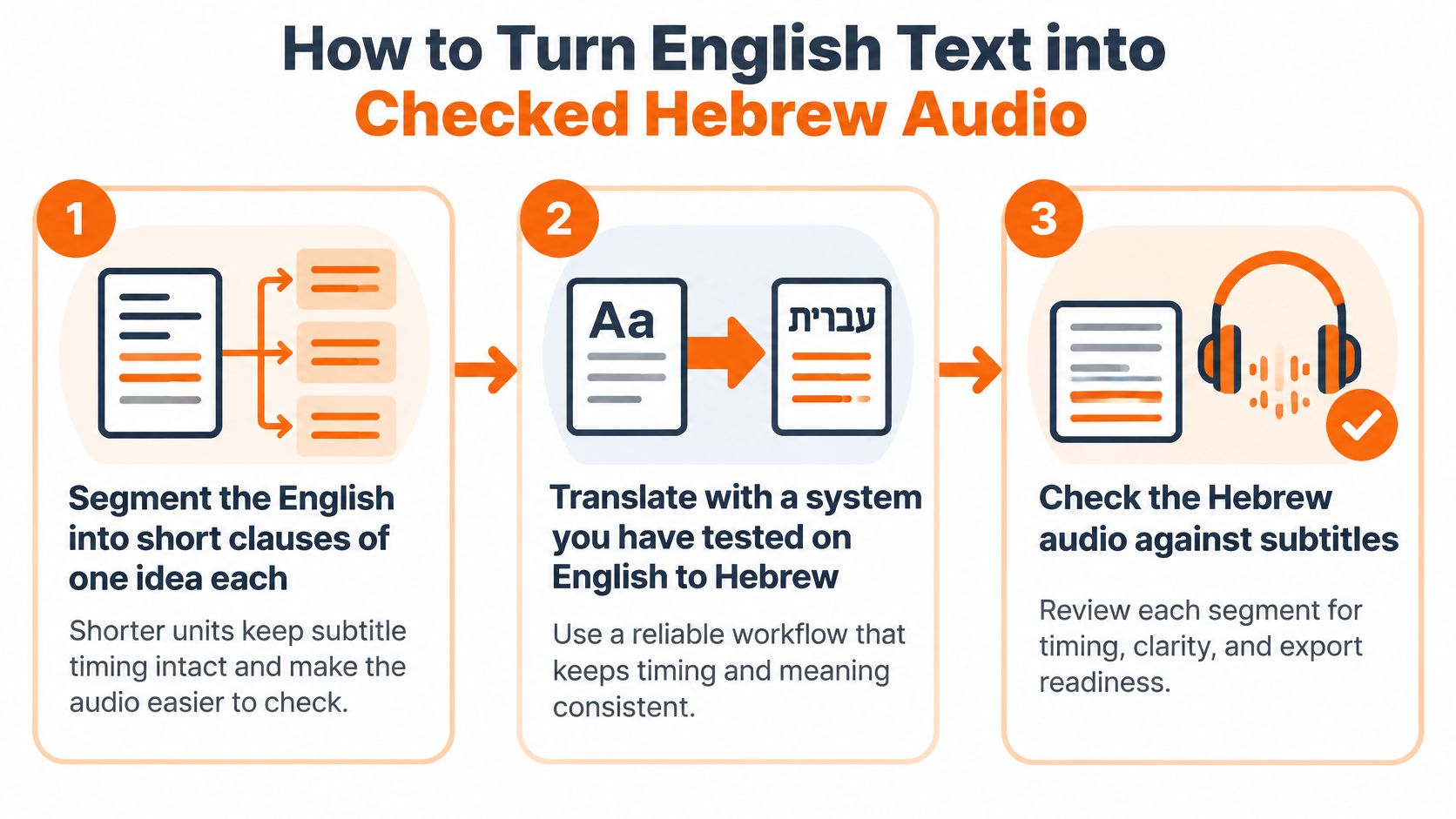
- Segment the English into short clauses of one idea each. Shorter units keep subtitle timing intact and make errors easier to isolate.
- Translate each clause with a system you’ve tested on English to Hebrew. A leading system in the WMT23 constrained English to Hebrew task reported a BLEU score of 35.0, so treat output as a first draft, not publication-ready copy.
- Normalize before voicing. Expand numbers, dates, and abbreviations, and clean punctuation, because the engine reads exactly what it receives.
- Build two layers. Keep natural Hebrew for captions, and add niqqud or phonemic spelling to ambiguous words in the speech layer only.
- Generate speech per segment and preserve the timing markers. Segment files let you redo one line instead of the whole narration.
- Check the audio against the written translation with a native speaker or forced alignment. Flag any word that breaks its subtitle window.
This segment discipline also helps music and timed text, as shown in this guide to lyrics and video. Keep a glossary, reuse lexicon entries, and log approved lines.
Fixing Mispronounced Hebrew Words in Audio
Start with the problem you’ll hear most often. A name or place sounds wrong because its unvocalized spelling allows several readings, and the engine picked the wrong one. Don’t regenerate the whole clip and hope. Add niqqud to that one word in the speech layer, then save it as a lexicon entry so it’s right in every future video.
Mixed-language lines need splitting
Bilingual content creates a different failure. Say an English sentence contains a Hebrew religious term or place name. If you send that sentence as one block, the engine may read the Hebrew with English habits.
That’s expected when a speech system lacks inline language tags, a failure mode described in this project plan for small Hebrew models. The fix is mechanical. Split the English and Hebrew into separate segments, generate each with the right language setting, then recombine them in your editor. Listen closely at the joins for a sudden change in pace or volume, and add a short pause if the switch feels abrupt.
An audio button proves a phrase can be spoken. It doesn’t prove the pronunciation is usable in your clip.
For bilingual videos, pronunciation control often matters more than translation accuracy. The Hebrew word may be the right word, but if viewers hear it mangled inside an otherwise fluent English sentence, they’ll trust the whole clip less. Ask three questions for every mixed line. Should this term stay in Hebrew script? Does the viewer also need transliteration? Have you stored the approved pronunciation so you won’t fix it again next week?
Match the symptom to the fix
| Symptom | Likely cause | Fix |
|---|---|---|
| A name is read with the wrong vowels | Unvocalized spelling allowed several readings | Add niqqud to that word or add a lexicon entry |
| Stress falls on the wrong syllable | Engine guessed the stress | Mark stress where the engine supports it, or respell phonetically |
| Gender or number sounds off | Literal English word order and agreement not checked | Re-translate the clause and verify agreement with a native speaker |
| A Hebrew term inside an English sentence is mispronounced | Mixed-language text sent as one segment | Split the English and Hebrew, generate each, then recombine |
| Audio runs past the subtitle window | Spoken rate longer than the caption text | Shorten the subtitle unit and re-run forced alignment |
| Jokes or gaming slang land flat | Literal translation of slang | Replace with a native equivalent before voicing |
Fix vowels and names before you polish style. Slightly stiff phrasing may pass unnoticed in a short clip. One misread name won’t, because names are the words viewers know best and repeat back to you in the comments.
Exporting Hebrew Audio for Captions and Short Clips
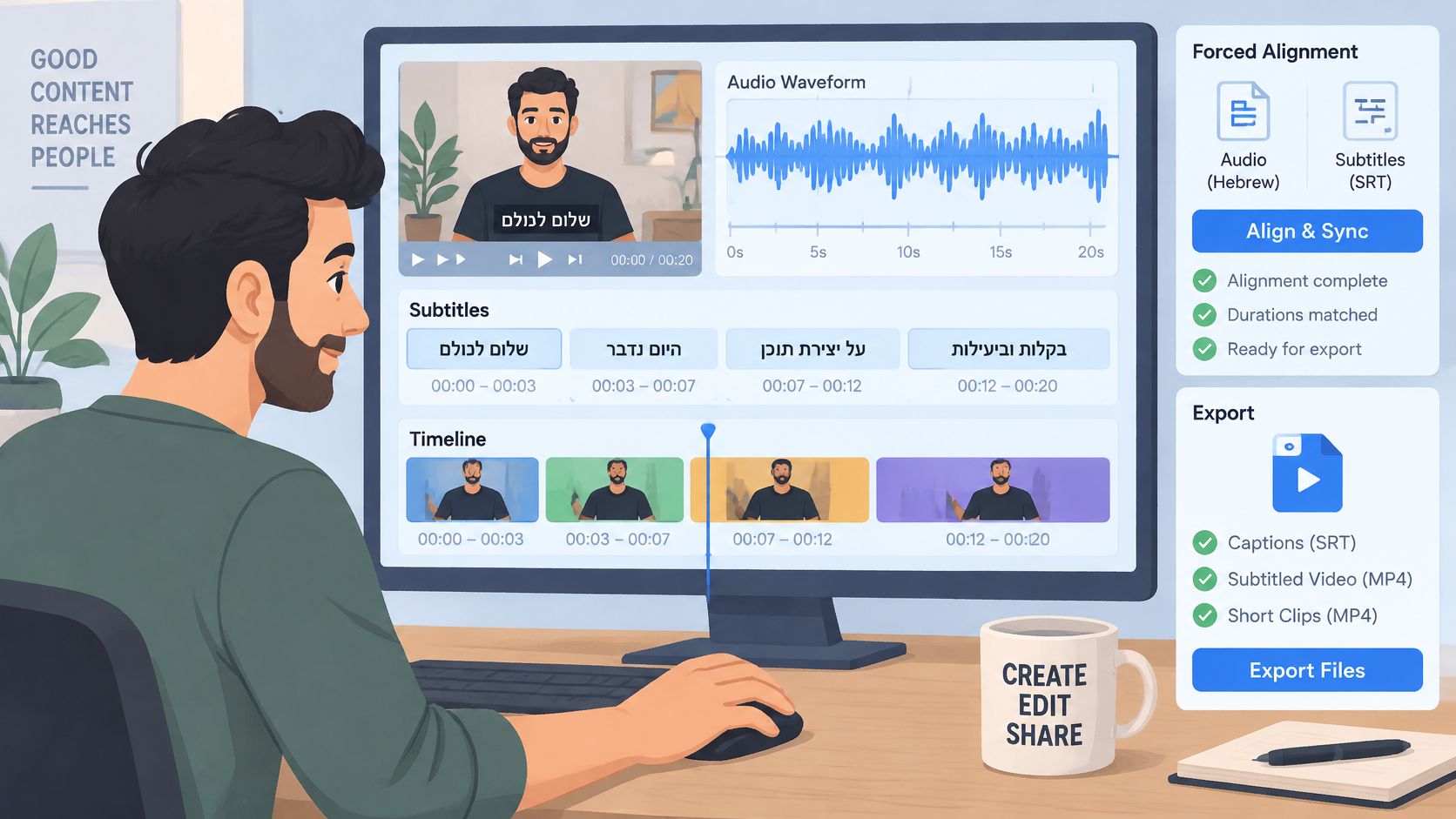
Start with the sync check that prevents most re-exports. Export clean speech files, then compare each segment’s duration with its subtitle window. If a word ends after its caption disappears, shorten the subtitle unit instead of speeding up the voice, since rushed Hebrew only creates a new problem.
The two layers pay off here. Academic Hebrew speech tooling combines vowelized orthography, phonemic conversion, and forced alignment so words can be aligned directly to the speech signal, as described in these automatic tools for Hebrew speech. Use automatic screening to prioritize review, but get native approval for names, jokes, gaming terms, and fast speech.
Choose the format by stage
| Export format | Best for | Watch for |
|---|---|---|
| WAV | Editing and timeline placement | Large files; keep as the master copy |
| MP3 | Quick previews and web uploads | Compression can blur consonants and vowel length |
| SRT or VTT caption file, exported separately | Captions that stay editable after voicing | Keep the timing markers in the file |
Then follow this routine:
- Export one file per segment and name files by timestamp.
- Align each file to its caption in the editor.
- Play the mix against the original English so Hebrew doesn’t overlap dialogue.
- Re-export at the platform’s preferred settings, making separate versions if TikTok and YouTube Shorts need different length or loudness.
An auto subtitle generator can speed up the caption pass, but keep the original English, speech layer, and timing file together. Then a later correction stays a single edit.
Test One Hebrew Clip Before You Scale
Don’t produce a full series on an untested workflow. Run one pilot clip first, because a short test will expose your accent choice, lexicon gaps, and timing habits while fixes are still cheap.
Work in this order. Choose the accent for your listener, build the lexicon for names and terms, produce the speech layer, then check timing in the export. If you reverse that order, you’ll time captions to audio you later have to replace.
ClipOven can handle caption layout, timing, and the final mix in one project, and its animated AI captions can be fine-tuned to sound and look a certain way. That helps with presentation. It doesn’t replace the pronunciation check, which still needs a native listener from the audience you’re targeting.
Use this pilot checklist:
- Pick a 30-second clip with real dialogue, not your easiest line.
- Check three names, one mixed-language line, and one joke or slang term.
- Approve the audio only if a native listener accepts it without edits.
If the pilot fails, fix the lexicon and speech layer before you touch the visuals. Then choose the accent, update the lexicon, rerun the pilot, fix what it exposes, and only then export the series.
Bring your checked Hebrew segments into ClipOven to lay out animated captions, lock timing to each voice file, and finish the vertical mix in one project. You’ll still own the pronunciation decisions, but you won’t need a separate editor for every correction. Visit clipoven to build your pilot clip and test it before scaling.