clipoven
You finish a four-hour stream on Sunday night and remember one clutch fight that’s worth posting. The problem isn’t whether you can cut it. The problem is finding that moment, reshaping horizontal footage for a vertical feed, adding readable captions, and deciding whether the same recording deserves a polished long-form upload.
That’s why the best gaming video editor depends on the stage slowing you down. A highlight finder solves a different problem from a Shorts editor, and neither replaces a full nonlinear editor for a demanding gameplay production. Gaming livestreaming has grown from small experimental broadcasts into a global creator ecosystem, leaving streamers with large libraries of footage that can become highlights, clips, and vertical videos (historical overview of gaming livestreaming).
The tools below are grouped by workflow stage rather than forced into one ranking. Start with the job you need to solve today.
Table of Contents
- 1. Eklipse
- 2. Streamlabs Cross Clip
- 3. ClipOven
- 4. CapCut
- 5. VEGAS Pro
- 6. DaVinci Resolve Free / DaVinci Resolve Studio
- 7. Adobe Premiere Pro
- Top 7 Gaming Video Editors Comparison
- Match Your Editor to the Stage That Slows You Down
1. Eklipse
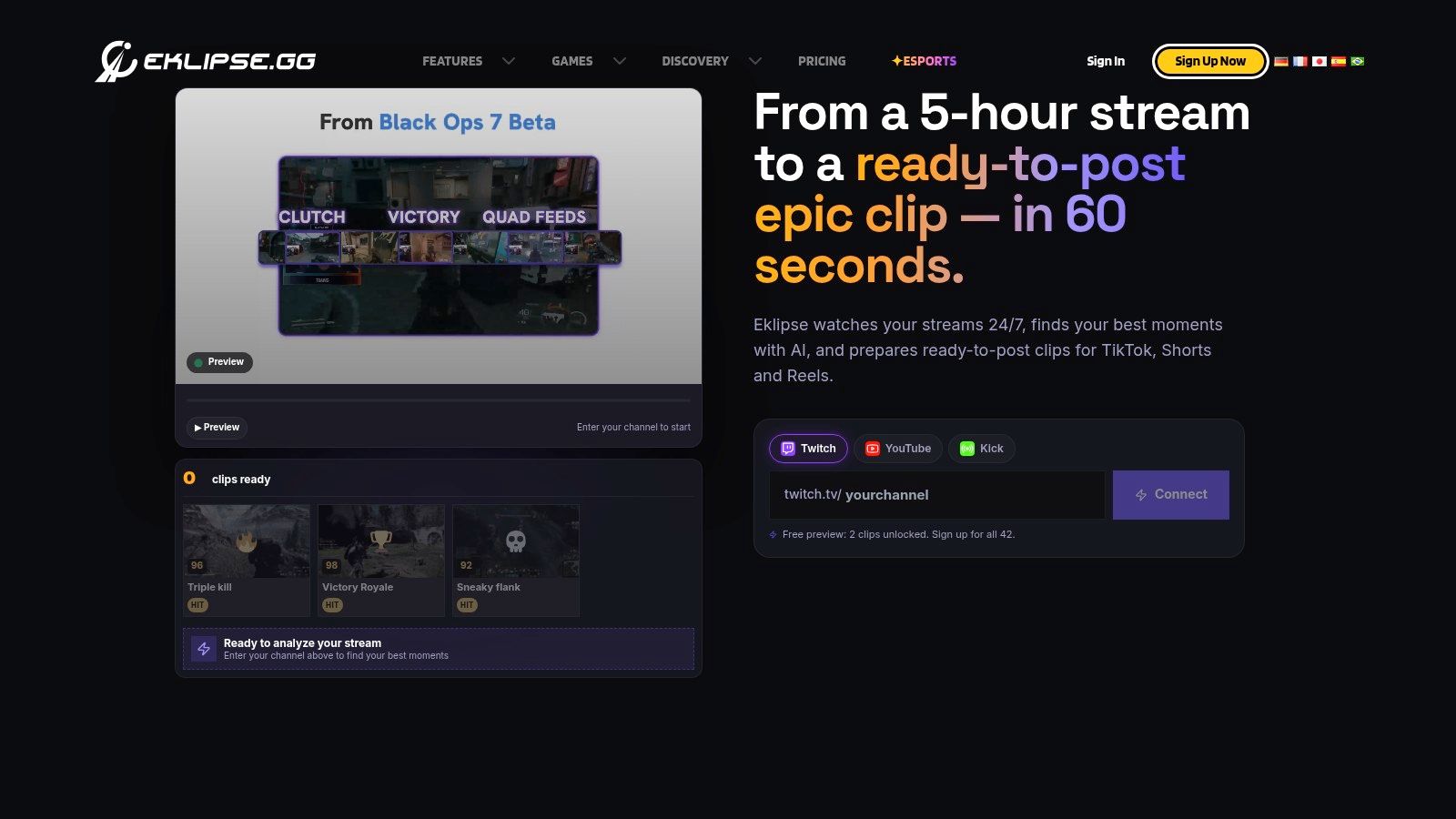
Eklipse belongs at the front of a stream-to-clip workflow. Connect a Twitch, YouTube, or Kick account and let its gaming-focused AI scan the recording for potential highlights. Its detection covers more than 1,000 games, giving it a gameplay-specific starting point that a general editor focused on speech or obvious cuts may lack.
The main benefit is faster discovery. A long stream may contain several publishable moments, yet finding them manually requires reviewing footage, marking peaks, and checking whether each event makes sense without the surrounding broadcast. Eklipse shortens that first pass and can prepare clips for social formats with templates and captions. Browser and mobile tools also suit creators who review footage away from their primary editing workstation.
Practical rule: Check the lead-in, payoff, game audio, and whether viewers understand what happened without the rest of the stream before treating an AI selection as a finished clip.
Eklipse works best for action-heavy games where gameplay signals reveal the important event. It becomes less reliable when the value depends on a slow strategic explanation, a subtle reaction, or a conversation whose meaning arrives several minutes later. Full 1080p/60 export and priority processing are available in Premium, so creators who need frequent polished delivery may find the free workflow restrictive.
After selecting moments, a dedicated video editing workflow for streamers can provide more control during finishing. Eklipse handles highlight discovery well, while cinematic montages, complex audio mixing, and detailed long-form structure require a deeper desktop NLE.
2. Streamlabs Cross Clip
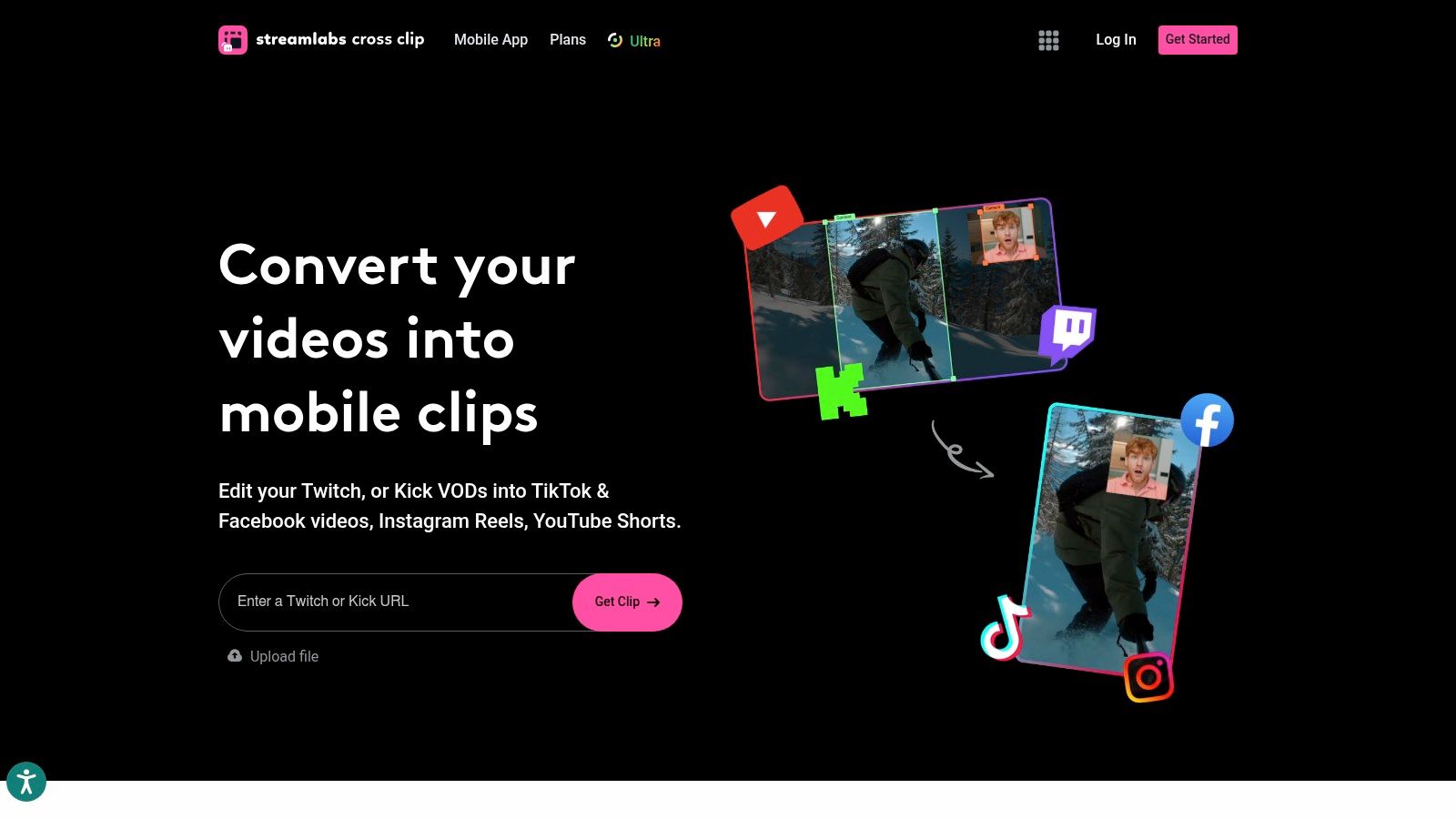
Streamlabs Cross Clip is built for a narrower but common job: you already have a Twitch, YouTube, or Kick clip, and you need a vertical version without opening a full desktop editor. Drop in a clip URL or upload a file, select a layout, adjust the framing, add overlays or captions, and export for Shorts, Reels, or similar feeds.
Its low friction is the feature. You don’t need to organize a complex project just to place gameplay, face-cam, and a simple overlay into a portrait frame. That makes it practical for streamers who want to publish quickly after a live session or turn an existing clip into several platform-ready variations.
Where Cross Clip works well:
- Fast reframing: Convert a selected wide clip into a portrait composition without building a project from scratch.
- Simple branding: Add layouts, overlays, and captions when the visual treatment doesn’t need elaborate animation.
- Accessible editing: Work in the browser, which suits creators who move between devices or don’t want a demanding local application.
The limitation is equally clear. Cross Clip isn’t a replacement for Premiere Pro, DaVinci Resolve, or VEGAS Pro when you need layered sound design, precise color work, multicamera editing, or complex motion graphics. It’s a clip formatter, not a full production environment. Free exports include a watermark, while the Pro tier removes it and provides 1080p/60fps exports, so check the output requirements before building a repeatable publishing process.
If your main question is how to move from a Twitch recording to a social post with minimal setup, this video editor for Twitch creators is a useful comparison point. Cross Clip earns its place when speed and simplicity matter more than deep editorial control.
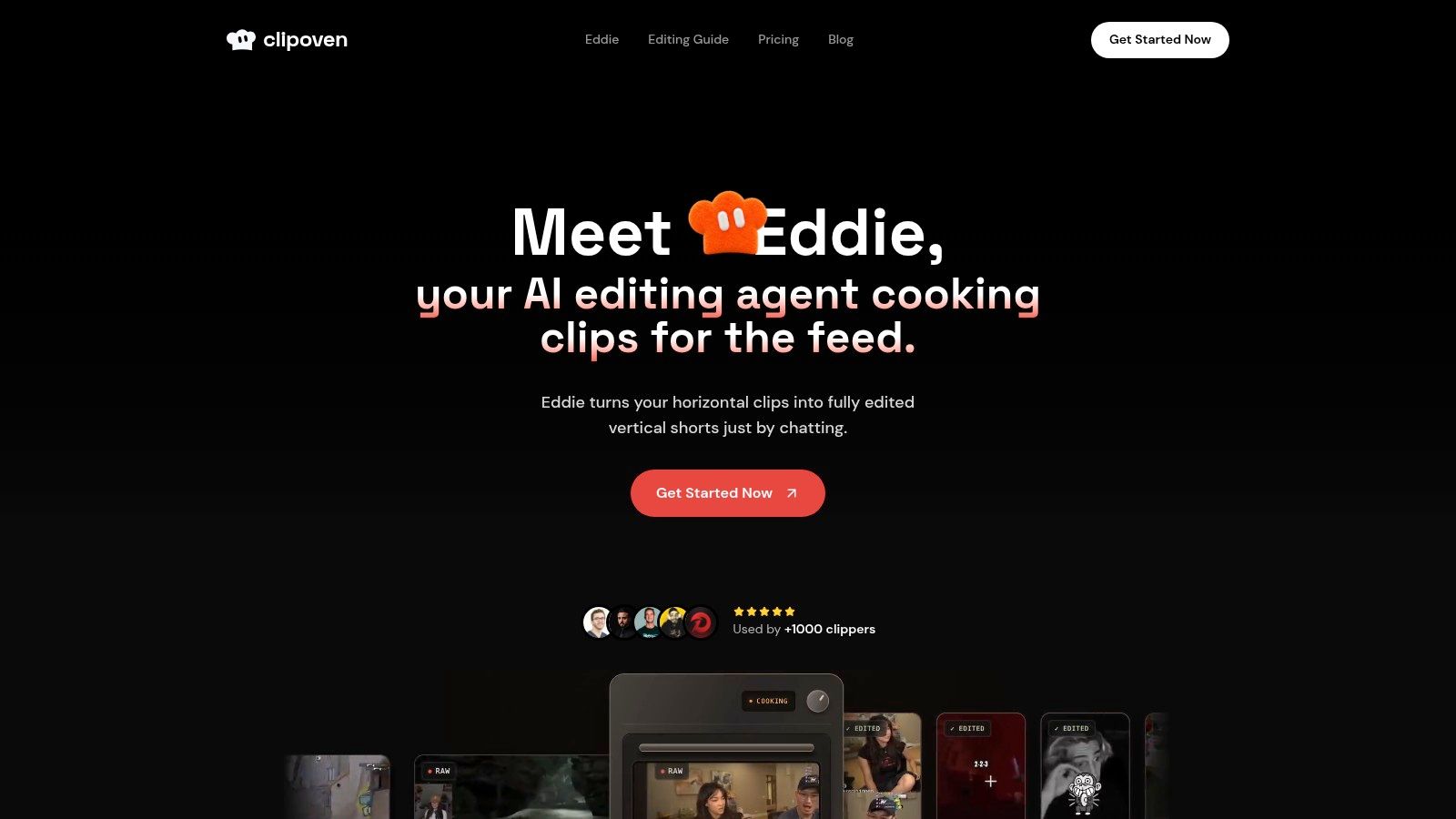
3. ClipOven
ClipOven starts after you’ve identified the moment. It’s designed for turning horizontal gameplay footage into a finished 9:16 short, not for searching an entire VOD for every possible highlight. That distinction matters. If you know which clutch, reaction, or funny exchange deserves attention, ClipOven focuses the workflow on making that selected footage publishable.
Its chat-guided agent, Eddie, proposes cuts, captions, and effects from a creative brief. You can then refine the result in a full timeline instead of accepting an opaque automatic edit. That combination is useful for gaming creators who want a fast first assembly but still care about the exact frame where a reaction begins, the length of a pause, or the timing of a sound effect.
The vertical workflow handles subject-focused reframing from 16:9 to 9:16, animated captions, and layered assets such as stickers, images, GIFs, and audio effects. The resulting project can be adjusted for pacing and brand consistency rather than exported as a generic crop.
A useful vertical edit preserves the player, the relevant HUD information, and the story of the moment. Cropping the action into the center of the screen isn’t enough.
ClipOven supports 2K vertical exports and unlimited daily project creation across its plans, with credit-based options for managing output volume. Its limitation is intentional: it isn’t a long-form NLE for advanced compositing, extensive VFX, or a multi-hour stream review. It also won’t replace a highlight miner when you don’t yet know where the good moments are.
Use it when the bottleneck is vertical delivery and finishing, especially when a chat-guided rough cut saves time but a human still needs to approve the final result.
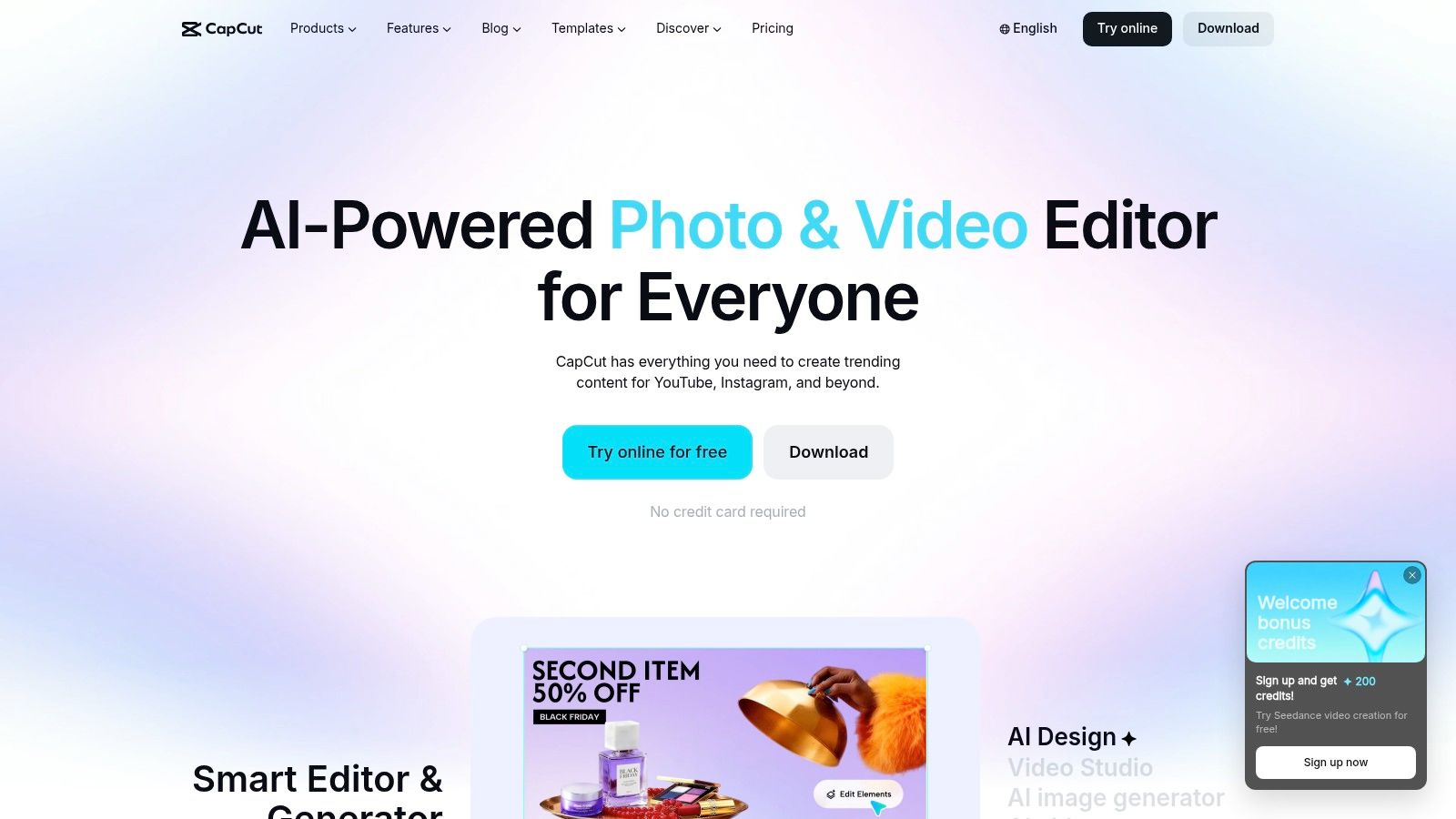
4. CapCut
CapCut is the practical choice for creators who already know which clip they want and need a fast social edit. Its web, desktop, and mobile versions offer templates, auto-subtitles, speed changes, beat syncing, effects, and 9:16 export presets without requiring the learning curve of a traditional professional NLE.
For gaming clips, CapCut works particularly well when the creative language is quick and recognizable: a caption-led reaction, a meme edit, a short montage, or a clip built around sound effects and rapid timing. Its asset and template library reduces the effort needed to create a social-native treatment, while cloud project syncing in Pro tiers helps creators move between devices.
The trade-off is control. CapCut can handle a lot of short-form work, but advanced color management, detailed audio mixing, and multicamera organization are more limited than in professional editors. Templates can also make different creators’ videos feel interchangeable if you apply them without adapting the pacing, captions, and visual hierarchy.
Choose CapCut when:
- The moment is already selected: You don’t need full-VOD highlight detection.
- The edit is social-first: Captions, effects, speed ramps, and quick reframing matter more than a complex master timeline.
- You want a gentle learning curve: A new creator can reach a usable result quickly.
Short-form deserves serious testing rather than automatic assumptions. An academic analysis of YouTube data found that Shorts progressively generated more views per video than regular videos, reaching approximately five times the average views by the end of 2022 (academic analysis of YouTube Shorts performance). That’s a platform-level benchmark, not proof that CapCut causes better performance. Before choosing a tool, compare production time and retention outcomes on matched footage, using a repeatable YouTube Shorts editing workflow.
5. VEGAS Pro
For fast-cut montages and highlight reels, VEGAS Pro is a Windows NLE that keeps pace with an efficient timeline, strong built-in audio tools, and keyboard-driven trimming. It suits editors who want quick control without learning a heavily modular post-production environment.
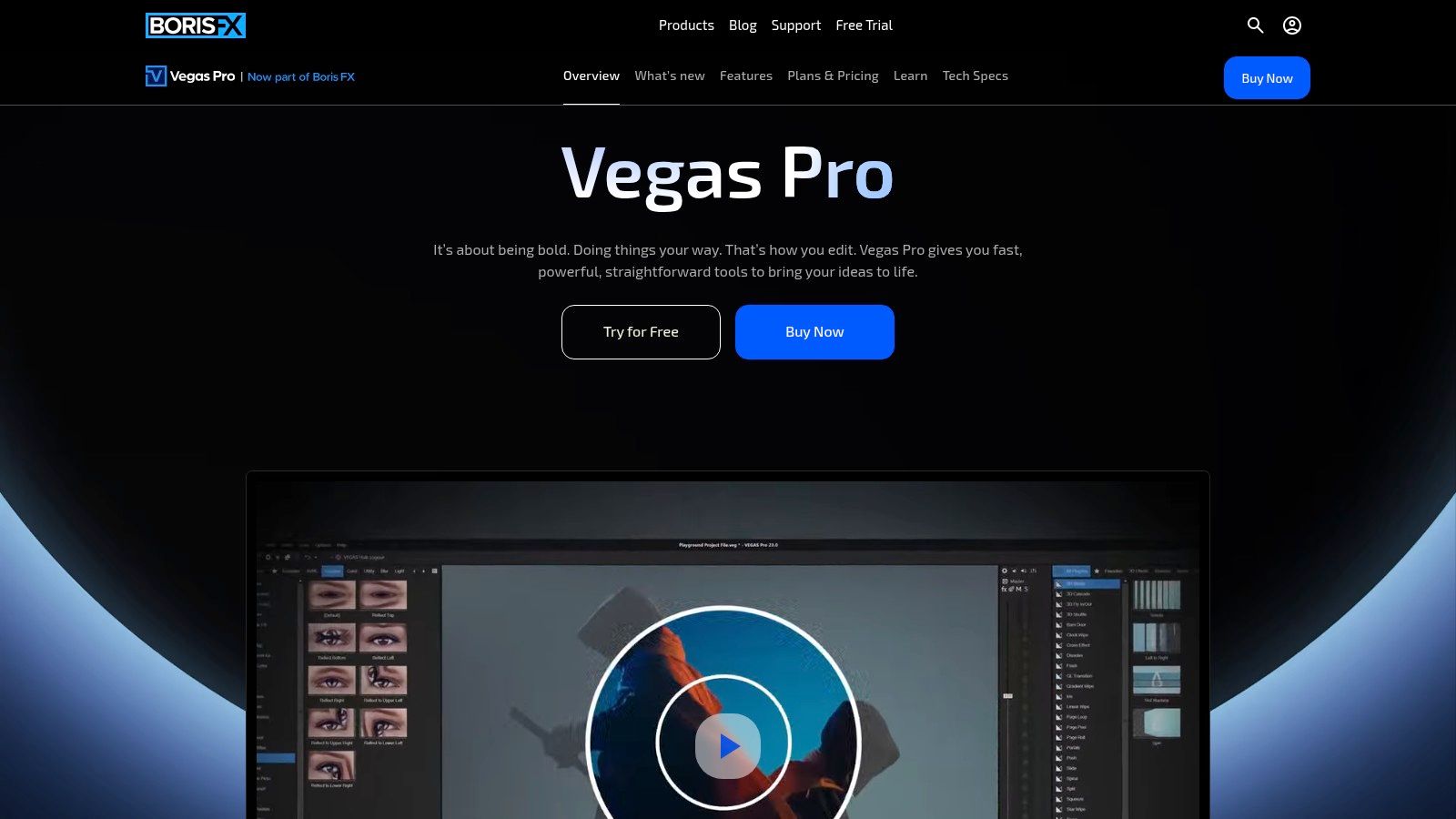
Gaming editors regularly move through repeated actions, align music with impact sounds, and organize gameplay, face-cam, chat overlays, and commentary. VEGAS Pro keeps these tasks in one timeline, so routine audio adjustments do not require another application. Its AI features include speech-to-text captions, masking, style transfer, and upscaling. These can reduce repetitive work while keeping the edit adjustable.
The main advantage is the balance between speed and depth. VEGAS Pro offers more control than a lightweight social editor without requiring every creator to learn a full color, VFX, and audio ecosystem before cutting a montage. A solo Windows creator with traditional timeline experience can work productively in it.
The limitations matter:
- Platform constraint: It is primarily a Windows choice and fits poorly with a Mac-centered team.
- VFX ceiling: Advanced motion graphics and visual effects may require plugins.
- Edition complexity: Subscription and perpetual options make licensing harder to compare.
VEGAS Pro is a poor fit for automatically mining a long VOD or producing a social clip with minimal manual work. Choose it once the footage is selected and you want a responsive timeline for a polished montage, highlight reel, or gameplay upload.
6. DaVinci Resolve Free / DaVinci Resolve Studio
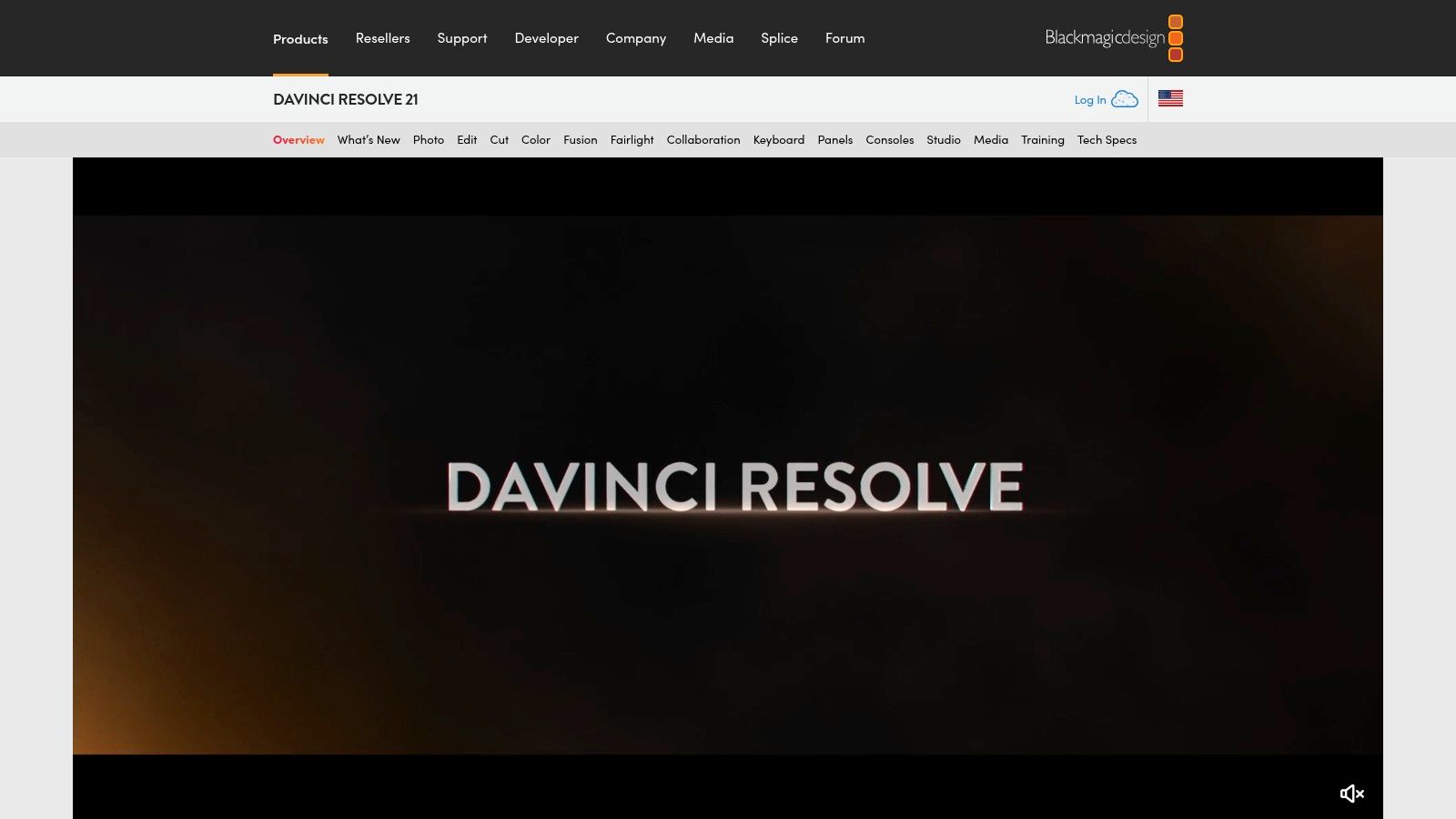
DaVinci Resolve is the strongest option here for creators who want one serious application to cover editing, color, VFX, and audio. The free edition already provides a capable timeline and substantial post-production tools, while Studio adds Neural Engine features, advanced noise reduction, Magic Mask, and Smart Reframe for vertical projects.
This is the editor to choose when gameplay footage needs more than cuts and captions. You can clean up uneven commentary, balance game audio against voice, correct a dark capture, build a consistent look across a series, and move into Fusion when the edit calls for more advanced compositing. Fairlight gives audio work a proper home instead of treating sound as an afterthought.
The free version is unusually generous, but the learning curve is real. A new creator may spend more time learning node-based color work, page-based navigation, and audio routing than they would in CapCut. Studio-specific AI and finishing tools also mean that the free and paid editions don’t offer identical workflows.
Use Resolve when you want to develop a durable editing skill, not when you need the quickest possible first Short.
Resolve is especially effective for long-form gameplay, esports packages, cinematic montages, and videos where color and audio quality influence the finished experience. It’s less efficient when the only requirement is to crop a known clip, add captions, and publish immediately. For those tasks, a focused vertical editor or social tool usually creates fewer handoffs.
7. Adobe Premiere Pro
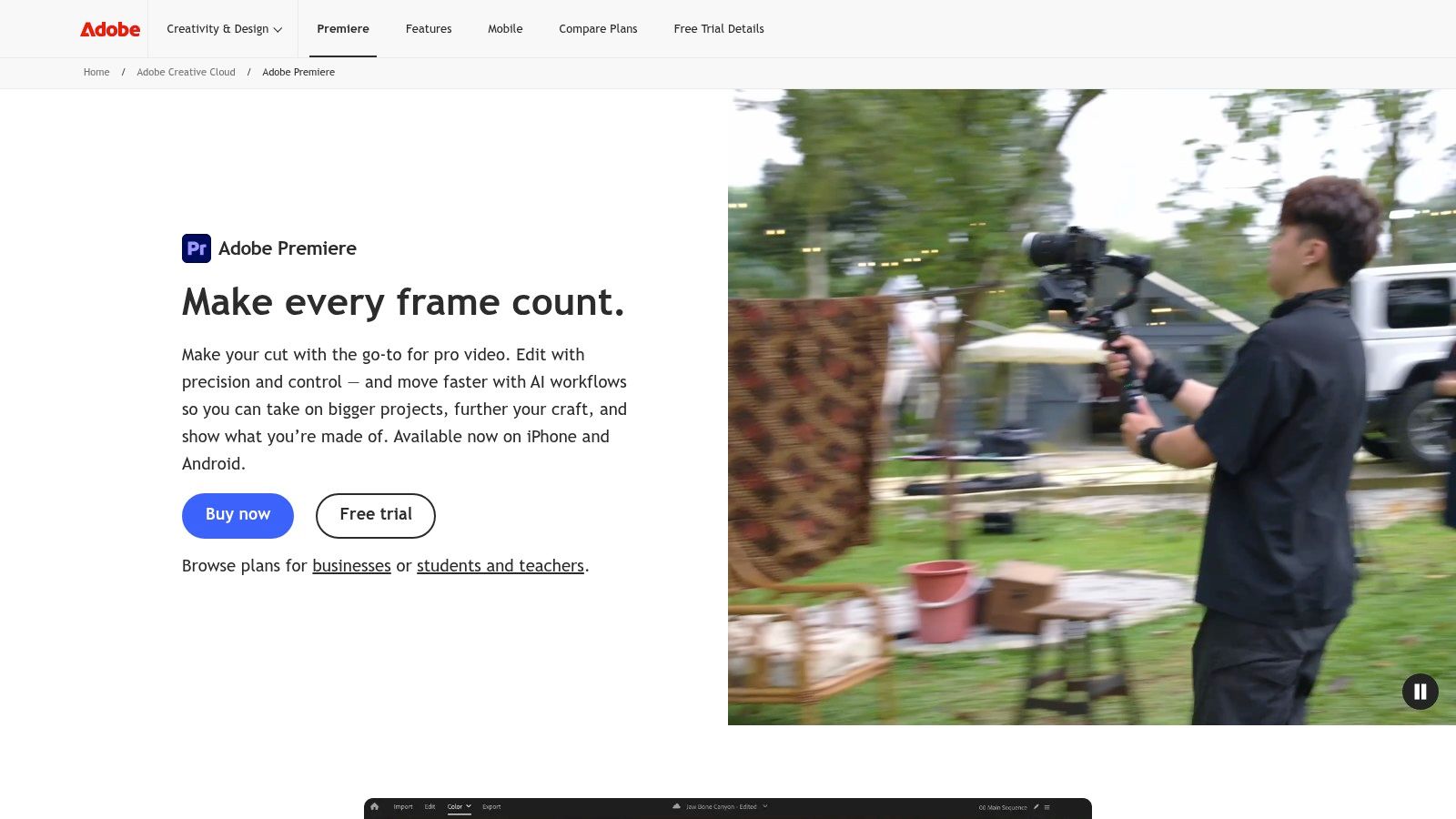
Adobe Premiere Pro is the safest choice for complex, collaborative, long-form gameplay production. Its strengths are less about a single gaming-specific feature and more about the surrounding professional workflow: thorough trimming, multicamera editing, proxies, advanced audio control, and integrations with After Effects, Photoshop, Frame.io, and Adobe Express.
Choose Premiere when a gaming video has several editorial layers. A long upload may combine multiple gameplay sessions, face-cam takes, commentary pickups, sponsor segments, animated graphics, sound effects, and review notes from another editor. Premiere gives teams a familiar project structure and a broad ecosystem of plugins, tutorials, templates, and interchange options.
It’s also the most defensible choice when you may hire an editor later. A professional handoff depends on project organization, media management, and software familiarity, not only on how quickly one person can cut a clip. Premiere’s proxy workflow helps when source recordings are large or difficult to play smoothly, while After Effects supports custom motion packages that would be awkward to build inside a lighter editor.
The cost is ongoing commitment. Premiere uses a subscription model, and its depth brings a steeper learning curve and heavier system demands than browser or mobile tools. A solo creator who publishes simple Shorts may pay for capabilities they rarely use. Someone producing structured long-form gameplay, however, may value the ecosystem more than the simplicity of a cheaper editor.
For a full production pipeline, Premiere is the long-form anchor. It won’t replace a gaming-aware highlight finder, and it may be unnecessarily complex for a single vertical clip, but it gives an experienced editor room to scale the project without changing applications halfway through.
Top 7 Gaming Video Editors Comparison
| Tool | Complexity 🔄 | Resources & Cost ⚡ | Expected Outcomes ⭐ / 📊 | Ideal Use Cases 💡 | Key Advantages ⭐ |
|---|---|---|---|---|---|
| Eklipse | Low (cloud-first, minimal setup) 🔄 | Cloud processing; free tier; Premium for 1080p/priority ⚡ | Efficient highlight detection; social-ready clips with templates ⭐⭐⭐⭐ 📊 | Mining long VODs to surface hype moments for short-form repurposing 💡 | Game-aware AI (trained on 1,000+ games); mobile/browser clipping ⭐ |
| Streamlabs Cross Clip | Very Low (browser tool) 🔄 | Minimal local resources; free with watermark; Pro for 1080p/60 ⚡ | Fast vertical reframes and captions for Shorts; basic polish ⭐⭐⭐ 📊 | Quick Shorts/Reels conversions from existing clip URLs or uploads 💡 | Extremely low friction; integrated with Streamlabs ecosystem ⭐ |
| ClipOven | Low–Moderate (chat-guided + timeline) 🔄 | Cloud/browser; plans unlock 2K vertical exports and unlimited projects ⚡ | Polished, brandable 9:16 verticals with animated captions ⭐⭐⭐⭐ 📊 | Known-moment edits where fast, on-brand vertical delivery is required 💡 | Chat-guided agent (Eddie) + subject-centric reframing and timeline polish ⭐ |
| CapCut | Low (consumer-friendly templates) 🔄 | Cross-platform; free tier; Pro gates advanced/cloud features ⚡ | Rapid meme-style edits, trend-ready Shorts with auto-subtitles ⭐⭐⭐ 📊 | Fast short-form edits, montages and trend-driven social content 💡 | Large template/asset library; very easy to learn and iterate ⭐ |
| VEGAS Pro | Moderate (NLE-focused; fast timeline ops) 🔄 | Desktop-heavy (Windows); subscription or perpetual licenses ⚡ | Efficient montage workflows and strong integrated audio results ⭐⭐⭐⭐ 📊 | Fast-cut montages, highlight reels and audio-centric editing for gamers 💡 | Fast timeline, deep audio tools and growing AI feature set ⭐ |
| DaVinci Resolve (Free / Studio) | High (pro-grade, steeper learning) 🔄 | Free edition generous; Studio is one-time paid license for AI tools ⚡ | Pro-level color, VFX and audio cleanup; scalable studio results ⭐⭐⭐⭐⭐ 📊 | Full post-production (color, VFX, audio) for serious creators and studios 💡 | Unified NLE + color/Fusion/Fairlight; powerful free tier; Studio AI tools ⭐ |
| Adobe Premiere Pro | High (industry-standard, deep feature set) 🔄 | Subscription-only; higher system demands and ecosystem costs ⚡ | Robust long-form, multicam and integrated workflows; professional output ⭐⭐⭐⭐⭐ 📊 | Complex long-form gameplay production and cross-app creative pipelines 💡 | Deep feature depth, After Effects/Photoshop integrations and plugin ecosystem ⭐ |
Match Your Editor to the Stage That Slows You Down
Start with the stage that consumes the most time. If you’re losing hours reviewing long VODs, use a highlight discovery tool such as Eklipse and treat its suggestions as an editorial shortlist. If the footage is already selected and your main challenge is producing vertical versions, Streamlabs Cross Clip, CapCut, or ClipOven will get you closer to a publishable Short with less setup than a full NLE.
The publishing format should influence the choice. Global livestream viewing reached approximately 32.5 billion hours in 2024, and gaming remained concentrated across Twitch and YouTube Gaming, with Twitch representing about 61% of gaming livestream hours and YouTube about 23% (gaming livestreaming figures and platform distribution). Creators therefore need workflows that can produce more than one destination format, but volume alone shouldn’t determine every editing decision. A fast clip that loses context, buries the player under captions, or balances game audio badly can weaken the channel even if it publishes quickly.
Use a simple test before committing:
- Choose one real source: Pick a representative VOD segment or gameplay clip, not a clean demo file.
- Measure the bottleneck: Record how long it takes to find the moment, create the vertical version, correct captions, and export.
- Review the output manually: Check subject framing, HUD visibility, speech accuracy, audio balance, and the first seconds of the clip.
- Confirm licensing: Look at watermark rules, export limits, subscription requirements, and whether your current computer or phone is supported.
ClipOven fits the middle stage when you already know the moment and want AI-assisted cuts, animated captions, automatic vertical reframing, and a timeline for final control. Premiere Pro or DaVinci Resolve remains the better destination for demanding long-form work, while Eklipse is more appropriate when the hardest task is discovering highlights in a large stream recording.
The best gaming video editor is the one that removes your most expensive manual step without creating a new quality problem. Test one tool on one real clip, compare the finished file with your current process, and keep the software that makes consistent publishing easier.
If horizontal gameplay is slowing down your Shorts workflow, clipoven can turn selected footage into 9:16 edits with AI-proposed cuts, animated captions, reframing, and layered effects. Try it on one real gaming clip, refine the result in its timeline editor, and see whether it reduces the time from known highlight to publishable vertical video.