clipoven
You’ve found the moment. A streamer lands the winning play, delivers a perfect reaction, or says something that will work brilliantly as a short. Then the practical work begins: retrieving the footage, trimming dead air, converting a horizontal frame to 9:16, keeping the gameplay and facecam visible, correcting captions, and exporting another version for each platform. A good moment can lose its value while you’re still moving files between tools.
This comparison evaluates each video editor for Twitch by the job it performs in a real Twitch-to-short-form workflow. The important questions are whether it discovers highlights accurately, reframes footage well, gives you usable caption controls, supports deeper editing when automation misses, exports without unnecessary friction, and fits a solo, mobile, or team publishing process.
The native Twitch Clip Editor is the fastest starting point when you only need a basic post. Dedicated tools make more sense when your bottleneck is highlight discovery, vertical composition, caption polish, gaming capture, or maintaining a repeatable publishing cadence. The best choice isn’t the tool with the longest feature list. It’s the one that removes the most work from your actual workflow without taking away the control your clips need.
Table of Contents
- 1. ClipOven
- 2. Twitch Clip Editor
- 3. Streamlabs Cross Clip
- 4. Eklipse
- 5. Powder
- 6. StreamLadder
- 7. Kapwing
- 8. VEED
- 9. Outplayed by Overwolf
- 10. OpusClip
- Top 10 Twitch Video Editors, Feature Comparison
- Choose the Workflow You Will Repeat
1. ClipOven
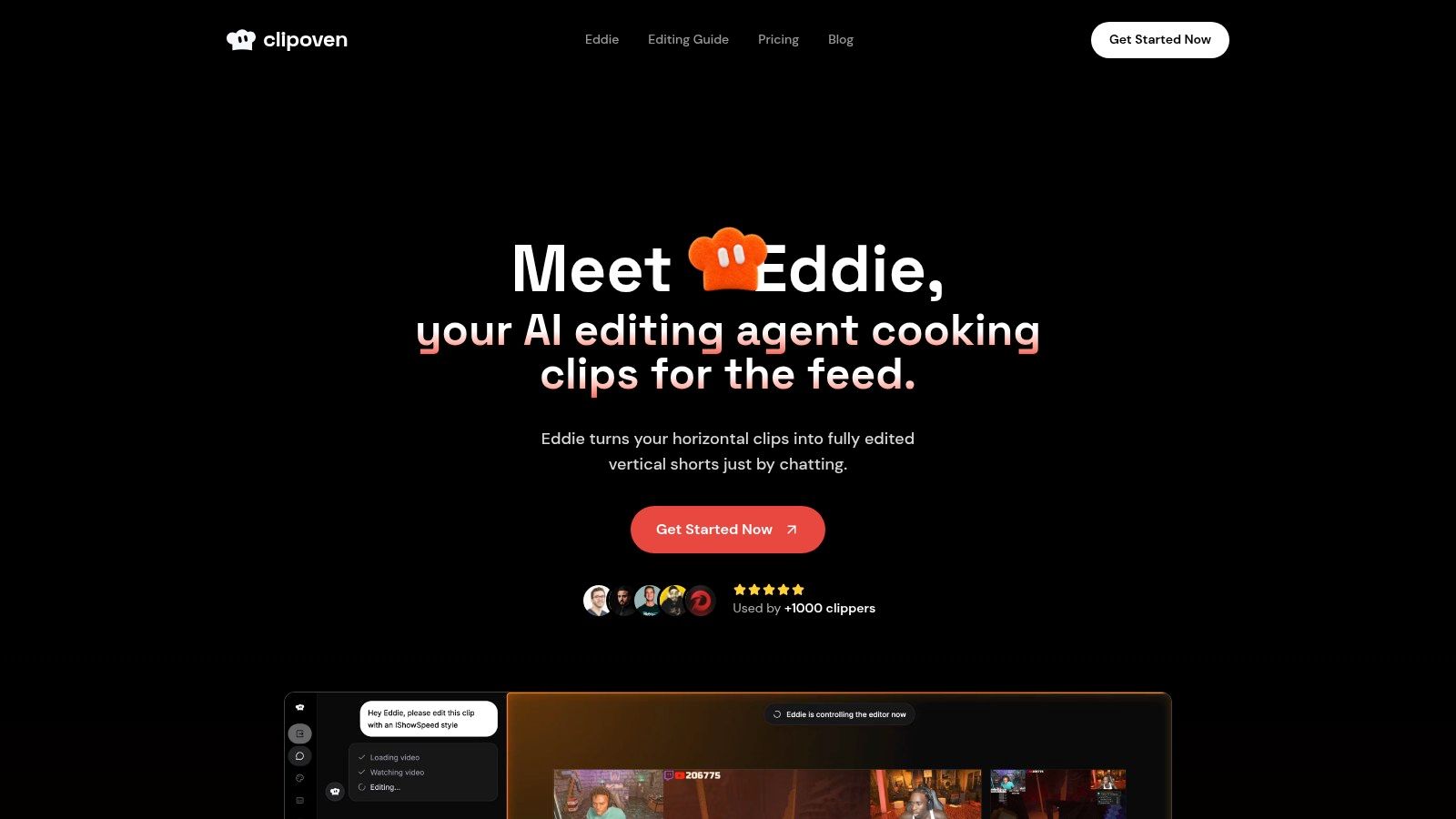
ClipOven is built for the part of Twitch editing that usually creates the most friction: turning horizontal footage into a finished vertical short without rebuilding the edit from scratch. Its AI editor, Eddie, takes a chat-based creative brief and assembles cuts, pacing, animated captions, effects, and a subject-focused 9:16 composition. You can then open the result in a full timeline editor instead of accepting the first automated version as final.
That combination makes ClipOven a strong fit for streamers, clippers, social managers, and small agencies that need speed without giving up manual refinement. The short-form workflow is deliberately focused on tighter cuts, reduced dead air, readable captions, and keeping the important subject visible after reframing. It’s more useful than a simple crop when a facecam, gameplay HUD, and reaction all compete for limited vertical space.
Where it fits best
Eddie is useful for producing a strong first draft quickly. The timeline editor matters because AI can choose an awkward pause, overcut a sentence, misread a caption, or frame the wrong part of the gameplay. You can correct those decisions, adjust transitions, layer audio effects, images, GIFs, and stickers, then export a polished vertical file in 2K resolution.
ClipOven uses credit-based Hobby and Pro plans, with the Hobby plan providing 1,000 credits monthly, roughly eight one-minute clips as a guide. Pro packs offer 3,000, 7,000, or 10,000 credits monthly, roughly 30, 70, or 140 one-minute clips respectively. Those estimates are useful for planning, but credit use varies by model and edit complexity, so high-volume editors should test representative projects before choosing a tier.
Practical rule: Use Eddie to get from raw moment to editable draft, then spend human attention on story timing, caption corrections, and whether the frame shows what viewers actually need to see.
The main limitation is that the chat-first workflow may feel unfamiliar to editors who prefer starting in a conventional non-linear editor. Credits can also become restrictive for complex or high-volume work. For teams seeking a single environment for AI assembly, vertical reframing, caption styling, and final polish, however, that trade-off is often preferable to bouncing between separate tools.
2. Twitch Clip Editor
The native Twitch Clip Editor wins on speed and simplicity. You can create and trim clips from your channel, switch to a portrait layout, and share or export toward TikTok, YouTube, Instagram, or Snapchat without downloading footage into another application first.
That makes it a sensible first stop when a streamer wants to publish a moment immediately. There’s no separate upload process, no new editing account, and no need to learn a complicated interface. If the clip already has a clear subject and only needs trimming plus a basic vertical treatment, the native workflow gets the job done with minimal friction.
Where it falls short
The editor isn’t designed to replace a dedicated short-form post-production workflow. It offers fewer effects, less caption control, and no AI highlight detection. Editors who need animated captions, layered assets, detailed pacing changes, custom split-screen layouts, or several revisions will quickly reach its limits.
It also works best when the streamer or channel owner controls the source material. Independent editors can run into access and retrieval problems when VODs are restricted, hidden, or difficult to download. The native tool is excellent for immediate publishing, but it doesn’t solve every collaboration or handoff issue between a streamer and an external editor.
Choose it when the priority is fast and free publishing from an existing Twitch clip. Choose another tool when the priority is a repeatable pipeline that turns long VODs into multiple edited assets.
3. Streamlabs Cross Clip
Streamlabs Cross Clip is a repurposing tool rather than a deep editor. Import a Twitch or Kick clip through a URL, choose a vertical layout, apply templates or overlays, and prepare the result for social publishing. The web and mobile workflow makes it particularly useful for creators who find clips on a desktop but want to finish and post from a phone.
Its strength is reducing the number of decisions between a finished Twitch clip and a platform-ready layout. A creator can use a preset rather than manually designing a gameplay and facecam arrangement for every post. That consistency helps when the objective is to publish regularly rather than create a heavily branded edit each time.
The trade-off
Cross Clip is less suitable when the source needs substantial story editing. It won’t give an experienced editor the same depth as a full timeline environment, and templates can make posts look repetitive if every clip uses the same treatment. It’s also important to check the free plan before building a workflow around it, because watermarking and other restrictions apply, while advanced features require a paid tier or Streamlabs Ultra.
Use Cross Clip when layout conversion and mobile publishing are the bottleneck. It’s a practical choice for a streamer who already has good clips and wants a quick, repeatable way to put them into vertical templates. If the actual problem is finding the best moments inside long VODs, this tool won’t remove enough manual review.
4. Eklipse
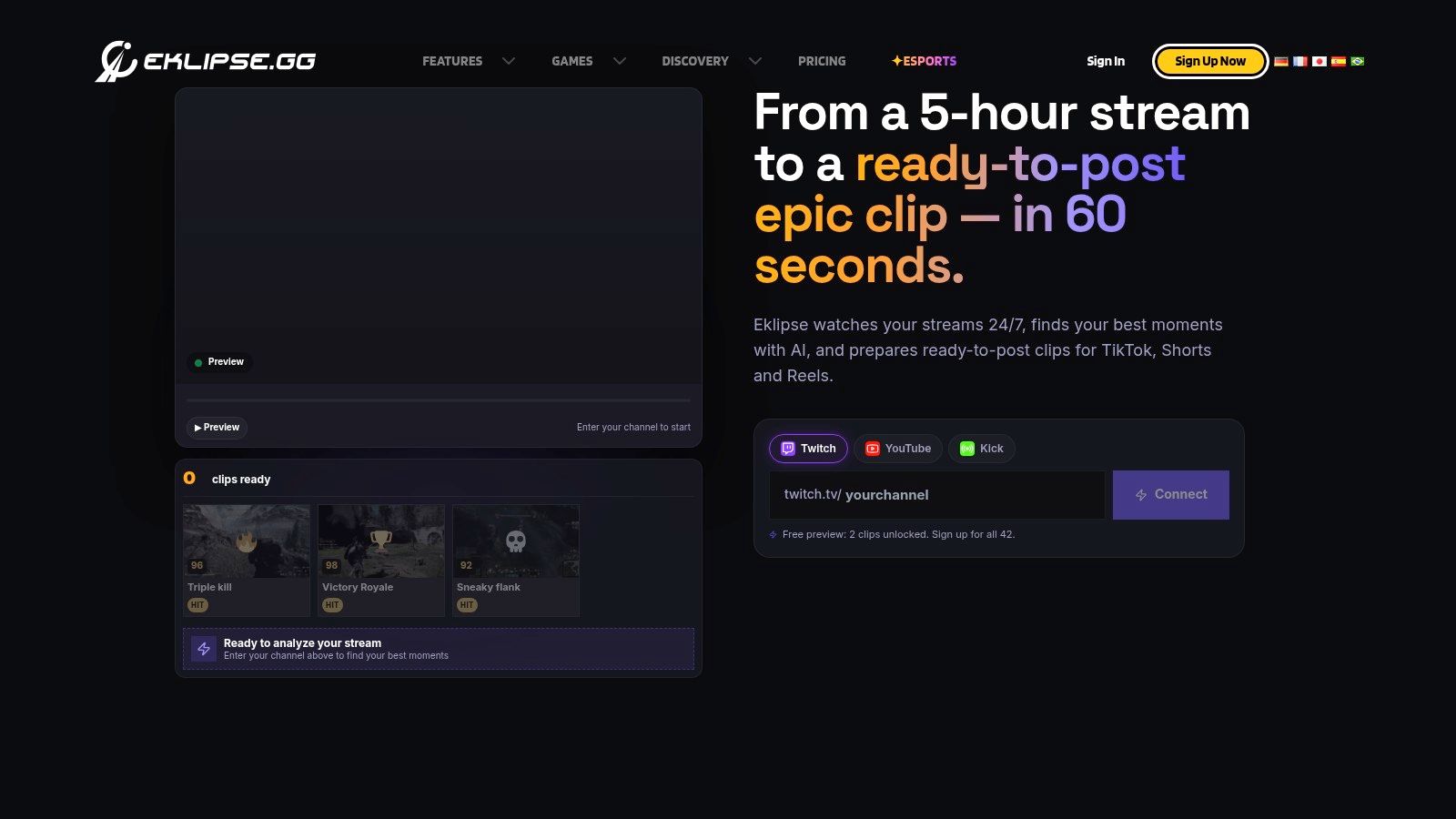
Eklipse targets the discovery problem. Connect Twitch, YouTube, or Kick, and its AI scans streams and VODs for moments that may work as highlights. It then applies vertical templates and automated captions, allowing creators to review candidates rather than manually scrub every part of a long recording.
That approach is valuable for streamers who produce long sessions but don’t have time to mark moments while live. It can surface a starting set of clips for a human to approve, trim, and improve. The tool is most useful when the first question is “what should I edit?” rather than “how do I make this already-selected clip look better?”
Don’t confuse selection with judgment
AI highlight detection can identify obvious gameplay peaks, reactions, and moments with strong audio signals. It may still miss context, setup, payoff, or the line that makes a clip understandable to someone who wasn’t watching the stream. Review every candidate before publishing, especially for Just Chatting, reaction content, or jokes that depend on a longer conversation.
Eklipse offers free previewing, while paid export features and higher-quality outputs require Premium. Promotion-based pricing can also vary at checkout, so confirm the current terms before relying on it for a production schedule.
It’s a strong choice when manual VOD scrubbing is the main bottleneck. It’s less compelling if you already have a marked clip and need precise editing control, detailed caption styling, or a more hands-on final cut.
5. Powder
Powder is focused on gaming signals. Its AI-powered platform can bookmark and detect moments from streams and gameplay, then add effects, captions, and social-ready formatting. That focus makes it more relevant to competitive games and sessions where kills, clutch plays, reactions, and other recognizable peaks give the system useful signals.
The practical advantage is speed during review. Instead of watching an entire session in sequence, a gaming creator can begin with automatically surfaced moments and decide which ones deserve a finished edit. Powder’s desktop and cloud-oriented workflow also suits creators who treat gameplay capture and highlight management as an ongoing archive rather than a one-off upload.
Best for gaming-first pipelines
Powder is less clearly suited to conversational streams where the value comes from wording, timing, or audience context rather than a game event. Even when the detection is good, an editor still needs to check the beginning and ending of each clip, remove unnecessary setup, and ensure captions don’t obscure the action or interface.
The basic appeal is straightforward:
- Gaming signal detection: Start with likely peaks instead of manually reviewing every minute.
- Short-form finishing: Apply templates, captions, and social-ready exports after selection.
- Organization potential: Keep a larger stream and gameplay archive connected to the clipping process.
Advanced organization and professional features may require contacting sales, and pro or enterprise pricing isn’t publicly listed. That makes Powder worth testing for a gaming-heavy workflow, but less convenient for teams that need to estimate costs before evaluating it.
6. StreamLadder
StreamLadder is designed around the familiar Twitch-to-TikTok layout: gameplay in one area, facecam in another, with captions and a 9:16 composition that can be prepared quickly. Its templates reduce repetitive setup, while auto captions and style controls handle much of the visual treatment expected from gaming shorts.
The tool becomes more useful when publishing cadence matters as much as editing. Direct TikTok posting and scheduling let creators prepare content ahead of time instead of treating every clip as a separate upload task. The iOS app also supports a workflow where a streamer can create or finish a clip without returning to a desktop editor.
A good layout tool, not a complete post-production suite
StreamLadder works best when the source moment is already selected and the desired treatment is familiar. It can be fast for a classic facecam-and-gameplay post, but it may not be the right place for complex narrative restructuring, extensive sound design, or highly customized motion graphics.
Subscription tiers place advanced features behind paid plans. Some users may also find the value of higher tiers difficult to judge without testing their own volume and posting needs. Before committing, run a real clip through the complete process, including caption corrections, scheduling, and final export.
For a broader comparison of options, this guide to clipping software is useful alongside a hands-on test. StreamLadder is a strong fit when vertical layout speed and scheduled TikTok publishing matter more than deep editing.
7. Kapwing
Kapwing is a general-purpose browser editor with Twitch-specific clipping features layered into a broader content workspace. Its AI Twitch Clip Maker can work from a Twitch link or VOD, identify possible highlights, reframe them vertically, and add captions or overlays. The platform also supports speaker focus, subtitle editing, meme and text tools, templates, brand kits, thumbnails, and montages.
That wider scope changes its role in a team. A social manager can move from a clip to supporting assets without switching applications, while an editor can make more substantial manual changes than a simple converter allows. Collaboration is another reason to consider it when the streamer, editor, and manager need to review the same project.
Where browser editing helps
Kapwing is a better fit than a narrow Twitch converter when one clip needs a thumbnail, branded text treatment, alternate cuts, or a montage. Its editor also gives a human more room to correct an AI-generated highlight than a one-click publishing tool.
The browser workflow can feel slower with very large VODs, particularly when the project requires repeated uploads, previews, and exports. The free plan adds watermarks and export limits, so teams need to account for the paid workflow before judging its suitability for client or brand work.
Kapwing makes sense for collaborative, browser-based editing around Twitch content. It may be more tooling than a solo streamer needs for one quick clip, but it earns its place when Twitch posts are part of a wider content production system.
8. VEED
VEED is aimed at fast editing by people who may not identify as professional editors. Its auto-subtitle tools, text styles, templates, 9:16 reframing, and AI Reel generator help turn a Twitch clip or VOD segment into a stylized social asset without requiring a complex editing background.
Captioning is the main attraction. Social teams can generate subtitles, adjust their appearance, and apply brand assets in a familiar browser workflow. That’s useful for clips where spoken commentary carries the moment and the text needs to remain readable while the frame changes quickly.
Keep caption review in the process
Automatic subtitles save time, but they shouldn’t bypass review. Gaming names, slang, overlapping speech, laughter, and sudden reactions can all create errors that make a short look careless. A fast editor still needs to check timing, line breaks, contrast, and whether captions cover the facecam or important gameplay.
VEED includes team workspaces and brand asset management, which can help a social team maintain a consistent look. The free plan includes watermarking and limitations, while more advanced AI capabilities sit on paid tiers. Check export restrictions before building a batch workflow around a free account.
VEED is a practical choice when caption production and ease of use matter most. It offers more general editing flexibility than a basic clip converter, but editors seeking highly precise timeline work may still prefer a dedicated desktop or full timeline environment.
9. Outplayed by Overwolf
Outplayed by Overwolf addresses the workflow before editing begins. It records gameplay locally, automatically captures moments triggered by game events, and provides a lightweight editor for quick trims. Hosting and sharing features help creators organize gameplay across sessions, with longer storage available to Premium users.
That makes it different from tools that begin with a Twitch URL or an uploaded VOD. Outplayed is useful when the creator wants to preserve the original gameplay moment at the source and review it shortly after it happens. Local capture can also be more direct than searching through a long VOD after the stream has ended.
Capture first, polish later
The lightweight editor is appropriate for trimming and archiving, but it isn’t intended to replace a full vertical short-form finishing tool. You may still need another application for animated captions, subject-centric reframing, more detailed pacing, or branded effects.
Outplayed also has a heavier desktop footprint than a pure web tool because it handles local capture. Premium features include perks such as extended hosting and an ad-free experience. Those costs may be worthwhile for creators who value reliable local capture, but less so for editors who receive finished Twitch clips from clients.
For a more detailed look at gaming-focused workflows, see this gaming video editor guide. Outplayed is the right starting point when capturing and organizing gameplay moments matters more than automated short-form post-production.
10. OpusClip
OpusClip is designed for batch repurposing. Feed it a long video, including a VOD, and it generates short vertical candidates with automated captions, reframing, templates, and ranking signals intended to help prioritize clips. That makes it appealing when one stream contains many possible posts and the editor wants a large first pass quickly.
The value is not that every generated clip will be publishable. The value is that the tool can reduce the amount of discovery and rough cutting required before a human starts making decisions. A creator can review a group of candidates, discard weak openings, repair context, and select the few that deserve final polish.
Treat rankings as suggestions
Automatic selection quality varies. A high-ranked candidate may begin too early, end before the payoff, or lack the context that made the live moment entertaining. Captions and reframing also need review, particularly when the streamer moves around the frame or gameplay occupies most of the visual area.
OpusClip uses credits tied to the length of the VOD or video processed. That model can work well for occasional batch production, but editors should estimate how much source footage they process and how many candidates they ultimately keep. This AI video clipper guide provides another point of comparison for editors deciding whether discovery or final editing is their bigger problem.
OpusClip is strongest when one long recording needs to produce many candidate shorts. It isn’t a substitute for human curation, especially when the clip depends on conversational context or a carefully shaped narrative.
Top 10 Twitch Video Editors, Feature Comparison
| Product | Core features ✨ | UX / Quality ★ | Pricing / Value 💰 | Target audience 👥 |
|---|---|---|---|---|
| clipoven 🏆 | ✨ Agentic chat editor (Eddie), subject-centric 16:9→9:16 reframing, animated captions, full timeline & asset layers, 2K export | ★★★★☆, AI speed + manual polish; platform-ready outputs | 💰 Credit-based: Hobby 1,000/mo (~8×1‑min), Pro 3k/7k/10k; monthly/year; unlimited daily projects | 👥 Twitch/gaming creators, Shorts/TikTok editors, social managers, small agencies |
| Twitch Clip Editor (native) | ✨ In-app trim, portrait layout, one-click share to socials | ★★★☆☆, fastest path but limited controls/effects | 💰 Free (integrated with Twitch) | 👥 Live streamers needing immediate social drafts |
| Streamlabs Cross Clip | ✨ URL import, vertical presets & templates, mobile app posting | ★★★☆☆, simple, mobile-first workflow | 💰 Freemium; watermark/limits on free; paid removes limits | 👥 Mobile creators, on‑the‑go streamers |
| Eklipse | ✨ Auto-highlight discovery from VODs, vertical templates, auto captions | ★★★☆☆, hands-off highlight selection; export gated | 💰 Freemium preview; paid exports / premium features | 👥 Long-VOD creators, automation-seeking creators |
| Powder | ✨ Gaming-focused signal detection (kills/reactions), templates, captions | ★★★★☆, strong gaming highlight accuracy | 💰 Paid tiers; pro/enterprise pricing (contact sales) | 👥 Competitive gamers, esports editors |
| StreamLadder | ✨ Two-box (game+cam) layouts, auto captions, scheduling, iOS app | ★★★★☆, fast conversions + scheduling for cadence | 💰 Subscription tiers; paywalled advanced features | 👥 Gamers, social schedulers, small teams |
| Kapwing | ✨ AI Twitch clip maker, speaker focus, rich editor, collaboration & brand kits | ★★★★☆, robust multi-use editor; slower on huge VODs | 💰 Freemium; watermark/limits on free; paid plans for full features | 👥 Creators + editors, marketing teams, collaborators |
| VEED | ✨ Auto subtitles, one-click 9:16 reframing, team workspaces, brand assets | ★★★★☆, friendly for non‑editors, fast captioning | 💰 Freemium; watermark on free; paid tiers for pro tools | 👥 Social teams, non-technical creators |
| Outplayed (Overwolf) | ✨ Auto-recording triggers, quick trim editor, hosting & sharing | ★★★☆☆, reliable local capture; lightweight edits | 💰 Free core; Premium for extended hosting/no ads | 👥 Desktop gamers, archivists who prefer local capture |
| OpusClip | ✨ Auto-clipping from long-form, virality scoring/ranking, captions & 9:16 exports | ★★★☆☆, great for batch candidate generation; variable quality | 💰 Credit/minute processing; paid plans scale with usage | 👥 High‑volume repurposers, social teams generating many candidates |
Choose the Workflow You Will Repeat
There isn’t one universal best video editor for Twitch because different creators lose time at different stages. A streamer who already marks moments during a broadcast has a different problem from an editor who receives long VODs after the fact. Start with the bottleneck, then choose the tool that removes that bottleneck without adding a new one.
For the shortest free path from a Twitch moment to a social post, use the native Twitch Clip Editor. It’s integrated, quick, and sufficient when the clip only needs trimming and a basic portrait treatment. It won’t replace serious caption design, detailed reframing, or collaborative editing, so don’t force it into a workflow that demands those capabilities.
Choose ClipOven when you want AI-assisted vertical repurposing with editable refinement. Eddie can assemble the first cut, captions, effects, and 9:16 composition from a brief, while the full timeline editor gives you control over pacing, timing, layers, and final corrections. Its credit model suits planned output, but high-volume creators should test how their actual edit complexity affects usage.
If the main problem is finding moments in long recordings, evaluate Eklipse, Powder, or OpusClip. Eklipse is a hands-off option for scanning streams and VODs. Powder is especially relevant to gaming workflows where event signals help surface likely highlights. OpusClip is useful for generating many candidates from a single long video. None of these tools removes the need for human review. AI can identify a peak, but an editor still decides whether the clip has enough context, whether the opening earns attention, and where the cut should end.
For fast layouts, mobile work, or scheduled social publishing, consider Streamlabs Cross Clip or StreamLadder. Cross Clip keeps the process simple across web and mobile, while StreamLadder is particularly convenient for familiar gameplay-and-facecam layouts and TikTok scheduling. Check watermarks, paid features, and export restrictions before committing to either one.
Kapwing and VEED are better choices when Twitch clips sit inside a broader browser-based content workflow. Kapwing offers more room for collaboration and related assets, while VEED makes captioning and branded social edits approachable for non-editors. Both require careful review of free-plan limitations and browser performance with larger projects.
Finally, choose Outplayed when local gameplay capture matters most. It captures moments before they become a VOD-retrieval problem and provides quick trimming and organization. You may still need a separate editor for vertical composition, caption polish, and a finished social treatment.
Test before you subscribe. Process one representative Twitch clip or VOD through the complete workflow, then check highlight accuracy, subject framing, caption corrections, export restrictions, and the number of manual steps left at the end. The best tool is the one that produces a publishable result repeatedly, not the one that looks most impressive in a feature list.
ClipOven turns horizontal Twitch footage into polished vertical shorts with Eddie’s chat-based cuts, animated captions, reframing, effects, and a full timeline editor for human refinement. If you want a faster path from selected stream moments to editable, 2K-ready TikTok and YouTube Shorts exports, visit clipoven and test it with a real clip from your workflow.