 clipoven
Most guides to the best video editing tablet start and end with the chip. Buy the fastest silicon you can afford, the reasoning goes, and everything else follows. That’s the logic of someone who watches playback. It isn’t the logic of someone who has to ship twelve captioned vertical clips before lunch.
The job is narrower and harder than a benchmark run. A tablet has to hold your footage at full frame rate while you scrub, keep captions legible on a 9:16 canvas, survive an hour of exports without throttling, and move files on and off without a trip back to a desk. This is a mature hardware category: IDC-linked figures reported by EBSCO Research Starters put global tablet shipments at about 230 million units at the 2014 peak and 147.6 million in 2024, which is why desktop-class processors, OLED panels and stylus input now reach professional editing apps.
So I judge these machines on repeatable throughput, meaning the number of correct, captioned, platform-ready clips finished per hour, and I treat storage and file handling as part of the decision rather than a footnote.
Table of Contents
- Top Video Editing Tablets at a Glance
- What Decides a Video Editing Tablet
- Storage, Battery and Hidden Workflow Costs
- Real Editing Speed and How to Test It
- Common Questions About Video Editing Tablets
- Best Tablet for Your Editing Work
Top Video Editing Tablets at a Glance
A strong short-form tablet is the one that gets more correct, captioned clips finished per hour, not necessarily the one with the highest benchmark. This shortlist highlights the practical fit of each model without treating unsupported export times or panel figures as test results.
| Tablet | Display | Best For | Key Data Point |
|---|---|---|---|
| iPad Pro 13-inch (M4) | 13-inch display | 4K multi-stream editing and external monitor work | Suited to demanding multi-stream workflows |
| iPad Pro 12.9-inch (M2) | Liquid Retina XDR mini-LED display | HDR review and editing on the tablet | Strong fit for reviewing HDR footage |
| Galaxy Tab S9 Ultra | Large Dynamic AMOLED 2X display | Large timeline and caption placement | Large canvas for tracks and captions |
| 11th-generation iPad | Display not measured in this comparison | Budget short-form assembly | Geekbench 6: 2,598 single-core, 6,338 multi-core |
iPad Pro 13-inch (M4) suits editors working with multiple 4K streams or connecting an external monitor. Its published capability is a useful indicator for that workload, but it does not show how quickly a complete short-form edit will be finished.
iPad Pro 12.9-inch (M2) is a good fit for reviewing HDR footage on the tablet. Its mini-LED display is the draw; the table does not claim a measured export time.
Galaxy Tab S9 Ultra gives editors more screen area for a timeline, tracks and caption placement. That can make arranging a vertical edit easier, though a larger display also means a larger device to carry.
11th-generation iPad is the budget choice for assembling short clips. Creative Bloq recorded 2,598 single-core and 6,338 multi-core in its Geekbench 6 test of the 11th-generation iPad. A synthetic score gives a point of comparison, not a measure of finished clips per hour.
Display measurements and export timings are not available here for every model, so use the table to narrow the shortlist rather than to rank editing speed. Before choosing, check how easily each tablet handles your footage, storage and file transfers.
What Decides a Video Editing Tablet
Spec sheets rank tablets by peak numbers. Short-form work ranks them by five checks, and the checks aren’t equally weighted.
Chip and memory come first because everything downstream depends on them. The M-series iPad Pro handles multi-stream playback of high-resolution footage, a workload well beyond trimming a single clip. Entry configurations ship with the smallest memory the line offers, though, and memory is what limits scrubbing once you stack animated captions, a reframe and a colour node on one timeline. If your clips run past a couple of minutes, buy up a memory tier.
The display you grade captions on
Display capability is a practical differentiator for vertical work, because you’re judging skin tones, caption contrast, shadow detail and HDR highlights on a 9:16 canvas that leaves nowhere to hide. The 12.9-inch iPad Pro M2 uses a 2732 × 2048 Liquid Retina XDR mini-LED panel with 1,000 nits typical brightness and 1,600 nits peak, plus HDR10 and Dolby Vision support. The Galaxy Tab S9 Ultra counters with a 14.6-inch 2960 × 1848 Dynamic AMOLED 2X panel at 120 Hz, HDR10+ support and perfect OLED contrast (MyNextTablet).
Which one you want depends on where the failure usually happens. Run this test in a shop or on a borrowed unit: drop a caption into the bottom third of a 16:9 gameplay clip, set brightness to half, and read it at arm’s length. If the caption vanishes against bright gameplay, that panel will cost you a correction pass on every clip you make.
Three more checks matter, in this order:
- Stylus support. A pen is faster than a finger for nudging a trim point or repositioning a caption box. Confirm your editor supports it before you pay for one.
- Native apps. Check the exact editors you’ll use, whether that’s DaVinci Resolve on iPad, LumaFusion, Adobe Premiere on iPad or CapCut. Confirm the app runs natively on the model, exports both 1080p and 4K, and decodes your codec. An editor that installs but drops frames on H.265 isn’t an editor on that device.
- Storage headroom. Capacity, port type, and whether your editor can work straight from external media. This one sinks more purchases than the chip does.
The rule that outranks the spec sheet: a tablet has to handle your footage’s resolution and frame rate at full speed, all the way through the export. Spec sheets list maximums. They don’t list sustained performance after twenty minutes of rendering.
If most of your day is spent on a full-size timeline with eight tracks of captions and overlays, the bigger canvas matters more than peak HDR. If you’re grading and reviewing, the brighter, more accurate panel wins. Neither answer comes from the chip’s model number.
Storage, Battery and Hidden Workflow Costs
Storage is the part of the spec sheet buyers read last and regret first. Here’s how the tiers line up for short-form work.
| Storage | Project Fit | Workaround |
|---|---|---|
| 256GB | Short-form clips from 1080p footage | External drive or cloud for archives |
| 512GB | Regular 4K project work | Proxy files for long timelines |
| 1TB | Heavy 4K libraries and multi-clip batches | Minimal external storage needed |
The PhoneArena tablet buying guide sets the floor at 256GB for video work and 512GB or 1TB for heavier 4K projects, noting that smaller capacities force cloud or external-drive workarounds. That’s the easy half of the decision. The harder half is the operational burden those guides rarely quantify: ingest time, adapter requirements, drive compatibility, offline access, proxy generation, duplicate files, and the risk of running out of local space halfway through a project, all of which bite hardest when you edit while travelling or on a weak connection.
The copy, edit, relink, export test
- Copy a defined package. Take roughly 20GB of gameplay footage and time the copy from card to tablet.
- Edit from external storage. Open the project straight off the drive, not from a folder you imported first.
- Pull the cable mid-project. Relink the media, and count the clicks plus whether the editor kept your cuts.
- Export without a desktop. If the last step needs a laptop, the tablet isn’t the workstation you bought.
Connection type and cable quality decide how long step one takes, so check the port and confirm your drive works with the model before you buy. A tablet with a fast chip and a slow ingest path loses an hour before you cut a single frame.
Battery is judged under load
Marketing figures come from light playback. A timeline scrubbing 4K footage and running a neural effect drains the same battery far quicker. There are no timed battery results for these models in the comparisons I can point to, so run the measurement yourself: charge to 100%, export a ten-minute 4K clip to vertical 1080p, and write down the percentage drop. That number tells you whether the tablet survives a two-hour train ride with anything left.
Practical rule: the best travel tablet isn’t the one with the longest quoted battery life. It’s the one whose storage workflow you can finish without a desktop.
Whatever you land on, pair it with platform-correct delivery, as in this guide to export settings for YouTube Shorts, so the file you export doesn’t get recompressed into mush on upload.
Real Editing Speed and How to Test It
Playback smoothness is only one part of editing speed. For short-form work, the useful measure is correct, captioned clips finished per hour, including the time spent finding footage, revising cuts and exporting.
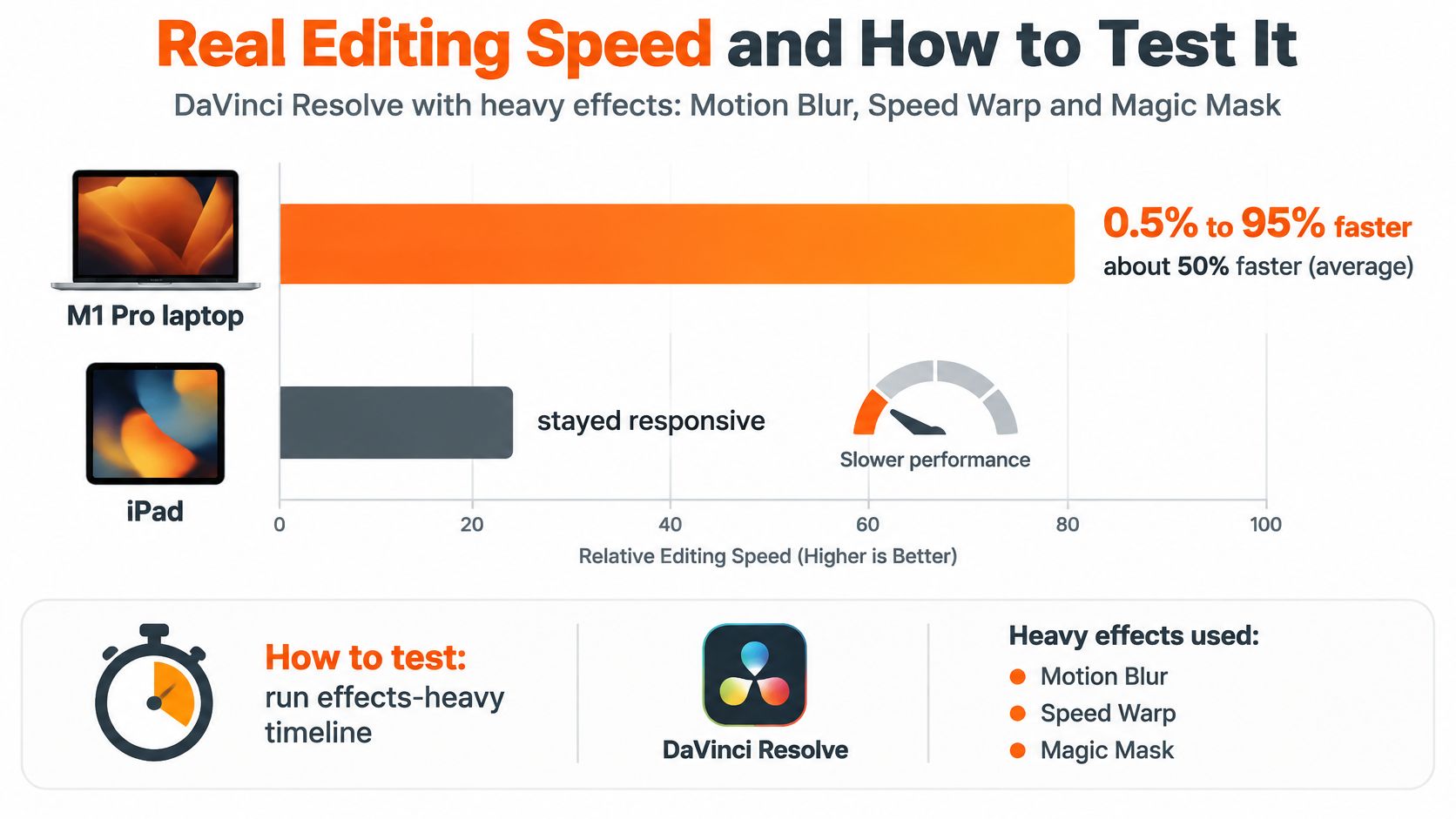
In a DaVinci Resolve comparison using identical settings, an M1 Pro laptop ran between 0.5% and 95% faster than the iPad across demanding effects including Motion Blur, Speed Warp, Magic Mask, Aperture Diffraction, Film Grain and Depth Map. The laptop averaged about 50% faster, while the iPad was quicker on Face Refinement and competitive on several other effects (Digital Production’s DaVinci Resolve comparison).
The gap depends on the task. Temporal processing, compositing and neural effects can slow a tablet, while scrubbing, caption compositing, reframing and timeline refinement may feel responsive. A peak benchmark score cannot predict the pace of a complete editing session.
What the hardware can actually sustain
Apple lists the 2024 iPad Pro with a 10-core CPU, a 10-core GPU, support for an external 6K display at 60 Hz over Thunderbolt, and video recording at 4K and 24, 25, 30 or 60 frames per second or 1080p and 25, 30 or 60 frames per second (Apple’s iPad Pro specifications). Those figures describe capabilities, not how quickly a particular editor will process your footage.
Three checks before you buy
- Scrub a 10-minute 4K clip. Use your own footage and move through the full timeline. Note stalls, especially when several clips are already in the project.
- Add captions and a regular effect. Try the caption layers and effect you expect to use together. Playback should remain usable with that actual workload.
- Export a vertical 1080p file and time it. Record the export time, then compare it with the time needed to make corrections. Both affect how many finished clips you can deliver.
The one-hour batch that predicts throughput
Analysts at Mordor Intelligence forecast mobile and tablet video-editing software as the fastest-growing segment of the wider editing market, with an estimated 8.8% CAGR from 2027 to 2032 (Mordor Intelligence’s video-editing market forecast). For a tablet buyer, the practical question is how efficiently the device handles a real batch of short-form edits.
Use one hour of 16:9 footage and try to turn it into several vertical clips. Track four things:
- Time to first draft: minutes from opening the footage to a watchable rough cut.
- Correction rate: fixes per clip. Repeated caption, cut or timing corrections reduce the number of clips finished.
- Export reliability: failed exports out of ten. A failed render adds time even when the hardware feels fast.
- Handoffs: app switches and storage moves per clip. Each one interrupts the editing flow.
Compare the number of correct, captioned clips completed, not just the time for a single export. For practical guidance on pacing and shaping clips for a feed, see this guide to social video editing.
Assembly time matters too. clipoven’s Eddie is a purpose-built AI editing agent for vertical clips: users describe the intended style, Eddie assembles cuts, captions and effects, and users can keep refining by chat or make precise adjustments in the full editor. Both the Hobby and Pro plans include Eddie, full editor access, unlimited daily projects and 2K exports.
Repeat the batch with the kind of footage and edits you expect to make. The tablet that finishes more polished clips with fewer corrections and handoffs is the faster tool for your workflow.
Common Questions About Video Editing Tablets
Can a tablet replace a laptop for editing
For scrubbing, captions, reframing and final timeline refinement, an iPad Pro is enough. For heavy denoising, grading and stacked effects it isn’t: sustained laptop-class rendering is a different league, and the effect-heavy timings show the gap. The practical setup is a tablet for assembly and review, with a laptop for the finishing pass when a project needs one.
Is base memory enough for editing
Not if you stack captions and effects across a multi-minute timeline. Memory is what limits scrubbing, and the base configuration is where the compromise lands. Buy one tier up if your projects run past a couple of minutes, and two tiers up if you keep several clips live on the timeline at once.
How much storage should I buy
Size it to one full shoot plus working space, not to a week of footage. If you record 4K, that puts you in the middle or top tier rather than the base model, and it saves you the adapter shuffle in the middle of a deadline.
Can a tablet handle 4K at 60 frames per second
Yes on current iPad Pro hardware, in the right project settings. Check two things before you commit: that your editor exports 4K as well as 1080p on that model, and that external monitor output runs at the refresh rate you need.
What does it cost
Pricing moves, and the comparisons here don’t carry current figures, so check Apple and Samsung pricing on the day you buy. Budget for the storage step-up and a stylus before you compare totals, because those two additions usually decide whether the premium model earns its place.
Best Tablet for Your Editing Work
The right tablet depends on what your day looks like, not on which model tops a chart. Three patterns cover most of the people reading this.
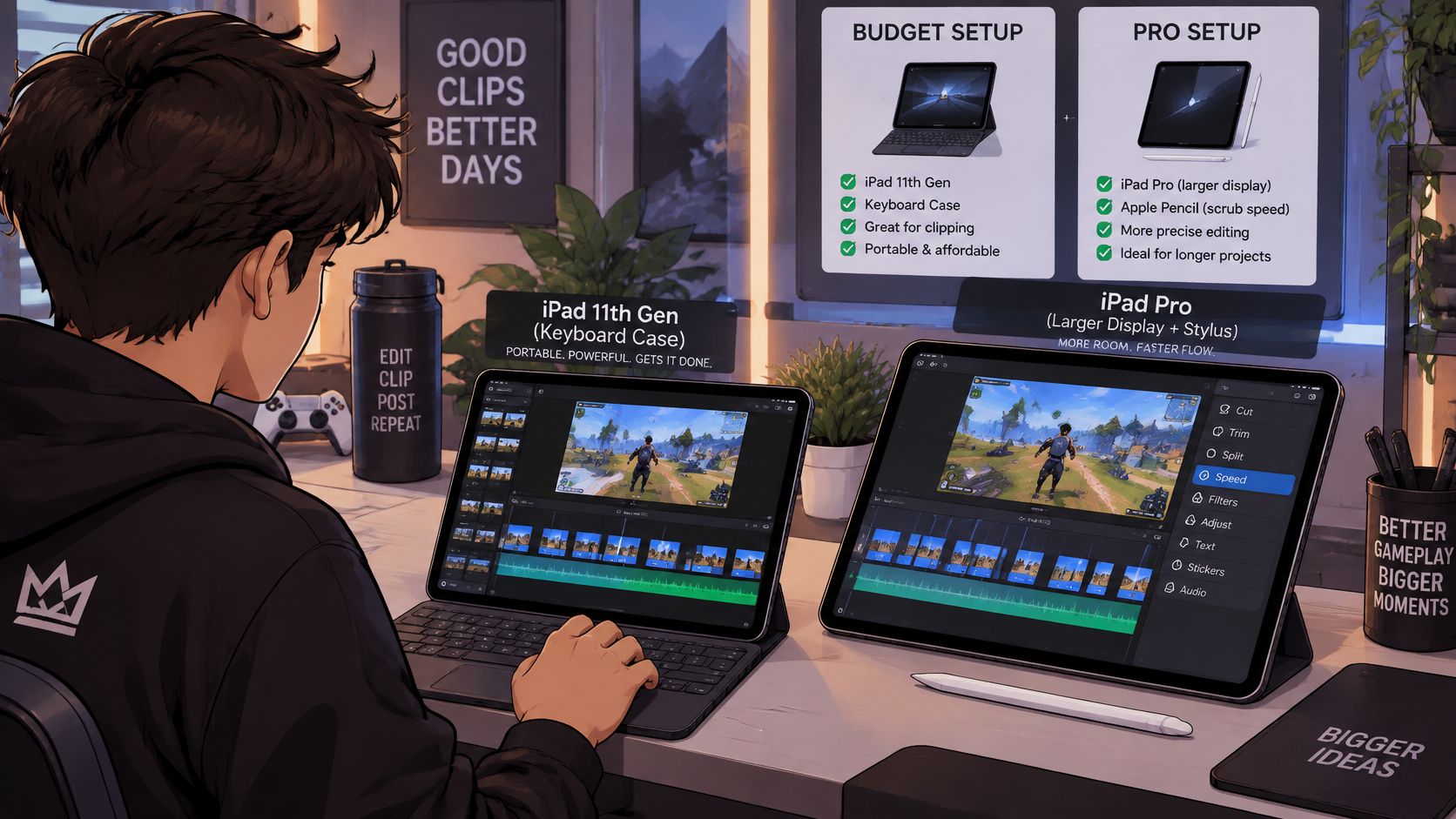
The gap between a budget assembly setup and a professional one is smaller than the price difference suggests, once you separate review work from finishing work.
Streamer clippers working from VODs
Your bottleneck is turnaround on 16:9 gameplay, not colour depth. The 11th-generation iPad covers the assembly pass at the lowest entry cost. Treat it as a review station: find the moment, cut the vertical, place the caption, export. If slow scrubbing on long recordings is what annoys you daily, the iPad Pro earns its price in saved minutes, because the extra memory keeps the timeline responsive once captions and effects pile up.
Freelance editors with client projects and an external monitor
Multi-stream footage, versioned exports, a second screen for the timeline: this is the iPad Pro 13-inch (M4) case. It’s the model built for 4K multi-stream work and external display output, and I’d skip the base memory configuration every time, because layered client timelines are exactly where memory pressure shows up.
If you want to see how far tablet editing has come in a real session, this walkthrough is a useful reference point.
Mobile creators shooting and editing on location
Two legitimate picks. The Galaxy Tab S9 Ultra when the canvas matters most: more timeline visible, easier caption placement, and OLED contrast that makes shadow detail obvious in a hotel room. The iPad Pro 12.9-inch when speed and HDR accuracy matter more than size. Either way, buy up from the base storage tier if you carry footage instead of streaming it from a drive in your bag.
Most of the time cost in short-form work sits in the assembly pass, not the finish. clipoven is an AI agentic clip editor that turns horizontal footage into vertical shorts, and Eddie, its editing agent, is built around short-form output rather than long timelines, so the 16:9 to 9:16 conversion, the captions and the first cut arrive together and land in a full editor for corrections. That leaves the tablet doing the work it’s good at: reviewing, nudging timing, fixing a caption, exporting.
The split that works: the tablet is the review station, and the conversion tool is the production line.
If you’re still deciding what to cut in, this comparison of the best video editing software covers which editors run natively on iPadOS and which still need a desktop.
Eddie takes your horizontal footage, reframes the subject for 9:16, adds captions that fit the feed and hands the result to a full timeline editor where you fix the pacing, timing and effects yourself before exporting at 2K for TikTok and YouTube Shorts. Both the Hobby and Pro plans include Eddie, full editor access, unlimited daily projects and 2K exports, which turns the tablet in your bag into a review station rather than the whole factory. Bring one clip you’d otherwise cut by hand and see what comes back at clipoven.