clipoven
You drop a cinematic clip into a vertical edit, add captions, and export. The dialogue sounds fine, but the camera pan suddenly looks jittery. By the end, you’re watching the speaker’s lips instead of the story, wondering whether the audio has slipped too.
To change frame rate of video without creating those problems, separate motion cadence from playback speed. Decide whether conversion is necessary, choose how the editor handles missing or surplus frames, and check the uploaded version before publishing.
Table of Contents
- Why Changing Frame Rate Takes More Than a Number Swap
- Check Your Source Frame Rate Before You Convert
- Changing Frame Rate in FFmpeg with the fps Filter
- Converting Frame Rate in Premiere Pro, DaVinci Resolve, and Phone Apps
- Comparing Conversion Methods and Tools for Your Clips
- Testing Vertical Exports for Audio Sync and Smoothness
Why Changing Frame Rate Takes More Than a Number Swap
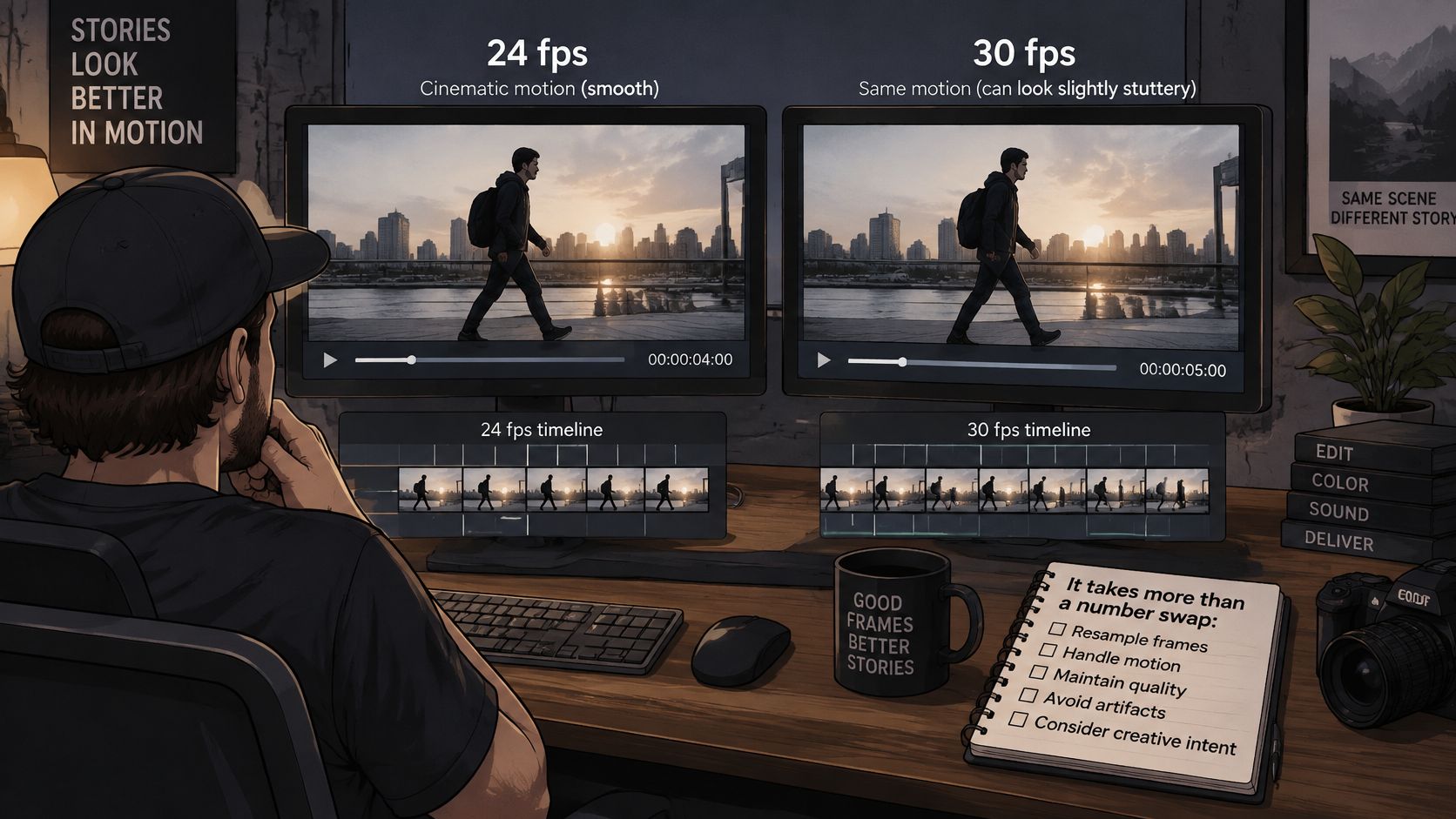
A frame-rate setting tells the editor how frequently to present images. It doesn’t tell the editor how to make the movement between those images convincing. That distinction matters when cinematic footage enters a faster delivery timeline.
The mismatch has deep roots. 24 fps was selected in 1929 for sound-synchronized film, and television engineers later used 3:2 pulldown to fit that footage into 60 television fields per second, distributing frames unevenly and sometimes producing visible judder, as described in this history of film and television timing.
Compare motion across the same pan, not just the numbers displayed in an export panel.
What the editor actually changes
Software has several ways to reconcile source footage with an output timeline:
- Drop or duplicate frames. Remove existing images or repeat them at new presentation times. This preserves the original images but can change their rhythm.
- Interpolate frames. Estimate intermediate images from surrounding frames. This can smooth movement, but the estimates may contain visible errors.
- Keep the native rate. Avoid conversion when the destination accepts the original timing and there’s no editorial reason to change it.
Cadence is the rhythm with which distinct images appear. An uneven rhythm can make a steady pan look hesitant even when the file plays for the correct duration.
Practical rule: If motion stutters but speech stays aligned, investigate frame handling before changing audio timing.
Audio drift is a different symptom. If picture and sound gradually separate, inspect timestamps, clip interpretation, and speed changes. Don’t assume a higher export rate will repair it. A conversion can preserve duration and still look rough, while a mistaken speed conform can alter duration even when individual frames look clean.
Check Your Source Frame Rate Before You Convert
Start with the original recording, not a previously exported copy. Open its media properties and record the reported frame rate, duration, and timing information. Keep those details beside the intended delivery settings.
Common production and delivery rates include 23.98, 24, 25, 29.97, 30, 48, 50, 59.94, and 60 fps; mismatched timelines can introduce cadence artifacts, dropped or duplicated frames, and audio drift, as summarized in the film frame reference. Treat near-matching labels as different settings until you’ve checked the actual stream.
Inspect the stream rather than the filename
For command-line inspection, run:
ffprobe -v error -select_streams v:0 -show_entries stream=r_frame_rate,avg_frame_rate,time_base,duration -of default=noprint_wrappers=1 input.mp4
Use the results as diagnostic information, not as an automatic conversion instruction. The nominal rate describes the stream’s reported timing structure. The average rate describes frames across its duration. A disagreement deserves further inspection, but it isn’t enough by itself to diagnose variable frame rate.
- Desktop editor users: Open clip properties or the media information panel. Check the source item, not only the sequence settings.
- MediaInfo users: Inspect frame-rate mode alongside the reported rate and duration.
- Phone users: Open the file’s details or information screen. If it only shows a rounded label, inspect the original in a desktop tool before making a timing-sensitive conversion.
The timebase is the unit used for timestamps, not another name for frame rate. Don’t replace one with the other in your notes.
Matching source and delivery settings is a reason to skip conversion, not a reason to run another export.
For gameplay, ask whether reducing the source rate solves an actual delivery constraint. If the destination accepts the original and the movement benefits from it, keep it. If the client requires a lower-rate master, make that conversion deliberately and retain the original capture for future edits.
Changing Frame Rate in FFmpeg with the fps Filter
Use an explicit filter when you want predictable constant-frame-rate output. Don’t rely on changing a container label and hoping the player interprets the footage differently.
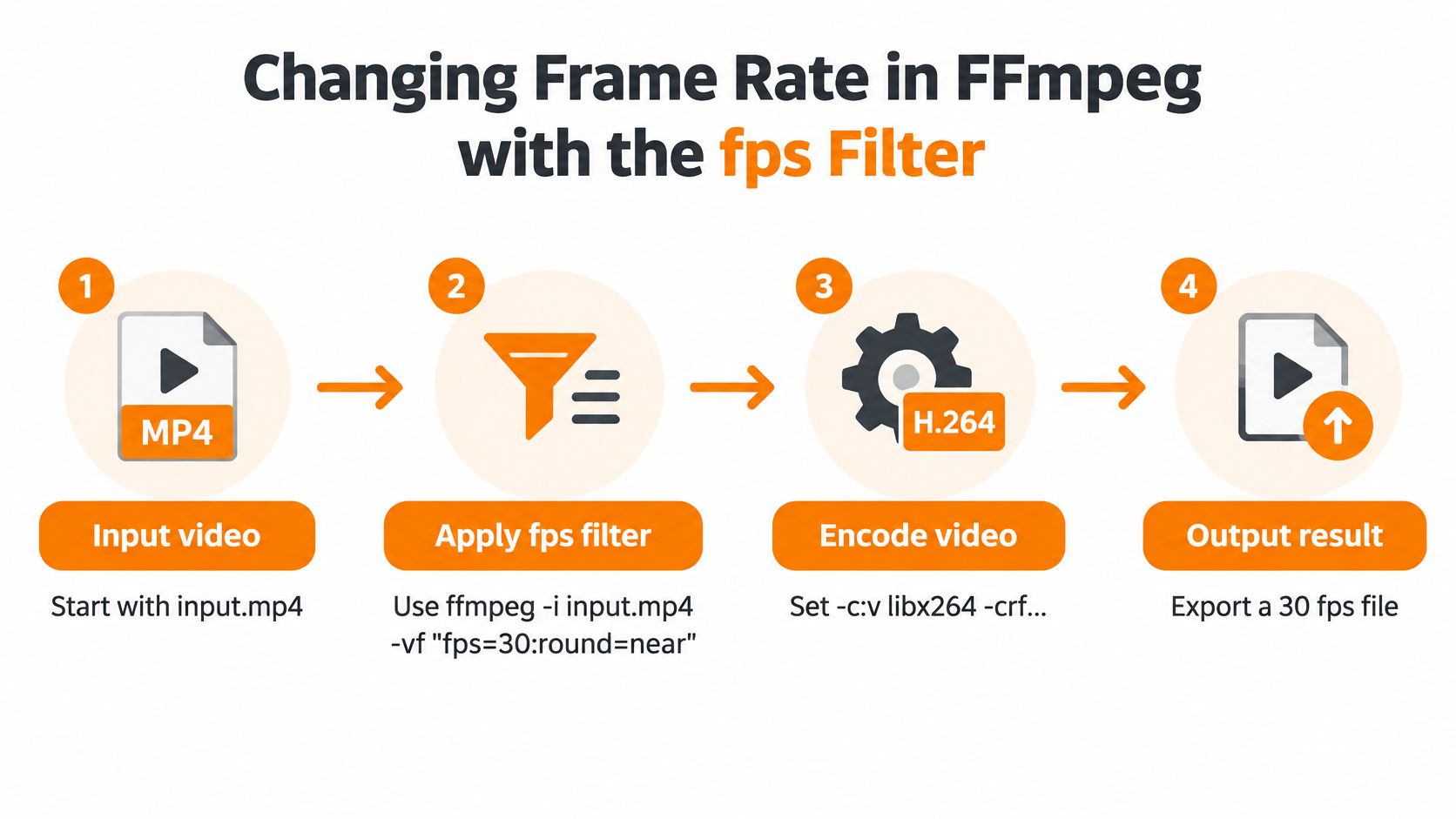
The workflow separates frame selection from encoding.
Apply the filter and encode deliberately
Use ffmpeg -i input.mp4 -vf "fps=30:round=near" -c:v libx264 -crf 18 -c:a copy output.mp4; for a 60-to-30 fps conversion, this retains approximately every other frame while preserving duration, and NTSC matching instead requires 30000/1001, according to the FFmpeg filter documentation.
The command has distinct responsibilities:
-i input.mp4selects the source.-vf "fps=30:round=near"builds the target frame sequence through dropping or duplication.-c:v libx264encodes the filtered video. A frame-processing filter can’t be combined with video stream copying.-crf 18supplies an explicit quality setting rather than leaving quality selection implicit.-c:a copypasses through the existing audio stream without re-encoding it.
The rounding options control timestamp rounding: near uses nearest rounding, down rounds downward, up upward, and zero toward zero. They don’t synthesize motion. Start with nearest rounding unless your delivery workflow requires a different boundary treatment.
When the target needs more frames than the source provides, this filter repeats existing images. That fills presentation slots, but it doesn’t recover movement the camera never captured.
Verify timing before accepting the result
Audio copying suits a duration-preserving rate conversion. It doesn’t retime sound to accompany an intentional speed change. If you also alter playback speed, handle audio timing separately.
Inspect the output with:
ffprobe -v error -select_streams v:0 -count_frames -show_entries stream=avg_frame_rate,nb_read_frames,duration -show_entries format=duration -of default=noprint_wrappers=1 output.mp4
Compare duration, decoded frame count, and average rate with your intended output. Then watch a scene cut and a moving shot. Metadata can confirm structure, but not whether the cadence looks acceptable.
For a visual walkthrough, use the demonstration alongside your own output checks.
Converting Frame Rate in Premiere Pro, DaVinci Resolve, and Phone Apps
A graphical editor exposes several timing controls that sound interchangeable. They aren’t. Source interpretation, timeline rate, and export rate answer different questions.
Source interpretation determines how the editor reads a clip’s frames over time. Timeline rate defines the sequence’s timing grid. Export rate determines the delivered frame sequence. Changing the timeline doesn’t automatically conform every source clip to a new playback speed.
Premiere Pro and DaVinci Resolve
In Premiere Pro, right-click the source item in the Project panel and choose Modify > Interpret Footage when you need to correct how the editor interprets the source. Don’t use an assumed rate merely to satisfy an export requirement. That can change playback duration instead of performing a duration-preserving conversion.
For deliberate retiming, open Speed/Duration and choose the appropriate time interpolation option. Frame sampling, frame blending, and optical flow need visual evaluation, especially around edits and moving subjects.
In DaVinci Resolve, establish the timeline rate in Project Settings > Master Settings before assembling the edit. Use Clip Attributes only when you intend to override source interpretation. For speed work, use Retime Controls, then inspect the clip’s Retime and Scaling settings in the Inspector to choose its retime process. Labels and availability can vary by version.
| Setting | Use it for | Avoid using it for |
|---|---|---|
| Source interpretation | Correcting or deliberately conforming source timing | Routine delivery conversion |
| Timeline rate | Establishing the edit’s timing grid | Repairing existing sync errors |
| Export rate | Meeting the delivery specification | Concealing a poorly chosen retime |
Phone capture and mobile exports
Set the capture rate in the camera app before recording. That choice affects newly captured footage, not frames already recorded. On iPhone or Android, check the available video recording settings rather than assuming every recording mode offers the same controls.
In CapCut or another mobile editor, inspect the export frame-rate option independently of the project preview. Exporting a different rate creates a new version; it doesn’t change what the original camera captured.
For a phone clip entering a mismatched sequence, first check whether its duration and speech remain correct. Then inspect moving edges. If timing is correct but motion is uneven, change frame handling, not source interpretation. Compare video editing software options based on access to these separate controls, not just export presets.
Comparing Conversion Methods and Tools for Your Clips
Choose the frame-handling method before choosing the tool. A batch encoder and a timeline editor can both produce poor motion if you ask them to solve the wrong problem.
Keeping original timing protects intentional cadence. Dropping or duplicating frames provides a controlled delivery rate without inventing image content. Blending and optical flow attempt to soften the transition, but they introduce different compromises.
Use this comparison to narrow the choice before rendering.
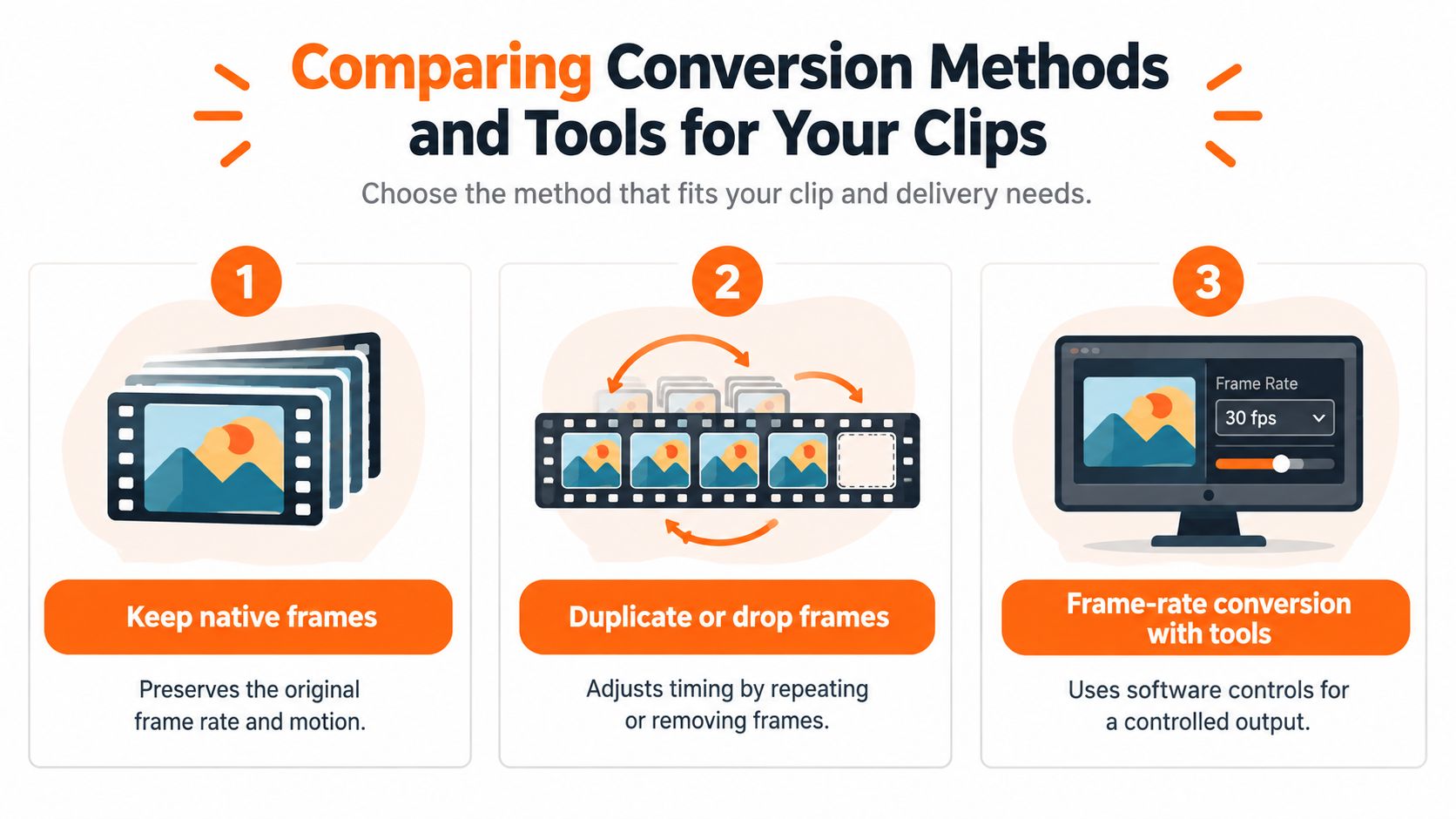
When Each Frame Rate Method Makes Sense
| Method | Best For | Main Risk |
|---|---|---|
| Keep native frames and rate | Talking heads, edited gameplay, accepted source formats | Delivery incompatibility |
| Duplicate or drop frames | Required rate matching without invented imagery | Uneven cadence or reduced motion detail |
| Frame blending | Shots where a softer transition is acceptable | Ghosted edges and overlapping silhouettes |
| Optical-flow interpolation | Selected slow-motion shots with predictable movement | Warping, duplicated objects, unstable overlays |
Optical flow needs particular caution around hands, particles, occlusions, and game interfaces. The software has to estimate where content moves and what becomes visible between captured images. A clean-looking background doesn’t guarantee that the foreground survives.
A recent evaluation found that PSNR can remain reasonable despite poor motion consistency, while motion-trajectory measures correspond more closely with human judgments of interpolation artifacts. That’s why a technical quality score can’t replace watching the movement, as discussed in this evaluation of temporal interpolation quality.
More output frames don’t necessarily mean more trustworthy motion.
Match the toolchain to the editing job
FFmpeg suits repeatable batch conversion with explicit settings. Premiere Pro and DaVinci Resolve suit mixed-rate edits where individual shots need different treatment. Phone editors suit quick single-clip work, provided their export controls expose what you need.
A dedicated vertical-editing workflow addresses composition and assembly, not necessarily temporal repair. Keep those decisions separate. This distinction matters when resizing videos for vertical delivery, because a tight crop can make errors around faces and screen edges easier to notice.
For mixed footage, evaluate the cinematic insert, webcam segment, and gameplay independently. Don’t apply optical flow to an entire sequence just because a difficult pan benefits from it. Preserve native motion where possible and isolate any synthesized treatment to the shots that justify it.
Testing Vertical Exports for Audio Sync and Smoothness
Approve the platform-encoded upload, not just the local master. Your local file is an intermediate checkpoint. The audience watches the version delivered through the publishing platform.
Avoid treating a default preset as proof of quality. Bristol research found that frame rate affects perceived quality up to at least 120 fps, with camera motion strongly influencing visible artifacts, so the appropriate rate depends on the scene, according to the study of high-frame-rate video formats.
Use the following visual checklist alongside a representative test export.
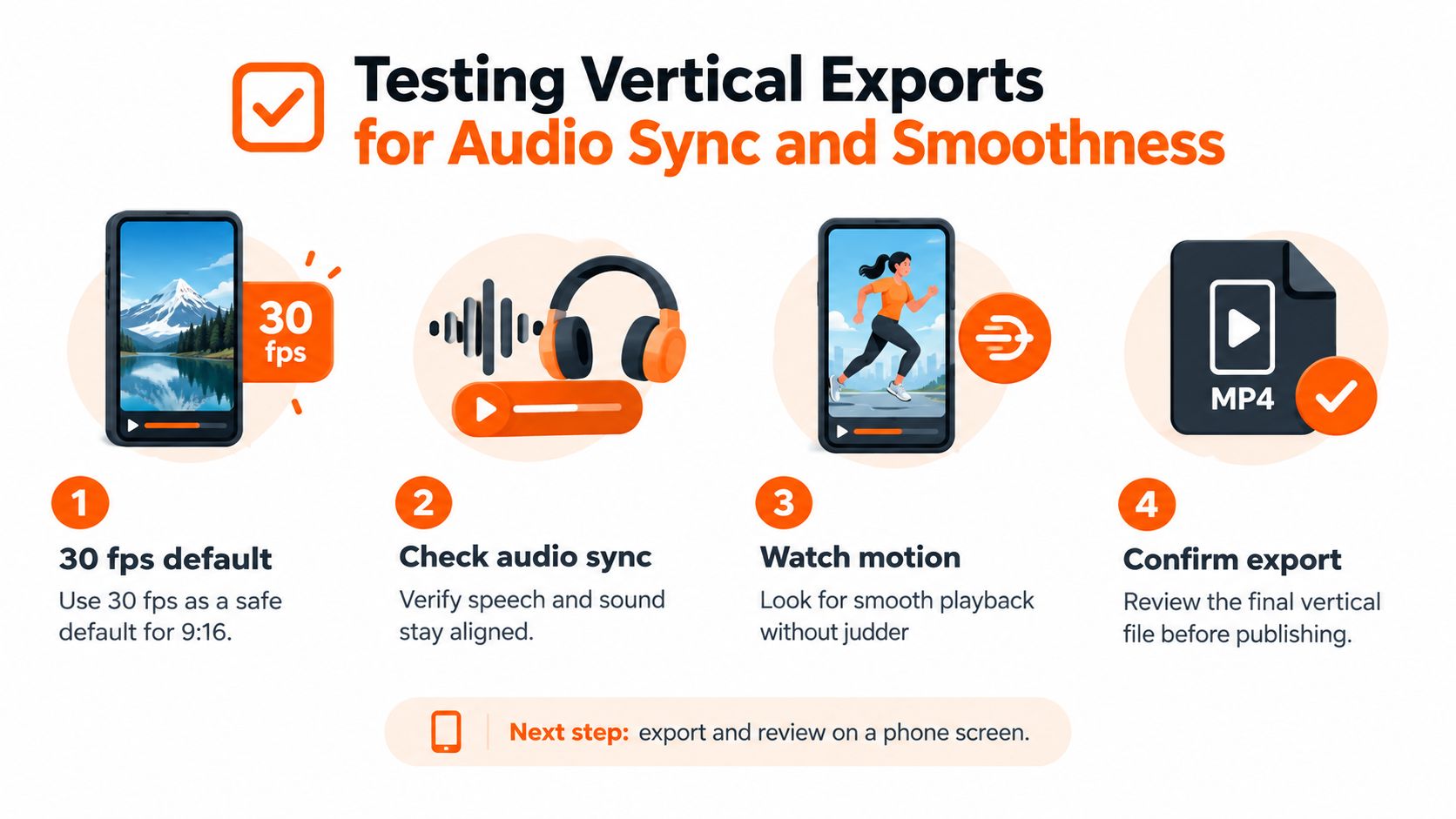
Check sync and movement separately
Choose a short test containing a fast cut, visible speech, camera movement, captions, and demanding gameplay. Don’t test only a static introduction.
- Check alignment at the start and end. Watch a spoken consonant or a clear impact against its sound. An increasing offset points toward a timing problem rather than a fixed placement error.
- Watch at normal speed first. Judge whether the movement feels natural before hunting individual frames.
- Step through suspicious areas. Inspect hands, HUD text, particles, caption edges, and subjects crossing the crop boundary.
- Review on a phone. Watch at the intended viewing size. Confirm that framing and captions remain readable during movement.
- Compare equivalent moments. Use the same shot in the source, local export, and uploaded playback so you’re not judging from memory.
If you intentionally changed speed, verify the audio retime and any pitch-preservation setting separately. Don’t attempt to fix progressive drift by nudging the entire audio clip. That may align one moment while leaving the rest wrong.
Test what viewers will receive
Upload a private or otherwise restricted test where the platform supports it. Wait for processing, then watch the delivered version on the device you expect viewers to use. Check the troublesome shots again rather than approving the upload from its opening frame.
If only the uploaded version looks wrong, revisit the delivery settings and test another export. If the local master already contains the defect, return to source timing or frame handling. Avoid repeatedly converting a damaged export.
Use a consistent YouTube Shorts export settings checklist to record what you changed between tests. Keep the source, export settings, and approved result together so the next revision doesn’t restart the diagnosis.
If you regularly turn horizontal footage into vertical shorts, visit clipoven for subject-centric reframing, chat-based editing with Eddie, and an editable timeline for final adjustments. Export your vertical clip in 2K, then run the same audio-sync and fast-motion checks on the platform-encoded version before posting.