clipoven
Short-form editors often start with 30 seconds to 2 minutes as a working range, not a fixed target. A highlight succeeds when viewers stay for the payoff, so test the edit at different lengths rather than trimming every stream to one runtime.
With hours of footage and one afternoon to edit, find a self-contained event, shape it into a short narrative, and cut two or three versions from the same material. Each length makes a different trade-off: a tighter cut gets to the moment sooner, while a longer one can preserve context. Complete the technical checks, then compare viewer retention across versions. Keep the length that holds viewers best, not the one you are most attached to.
Wyzowl’s 2025 video survey is a source to consult when setting a starting range, but let your own audience’s retention decide the final runtime.
Table of Contents
- The Six-Stage Highlight Workflow at a Glance
- Tools and Music Rights to Check Before You Start
- Finding and Ranking the Moments Worth Keeping
- Choosing the Length of Each Version
- Cutting, Ordering and Pacing the First Edit
- Captions That Hold Up Without Sound
- Reframing to 9:16 and Exporting Clean Files
- Run the Muted Test, Then Publish the Highlight
The Six-Stage Highlight Workflow at a Glance
By March 2021, YouTube reported that its Shorts player had surpassed 6.5 billion daily views worldwide, illustrating the scale of short-form distribution in its announcement of the Shorts expansion. For an editor, the practical lesson is to build for the feed rather than treat a highlight as a leftover piece of a long recording.
Use a workflow with clear handoffs. If you can’t name the output of the stage you’re working on, you’re probably polishing before you’ve made the important editorial decisions.
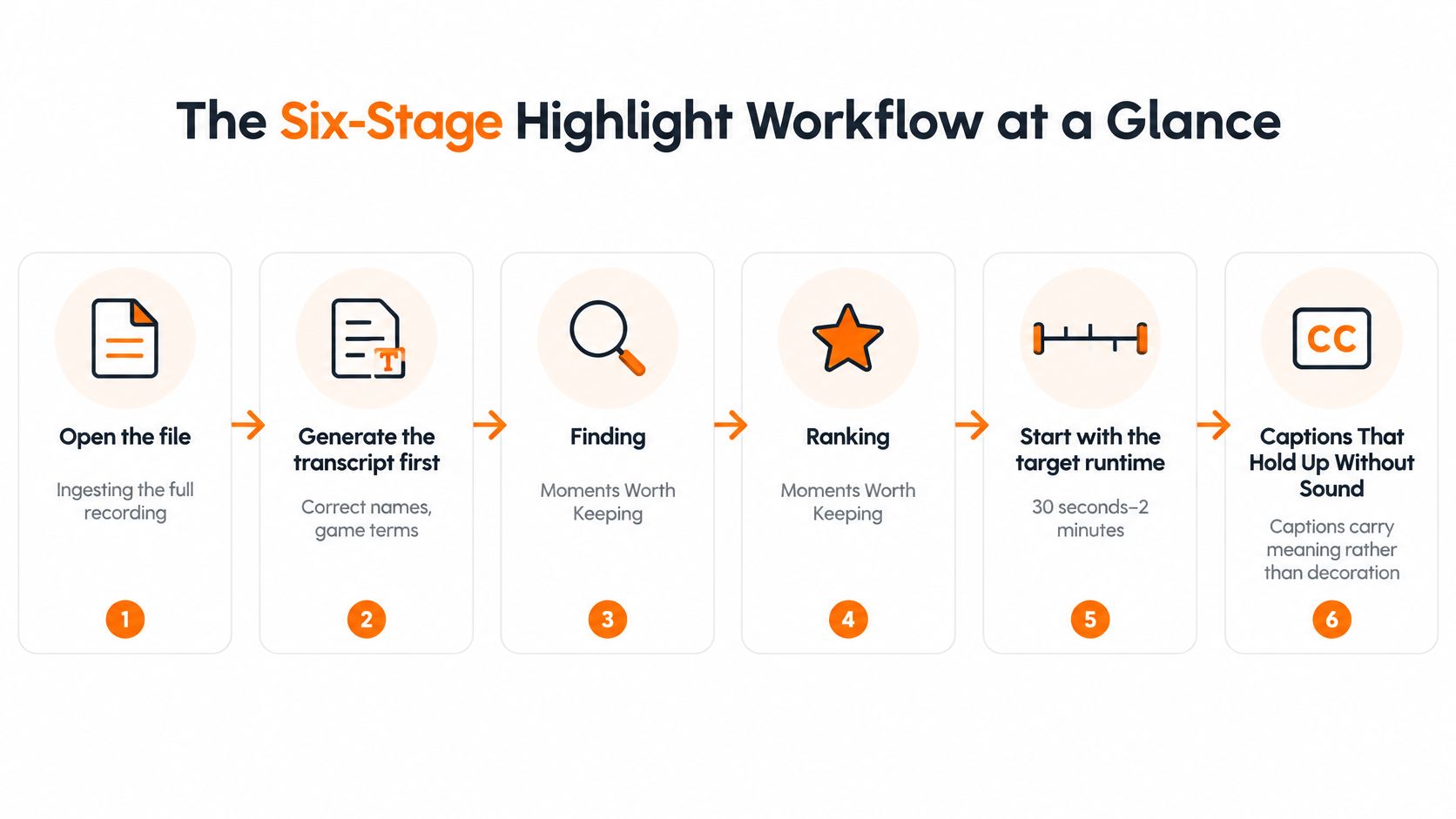
Highlight workflow stages and outputs
| Stage | Main action | Output for the next stage |
|---|---|---|
| 1. Ingest | Load the full recording and generate a transcript | Searchable transcript with timestamps |
| 2. Mark | Flag lines, reactions, and game events worth reviewing | Raw list of candidate moments |
| 3. Classify | Tag each candidate by narrative role and score it | Shortlist of five to eight moments |
| 4. Assemble | Build a rough cut around the strongest moment | Rough cut with dead air still in it |
| 5. Polish | Add captions, reframe to 9:16, and tighten pacing | Vertical master at 1080x1920 |
| 6. Export and test | Render the file and watch it muted at phone size | Publish-ready file that works without sound |
Treat that shortlist size as a working limit, not a performance benchmark. You need enough alternatives to make a good choice, not another archive to review.
Leave fine trimming until the assembly makes sense. A finished highlight is a compressed narrative, not just a recording with its quiet sections removed.
Tools and Music Rights to Check Before You Start
Choose tools by the jobs they let you finish. Switching applications halfway through an edit because captions aren’t editable wastes more time than choosing a less elaborate setup at the start.
Build a workable editing setup
- Playback and navigation. Use a player or editor that can scrub the full recording and jump to timestamps.
- Transcript access. Generate searchable text with timestamps that lead back to the footage.
- Timeline control. Your editor should support a vertical canvas, separate audio and video edits, and manual reframing.
- Editable captions. Keep access to the underlying words and cue timings, not just a rendered animation.
An AI-assisted editor can help produce an assembly, but it doesn’t remove the need to inspect the source or correct the result. Before committing, test whether you can change a misheard player name and move a caption without rebuilding the whole clip.
Check permissions and private information
Audit the audio before cutting around a song. Check whether your permission covers the intended platform and use; don’t assume music that played during the stream is cleared for a separate upload.
Replace uncertain tracks with audio you’re permitted to publish, and keep dialogue, game audio, and added music separate where possible. Also inspect chat overlays, notifications, and account screens for personal information you should blur or crop.
Practical rule: Keep the original recording untouched. Store the transcript, candidate list, project, and version exports together so you can trace every edit back to its source.
Finding and Ranking the Moments Worth Keeping
Use the opening runtime benchmark as a starting constraint, not a quota. You’re looking for an event that becomes satisfying when compressed, not enough unrelated action to fill a timeline.
Start with the transcript, but don’t confuse a loud sentence with a good highlight. A teammate shouting might identify the payoff, the reaction after it, or something happening outside your recorded viewpoint.
This selection process should narrow the footage before you spend time on styling.
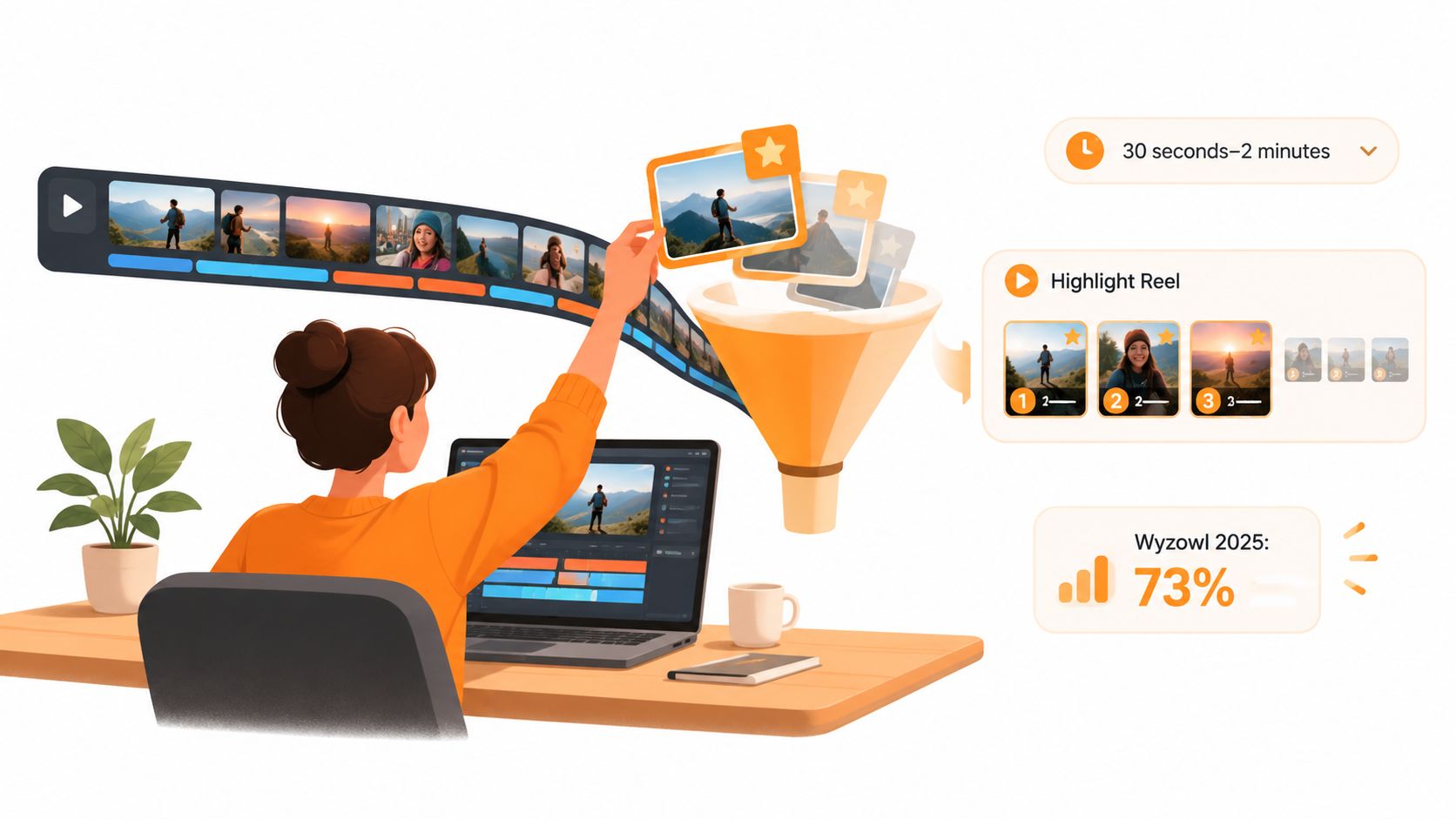
Scan for events, then judge the story
- Search the transcript for changes. Flag challenges, warnings, unexpected reactions, arguments, and punchlines. Save timestamps rather than copying isolated sentences into a document.
- Check the corresponding footage and, where available, the game’s event feed. Confirm that the important kill, objective, mistake, or score change is visible.
- Score each candidate from low to high on payoff, clarity without prior context, and independence from the rest of the stream. Reject moments that are exciting only because you remember what happened earlier.
Keep a note explaining each candidate’s weakness. “Great reaction, unclear action” is more useful during assembly than “funny clip.”
Narrative roles for a highlight candidate
| Role | What to look for | Example from a stream |
|---|---|---|
| Hook | A visible or spoken promise immediately | Streamer says they’re about to try something risky |
| Escalation | Rising stakes, such as low health or a close score | Final two players, one ability left |
| Payoff | The decisive play or line that resolves the setup | The clutch shot or punchline |
| Reaction | Genuine surprise that shows what the payoff meant | Teammate shouting after the final kill |
| Conclusion | A clean closing beat or clear endpoint | Victory screen or a short final remark |
These are hypothetical editing examples, not a requirement to include every role. A punchline might need only a setup and payoff; a comeback might need escalation as well.
Rescue context without replaying the stream
Suppose the satisfying part is beating the opponent who eliminated you earlier. Give viewers a brief setup caption or spoken line that explains the rematch, then show the current action.
Don’t replay the entire earlier round unless that footage changes the meaning of the ending. Save a ranked candidate list, including alternate hooks and reactions, so a weak opening doesn’t force you back through the recording.
Choosing the Length of Each Version
A highlight’s runtime is a retention test. Cut two or three versions from the same event, then compare how long viewers stay and whether they reach the payoff. Keep the version that best serves its goal, rather than assuming shorter always wins.
A longer cut can give viewers enough context to care about the outcome. A shorter one can make the payoff easier to reach, but may strip away the detail that makes the play impressive. The trade-off is specific to the event, so test length without changing everything else.
Set the goal before comparing cuts
Decide what each highlight should accomplish. To carry viewers through the resolution, focus on retention up to the payoff. To attract followers, check follows alongside viewing behavior.
Make every version from the same event, with the same opening and central promise. Keep music and captions consistent too. If you change the hook, soundtrack, captions, and runtime at once, you won’t know which change affected the response.
Use these lengths as test configurations, not performance rules.
Version length, best fit and metric to check
| Version length | Best fit | Metric to check first | Keep it when |
|---|---|---|---|
| 15 seconds | One decisive play or punchline with no setup | Completion rate and opening drop-off | Completion beats the 30-second cut without losing the intended meaning |
| 30 seconds | A play with one line of setup | Average percentage viewed | Viewers stay through the payoff |
| 60 seconds | A sequence with setup and a second beat | Retention through both beats, plus shares | Payoff density holds across the whole runtime |
A boss fight may need room for an apparent failure and a recovery. A decisive shot usually doesn’t need the approach, inventory management, and post-match discussion. Keep context only when it helps viewers understand why the payoff matters.
Don’t ask which version contains more good footage. Ask which version gives viewers the clearest reason to keep watching.
Compare opening drop-off, average percentage viewed, rewatches, shares, and follows when those metrics are available. A small or uneven audience response is weak evidence, so treat the first comparison as a useful signal, not a final verdict. If completion rates match, check whether one version earns more rewatches, shares, or follows.
Record the winning length, the goal, and what changed between versions. Use that result as the starting point for the next edit, and let viewer response settle the length debate for this event.
Cutting, Ordering and Pacing the First Edit
Build around the strongest self-contained moment, not the order events happened in. Chronology is useful when it explains cause and effect; it’s expendable when it merely documents how long the streamer waited.
Set the target runtime for each variant before tightening the timeline. Duplicate a common assembly so you’re testing different amounts of context around the same event, rather than comparing unrelated edits.
Make the assembly understandable before making it flashy
- Place the hook or a glimpse of the payoff first. If revealing the entire ending would spoil the joke, show the risk or surprise instead, then supply only the necessary setup.
- Remove greetings, repeated explanations, sign-offs, and pauses that don’t communicate anything. Keep a pause when viewers need it to recognize danger, read the situation, or anticipate the punchline.
- Bridge picture changes with audio where useful. A J-cut brings the next shot’s audio in before its picture, while an L-cut lets the previous shot’s audio continue over the next image.
- Add a reaction only when it changes how viewers understand the event. A teammate’s disbelief can establish difficulty, but an extended celebration may delay the ending.
- Trim toward the resolution. When a sequence contains a setback and recovery, keep the connective action that explains the reversal and remove detours that don’t affect it.
Watch the rough cut before adding music. You should be able to identify the promise, the rising stakes where needed, and the resolution without relying on a soundtrack to manufacture importance.
Separate pacing problems from decoration problems
A cut can feel slow because nothing meaningful changes, even when shots are short. Conversely, a continuous shot can work when the viewer can follow an approaching threat and understands what failure would mean.
Use transitions that support the edit when you need to clarify a change in time, place, or perspective. Don’t place a transition between every action just because the editor provides one.
The mistakes that waste the most time are opening with unnecessary setup and trying to hide weak selection with music or effects. Fix the event choice and ordering first, because decoration won’t supply a missing payoff.
Captions That Hold Up Without Sound
Build the clip so viewers don’t need to enable sound to understand its central event. Captions should preserve meaning, not just repeat selected words in bright colors.
Inspect caption placement alongside the footage, not on a blank preview.
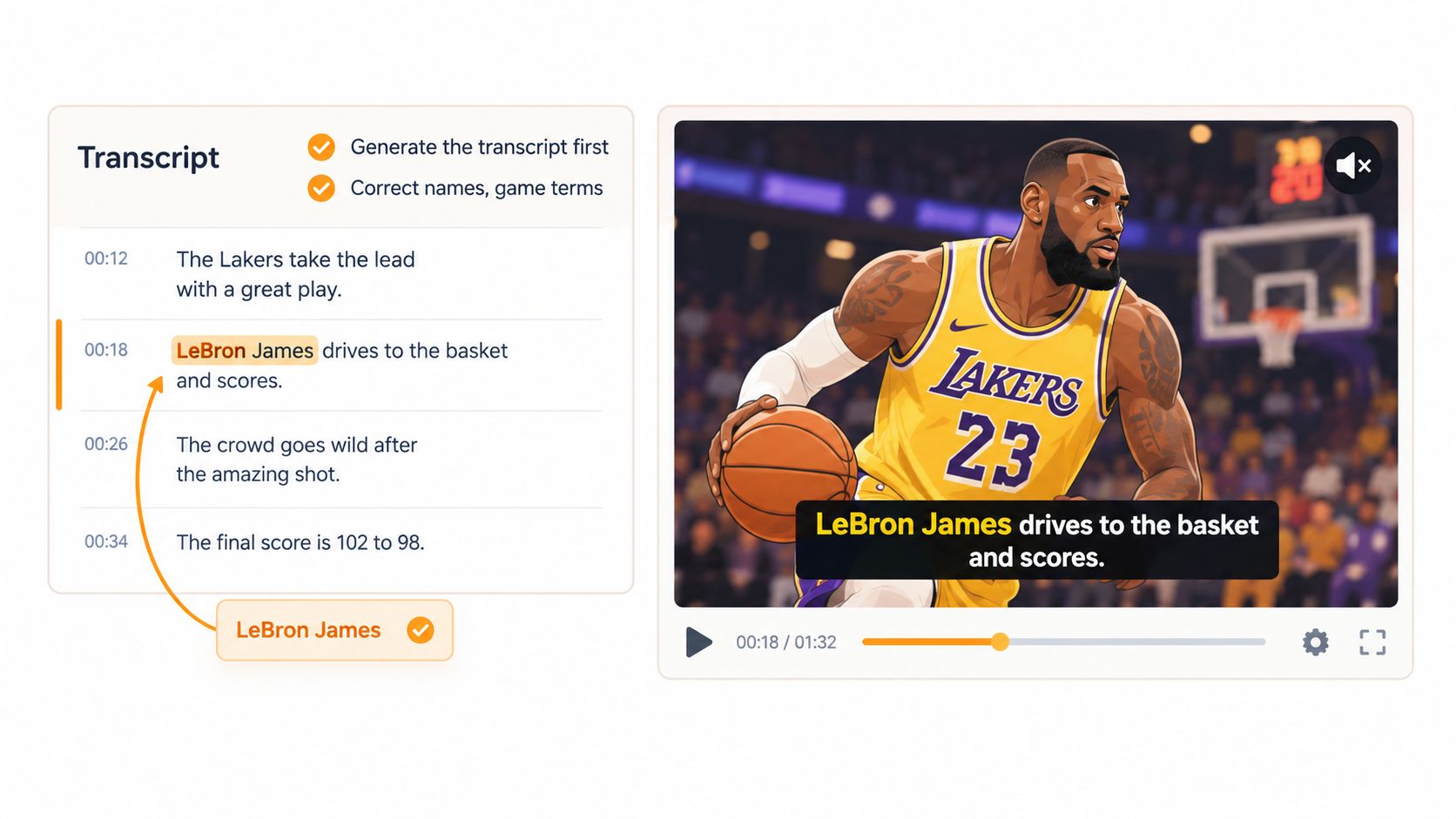
Correct the words before styling them
Generate the transcript, then manually check names, game terminology, numbers, slang, profanity handling, and speaker changes. A misheard callout can reverse an instruction, while an incorrect name can make the whole exchange confusing.
Time the cues against the audio waveform and listen through each edit boundary. Include meaningful non-speech information, such as an approaching explosion, when viewers need that sound to understand a reaction.
- Identify speakers. Label overlapping teammates when the distinction affects the meaning.
- Preserve complete meaning. Keep an accurate accessibility caption track even if you also use shorter emphasis text.
- Review translations. For multilingual audiences, translate corrected captions and have the result checked rather than trusting an unchecked automatic translation.
For visual explanations that aren’t spoken dialogue, use a separate on-screen text layer. That keeps editorial setup distinct from what someone said.
This video offers an additional visual reference for the captioning pass.
Check readability at delivery size
Rutgers’ captioning accessibility guidance supports compact lines and display durations of approximately 1.5 to 6 seconds. Use the following as a practical display checklist, then adjust cue breaks to match the speech.
Caption display standards for vertical highlights
| Setting | Target | Why it matters |
|---|---|---|
| Lines per caption | One or two lines | Keeps text from covering the action |
| Characters per line | About 32 or fewer | Reduces long reading sweeps across a small screen |
| Display duration | About 1.5 to 6 seconds per cue | Gives enough reading time without lingering |
| Position | Inside the vertical safe zone | Keeps text clear of platform buttons and overlays |
| Emphasis | One key word per cue as an editing limit | Makes emphasis meaningful rather than constant noise |
Use strong contrast and readable sentence case. If rapid speech produces dense captions, reconsider the edit or cue segmentation rather than shrinking the text.
Animation should improve comprehension. Constant bouncing, scaling, and color changes aren’t a substitute for accurate words and readable timing, particularly for viewers with hearing loss.
Reframing to 9:16 and Exporting Clean Files
A fixed center crop can exclude the opponent, the streamer’s face, or the interface detail that explains the stakes. Compose around what viewers need to see, not the geometric center of the source.
Use this reframing and delivery pass:
- Set the vertical canvas first. Work in 9:16 so every framing decision reflects the final composition.
- Track the relevant subject, then inspect the most chaotic moments manually. Correct tracking that follows the face while the decisive action happens elsewhere.
- Protect essential information. Keep the necessary HUD, faces, and captions clear of the platform’s bottom and right-side controls.
- Match the export frame rate to the source where practical, then inspect motion in the rendered file. Don’t judge smoothness only from a struggling timeline preview.
- Check platform requirements. YouTube’s Shorts upload documentation classifies square or vertical uploads up to three minutes as Shorts and specifies a maximum upload resolution of 1080p, making 1080×1920 a suitable vertical delivery target.
If action and face camera can’t both remain legible, consider a deliberate layout rather than excessive zooming. These video-resizing techniques are useful when choosing between cropping and recomposition.
Export a separate vertical file for each runtime variant. Name files by event and length so you can connect the published result to the exact cut.
Run the Muted Test, Then Publish the Highlight
A highlight that only makes sense with sound is not ready to publish. Use Moonb’s guidance on video marketing trends as a final-check principle: viewers should be able to follow the meaning visually, even with audio off.
Check the exported file, not just the timeline preview.
- Play it muted at normal phone size. Can viewers understand what happened and how it ended? If not, clarify the visual sequence or add a precise caption.
- Check captions for accuracy, readable timing, and clearance from interface overlays.
- Inspect the opening. Make sure the hook makes sense without audio. Recut a weak opening rather than trying to fix it with another effect.
- Identify moments that rely on speech or sound effects. Replace missing context with an accurate caption or a clearer visual beat.
- Test two or three lengths from the same event. Publish them as candidates where appropriate, compare how well each holds viewers against your goal, and keep the strongest performer as the final cut. Record which version won.
For a stream-to-short workflow, ClipOven can propose cuts, captions, and effects from a brief, then let you refine them in a timeline editor. You still need to verify every caption and review the finished file yourself.
Run the technical checks before publishing test cuts. Let audience response decide which version stays. Turn a horizontal stream moment into an editable vertical draft with clipoven, using chat-guided cuts, captions, and effects followed by timeline refinement. Start with a self-contained event, create alternate lengths, and use the retention test to choose the cut that deserves to stay.