clipoven
The advice to add more zooms, captions, shakes, and transitions leaves out the most important question: what should the viewer notice? More effects in video editing don’t automatically mean better retention. A cleaner vertical edit can make the action easier to follow than a version where every layer demands attention.
Treat effects as a limited budget, not a checklist. Spend that budget on the mistake, the explanation, or the punchline that makes the clip worth watching. If an effect doesn’t make that moment clearer, it probably doesn’t belong.
Table of Contents
- Five Effect Families for a Vertical Short
- How Cut Density Changes Pace
- When a Hard Cut Beats a Dissolve
- Color and Motion Settings for Vertical Frames
- Set an Effects Budget Before You Layer
- Caption Motion That Stays Readable
- Preset Stacks for Gameplay Talk and Tutorials
- Choose One Effect Job for the Next Clip
Five Effect Families for a Vertical Short
Give every effect a job before choosing its style. In a vertical frame, a face, gameplay view, and captions already compete for room. Adding something attractive isn’t enough, you need to know what problem it solves.
The most useful way to organize effects isn’t by software menu. It’s by what changes for the viewer: the handoff between shots, the visibility of the subject, the emphasis on a moment, the words they can read, or the temporary look of the scene.
Choose by the viewer’s problem
Transitions hand the eye from one beat to the next. A hard cut can reveal the consequence of a mistake; a more noticeable transition can signal a deliberate change of scene. Neither needs to announce itself when the connection is already obvious.
Color changes mood, contrast, and subject separation. Before applying a cinematic look, ask whether the viewer can distinguish the player character from the background or see the speaker’s expression.
Motion includes zooms, punch-ins, and brief shakes. Use it to underline a particular word or impact, rather than keeping the frame in constant movement.
Text and typography carry information that must remain available without sound. Captions communicate speech; a separate label might identify a setting, player, or objective.
Stylized filters give a moment a temporary costume. Grayscale, a heavy grade, stickers, and GIFs can support a visual joke, but they shouldn’t obscure an explanation.
Effect families for vertical shorts
| Effect family | What it changes | Use it when | Leave it off when |
|---|---|---|---|
| Transitions | How one shot hands off to the next | A new beat, joke, or action needs a clean handoff | Gameplay, crowds, or camera moves are already hard to follow |
| Color | Mood, contrast, and subject separation | A punchline, flashback, or flat image needs the subject to pop | The grade hides a HUD, skin tone, or on-screen text |
| Motion | Zooms, punch-ins, and short shakes on a beat | The hook or payoff needs an accent | The camera or gameplay is already fast |
| Text and typography | Words for muted viewing and emphasis | A name, stat, or key phrase must be readable at a glance | Speech is dense and a caption already fills the safe area |
| Stylized filters | Grayscale, heavy looks, stickers, and GIF layers | A brief meme, fail, or brand mark | The look runs under speech or steps the viewer must follow |
Make the choice before browsing presets
Read each row as a trade-off. A transition can establish a new beat but obscure busy action. Color can separate a subject but conceal useful interface details. Motion can emphasize the payoff but become redundant when the source footage already moves.
Your available space and opening time are constraints, too. Don’t put an effect where the caption needs to sit, and don’t spend the opening waiting for a decorative transition to finish.
Mark the moment that must be unmistakable. Then choose the effect family that helps it, before opening a preset browser.
How Cut Density Changes Pace
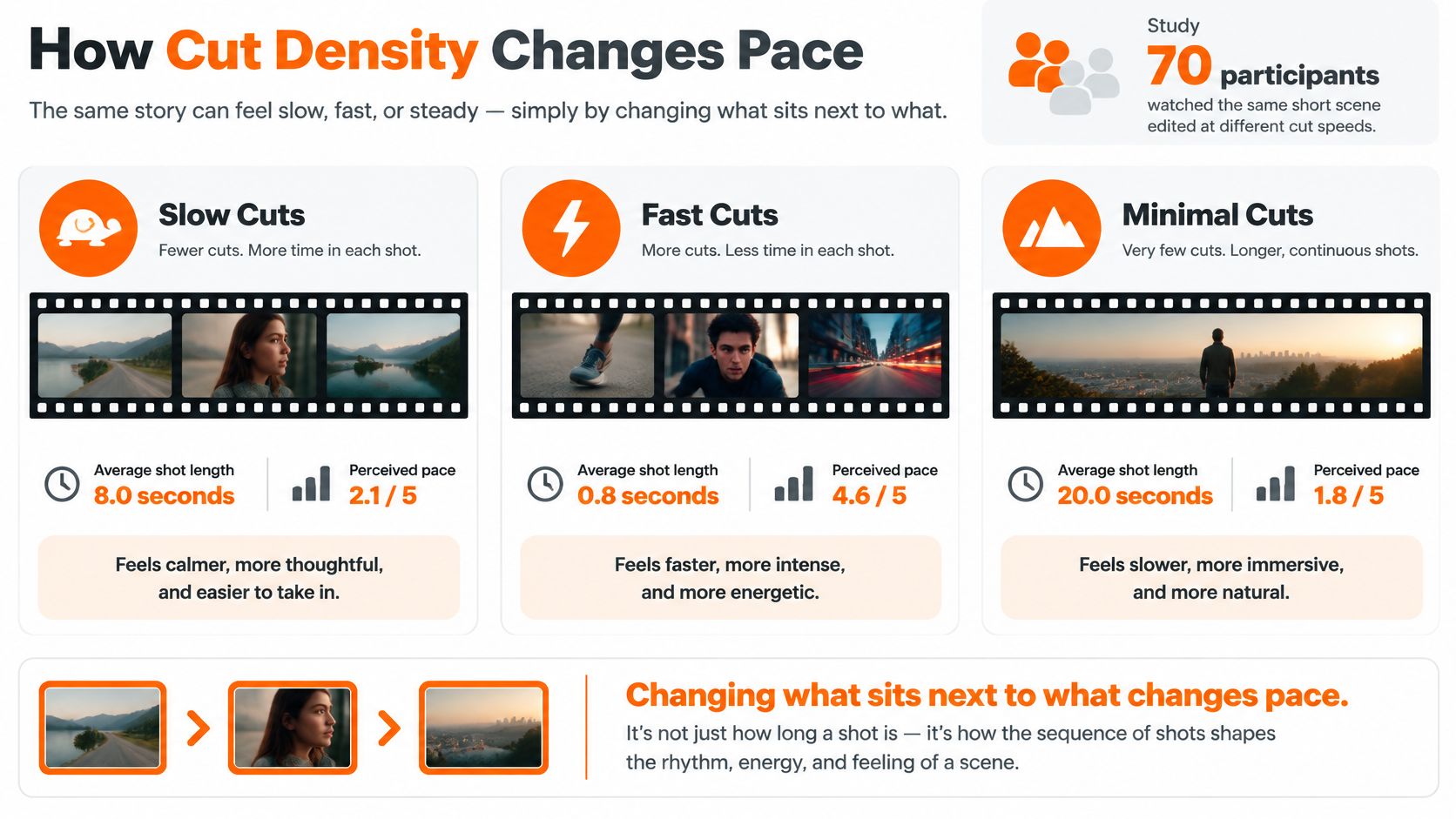
Cutting changes the rhythm even when no effect is added. Each new shot gives the viewer another place to look, so cut density should match how much time the subject needs to register.
In a controlled study published in Cognitive Science, 70 participants watched material with different editing speeds. Edited footage produced shorter eye fixations than an unedited master shot, with the shortest fixations in the fast-paced version. Participants felt time pass faster during fast edits, yet estimated those videos as lasting longer than the unedited version.
A clip can feel fast without feeling short. These findings also do not show that adding cuts improves a creator’s retention.
Reserve dense cutting for energy
A clutch play might move from the approaching opponent to the player’s reaction, then to the result. That compact sequence can communicate urgency. A settings explanation has a different job: viewers need time to find the menu and understand what changed.
Place the fast cluster where the energy belongs, rather than spreading cuts evenly across the timeline.
- For a hook: Remove the approach that adds no useful context, then arrive at the consequential action.
- For detailed gameplay: Hold the view while the viewer identifies the target, route, or threat.
- For instruction: Keep the relevant action and its result visible together before changing views.
Every cut asks viewers to locate useful information again. Too many changes can make a detailed action harder to follow.
Keep the subject findable
Cuts should preserve the viewer’s sense of where the subject is, so orientation stays clear across the change. If a face sits in the upper part of the frame before a cut, keep it in a similar place unless there’s a reason to move it. If a cursor identifies a menu item, let the viewer see the selection before changing views.
Practical rule: Increase cutting when the viewer should feel the event. Hold the shot when the viewer must understand the event.
Watch the sequence without added graphics. If its rhythm already works, the cuts may be enough. A filter, zoom, or animated layer should earn its place by clarifying or emphasizing a specific moment.
When a Hard Cut Beats a Dissolve
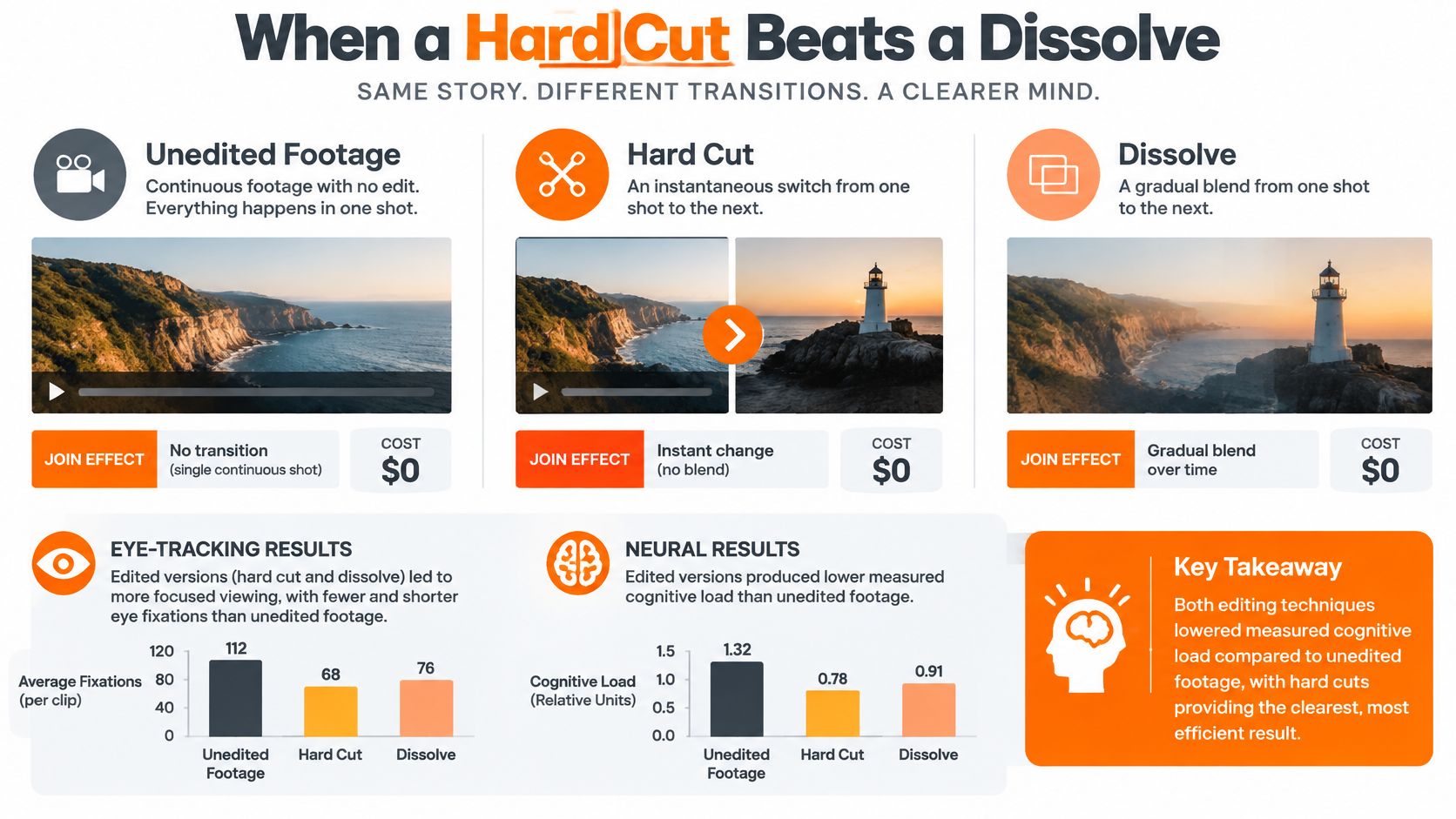
A hard cut replaces the image immediately. A dissolve overlaps the outgoing and incoming images, asking the viewer to interpret both during the handoff.
An eye-tracking and neural comparison of cuts and dissolves found that edited footage reduced measured cognitive load relative to unedited footage but also fragmented attention. Dissolves reduced enjoyment in the tested scenes and disrupted spatial-temporal integration, while hard cuts were less damaging when they preserved spatial conventions.
That isn’t a ban on dissolves. It’s a reason to avoid assuming that a softer-looking transition is easier to process.
Compare the join in context
For a talking-head clip, a jump from a wider line to a tighter line can work as a hard cut or punch-in. Keep the face in a consistent screen region so the viewer doesn’t have to search for the speaker.
For a gameplay elimination, cut on the impact when the result remains clear. Let the next view confirm what happened instead of covering it with overlapping footage.
For a crowded convention clip or fast camera whip, a dissolve can merge moving people and backgrounds into an unclear image. Use a clean cut between readable views, or remove the unusable camera movement altogether.
Spatial conventions help the change feel intentional. Maintain screen direction so a subject doesn’t appear to reverse course accidentally; when switching camera angles, the study’s discussion of the 30-degree rule concerns making the new view sufficiently distinct rather than producing a near-identical, awkward jump.
Prefer a clear handoff
A hard cut isn’t automatically invisible, and a punch-in isn’t automatically useful. Choose the join that preserves the important relationship: who’s speaking, where the action is happening, or what changed.
Our guide to making video transitions offers techniques to use once you’ve identified that relationship.
An effect should point at the speaker, the objective, or the key action. Motion that doesn’t point there is competing with it.
The narrow vertical frame makes this especially important. A dissolve, moving caption, and sticker can occupy the same limited viewing space, leaving the viewer to separate the subject from the treatment.
Use a simple overlay only when its target remains easy to locate. If the overlay needs another graphic to explain what it’s highlighting, simplify the join first.
Color and Motion Settings for Vertical Frames
Start color work with visibility, not atmosphere. A dramatic look is a poor trade if the player character, face, or interface becomes harder to read.
Correct the image before styling it
On gameplay, try a mild contrast lift and a slight saturation reduction. Compare the result with the original: you’re looking for clearer separation, not darker shadows or duller objective markers.
On talking heads, keep skin tones neutral. Reduce the grade’s strength until the face looks natural, especially when different parts of the clip were recorded under different lighting.
- Check interface details: Make sure health bars, menu labels, and objective markers remain distinct.
- Test the caption area: Inspect both bright and dark backgrounds beneath the text.
- Limit heavy looks: Reserve pronounced color changes for a flashback, reveal, or visual joke.
A rain and black-and-white treatment is a deliberate style choice, not a substitute for basic correction. Check any stylized version in a phone-sized preview at normal brightness before committing.
Put motion on a meaningful beat
Set a zoom’s starting position and ending position with keyframes. Aim toward the subject on the stressed word or sound, not halfway through an unrelated sentence.
Keep the move brief enough to read as an accent. If you notice the camera drifting before the content changes, shorten the move or remove it.
For shake, reduce the amplitude until the impact is visible without making the caption jitter. Don’t combine a shake and zoom on the same beat while you’re establishing the edit’s emphasis.
After motion, hold the settled composition so the viewer can inspect the result. A clean landing often matters more than the movement that got you there.
Set an Effects Budget Before You Layer
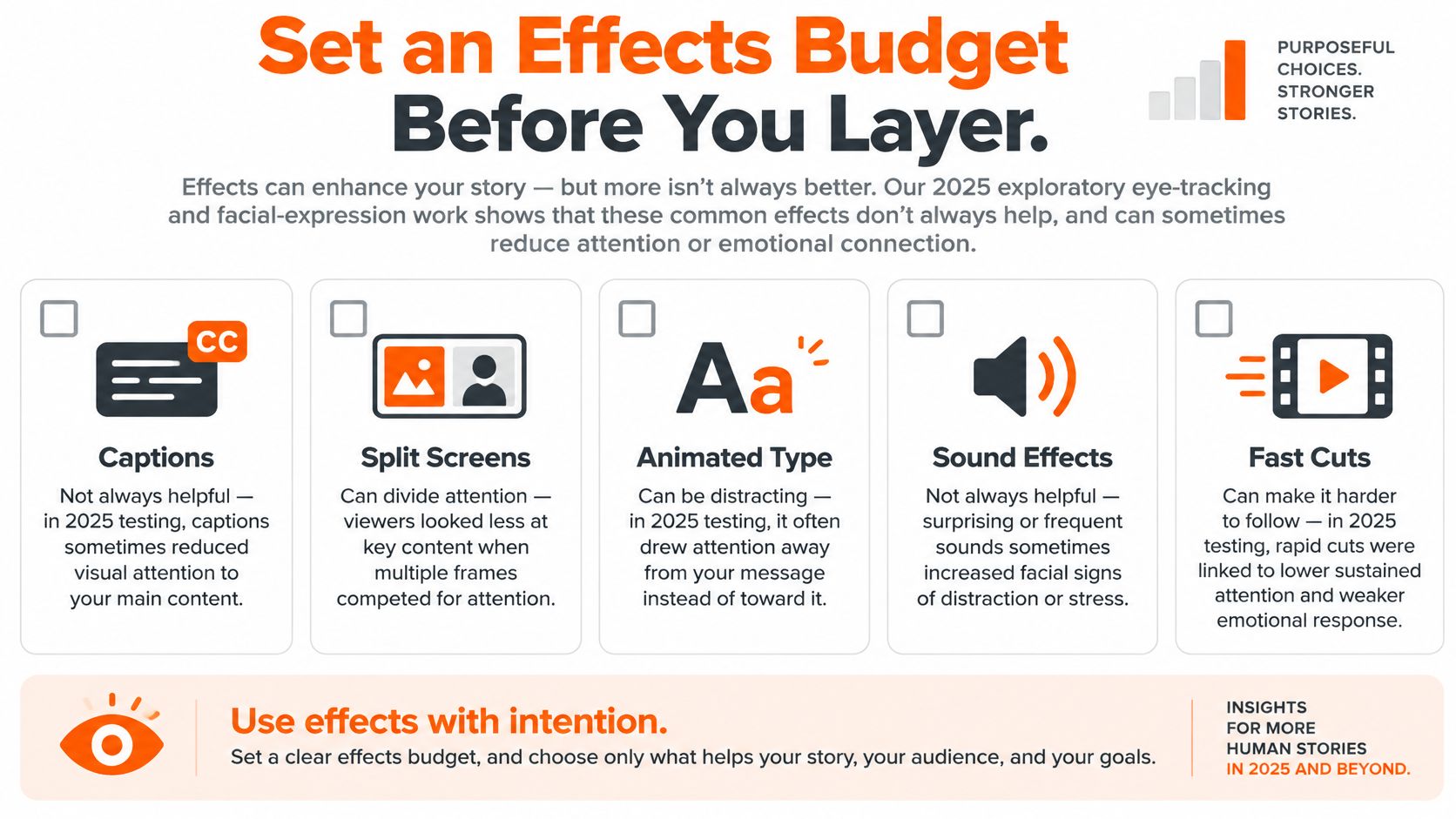
Captions, split screens, animated type, sound effects, and fast cuts aren’t automatically additive. A useful layer can become distracting when it appears alongside another layer that needs the same attention.
A 2025 exploratory eye-tracking and facial-expression study described by Loyola’s UX and Biometrics Lab found that subtitles increased fixation counts but shortened fixation durations; in split-screen ASMR clips, subtitles reduced the engagement benefit of the split-screen format, while recall didn’t significantly differ across conditions. The finding is specific to the tested material, but it challenges the assumption that more visible attention means better understanding.
Budget by competing demand
Use a primary motion layer as a practical editing constraint. Choose the zoom, shake, or animated word that carries the beat instead of running them together.
This isn’t a scientifically established layer limit. It’s a straightforward way to make decisions on the timeline and identify which treatment helps.
- During dense speech: Keep necessary captions and remove decorative picture-in-picture, stickers, and flashing color.
- During complex gameplay: Preserve the play area instead of filling spare corners just because assets fit there.
- During a visual gag: Try a sound sting with brief grayscale, without adding a competing caption animation.
- During explanation: Favor stable layouts that let viewers compare what you say with what you show.
Necessary information doesn’t have to disappear when motion begins. A static caption and a restrained punch-in can coexist because they serve different functions without both demanding that the eye chase them.
Build a calmer alternative
Duplicate the edit before adding decorative motion. In the calmer version, lengthen shots where explanation needs room and freeze animation that isn’t required to understand the clip.
Consider sensory comfort separately from visual polish. Avoid unnecessary flashing, offer a quieter mix where practical, and use a summary when the explanation would benefit from another way to access it.
Budget check: Mute the clip and identify the moving layers. If they direct attention toward different subjects, remove one.
Then restore the sound. A loud sting may compete with an important spoken word even when the picture looks restrained.
The strongest version isn’t necessarily the quietest. It’s the version where the viewer doesn’t have to choose between understanding the content and watching the effects.
Caption Motion That Stays Readable
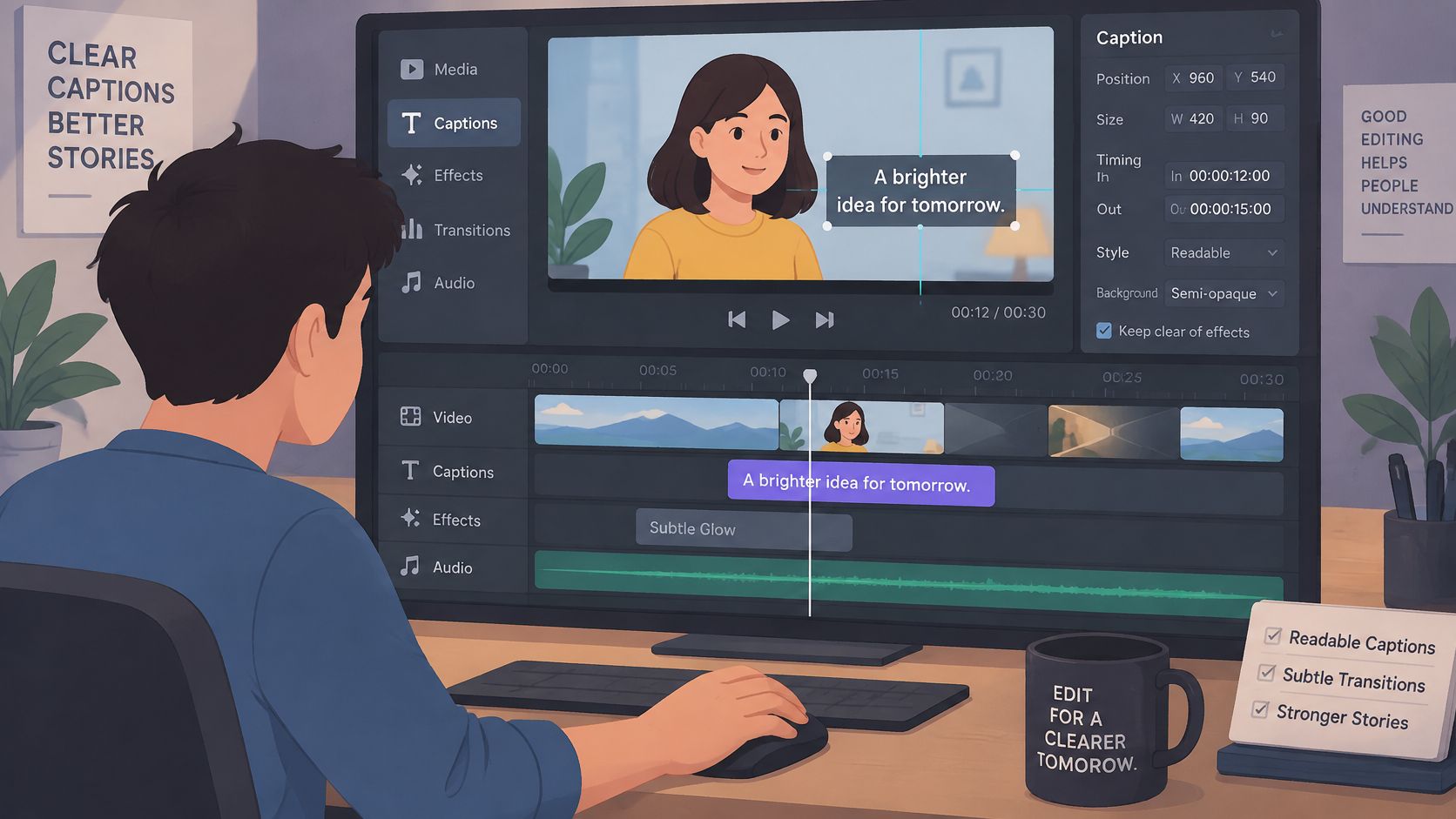
Captions aren’t just decoration for sound-off viewing. In a 2025 video-accessibility study, all 20 participants used captions to understand speech, maintain focus, or recover after distraction; the paper also discusses earlier findings of higher post-video accuracy among viewers with ADHD when captions were available.
Treat the captioning pass as an information-design task, not just a styling pass.
Control density, emphasis, identity, and recovery
Density means deciding how much speech to display together. Break long sentences into readable phrases rather than shrinking the font to squeeze everything across the frame.
Emphasis means choosing what deserves a change. Animate or recolor the key phrase instead of applying an uninterrupted karaoke sweep that competes with facial expression.
Speaker identity needs its own treatment in a conversation. Keep a consistent position or color for each person, and don’t rely on color alone when a name label or clear placement would prevent confusion.
- Recovery: Use high contrast and a solid or semi-opaque backing over bright gameplay.
- Placement: Keep text clear of the subject’s eyes and the platform interface.
- Verification: Check names, game terms, speaker changes, and timing manually, even when automatic captions appear synchronized.
Our guide to on-screen text can help you distinguish dialogue captions from labels and other information that needs a separate place.
Match movement to the content
For commentary and tutorials, use mostly static lines with restrained emphasis on the important phrase. For a joke, let a word pop at the punchline, then return to a quiet line.
Use the video as a practical reference while reviewing your own caption treatment.
Don’t confuse a visually active caption with a readable one. Review whether each phrase stays available long enough to understand without waiting for letters to assemble.
Finally, glance away during playback and return at an arbitrary point. You should be able to rejoin on the next caption without reconstructing the animation you missed.
Preset Stacks for Gameplay Talk and Tutorials
A useful preset is a small, repeatable stack with a stop condition. It tells you what to apply and when to stop adding, rather than supplying an entire visual identity for every clip.
Choose the row that matches the clip’s job. Treat the intensity cap as part of the preset, not an optional restraint.
Effect presets for vertical shorts
| Preset | Best for | What to stack | Intensity cap |
|---|---|---|---|
| Hook punch | First seconds of a stream or Short | One zoom and one caption word | Extra motion only on the opening beat, then a stable frame |
| Gameplay clarity | Combat, objectives, or fast play | Hard cuts, light contrast, static objective caption | No shake and no grayscale during the play |
| Talking head | Commentary or a tutorial | Hard cuts on sentence breaks and high-contrast captions | One emphasis animation per sentence, no filter |
| Reaction sting | A joke, fail, or reveal | Brief shake or grayscale plus one sound accent | One sting, then normal color and a held frame |
| Calm variant | Dense explanation or sensory-sensitive viewers | Longer shots and static captions | No zoom and no second moving layer |
A game fail with distinct beats
Say you’re editing a short game fail. Start with a hook punch on the recognizable mistake, then settle before the next spoken line.
Use gameplay clarity through the attempt so viewers can understand the route and threat. Save the reaction sting for the death screen, then return to normal color and hold the result.
Don’t preview every effect in the opening. The viewer needs to understand the mistake before the reaction becomes funny.
A settings tutorial that stays useful
For a settings tutorial, choose the talking-head stack and keep the treatment restrained throughout. Cut on completed thoughts, then show the relevant menu while the speaker explains the change.
High-contrast captions should support the explanation without covering the setting being adjusted. If the sentence concerns a slider, the viewer needs to see its label and final position, not an animated sticker beside it.
Save a calm variant when the same footage also needs to function as a reference. Someone returning to check a setting shouldn’t have to wait through decorative movement.
A recap with multiple speakers
A conversation recap needs stable speaker identity more than constant visual novelty. Apply the talking-head stack with a fixed caption treatment for each speaker.
Let the framing and dialogue establish the exchange. Use emphasis only where it changes how the viewer understands the statement, rather than punctuating every change of speaker.
Before saving any stack, disable it and compare. Keep the changes that improve the intended moment, and remove the ones that merely make the template recognizable.
Choose One Effect Job for the Next Clip
Label the next clip hook, clarify, or sting before touching a slider. A hook needs an immediately recognizable opening; a clarify clip needs readable action or instruction; a sting needs a contained reaction accent.
If multiple labels fit, separate those jobs into distinct beats. Don’t force the opening treatment and punchline treatment onto the same frame.
Make the final pass intentional
- Mark the beat: Identify the exact action or phrase that needs emphasis.
- Apply the matching stack: Use the hook, gameplay clarity, talking-head, or reaction treatment.
- Review both ways: Watch with sound, then muted.
- Subtract: Delete any layer that doesn’t help identify the subject or meaning.
For horizontal footage headed to a vertical feed, describe that choice to Eddie, our short-form editing agent. Tell it the desired vibe and whether the clip should hook, clarify, or land a sting; it puts cuts, captions, and effects together around that direction.
Eddie’s effects include Hook, Zoom, Sound effect, Shake, and Grayscale. Keep refining through chat, or open the full editor to adjust cuts, timing, captions, and effects yourself, including a calmer pass if the first version moves too much.
The final choice stays with you: give each beat a clear job, then export the vertical short.
At clipoven, we turn horizontal footage into vertical shorts with chat-guided cuts, captions, and effects, plus a full editor for precise refinement. Bring a clip and tell Eddie which moment should hook, clarify, or land the joke, then review the result and keep only the effects that help.