clipoven
Converting 16:9 footage to 9:16 isn’t just a resize. A basic crop can remove the speaker, split a two-person exchange, or leave gameplay action outside the frame. The useful difference between a horizontal to vertical video converter and a simple aspect-ratio tool is how it finds the subject, follows movement, preserves composition, and supports the finishing work after the first automated pass.
Vertical video became the default shape for major social feeds after Stories, Reels, and TikTok normalized 9:16. One industry analysis found that people hold phones vertically for more than 3.5 hours per day, compared with about eight minutes horizontally, and reported that more than 75% of online video is accessed on mobile devices. The same analysis associated vertical video with about 90% higher completion rates than horizontal video, making feed-native reframing a practical publishing requirement rather than a cosmetic preference. Industry analysis of vertical video and mobile viewing
The tools below differ by workflow. Some are AI-first short-form editors, some are professional desktop suites, some run entirely in a browser, and others start from a transcript or a streamer’s VOD. The comparison focuses on subject tracking, crop control, multi-person handling, caption and clip assembly, editing depth, platform fit, and how much manual correction remains after automation.
Table of Contents
- 1. ClipOven
- 2. Adobe Premiere Pro
- 3. DaVinci Resolve Studio
- 4. Final Cut Pro
- 5. CapCut
- 6. Kapwing
- 7. VEED
- 8. Descript
- 9. OpusClip
- 10. Eklipse
- Top 10 Horizontal-to-Vertical Video Converter Comparison
- Choose the Workflow You Will Actually Finish
1. ClipOven
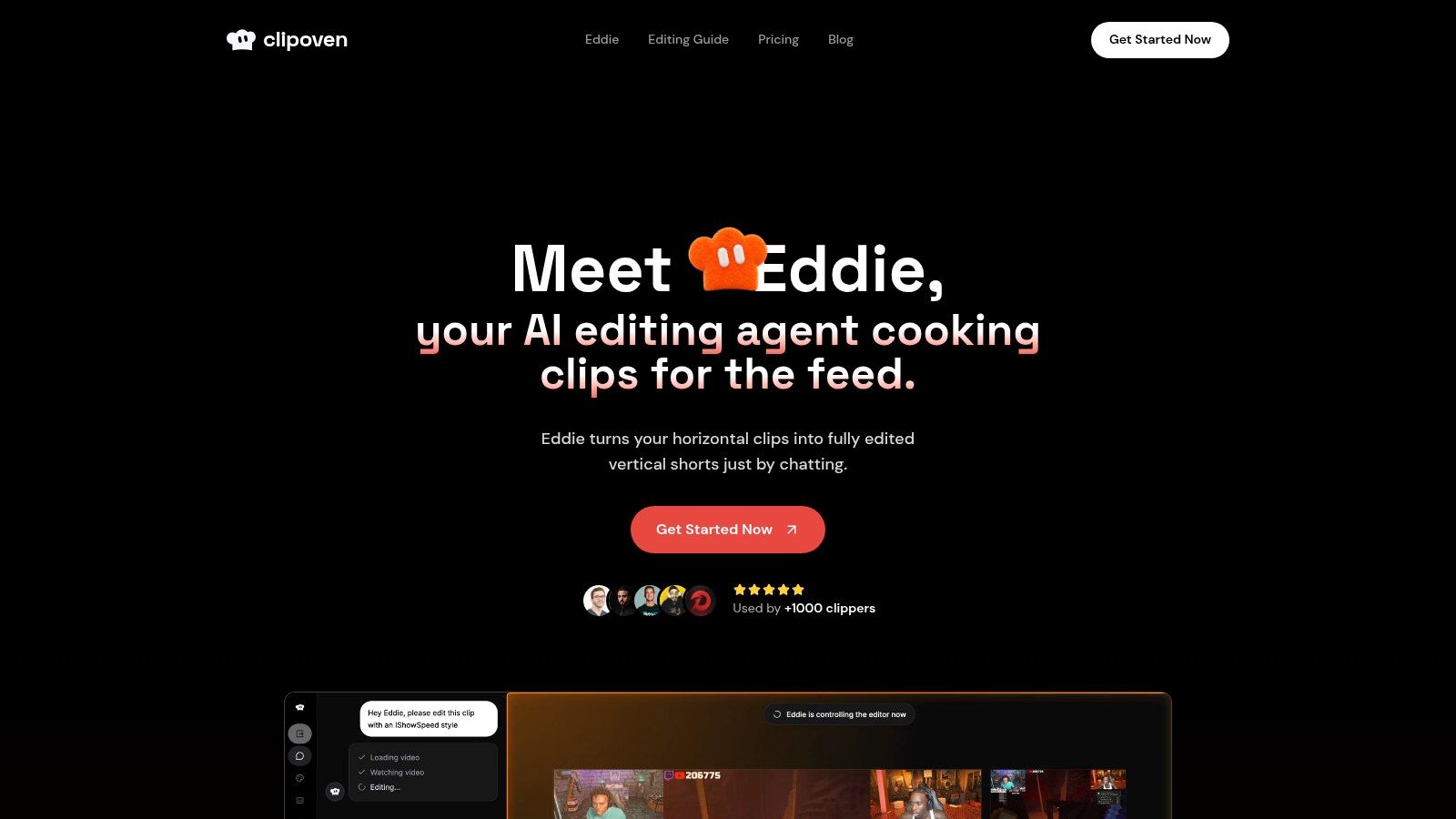
ClipOven focuses on the full conversion workflow, not only the aspect-ratio change. Its AI editor, Eddie, accepts a chat-based brief, finds promising moments, assembles clips, applies animated captions, and reframes horizontal footage for a vertical feed. The result opens in a full editor where you can correct timing, crop position, captions, audio, and effects without switching applications.
That workflow reduces repetitive setup, but automation still needs review. Eddie can keep a speaker in the active area during movement and preserve the main action better than a fixed center crop. Reframing becomes less reliable when two people enter from opposite sides, a reaction happens at the edge of frame, or gameplay action changes direction. Those moments benefit from manual crop adjustments and timeline control.
ClipOven also combines caption and clip assembly in the same edit. Animated captions synchronize with speech and remain adjustable for timing, style, and voice. Audio effects, GIFs, stickers, and images can sit as layered finishing elements, while the export supports a consistent 2K vertical file for Shorts or TikTok.
Practical rule: Let AI establish the cut, captions, and initial framing. Spend manual time on shots where subject position, pacing, or multi-person composition affects meaning.
The platform suits streamers, gaming creators, Shorts editors, social teams, freelancers, and small agencies that want a fast first pass with room for correction. Its credit-based Hobby and Pro plans use monthly or yearly billing, so frequent users should judge fit by clip volume and the amount of manual editing each project needs, rather than by the conversion step alone. Highly bespoke narrative edits may still require an experienced editor to rebuild pacing, refine transitions, or control every frame.
For a talking-head clip, the automated pass may be nearly ready after a crop check. A two-person interview, screen recording, or story-led sequence usually needs more timeline work, but the editor keeps that correction in the same workspace.
2. Adobe Premiere Pro
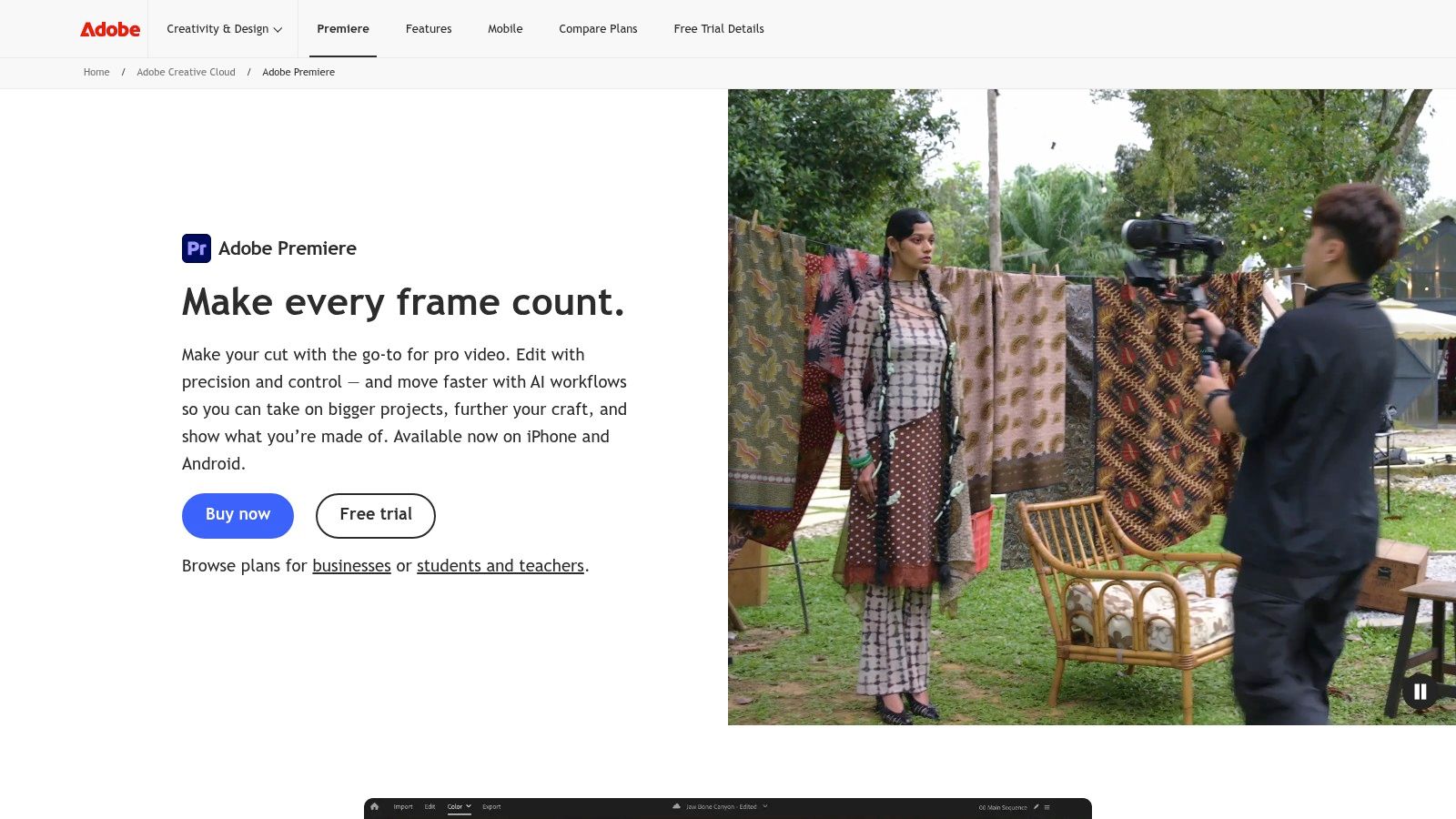
Adobe Premiere Pro is the strongest choice when vertical conversion sits inside a larger professional edit. Its Auto Reframe Sequence can target 9:16 or square formats, apply motion tracking, and work across a complete sequence or nested clips. That matters when the horizontal source already includes layered graphics, music, dialogue, transitions, and multiple edited shots.
Premiere gives you more control than a lightweight converter. You can adjust the generated framing with keyframes, preserve a broader graphics workflow, and continue into captions, color, audio, and branded finishing without exporting to another application. Creative Cloud integration also helps teams that already use Adobe tools for design and motion work.
The trade-off is workflow weight. Premiere isn’t the fastest option for someone who has one talking-head clip and wants an upload-ready Short. You need to understand sequences, tracks, nested clips, keyframes, and export settings, and the automated result still deserves a shot-by-shot review.
For a practical resizing overview before choosing a workflow, see this guide to resizing videos for vertical formats.
Premiere is particularly effective when a scene changes from a single speaker to a presentation, screen recording, or several people. Auto Reframe can establish the movement path, but manual correction remains valuable when the important action changes suddenly or when graphics need to stay inside the safe area. Choose it for editorial depth and pipeline compatibility, not for minimum setup.
3. DaVinci Resolve Studio
DaVinci Resolve suits editors who want reframing, color, audio, and delivery in one desktop application. Its Smart Reframe uses the DaVinci Neural Engine to follow a subject and create vertical or square versions from an existing horizontal timeline. The Edit page also provides control over the reframe, including modes and axis limits in recent releases.
Resolve’s advantage appears after the crop. If the original footage needs color balancing, skin-tone work, noise reduction, audio repair, or a more deliberate grade, you don’t need to round-trip the clip through a separate converter. The Deliver page also includes direct upload integrations for platforms such as YouTube and TikTok, which can shorten the final publishing path.
This is a strong professional workflow, but it isn’t the simplest entry point. Smart Reframe is available in the Studio edition rather than the free version, and Resolve’s broad feature set can feel excessive for quick social edits. New users may spend more time learning the application than reviewing the actual crop.
Use Smart Reframe as a starting point, then inspect every moment where the subject changes position. It performs best when the viewer’s attention has a clear visual anchor. Multi-person interviews, wide shots, and fast gameplay can still need manual adjustments to prevent the crop from choosing the wrong action.
4. Final Cut Pro
Final Cut Pro is a good fit for Mac-based editors who want a fast timeline and hardware-optimized playback. Smart Conform detects dominant action when you change a project to a vertical or square format, then creates a reframed version that you can refine manually.
The duplicate-as-vertical workflow is practical for teams that need to preserve the original horizontal edit while creating a social variant. You can adjust the crop, add captions, and finish the export within Final Cut Pro rather than flattening the source too early. That makes it easier to create several platform versions from the same edited sequence.
Smart Conform is most comfortable with a single speaker, presenter, or obvious central action. It becomes less dependable when two people move independently, a camera pans across a room, or an important object enters from outside the initial focus. Manual keyframing is still the right correction when the viewer needs to follow a particular person rather than the dominant movement in the shot.
The largest platform limitation is operating system access. Final Cut Pro is macOS-only, so it isn’t a practical recommendation for mixed Windows and Mac teams. For Apple-centric production, however, its smooth timeline experience makes it a sensible choice when conversion is one step inside a broader edit rather than the entire job.
5. CapCut
CapCut is designed for fast social production across web, desktop, and mobile. Its Auto Reframe tool provides a quick route from horizontal footage to a vertical output, while templates, text tools, captions, and direct sharing support the rest of the social workflow.
It works well when the source has one obvious subject and the desired result is a short, energetic clip rather than a carefully constructed editorial sequence. A creator can resize the footage, apply a vertical template, style captions, and publish without learning a full nonlinear editor. That low friction is CapCut’s main advantage.
The limitations appear when the crop needs editorial judgment. Simple subject-centric framing won’t always understand which person matters in a conversation, whether a reaction is more important than the speaker, or how to preserve a screen recording beside a facecam. CapCut has fewer deep timeline controls than Premiere Pro or Resolve, so complex correction can become awkward.
Some AI features, including Auto Reframe, are part of CapCut Pro. Check the current plan before designing a high-volume workflow around a feature you haven’t tested in your account. CapCut is a practical pick for creators who value speed, templates, mobile access, and direct social publishing over detailed shot-by-shot control.
6. Kapwing
Kapwing keeps the conversion workflow in the browser. Its resizer includes 9:16 presets and fit, fill, and crop controls, while Speaker Focus can automatically center the active speaker. That combination gives teams a useful middle ground between a fixed crop and a professional desktop timeline.
The browser model is convenient for social teams, freelancers, and collaborators who need to review the same project without installing a large application. You can resize the footage, adjust the crop manually, create captions, and assemble a social clip in one shared workspace. Smart cropping and highlight-finding tools also help when the job includes selecting moments, not merely changing the frame.
Kapwing’s weakness is media handling. Large source files must be uploaded, and browser editing can feel slower when the footage is heavy or the connection is unreliable. Free-plan limits and watermarks can also affect whether the workflow is suitable for client delivery.
Speaker Focus is most useful for dialogue with a clear active speaker. It won’t remove the need to inspect multi-person scenes, reaction shots, or footage where the important action happens away from the person talking. Choose Kapwing when collaboration and browser access matter more than maximum desktop performance.
7. VEED
VEED combines browser-based resizing with AI utilities that address common vertical-video problems. Its Resizer includes presets for TikTok, Stories, and Reels, while AI Background Expand can fill the extra vertical space when a direct crop would cut away too much of the original image.
That background option is useful for interviews, product demonstrations, and wide compositions where the subject needs breathing room. It doesn’t solve every reframing problem, but it can avoid black bars or an aggressive crop when preserving the full horizontal scene is more important than maximizing the subject’s size.
VEED also adds subtitle generation and AI Clips, so the workflow can move from a long source to shorter social snippets inside the browser. This makes it a convenient choice for marketers who need fast outputs with captions and light cleanup, especially when the footage doesn’t require a complex multi-camera edit.
Advanced AI tools and export limits depend on the paid plan, and browser performance can decline with very large media files. Review the crop during movement rather than judging only the opening frame. VEED is strongest when you want a quick, accessible conversion workflow with supporting caption and cleanup features, not when you need extensive manual timeline construction.
8. Descript
Descript starts from the transcript rather than the frame. For podcasts, interviews, tutorials, and other dialogue-heavy material, you can remove words, tighten pauses, and assemble a short by editing the text. You can then change the aspect ratio for a vertical export, add captions, and share the result for review.
This approach solves a different part of the conversion problem. It helps you decide what the clip should say before you spend time refining its composition. A producer can cut a long conversation into a focused answer, remove filler, and create a captioned social version without navigating every edit through a traditional timeline.
Descript isn’t as specialized in automatic subject reframing as tools built around vertical clips. Once the transcript edit is complete, you may still need to review the crop, adjust speaker positioning, and correct moments where the active visual subject doesn’t match the spoken sentence. That matters in interviews with multiple people, demonstrations, and clips where B-roll carries the meaning.
Cloud sync, collaboration, share links, and web publishing make Descript practical for teams that need review before export. For a broader look at chat-led and automated editing approaches, see this guide to automated video editors. Choose Descript when transcript control is the main bottleneck, not when automated reframing is the only requirement.
9. OpusClip
OpusClip is built for converting one long horizontal recording into a batch of vertical clips. It identifies candidate moments, reframes the picture, creates captions, and applies social styling, while direct publishing and scheduling support a volume-led workflow. For a workflow comparison on turning long-form into Shorts, see this guide to repurpose video content.
Its strongest fit is dialogue-led source material, including podcasts, interviews, webinars, and creator commentary. Clear speech gives clip selection a useful signal, and subject tracking often keeps a solo speaker positioned without timeline work. It can assemble several captioned candidates for social platforms faster than a traditional editor, but the first pass still needs review.
Crop control becomes less reliable as attention moves between people. In a two-person podcast test, auto-reframe followed the active speaker but cut off the listener’s reaction at 0:08, requiring a manual keyframe to widen the crop by 15%. A quick speaker change, visual reveal, or multi-person exchange can require several corrections. Gameplay and chaotic scenes are less predictable.
Choose OpusClip when one recording should produce candidate Shorts quickly, not when one vertical film needs precise pacing. Check the hook, speaker framing, caption timing, clip assembly, and ending before export. Time is saved during selection and first-pass editing, while quality control remains manual.
10. Eklipse
Eklipse is the specialist option for streamers. It pulls VODs from Twitch, Kick, and YouTube, detects gameplay highlights such as multi-kills, spikes, and reactions, and turns them into vertical clips for TikTok and Shorts. The workflow is built around finding moments in gaming footage rather than manually searching through an entire stream.
That specialization matters because gameplay reframing has different demands from a talking-head crop. The important event may happen in the game window, a facecam, a reaction, or several locations at once. Eklipse’s highlight detection and streamer-focused studio reduce setup for creators who want a quick first pass from a VOD.
The platform includes captions, stickers, and effects, with premium downloads supporting 1080p60. Tier-specific pricing and HD or watermark rules can vary, so check the current account terms before committing a publishing process to it.
Eklipse is less suited to cinematic edits, non-stream footage, multi-camera productions, or narrative clips that require deliberate pacing. It works best when the source is a gaming VOD and the desired output is a fast, recognizable highlight. For that audience, platform-specific detection can save more time than a general-purpose converter, even if a separate editor is still needed for bespoke finishing.
Top 10 Horizontal-to-Vertical Video Converter Comparison
| Product | Core features ✨ | UX & Quality ★ | Price & Value 💰 | Best for 👥 |
|---|---|---|---|---|
| clipoven 🏆 | ✨ Agentic chat editor (Eddie); subject-centric 16:9→9:16 reframing; animated captions; full timeline + layered finishing | ★★★★☆, fast AI assembly + manual polish; consistent 2K exports | 💰 Credit-based Hobby/Pro (monthly/yr); predictable credits & unlimited daily projects | 👥 Creators repurposing long-form to high-retention shorts; social managers; small agencies |
| Adobe Premiere Pro (Auto Reframe) | ✨ Sensei Auto Reframe; sequence/nested clip support; CC ecosystem | ★★★★☆, professional NLE quality; steep learning curve | 💰 Subscription (Creative Cloud), strong value for pros | 👥 Professional editors, studios, creators needing full NLE control |
| DaVinci Resolve Studio (Smart Reframe) | ✨ Neural Engine Smart Reframe; integrated grading & deliver page uploads | ★★★★☆, editor-grade tracking & color pipeline | 💰 Studio (paid), high value if grading + reframing needed | 👥 Colorists, post houses, editors wanting integrated grade+reframe |
| Final Cut Pro (Smart Conform) | ✨ Smart Conform auto-detects action; hardware-optimized timeline | ★★★★☆, very fast on Apple silicon; good for talking-heads | 💰 One-time macOS purchase, strong Mac value | 👥 Mac-centric teams and creators seeking speed + manual tweaks |
| CapCut (Auto Reframe) | ✨ One-click Auto Reframe; templates & direct social sharing | ★★★★, very fast, mobile-first UX | 💰 Freemium + CapCut Pro for advanced AI features | 👥 Mobile creators, casual editors, rapid social exports |
| Kapwing | ✨ Browser Video Resizer; AI Speaker Focus; smart cropping | ★★★★, simple, team-friendly web workflow | 💰 Freemium (limits/watermark) or paid team plans | 👥 Small teams and creators preferring browser-based editing |
| VEED | ✨ AI Background Expand; AI Clips & subtitle tools | ★★★★, fast online tools with helpful AI utilities | 💰 Freemium → paid tiers for advanced AI/exports | 👥 Creators wanting quick browser-based social-ready clips |
| Descript | ✨ Text/transcript-based editing; aspect ratio exports; collab links | ★★★★, excellent for dialogue trimming & captions | 💰 Subscription tiers; strong value for transcript workflows | 👥 Podcasters, interviewers, dialogue-heavy editors |
| OpusClip (Opus.pro) | ✨ Automated curation + hook detection; multi-clip outputs | ★★★★, very fast bulk repurposing; less granular control | 💰 Subscription (volume-focused), high throughput value | 👥 Creators who need many shorts from long-form content |
| Eklipse | ✨ Streamer-tailored highlight detection; VOD pulls from Twitch/Kick/YouTube | ★★★★, tuned for gaming highlights; studio editor w/ stickers | 💰 Tiered pricing; HD/download rules vary by tier | 👥 Streamers and gaming clip editors wanting quick highlights |
Choose the Workflow You Will Actually Finish
The best horizontal to vertical video converter is the one that matches the footage and the amount of judgment your team can give the edit. A tool that produces a fast first pass but leaves obvious faces cropped out isn’t faster in practice. Someone still has to repair the framing, rebuild captions, restore missing context, and export again.
Start with ClipOven when you want an AI-first path from horizontal footage to polished short-form clips. Eddie can work from a chat-guided brief, identify moments, assemble cuts, create animated captions, and apply vertical reframing before handing the result to a full editor. That workflow is useful for creators and teams that want automation without giving up timeline control, especially when the output needs short-form pacing, layered finishing, and consistent 2K delivery.
Choose Premiere Pro, DaVinci Resolve Studio, or Final Cut Pro when the vertical version is part of a professional post-production pipeline. Premiere is the broadest fit for Creative Cloud teams and complex sequence work. Resolve is a strong choice when color, audio, and reframing belong together. Final Cut Pro is the natural option for Mac-based editors who value fast performance and a smooth timeline.
CapCut, Kapwing, and VEED are better for quick social production. CapCut favors templates, mobile access, and direct social workflows. Kapwing is useful when browser collaboration and Speaker Focus matter. VEED adds background expansion, subtitles, and AI clipping around a straightforward online resizer. Each can save time on simple footage, but each deserves a manual review when the scene has multiple subjects or shifting action.
For dialogue-led content, Descript puts the editorial decision in the transcript. It helps you find and tighten the message before styling the vertical output. OpusClip is the better fit for high-volume repurposing from long-form spoken content, while Eklipse is aimed at streamers who need gameplay highlights from Twitch, Kick, or YouTube VODs.
Automation has a clear boundary. Independent trend coverage describes auto-reframing as “good enough for 70% of shots,” with manual adjustment still needed for complex compositions, and notes active work on adaptive zooming and object-loss mitigation. Coverage of current auto-reframing limitations That is why the right comparison isn’t which tool promises a perfect crop. It’s how quickly the tool gets you to a reviewable edit and how easily you can correct the remaining shots.
Run the same short sample through two or three tools. Inspect subject tracking during movement, review caption timing and crop changes, make one manual correction, and compare the finished export rather than the demo. The result will tell you more about workflow fit than a feature list.
ClipOven turns horizontal footage into vertical 9:16 shorts with subject-focused reframing, chat-guided assembly through Eddie, animated captions, layered effects, and a full timeline for manual finishing. If you want a practical way to test that workflow against the conversion problems discussed here, visit clipoven and start with a representative clip from your own content.