clipoven
You’ve just finished a clean vertical cut, the captions are locked, and the timeline finally feels right. Then you open email, hit attach, and watch the upload crawl toward a bounce-back you already know is coming. That moment is why how do you email a video is the wrong question. The better question is how to make sure the recipient gets a file they can open, review, and trust without losing the cut you worked to protect.

Table of Contents
- The Moment Every Creator Hits the Attach Button
- What Email Attachments Will and Will Not Accept
- Compressing and Trimming Without Ruining the Cut
- Cloud Links Compared for Editor Reviews
- Choosing Attach Versus Link in Real Time
- Common Email Failures and How to Prevent Them
- Working the Workflow into Your Editing Loop
The Moment Every Creator Hits the Attach Button
A client asks for a quick pass on a 45-second vertical short, and the file already looks small enough in Finder or File Explorer that attaching it feels harmless. You click send, assume email will handle the rest, and then the message stalls because the mail system is measuring more than what you see on disk. Email doesn’t care that the clip feels brief. It cares about the message as a whole, the encoding, the attachment payload, and the recipient’s own mailbox limits.
That’s the trap. A polished short can be tiny in duration and still be too large for ordinary email, especially once it’s exported at a high enough quality to preserve captions, motion, and framing. Microsoft’s guidance makes the boundary clear, major providers commonly cap messages around 20 MB to 25 MB, and the limit applies to the entire message, not just the visible file size in your export window. Microsoft’s attachment-size guidance makes the same point in plain terms, and that distinction is where most failed sends begin.
Practical rule: If you care about the recipient opening the clip on the first try, treat email as a delivery channel for a message plus access method, not as a high-capacity video pipe.
The cleanest workflow depends on the recipient’s experience. If the file is tiny and the review is casual, attaching can work. If the file is anything like a normal edit export, a link usually protects quality and saves you from re-uploads, silent rejections, and the awkward follow-up that starts with “Did you get my video?”
What Email Attachments Will and Will Not Accept
Email providers publish limits, but those limits are not the same thing as a safe working size. Microsoft says many major providers sit between 20 MB and 25 MB, with Outlook and iCloud commonly listed at 20 MB, and Gmail, Yahoo Mail, Proton Mail, and AOL commonly listed at 25 MB. Microsoft’s Outlook guidance also notes that the limit includes both the attachment and the message body, which is why a file that looks “under the cap” can still fail.
The part most people miss
Email attachments are encoded for transport, and that encoding eats into the usable payload. Microsoft estimates the usable payload at roughly 75% of the stated cap, which means a 25 MB ceiling behaves more like about 18 MB in practice. Microsoft’s large-file guidance and Gmail’s own help material both point to the same basic reality, the system is judging the transmitted message, not the raw file you exported.
That’s why a 24 MB video doesn’t deserve confidence just because it sits below a 25 MB label. Once you include encoding overhead and message text, the send can break. A more reliable habit is to inspect the final file size, leave room for the body of the email, and assume the strictest likely recipient limit will win. Gmail’s attachment guidance also notes that Gmail can convert oversized attachments into Drive links automatically, but that doesn’t solve the permission problem if the recipient can’t access the link.
A useful mental model looks like this:
- Under the strictest limit with room to spare: attach directly.
- Near the limit: compress the export and test it before sending.
- Over the limit: upload and share a permissioned link.
The recipient’s mailbox is the real constraint. Your sender setup doesn’t matter much if their system rejects the file.
If you need a reliable threshold, think in practical terms rather than theoretical ones. Microsoft’s guidance points to a safe share-link fallback once a clip gets above roughly 18 MB to 20 MB, because that’s where encoded overhead starts to make direct attachment unpredictable. Microsoft’s email and file-size guidance is more useful than folklore because it matches what editors see in real review chains, where one collaborator sends from Gmail, another opens on Outlook, and the file has to survive both ends.
Compressing and Trimming Without Ruining the Cut
When an export is too heavy for email, shrinking it is the obvious move. The wrong move is to crush the file so hard that the editor can’t judge motion, captions, or framing. A review clip should be easier to assess, not harder to read.
What to change first
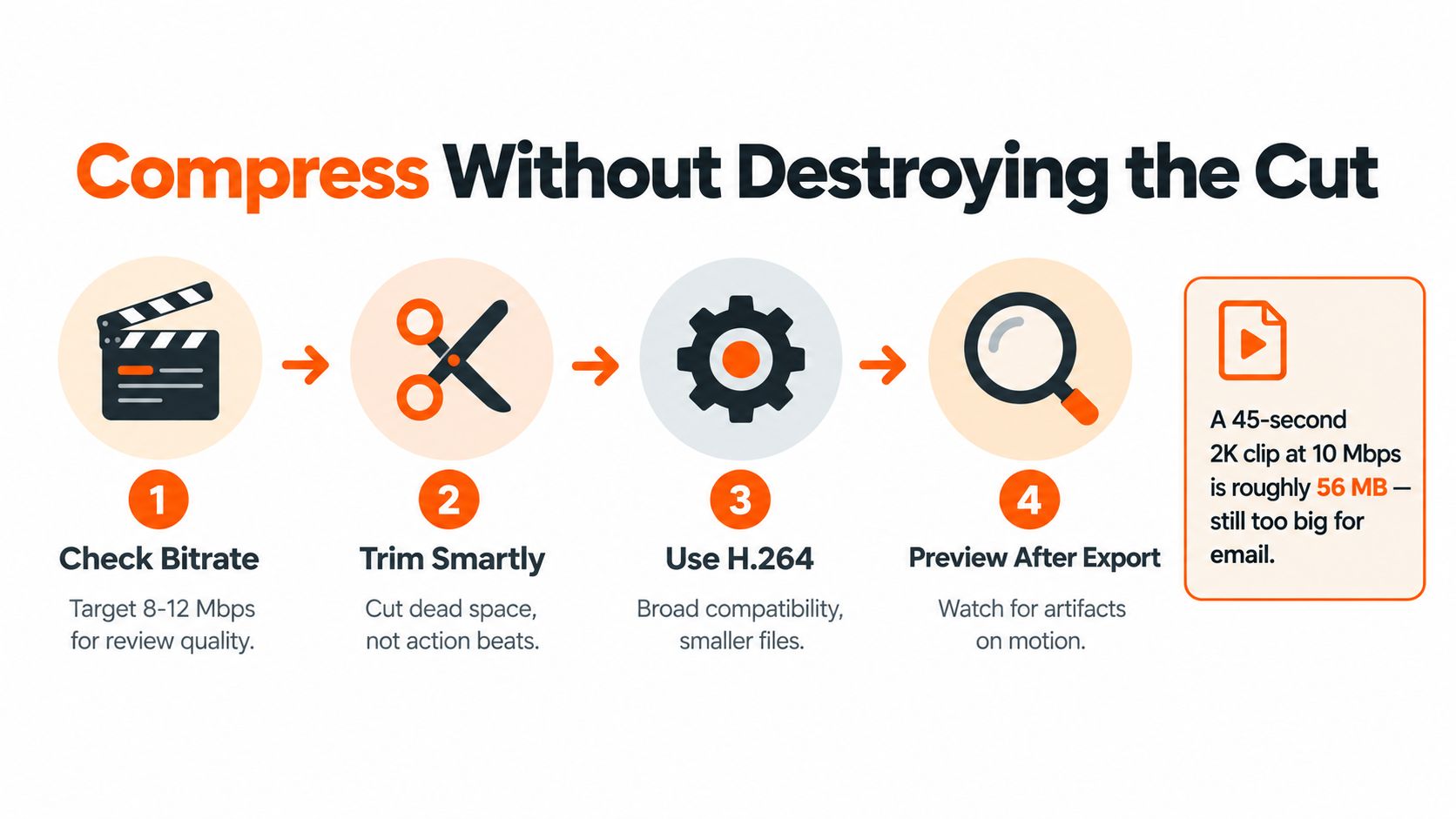
Bitrate usually gives you the biggest size reduction with the least visual damage for review. Resolution comes next, then frame rate if you still need to cut more weight. Codec choice matters too, and for broad compatibility, H.264 MP4 is the safest default for sharing with collaborators. ZIP compression doesn’t help much with already-compressed video formats like MP4, so the savings come from exporting a leaner file, not wrapping the same file in another container.
The goal isn’t to make the clip beautiful forever. It’s to make it legible enough for approval. If the reviewer only needs to confirm pacing, caption placement, subject framing, and whether a cut lands, a lighter proxy can do the job. Keep the high-quality master untouched, then export a separate review copy that’s clearly labeled so nobody overwrites the source by mistake.
A practical hierarchy works well:
- Trim dead air first. Cutting the head and tail is the cleanest reduction because it removes nonessential time, not useful content.
- Lower bitrate next. That usually gets size down faster than cosmetic tweaks.
- Reduce resolution only if needed. Don’t drop clarity so far that the reviewer can’t read the on-screen text.
- Check the result immediately. Watch for blocky motion, smeared captions, and sync drift.
Practical rule: If the clip is for approval, preserve the edit’s intent. If the clip is for publication, preserve the source quality and send a link instead.
For a hands-on resizing workflow, the toolset at ClipOven’s video compressor is useful as a reference point because the same logic applies anywhere. The export should stay faithful to the cut while getting small enough to move through email without drama. Once the file starts bending the image or making text shaky, it’s crossed from review asset into compromise.
Cloud Links Compared for Editor Reviews
Once a file gets too large, link delivery becomes the safer path because it avoids attachment rejection and keeps the original export intact. The trade-off is permission management. A link solves the size problem, but only if the recipient can open it without hitting a wall.
| Service | Free Tier Limit | Expiration Default | Best Fit For |
|---|---|---|---|
| Google Drive | Varies by account storage | No simple universal default | Ongoing collaboration and Drive-native teams |
| Dropbox | Varies by account storage | Link sharing can be managed by the sender | Client review when simple access is more important than inline email delivery |
| OneDrive | Varies by account and tenant policy | Sender-controlled sharing options | Microsoft-heavy teams and Outlook users |
| WeTransfer | Service-defined transfer flow | Transfers commonly expire | One-off review sends and quick handoffs |
Google Drive is practical when the reviewer already lives in Google accounts and you want a straightforward share link. Dropbox is comfortable for recurring client work because it’s familiar and easy to update. OneDrive fits Microsoft-centered workflows, especially when the recipient already uses Outlook or Microsoft 365. WeTransfer is often the quickest choice for a one-off handoff when you don’t need a long-lived shared folder.
The right platform depends on the review job, not the brand name. A single rough cut for a producer who just wants to watch once doesn’t need the same structure as an agency relationship where files move back and forth every week. Confidential masters need tighter permission control than public-facing approval cuts, and that’s where the service’s sharing rules matter more than its interface.
Practical rule: If the recipient has to sign in, test the link before you send it. A perfect export is useless if access breaks at the gate.
For Gmail users, the built-in fallback can be convenient because oversized attachments are converted into Google Drive links automatically, but that doesn’t guarantee access. Gmail’s attachment behavior is only helpful when the permissions line up with the recipient’s account, and that’s the part that fails in real reviews more often than the storage does.
Choosing Attach Versus Link in Real Time
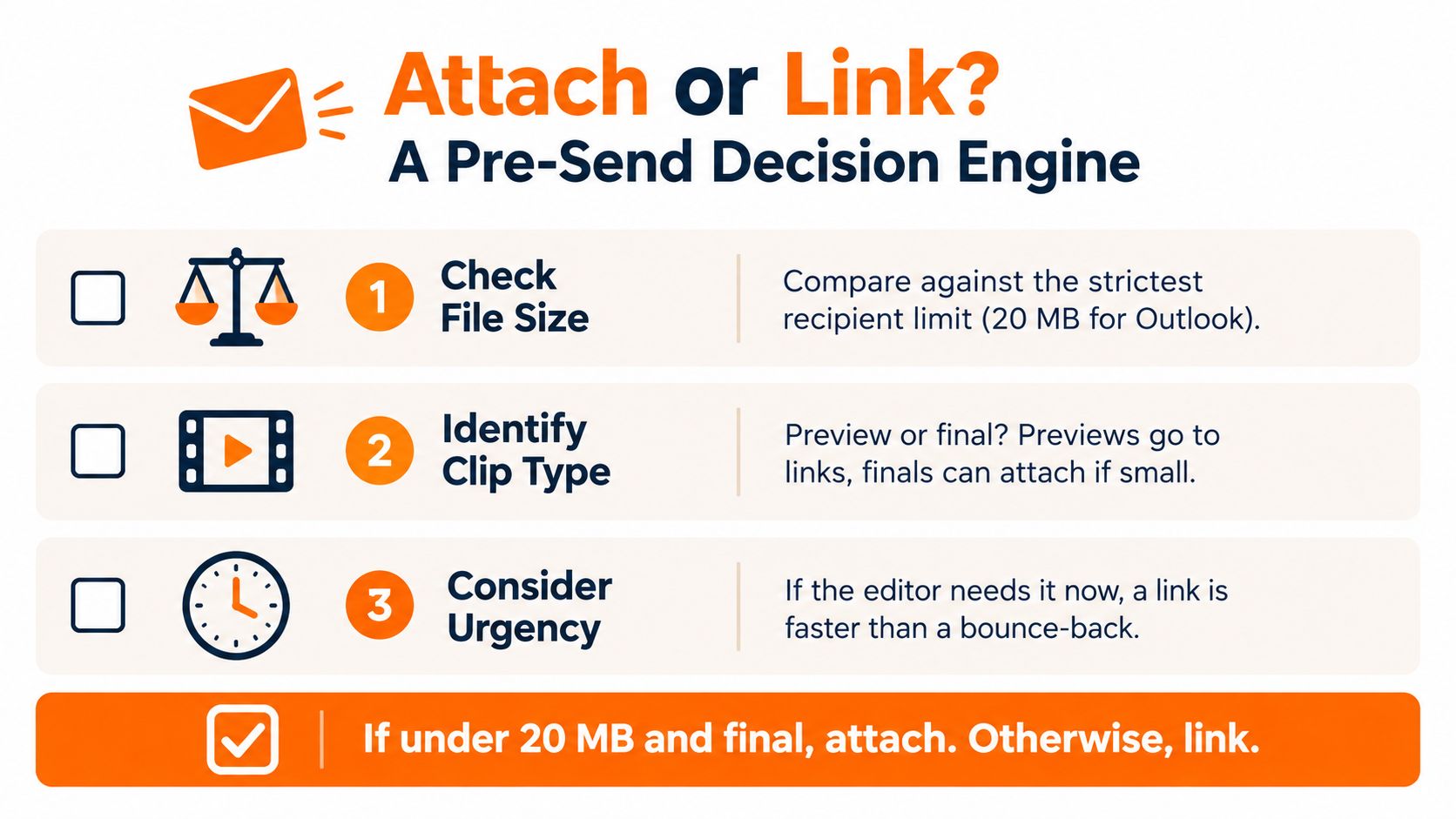
The decision usually comes down to three checks. First, compare the full message against the strictest likely recipient limit, not your own preferred client. Second, decide whether the file is a quick preview or a final deliverable. Third, ask how badly the recipient needs instant access.
A simple send decision
- Attach as-is: Use this only when the final file stays comfortably under the tightest likely limit and the message is small.
- Compress and attach: Use this when the clip is a review copy and a smaller export still preserves readable captions, pacing, and motion.
- Upload and link: Use this when the file is near or above the limit, when quality matters, or when the recipient may need repeated access.
Gmail creates a middle path that’s easy to misunderstand. Over-limit attachments are turned into Drive links automatically, but the recipient still needs the right permissions. If the link is set too broadly or too narrowly, you either expose the footage or block the reviewer. That’s why a link should never be sent blind. Open it in a private browser window, verify that playback starts, and confirm that the intended recipient can access it without special workarounds.
The fastest mental shortcut is simple. If the clip is a final master and it’s small, attach it. If it’s a preview, or if the send feels even slightly risky, link it. The email should carry the context and the action you want the recipient to take, not act as a fragile video container.
A link is not just a fallback. For most review workflows, it’s the more reliable delivery method.
Common Email Failures and How to Prevent Them
The most annoying failures don’t happen during export. They happen after the clip leaves your hands. A message can upload cleanly and still fail because the attachment crossed the encoded limit, the link expired, permissions were too broad or too tight, or the wrong export version was sent.
The first failure is the quiet one, attachment size inflation. Email systems judge the encoded message, so a file that seems safe on disk can still bounce. The fix is to send only when the final message has comfortable headroom, not just when the raw file looks close enough.
The second failure is access drift. A link that worked at noon may be dead later if it expires, if the recipient isn’t in the allowed account set, or if someone changed permissions after the send. Set expiration intentionally, use least-privilege access, and test the share link before the email goes out. If the clip is confidential, avoid broad public access unless there’s no better option.
The third failure is human error in the export itself. A reviewer opens the wrong version, sees old captions or stale timing, and asks for another pass because the filename didn’t make the version obvious. Name the file clearly, include the version intent in the message body, and confirm the final export before sharing. For a resizing workflow that avoids over-shrinking the video, this resizing guide is a handy companion to the send process.
A good send habit set looks like this:
- Check the actual file and message size: Don’t trust the rough export estimate.
- Verify permissions in a private browser: Make sure the intended recipient can open the link.
- Label the file clearly: Include version cues, format, and purpose.
- Keep a backup channel ready: If the clip is time-sensitive, don’t rely on one broken path.
The recurring pattern is simple. Failed video emails are usually delivery problems, not editing problems. That’s why the sender’s job is less about the upload button and more about preventing avoidable friction before the recipient ever sees the file.
Working the Workflow into Your Editing Loop
The best send process starts before export, inside the edit itself. Keep the high-quality master as the system of record, then generate a separate review proxy when the clip is meant for internal approval or email handoff. That keeps the delivery file disposable and the source file safe.
For short-form vertical work, that split matters more than people expect. A clip can be brief and still export at a size that’s too awkward for email, especially when the goal is a polished 2K master. If the review is about timing, captions, or subject framing, the smaller proxy is enough. If the recipient needs the exact deliverable, don’t force email to carry something it wasn’t built to hold.
The cleanest loop is built into the editor, not added at the end. Export the master once, produce a review version with a distinct filename, and decide whether the handoff is attachment or link based on the file’s role. That one habit prevents the common cycle of re-exporting, re-sending, and explaining why the first file didn’t arrive intact.
A practical editing loop looks like this:
- Master stays untouched: Use it for final delivery and archive.
- Review proxy is purpose-built: Small enough to move fast, clear enough to judge.
- Send method matches the job: Email for context, link for reliable access.
When the workflow is set up this way, the attach-versus-link question becomes routine instead of stressful. The sender isn’t gambling on email behavior anymore. They’re choosing the delivery path that preserves the clip’s usefulness, which is the only thing the recipient cares about.
If you’re building short-form review workflows, clipoven fits the handoff problem this article has been circling. It turns horizontal footage into polished vertical shorts, then gives you a practical way to keep the cut, captions, and export quality aligned before you send anything out. If you want fewer failed sends and a cleaner review path, start there.