clipoven
The most feature-rich editor isn’t automatically the best short form video editor. A creator who already knows the moment they want doesn’t need a tool that mines an entire livestream, while a social team working through a podcast archive may waste hours in a timeline editor that never identifies the strongest passages.
The practical question is simpler: what production bottleneck are you trying to remove? This comparison looks at speed to first draft, vertical composition, caption and template control, manual refinement, collaboration, and export quality. The list moves from automated clip creation to specialist workflows and general-purpose browser editors, so each recommendation is tied to a specific job rather than presented as a universal winner.
That distinction matters because short-form video is no longer a niche publishing format. One 2026 short-form video benchmark compilation reports that 87.5% of online adults watch short-form video each week, with average weekly viewing reaching 6 hours and 37 minutes. The same source projects short-form video advertising spend at about $145.8 billion by 2028, which helps explain why reframing, captioning, rapid iteration, and reliable vertical exports have become core production requirements.
Table of Contents
- 1. ClipOven
- 2. OpusClip
- 3. Munch
- 4. Dumme
- 5. VEED
- 6. Kapwing
- 7. Descript
- 8. CapCut
- 9. Eklipse
- 10. Crossclip from Streamlabs
- Top 10 Short-Form Video Editors, Feature Comparison
- Choose the Workflow You Can Repeat
1. ClipOven
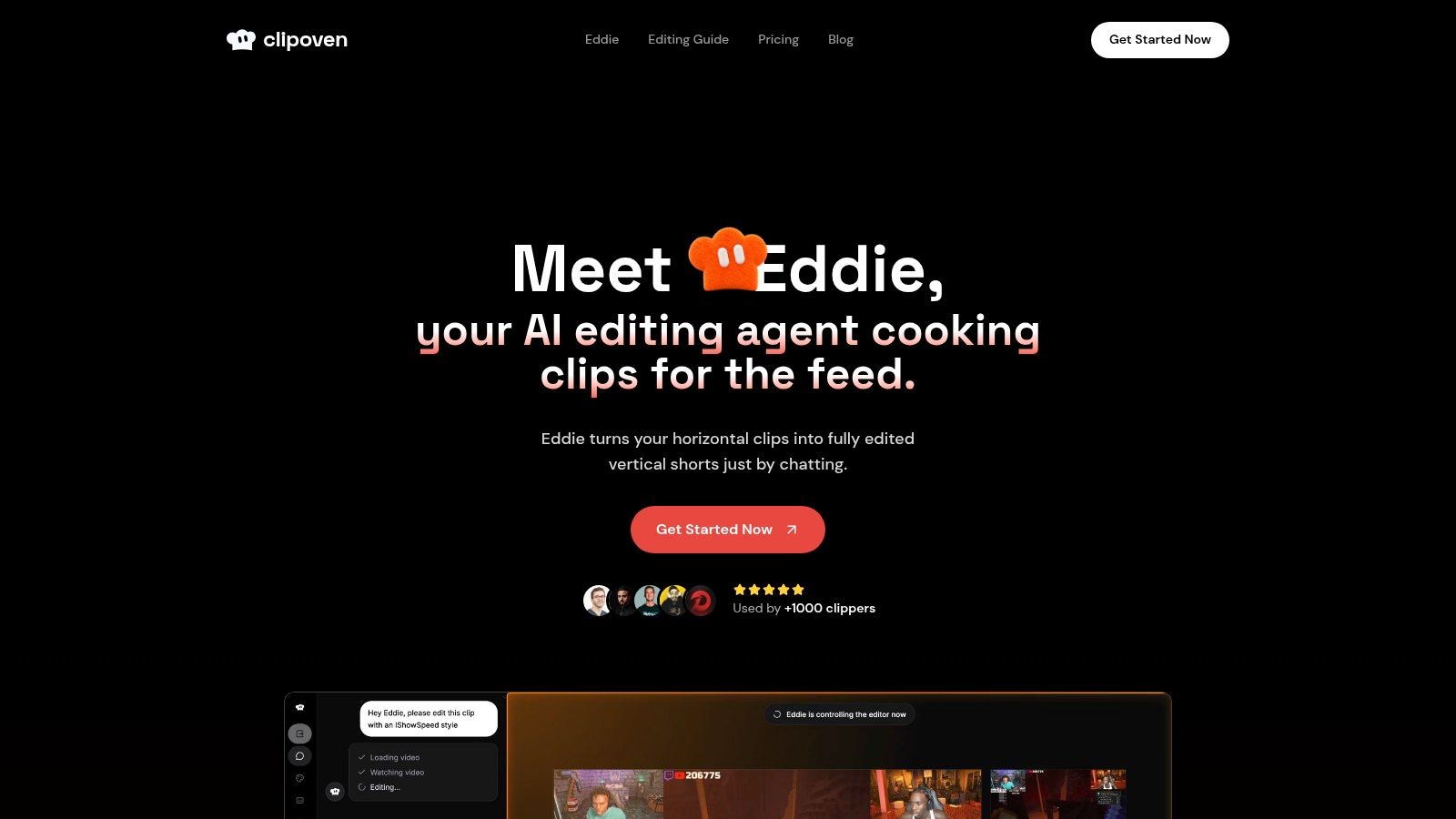
Best for turning horizontal source footage into a refined vertical short without stitching together several tools.
ClipOven targets a specific production bottleneck: converting existing 16:9 footage into a publishable 9:16 edit. Its AI editor, Eddie, takes a creative brief through chat and proposes cuts, reframes footage around the subject, adds animated captions, and layers assets such as audio, GIFs, and stickers. Streamers, gaming clippers, editors, and small social teams can begin with a structured draft rather than an empty timeline.
The workflow matters because ClipOven combines automated assembly with manual control. After Eddie creates the first version, the full timeline editor lets users change cuts, pacing, caption timing, transitions, audio, and visual details. That division of labor suits creators who want speed at the rough-cut stage but still need to make editorial decisions before publishing.
Where the workflow is strongest
ClipOven treats vertical composition as part of editing, not merely an export step. Subject-focused reframing helps keep the relevant action in view, while feed-aware pacing and animated captions reduce the follow-up work created by a basic crop. Exports support crisp 2K vertical resolution, preparing files for Shorts, TikTok, and similar placements.
The tool is less distinctive for mining highlights from a long recording than for finishing a known clip. If the source moment is already clear, Eddie can handle the initial structure and the timeline can handle dialogue timing, branding, and visual refinement. That makes the workflow faster than moving the footage between separate clipping, captioning, and vertical-format tools, while retaining more control than an automatic generator alone.
Practical rule: Use Eddie to establish the structure, then use the timeline to protect the moments the automation cannot fully understand.
Hobby includes 1,000 credits per month, presented as roughly eight one-minute clips as a guide. Pro offers 3,000, 7,000, or 10,000 credits, with approximate guides of 30, 70, or 140 one-minute clips. Clip length, project complexity, and the selected AI model can change actual usage, so these figures help with planning rather than guarantee a fixed number of exports. Both Hobby and Pro include Eddie, the full editor, unlimited daily project creation, and 2K exports. See the ClipOven short form video editor for current plan details and published credit guidance.
Choose it if: you already have horizontal footage and want one workflow for AI-assisted structure, vertical reframing, captions, and final edits. The ClipOven overview shows the intended editing workflow.
Limitations: Automated decisions still need human review when creative direction is nuanced or the project requires advanced nonlinear editing. Credit use also varies between projects.
2. OpusClip
Best for mining highlights from long videos.
OpusClip starts with the footage bottleneck rather than the finishing bottleneck. Upload a podcast, webinar, interview, tutorial, or other long-form recording, and its AI identifies candidate moments, assembles vertical clips, adds captions, applies layouts, and can suggest B-roll. Its per-clip Virality Score gives users another sorting signal when a long recording produces more candidates than the team can review immediately.
That approach is valuable for creators who want several possible shorts from one source. It reduces the need to watch an entire recording manually before making an initial selection, while auto-reframing keeps the speaker or primary subject positioned for a 9:16 frame.
Speed versus editorial control
OpusClip’s strength is the speed of its first pass. A creator can review a batch of styled drafts, then use text-based editing and manual style controls to correct the AI’s choices. It isn’t limited to captions and cropping, but the workflow remains more useful for discovery and assembly than for detailed finishing.
A common trade-off is volume. The system may produce more candidates than a team would publish, which means someone still needs to prune weak hooks, repetitive moments, or clips that lack enough context. The vendor’s cloud-first approach also means advanced functionality depends on the plan and the online workflow.
If your main need is automatic video editing, OpusClip is a strong fit for long-form repurposing. If you already know the exact moment and need careful visual refinement, a timeline-focused editor may get you to the finish line with less review.
Choose it if: you publish podcasts, webinars, tutorials, or interviews and want AI to surface multiple short-form candidates.
Limitations: It can optimize for quantity of drafts, and manual pruning remains necessary when the source contains many plausible but weak moments.
3. Munch
Best for teams that need short clips and matching social copy in one workflow.
Munch treats repurposing as a distribution problem, not only an editing problem. It extracts highlights from long-form video, reframes them for Shorts, Reels, and TikTok, and also creates written assets such as YouTube descriptions, LinkedIn or X posts, carousels, and newsletters. That makes it particularly relevant to publishers, agencies, and in-house teams that need a clip to arrive with supporting copy rather than as an isolated video file.
The platform also offers brand voice presets and written outputs in 16 languages, according to the product brief. Relevance and trend analysis inform the selection process, which can help a team compare possible moments before committing time to final styling.
A distribution layer, not a finishing suite
Munch is strongest when the team measures output by campaign coverage. One source recording can become a set of vertical videos and a group of channel-specific text assets, reducing the handoff between video production and social publishing. It also makes the tool more suitable for multilingual or multi-channel operations than a narrow clipper.
The trade-off is depth. Munch isn’t positioned as a detailed timeline editor for frame-by-frame polishing, and its broader workflow comes with a higher-end orientation than a focused clip-only tool. Editors who care about nuanced pacing, detailed caption animation, or complex asset layering may need another application for the final pass.
Choose it if: your bottleneck is turning one long recording into a coordinated package of videos and written social content.
Limitations: Teams seeking deep manual editing control may find the final polishing stage too limited, while smaller creators may not need its broader distribution layer.
4. Dumme
Best for creating candidate clips from speech-heavy recordings with minimal setup.
Dumme is built around a narrow but common problem: a creator has a podcast, lecture, interview, or webinar and wants several concise shorts without spending the first editing session building a complex project. The product extracts clips from long speech-driven videos, preserves context, adds captions, and provides a lightweight review flow for selecting and exporting the results.
Its simplicity is the point. A talk-format creator can move quickly from one long source to a group of possible vertical clips without managing a large library of templates, effects, or timeline controls. That suits users who would rather review candidates than learn a full editing environment.
Context first, styling second
Dumme’s emphasis on preserving context separates it from tools that can produce fast but abrupt highlight cuts. For interviews and educational material, a clip often fails because the viewer doesn’t understand the question or the speaker’s conclusion. A workflow that keeps more of the surrounding meaning can produce fewer confusing exports, even if the visual treatment is less elaborate.
The limitation is equally clear. Manual editing and styling appear lightweight, so creators who need elaborate caption motion, layered graphics, or precise pacing may quickly reach the product’s boundary. Pricing and plans also aren’t publicly listed on the site, which makes it harder to compare ongoing cost before testing the workflow.
Choose it if: you want a low-friction way to turn one speech-led recording into several context-preserving shorts.
Limitations: It offers less apparent control for detailed styling and manual refinement, and publicly available plan information is limited.
5. VEED
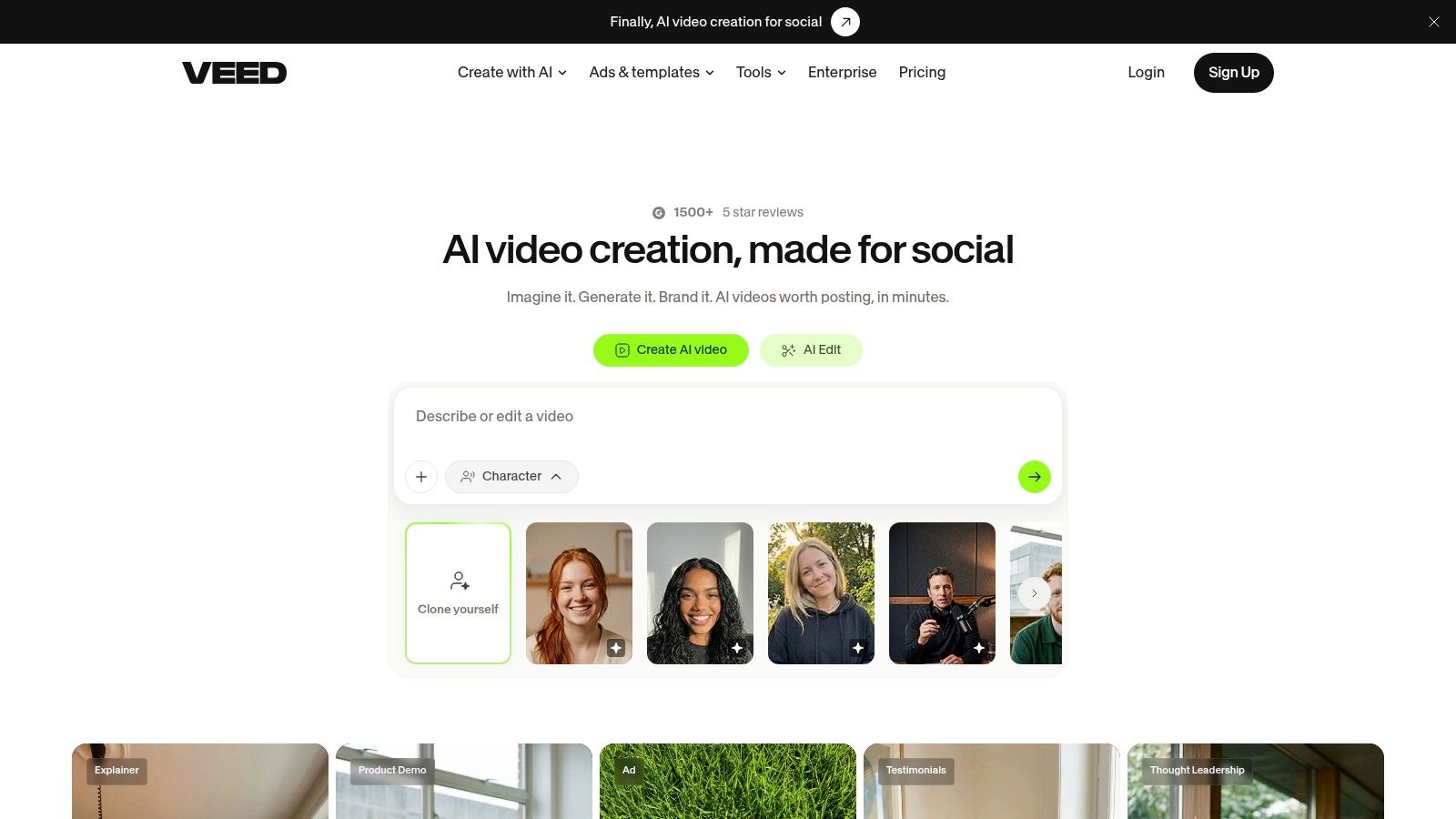
Best for browser-based teams that need editing, captions, brand controls, and collaboration together.
VEED is a general-purpose browser editor with a strong social production layer. Its auto-subtitle and translation tools help teams create captioned versions, while templates and presets support 9:16 layouts. Brand kits, team workspaces, and collaboration tools make it more suitable for marketing departments than a solo-focused mobile editor.
The broader feature set also includes recording, stock assets, avatars, dubbing, and AI-assisted creation. That breadth can reduce the number of separate tools a non-technical teammate needs to learn. A social manager can record or import footage, apply a brand treatment, add subtitles, and prepare a platform-specific version in the same browser environment.
Useful templates need guardrails
VEED’s templates are most useful when a team treats them as repeatable production rules rather than as a substitute for editorial judgment. A brand kit can make typography, colors, and visual identity consistent, but the team still needs to check caption placement, line breaks, and whether the template obscures a speaker or product.
The browser model improves accessibility, but plan limits and feature availability can be difficult to interpret at first glance. Monthly and annual pricing details may also require careful review before a team standardizes on the tool.
Choose it if: several teammates need to create and review vertical content without installing a desktop editor.
Limitations: Feature access varies by plan, and a broad toolset can create more complexity than a solo creator needs.
6. Kapwing
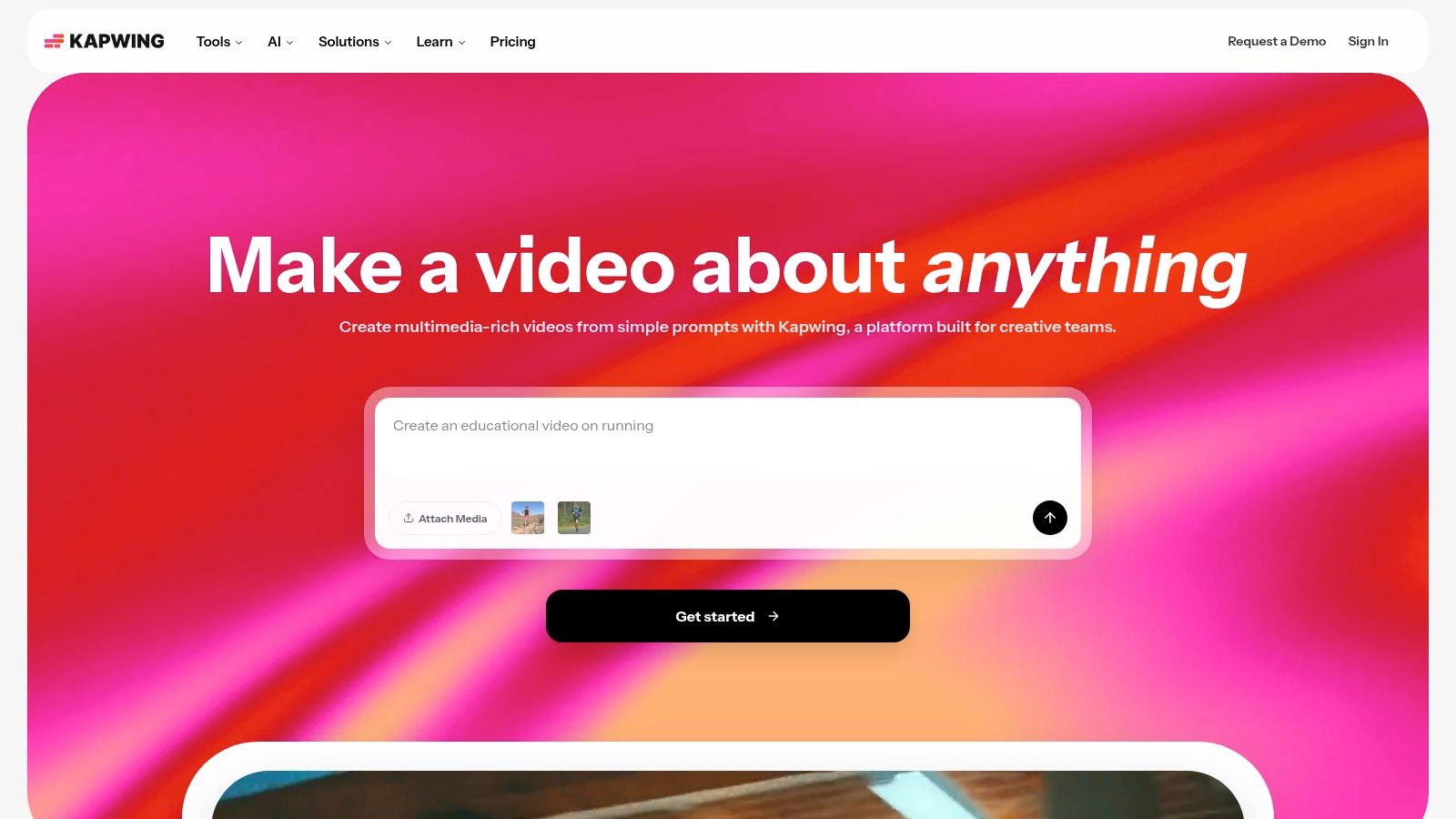
Best for standardizing captioned vertical videos around templates and safe zones.
Kapwing solves the styling bottleneck. Its auto-captions produce an editable transcript and can be exported as SRT, VTT, or TXT, while animated subtitle templates give social teams a fast route to readable, branded text. Aspect-ratio presets for TikTok, Reels, and Shorts reduce the need to configure each project from scratch.
The safe-zone overlays are especially useful for teams that publish across platforms with interface elements covering parts of the frame. A caption that looks fine in a desktop preview can become difficult to read when buttons, descriptions, or account information occupy the vertical edges. Kapwing gives non-editors a visual way to check that composition before export.
Templates accelerate consistency, not originality
Kapwing works well when the team has a repeatable visual system. It runs in the browser, supports URL import, and provides a large library of social and subtitle templates. That makes it accessible to marketing teams that need several people to produce content without requiring everyone to become a specialist editor.
The same template-first workflow can produce repetitive-looking videos if users accept the default treatment. The free plan also includes watermarks and export limits, so production use requires a paid upgrade. For a broader perspective on repurposing video content, compare whether your real bottleneck is caption styling or finding the right moments in the source.
Choose it if: your priority is readable, on-brand animated captions and dependable vertical sizing.
Limitations: Template-heavy output can feel samey without manual changes, and free exports aren’t suitable for polished production.
7. Descript
Best for editing dialogue by working directly from the transcript.
Descript changes the central editing surface from the timeline to the words. Once the source is transcribed, deleting a sentence, tightening a paragraph, or removing filler words changes the corresponding video edit. That makes it a natural choice for podcasts, interviews, explainers, and talking-head content where the spoken structure determines whether a short works.
The workflow is particularly effective when the editor knows the idea that needs to survive but doesn’t yet know the exact time range. Searching and cutting through text can be faster than scrubbing through a long recording, especially during the first assembly.
Dialogue control with a vertical finish
Descript also supports auto-captions, AI enhancements, and filler-word removal, with collaboration features for teams and multiple seats on higher tiers. A producer can shape the spoken argument, then prepare a concise vertical cut without switching immediately into a conventional NLE.
That convenience doesn’t make it a universal short form video editor. The heavy AI feature set may be unnecessary for a creator who only needs a crop and captions, and pricing and credit meters can be difficult for new users to understand. Caption styling and visual finishing may also require a more specialized tool, particularly when the clip depends on layered graphics or precise motion treatment. For subtitle workflows, this auto subtitle generator guide offers a useful point of comparison.
Choose it if: your production bottleneck is finding and tightening the right dialogue.
Limitations: It can be excessive for simple edits, and users may need another editor for richer visual finishing.
8. CapCut

Best for accessible, TikTok-oriented creation across mobile, desktop, and web.
CapCut is built for creators who want to edit close to the publishing moment. Auto-captioning, caption templates, social-first effects, and straightforward 9:16 exports make it easy to move from phone footage to a platform-ready draft. The product is available on mobile, desktop, and the web, so a creator can switch devices when a project becomes more involved.
Its template library and effects are closely aligned with short-form publishing habits. That lowers the learning curve for users who don’t need a conventional editing suite and want to add captions, transitions, or visual treatments without installing plugins.
Fast publishing, variable governance
CapCut’s main advantage is accessibility. It’s free to start, and rich caption styling is available without building a separate graphics workflow. For solo TikTok creators and mobile-first editors, that can matter more than advanced timeline architecture.
Teams should examine the details before making it their standard. Pricing and feature availability can vary by region and storefront, and users may encounter differences between web and in-app subscription arrangements. The tool’s close association with TikTok workflows is also a strength for social-native creators but may feel restrictive for teams that need more controlled brand governance or complex post-production.
Choose it if: you want a familiar, social-first editor that works on mobile and gets a TikTok-style draft moving quickly.
Limitations: Regional plan differences can complicate purchasing, and creators who need deep manual control may outgrow the workflow.
9. Eklipse
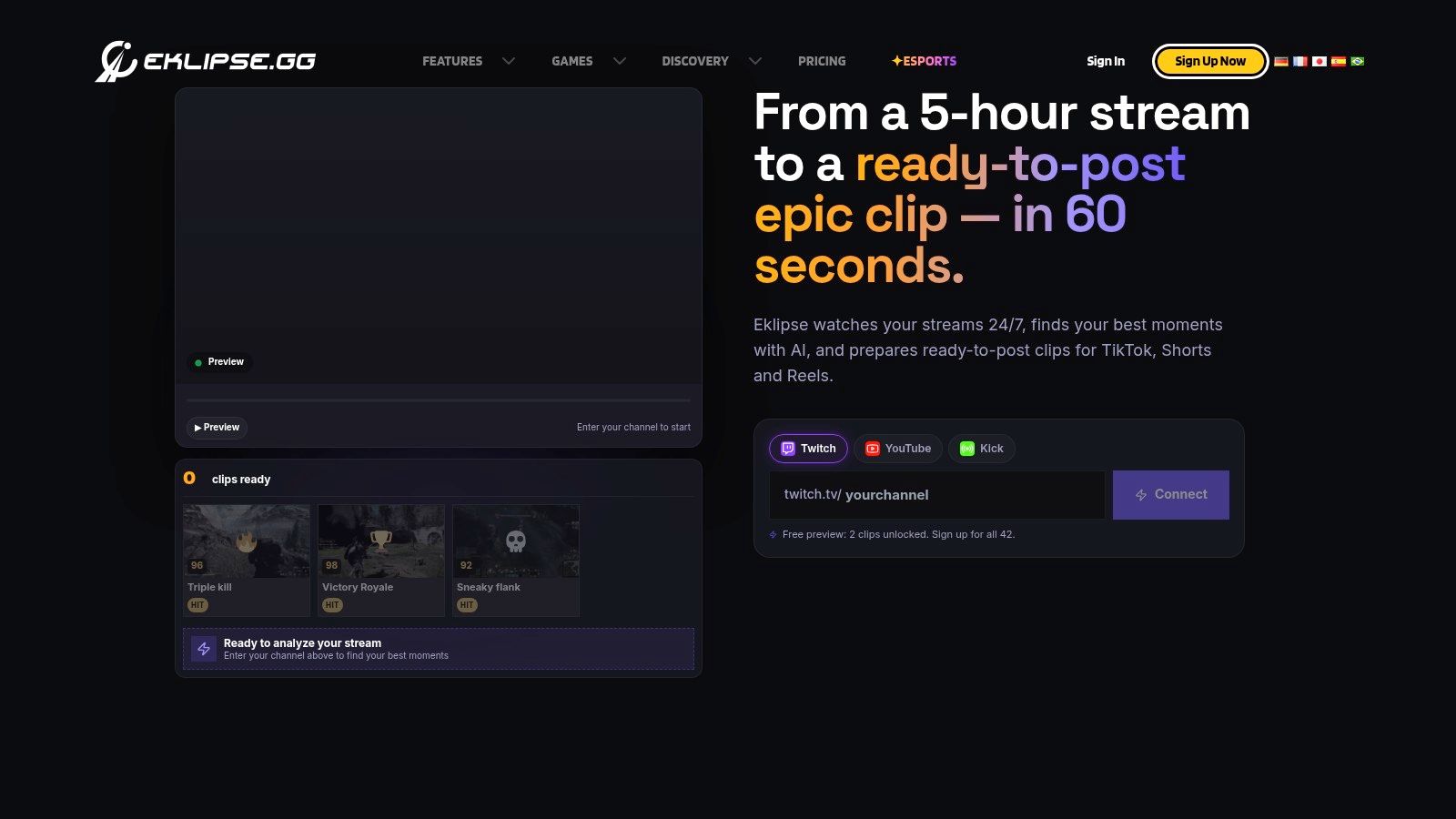
Best for mining highlights from Twitch, YouTube, and Kick streams.
Eklipse is aimed at the streamer bottleneck: a creator has a long VOD containing gameplay, facecam reactions, and commentary, but finding publishable moments manually takes too much review time. Its AI detects highlights and creates vertical clips using layouts designed around gameplay and facecam compositions.
That specialization gives it a clearer starting point than a general short form video editor. The layout can account for the relationship between the game screen and the creator’s camera, rather than treating the footage as a single talking-head source that needs a generic crop.
A useful distinction for gaming creators
Premium access adds faster processing and higher-quality exports, including 1080p60 according to the product brief. That matters when motion clarity is part of the content, especially in gameplay where a low-quality export can make action harder to follow.
Eklipse isn’t the strongest choice for studio interviews, brand shoots, or general-purpose social footage. Its value comes from recognizing the structure of streaming content and reducing VOD review. Many useful export options are gated behind Premium, so creators should test the quality and processing workflow before relying on the free experience.
Choose it if: you need AI to surface gaming highlights from streaming VODs and format them around facecam and gameplay.
Limitations: It is less suitable for non-stream footage, and important export capabilities require Premium access.
10. Crossclip from Streamlabs
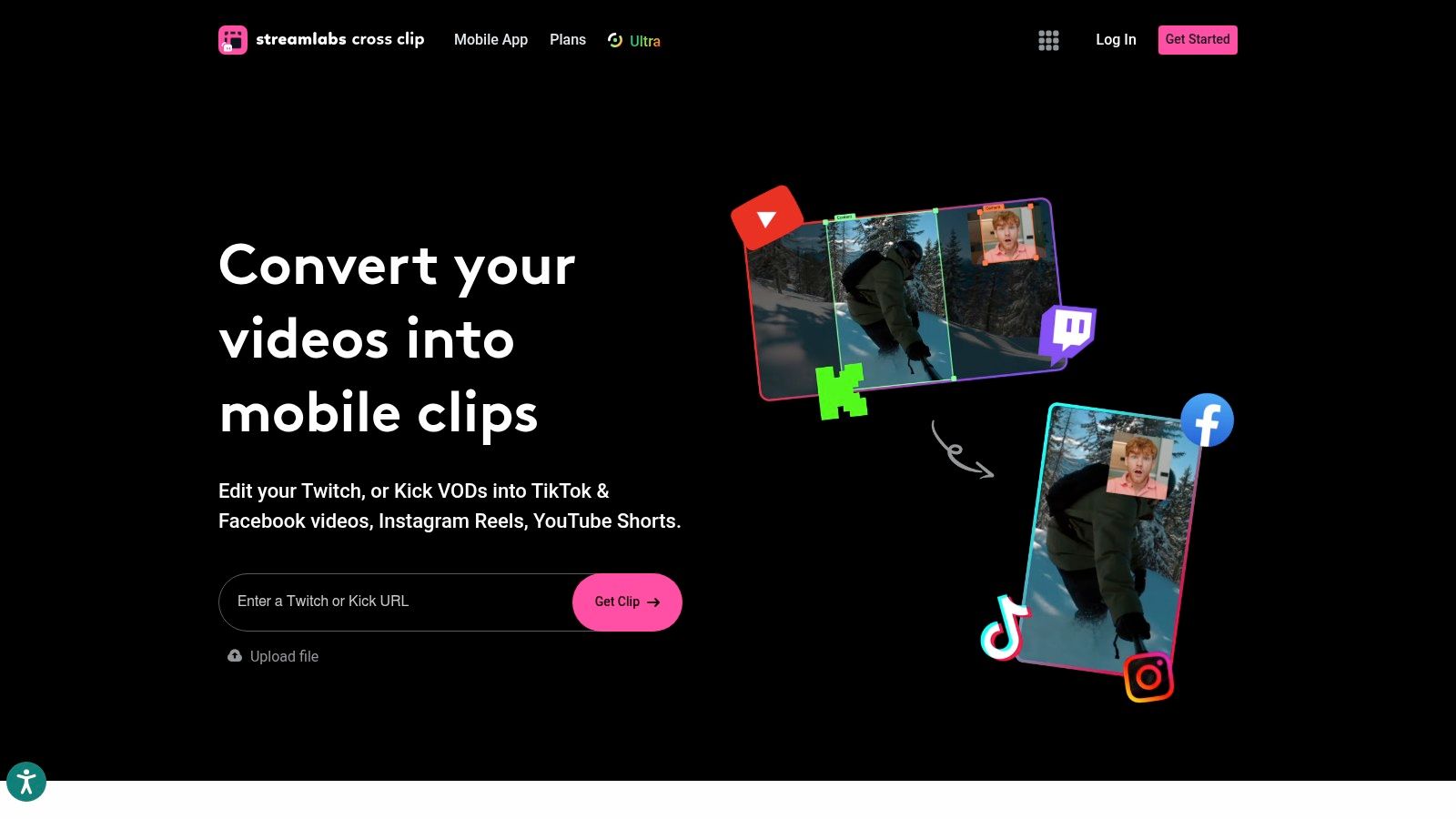
Best for converting a known gaming clip into a correct vertical layout quickly.
Crossclip solves a different problem from Eklipse. It doesn’t need to mine an entire VOD because the creator already knows which moment matters. Import a saved Twitch or Kick clip, choose a portrait split, crop, or blurred-background layout, and prepare a social version without opening a full nonlinear editor.
That makes the workflow attractive for streamers who clip moments during or immediately after a broadcast. Mobile apps support quick edits and posting, while preset layouts reduce the number of composition decisions required for each export.
The fastest route when discovery is already done
Crossclip’s simplicity is its main advantage. A known clip can move from a streaming platform to a vertical social asset with little setup, and the layouts provide a reasonable starting point for gameplay and camera arrangements.
It isn’t an AI repurposing suite and doesn’t offer automatic transcript-driven clipping. It also isn’t designed for batch mining long VODs, detailed dialogue editing, or elaborate caption animation. The correct comparison is therefore not Crossclip versus a full editor. It’s Crossclip versus the time and friction of manually converting one saved clip.
Choose it if: you already have the gaming moment and only need a fast, correctly composed vertical export.
Limitations: It doesn’t discover highlights automatically and is best suited to single-clip workflows.
Top 10 Short-Form Video Editors, Feature Comparison
| Product | Core features & unique strengths (✨) | Experience & quality (★) | Pricing & value (💰) | Best for (👥) |
|---|---|---|---|---|
| clipoven 🏆 | ✨ Chat-to-edit agent (Eddie); auto 16:9→9:16 reframing; animated, tunable captions; full timeline editor; 2K exports | ★★★★★ Fast, consistent, feed‑optimized pacing; near‑finished drafts | 💰 Credit-based, Hobby 1,000/mo (~8×1min); Pro packs 3k/7k/10k; monthly/annual; unlimited daily projects | 👥 Creators, streamers, social managers, small agencies |
| OpusClip | ✨ Auto highlight detection + Virality Score; one‑click B‑roll; auto captions; vertical templates | ★★★★ Rapid first drafts; can produce many candidates needing pruning | 💰 Paid tiers; advanced features on higher plans | 👥 Podcasters, long‑form repurposers, creators needing fast drafts |
| Munch | ✨ Highlight extraction + vertical crops; multi‑format social copy (16 languages); trend insights | ★★★★ Good multi‑channel readiness; higher‑end polish | 💰 Positioned toward higher‑end / team pricing | 👥 Agencies, social teams needing clips + copy |
| Dumme | ✨ Speech‑optimized clip extraction; auto captions; lightweight review flow | ★★★☆ Very low friction for talk formats; near human‑edited feel for speech | 💰 Pricing not public / likely usage‑based | 👥 Podcasters, lectures, interview creators |
| VEED | ✨ Browser editor with auto‑subtitles/translation, templates, brand kits & collaboration | ★★★★ Accessible for non‑editors; strong team workflows | 💰 Subscription tiers (team plans); feature gating per plan | 👥 Marketing teams, collaborative social workflows |
| Kapwing | ✨ Template‑first animated captions, safe‑zone overlays, URL import | ★★★★ Fast, browser‑based; free tier but watermarked | 💰 Free tier + paid to remove watermarks/limits | 👥 Social teams, non‑technical creators standardizing captions |
| Descript | ✨ Transcript‑driven editing; filler removal; captions & AI audio tools | ★★★★ Excellent for dialogue/talk content; mature toolset | 💰 Subscription with tiered seats; can feel complex | 👥 Podcasters, interview editors, explainers |
| CapCut | ✨ TikTok‑aligned templates & effects; auto‑captions; mobile + web + desktop | ★★★★ Ubiquitous, mobile‑first, rich caption styling | 💰 Free to start; Pro/Standard subscriptions regionally | 👥 TikTok creators, mobile-first editors |
| Eklipse | ✨ Streamer VOD highlight detection; facecam+gameplay presets; premium 1080p60 | ★★★☆ Purpose‑built for streamers; quality gated by Premium | 💰 Free/basic + Premium for faster/higher‑quality exports | 👥 Streamers, gaming creators |
| Crossclip (Streamlabs) | ✨ Direct Twitch/Kick import; portrait presets; mobile posting tools | ★★★☆ Extremely fast, minimal learning curve | 💰 Lightweight / often free or included with Streamlabs tools | 👥 Streamers who already know clip moments |
Choose the Workflow You Can Repeat
The best short form video editor is the one that removes the bottleneck you face repeatedly. If your source footage is horizontal and your team needs a complete vertical draft with room for human refinement, ClipOven offers the most integrated workflow in this group. Eddie handles the initial cuts, subject-focused reframing, captions, pacing, and effects, while the timeline editor gives an editor control over the final result. That combination is more useful than a tool that produces a fast draft but forces every meaningful correction into another application.
Choose OpusClip, Munch, or Dumme when highlight discovery is the hard part. OpusClip is the broadest fit for turning long recordings into multiple candidates. Munch makes more sense when every clip also needs platform-specific copy and supporting social assets. Dumme is the more focused option for speech-heavy material where preserving context matters more than elaborate styling.
For browser-based team production, compare VEED and Kapwing according to the kind of consistency you need. VEED is broader, with brand kits, collaboration, recording, stock assets, avatars, and dubbing. Kapwing is more focused on editable transcripts, animated captions, social templates, and safe-zone checks. Neither removes the need for editorial review. Templates can make output consistent, but they can also make several creators’ work look interchangeable if nobody adjusts the treatment.
Use Descript when dialogue carries the edit. It lets producers shape the argument through the transcript before worrying about detailed visual finishing. CapCut is the accessible choice for TikTok-oriented creation, especially when mobile editing and social-native effects matter more than a complex desktop workflow. For streamers, Eklipse is the better fit when the system must mine highlights from VODs, while Crossclip is faster when the exact gaming moment is already saved.
Before committing, test each candidate with representative footage rather than a clean demo file. Check whether the tool keeps the subject centered during reframing, whether captions appear at the right moment and remain readable, and how many manual corrections the first draft requires. Verify the intended export quality on the platform where you publish, then compare repeatable turnaround across several ordinary projects. A tool that creates one impressive clip but requires constant rescue work isn’t faster in practice.
The most useful evaluation is operational. Give the same source type to the tools that fit your bottleneck, record where each workflow starts and ends, and note whether the final export needs another application. That process will reveal whether you need highlight mining, reframing, caption styling, dialogue editing, or simple finishing, and it will prevent you from paying for capabilities your team never uses.
ClipOven combines Eddie’s chat-driven editing with automatic 16:9 to 9:16 reframing, animated captions, pacing, effects, and a full timeline for precise refinement. If you want a repeatable way to turn horizontal footage into polished vertical shorts without avoidable tool switching, visit ClipOven and test the workflow with your own source material.