clipoven
The most accurate transcript doesn’t automatically produce the best subtitles. A transcript can contain the right words and still fail as a viewing experience if captions break at awkward points, obscure a speaker’s face, ignore overlapping dialogue, or export poorly into the destination editor. The better comparison asks what happens after transcription.
An auto subtitle generator should be judged by recognition quality, language coverage, speaker and punctuation handling, correction workflow, styling controls, export formats, and the editing environment where the video will be finished. Performance also depends heavily on the footage. Clean, single-speaker audio is a different test from a livestream with music, jargon, accents, and crosstalk.
The tools below are grouped by the job they complete best, from fast vertical-social production to transcript-led editing, multilingual delivery, professional post-production, and lightweight team governance. Accuracy claims deserve caution. A preliminary study of popular captioning platforms found results ranging from 84.6% to 93.6%, with an average of 89.8%, below the 99% accuracy level often cited for accessibility-critical captions (the study’s findings). Test identical representative clips before committing to a plan.
Table of Contents
- 1. VEED
- 2. Kapwing
- 3. Submagic
- 4. Descript
- 5. Happy Scribe
- 6. Zubtitle
- 7. Nova A.I.
- 8. Adobe Premiere Pro Speech to Text
- 9. DaVinci Resolve Studio Auto Subtitles
- 10. Clipchamp Microsoft
- Top 10 Auto-Subtitle Generators, Feature Comparison
- Choose the Workflow You Can Maintain
1. VEED
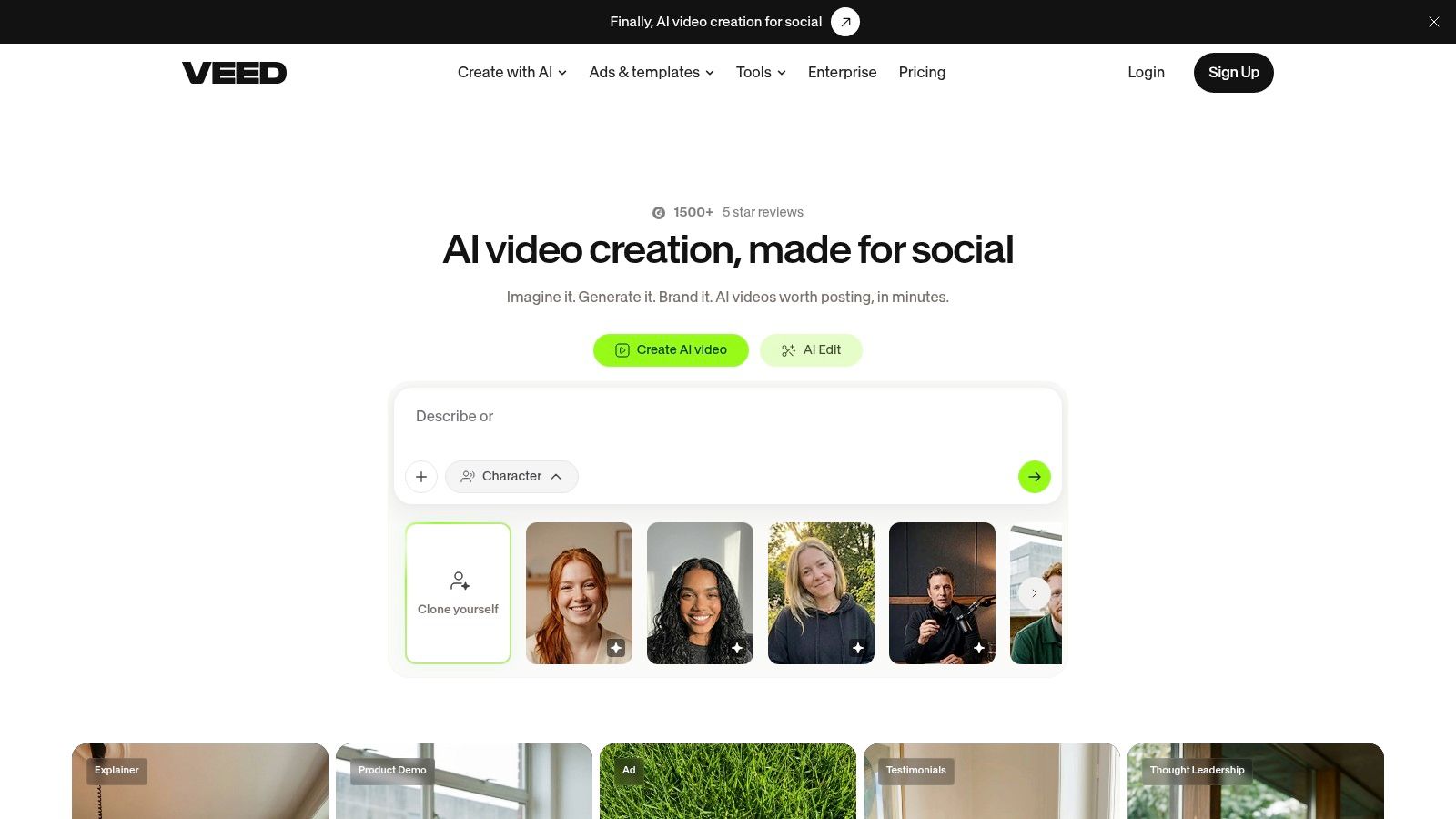
VEED is a strong fit when the finished asset is a polished social video rather than a subtitle file handed to another editor. Its browser-based Auto Subtitles workflow generates timed captions, then lets you style them directly on the canvas with options such as karaoke effects, word highlights, bold treatments, and oversized text.
That matters for TikTok and YouTube Shorts production, where the caption design is part of the creative rather than a separate accessibility layer. Word-level timing can support animated emphasis, while templates, a brand kit, and a teleprompter keep more of the production process in one browser workspace.
Where VEED fits best
VEED is particularly practical for teams whose collaborators don’t use Premiere Pro or another non-linear editor. A marketer can review the transcript, adjust captions on the video, apply a saved visual treatment, and export without moving between separate transcription and design tools. Team workspaces also make browser-based review easier than passing project files between contributors.
The export layer is flexible enough for common subtitle workflows. VEED supports SRT, VTT, and TXT subtitle exports, as well as burned-in video. Its API adds a route for teams that need to automate subtitle jobs rather than process every upload manually.
Practical rule: Choose VEED when caption appearance and browser collaboration matter as much as transcription.
The trade-off is plan dependence. The free experience can include a watermark and feature restrictions, while advanced effects and capabilities vary by tier. Before adopting it for a recurring workflow, verify the current export entitlements and whether the plan supports the resolution, branding, and volume your team needs.
2. Kapwing
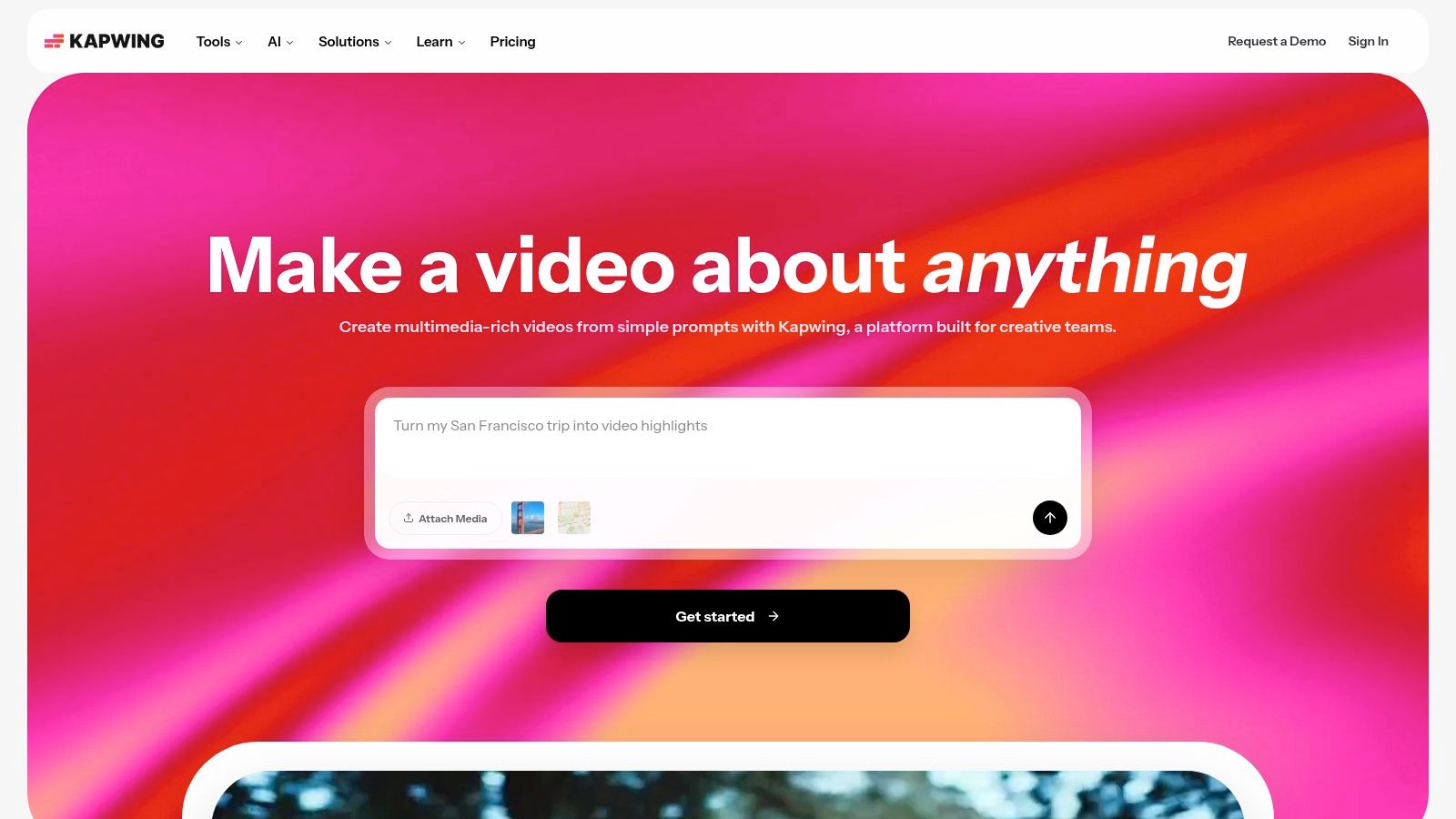
Kapwing treats subtitles as part of a broader online editing workflow, but its strongest use case is fast, stylized short-form content. The AI Subtitle Generator creates an editable transcript with adjustable timing, and the canvas makes it straightforward to control layout, animation, and visual hierarchy without opening a professional timeline editor.
That combination reduces editing friction for creators who need more control than a one-click caption overlay provides. You can correct wording, adjust when a caption appears, and change how much text occupies the screen before exporting the result as a finished social video or as an SRT or VTT file.
Why short-form teams may prefer it
Kapwing’s templates and short-form tools make it easier to move from raw clip to publishable vertical content. Its translation workflow connects with features such as lip-sync and AI dubbing, which can be useful when a team wants to explore multilingual versions without leaving the same workspace. The benefit isn’t language conversion. Editors still need to inspect timing, line length, and visual density after translation.
For teams comparing browser-based editors, this guide to free AI video editors provides useful context on how caption generation fits into a larger editing process. Kapwing is a good match when that larger process includes resizing, templates, and quick visual refinements.
A readable subtitle is edited for the screen, not merely copied from the transcript.
The operational downside is that some export types and editing features require paid access. Free use can include watermarks and usage limits, so occasional creators may find the workflow sufficient while high-volume publishers need to model plan usage carefully. Kapwing is less suitable when the final deliverable must pass through a demanding broadcast or post-production pipeline with specialized subtitle formats.
3. Submagic
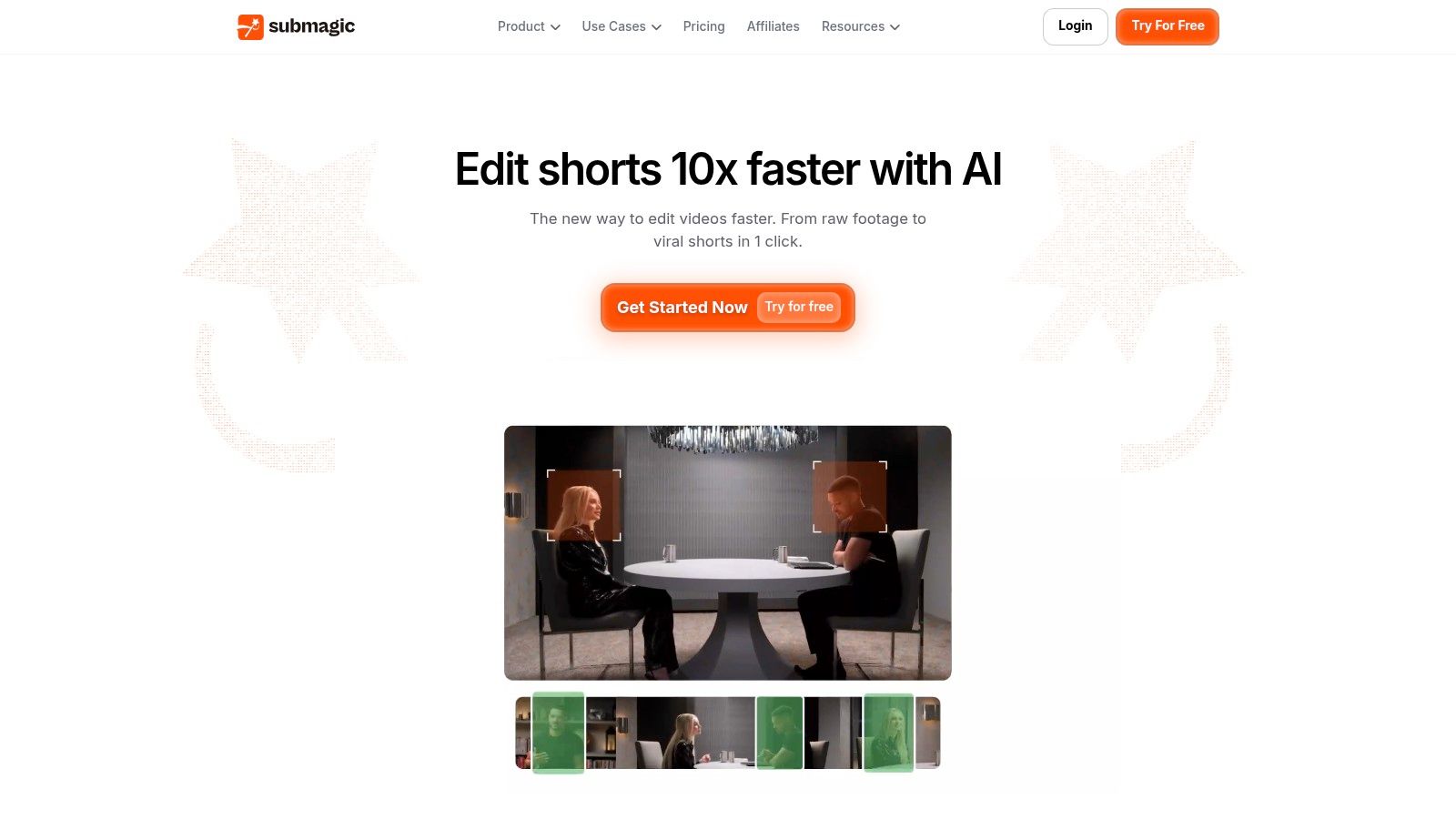
Submagic is built around a specific publishing job, turning talking-head footage into attention-oriented vertical clips quickly. Its auto captions use animated styles, emojis, and kinetic text treatments designed for TikTok, Shorts, and similar feeds. The tool also combines captions with silence trimming and auto-reframing, so the user can address several common short-form edits in one pass.
This focus is an advantage when speed and visual energy matter more than neutral subtitle presentation. A creator can start with a raw clip, remove dead air, apply a recognizable caption style, and prepare a social-ready output without learning a general-purpose editor.
The cost of a specialized workflow
Submagic’s templates are optimized for creator-style content, especially clips where animated words and emphatic formatting are part of the channel identity. Social publishing and platform integrations can shorten the distance between editing and distribution. That makes it more compelling for a creator or clipping team than a tool whose captions are designed primarily for formal accessibility delivery.
The limitation is that visual automation can create additional review work. Editors should inspect emphasis, line breaks, emoji placement, and caption timing rather than assuming that a dramatic style is automatically readable. Music, fast speech, and overlapping voices can also expose recognition or segmentation problems that aren’t visible in a clean demonstration clip.
Plan limits are another consideration. Feature access and available minutes depend on the selected plan, and plan terms may change. Verify the current allowance before purchase, especially if your team batches many short clips or relies on integrations.
Submagic is a workflow decision, not just a transcription decision. It makes the most sense when the output should already look like creator-led social content.
For professional subtitle files, multilingual compliance, or restrained caption styling, a dedicated subtitling platform may be a better fit.
4. Descript
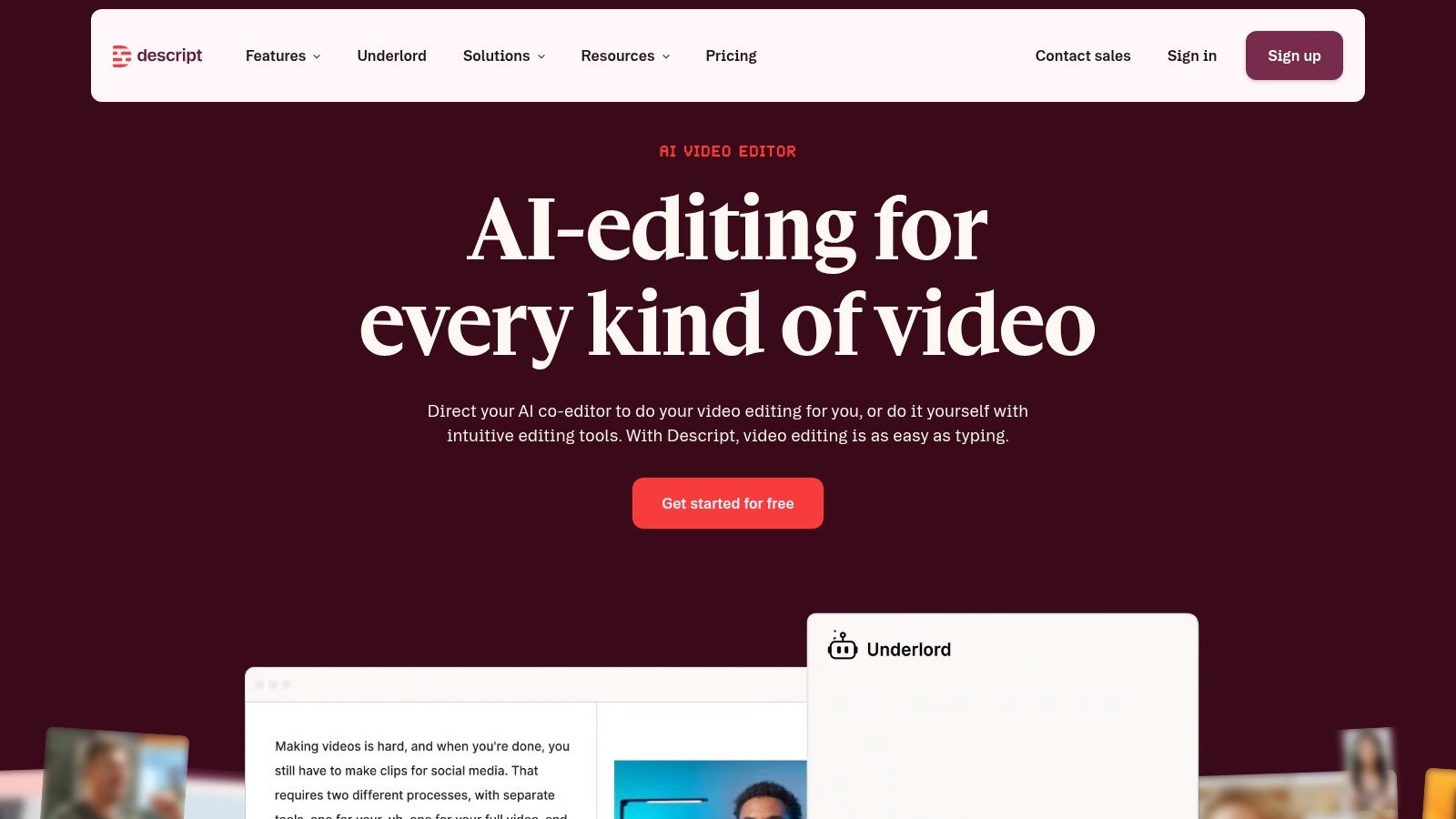
Descript is best understood as a transcript-first editor that happens to generate subtitles. Its central workflow lets editors modify video by changing text, remove filler words, identify speakers, and then produce captions from the edited transcript. That connection is valuable when the subtitle file should reflect the final cut rather than an earlier version of the recording.
The platform supports automatic transcription in more than twenty languages, with speaker detection available in the editing workflow. Caption exports include SRT and VTT, and editors can control line length and line breaks instead of accepting whatever segmentation the first transcription pass created.
A better choice for script-led editing
Descript works well for interviews, podcasts, webinars, and multi-clip projects where the editor thinks in dialogue before thinking in frames. Correcting a name in the transcript can be more efficient than locating every occurrence on a timeline. Speaker labels and collaborative review also help when several people need to check wording before delivery.
Translation is available for transcripts and captions across a broader language set, although the exact coverage depends on the plan. That plan dependence should be checked before building a multilingual process around it. Translation also needs a viewing pass. A linguistically correct sentence can still create poor subtitles if the timing, segmentation, or reading density doesn’t suit the target audience.
For a wider look at how automated editing and captions can work together, see this overview of automated video editors. Descript’s strength is the relationship between transcript edits and video edits, not flashy caption animation.
The main trade-off is scope. Full capabilities require paid tiers and AI credits, and the interface is more generalist than a creator-specialist caption app. Choose it when transcript accuracy, review, and content restructuring are central. Choose another tool when the primary task is applying bold, animated captions to a finished vertical clip.
5. Happy Scribe
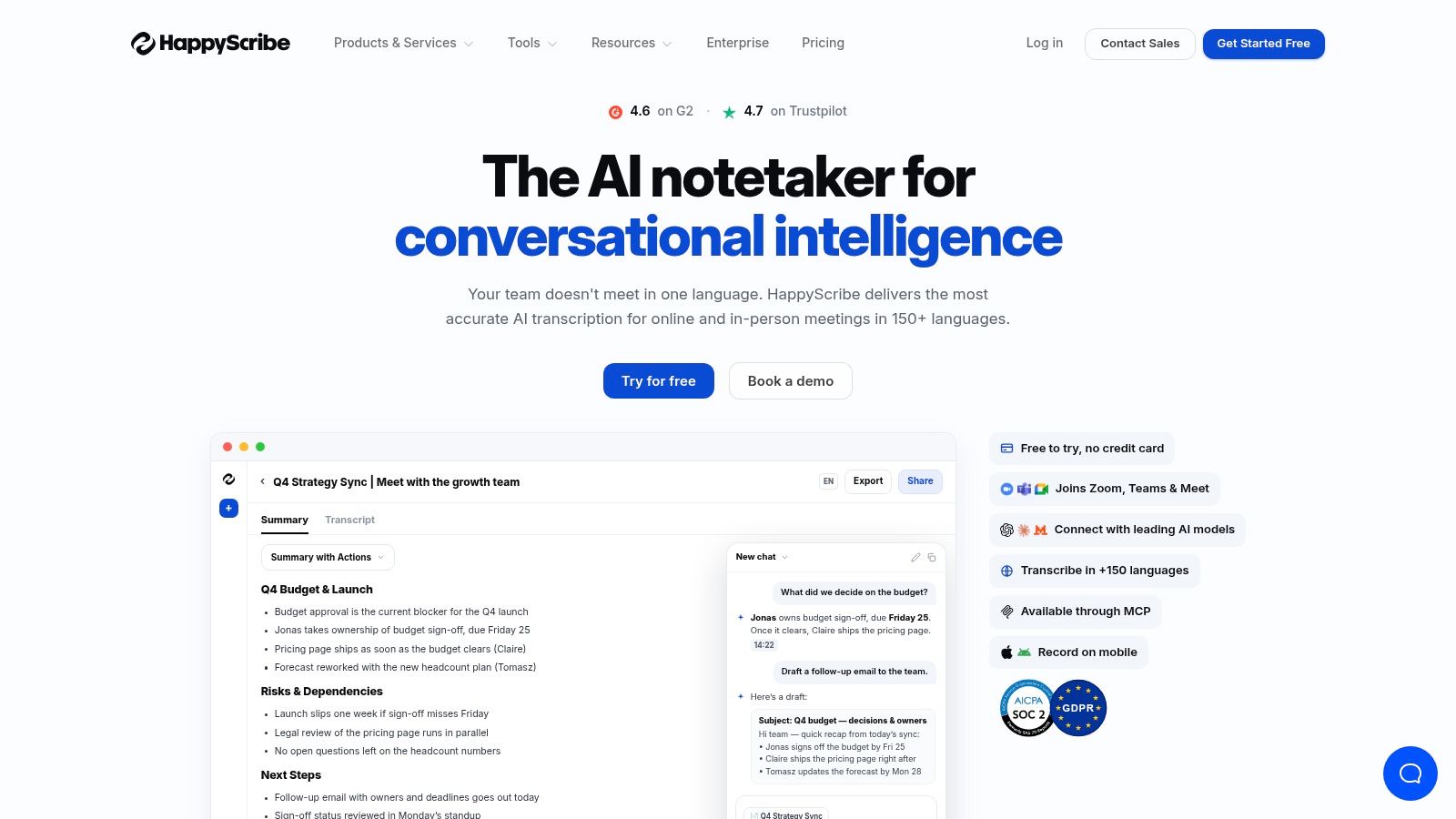
Happy Scribe is designed for subtitle and transcription operations where delivery formats and language coverage matter more than kinetic text. Its collaborative subtitle editor supports AI transcription and subtitling across broad language sets, while optional human subtitling services provide a path for material that needs additional review.
That hybrid model addresses a problem many creators discover late. AI can create a productive first draft, but sensitive, accessibility-critical, or client-facing work may need more than a fast transcript. Happy Scribe lets a team decide where automation ends and human intervention begins.
The export advantage
Happy Scribe supports professional delivery formats including SRT, VTT, STL, FCPXML, EDL, DOCX, TXT, and MP4 with burned-in captions. That breadth changes the buying decision. A creator who only posts directly to social platforms may not need it, but a production team delivering files to different broadcasters, editors, or localization partners can avoid format conversion and rework.
Workspaces and integrations support collaboration, while paid plans provide watermark-free exports. The platform’s less animated presentation is a feature for documentary, training, publishing, and localization workflows where consistency and handoff matter more than trend-driven styling.
A 2023 study of automated English subtitles for Finnish-language news found that viewers could understand the broad meaning, but problems with recognition, translation, timing, segmentation, and readability made the experience confusing and effortful (the multilingual subtitling study). That finding supports a more demanding evaluation of multilingual tools. Language selection alone isn’t enough. Reviewers must check whether translated captions remain synchronized, appropriately condensed, and comfortable to read.
The trade-off is cost planning. Pay-as-you-go or credit-based pricing requires teams to forecast volume and review requirements. Happy Scribe is a strong fit for format-heavy, multilingual, or accuracy-sensitive delivery, but it may be more process than a solo creator needs.
6. Zubtitle
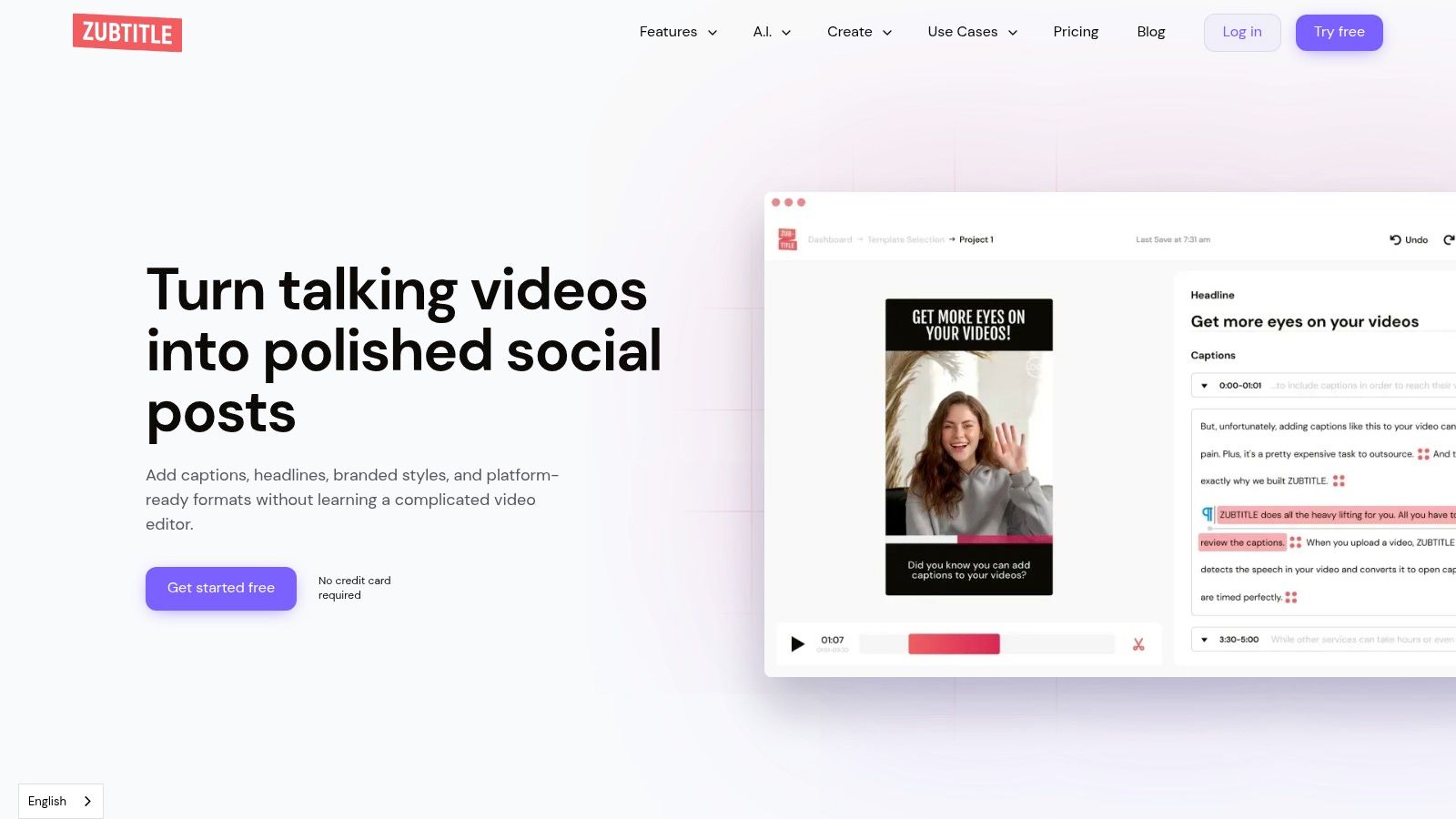
Zubtitle keeps the auto subtitle workflow deliberately lightweight. It adds captions, simple brand styling, titles, and progress bars without trying to replace a full non-linear editor. For a solo creator or small social team, that narrow scope can be an advantage because there are fewer decisions between upload and export.
The tool supports auto subtitles with styling and brand presets, plus SRT and TXT downloads. Paid plans support burned-in exports up to 4K, giving users a choice between a video with visible captions and a subtitle file for another platform or editing step.
Simplicity with clear boundaries
Zubtitle is appropriate when the content already has a clear structure and needs a quick social finish. Its overlays can add context and visual continuity without requiring a designer to build a caption system from scratch. A custom plan calculator also helps teams estimate their required video volume before choosing a plan.
The product isn’t intended to provide the deep timeline control found in Premiere Pro or DaVinci Resolve. Its upload duration is limited to twenty minutes per video, so longer interviews, webinars, or training recordings may need to be divided before processing. That creates a practical cost in preparation time even if the interface itself is fast.
Workflow test: Upload one ordinary clip, not your best-recorded clip. If the tool handles your typical audio and still needs only minor corrections, it belongs in the shortlist.
Zubtitle is a sensible option for straightforward social captioning, especially when a team values simple monthly video limits and predictable setup. It becomes less attractive when projects require speaker-aware editing, complex translation, multiple subtitle standards, or detailed control over a long timeline.
7. Nova A.I.
Nova A.I. combines auto subtitles with translation, transcription, dubbing, and basic video editing. That makes it useful for teams batching many short clips that need more than a caption overlay but don’t require a complete professional post-production environment.
Its minute-based plans provide a clear way to think about usage. Teams can match expected captioning and translation volume against the available allowance, while paid plans provide watermark-free exports. Subtitle downloads include SRT, VTT, and TXT, and the platform also offers text-to-speech and stock media depending on the plan.
Where batching helps
Nova A.I. makes sense when a team wants to process a group of short assets through a consistent, browser-based workflow. Translation and dubbing sit close to subtitle generation, which can reduce tool switching for localized social content. The relevant question isn’t whether every feature is present. It’s whether the same person can review the transcript, inspect the translated timing, and export the correct version without creating a manual handoff.
The caption styling is simpler than what creator-focused products such as Submagic emphasize. That restraint may suit branded explainers or internal content, but it won’t satisfy every creator who wants kinetic words, elaborate emphasis, or highly distinctive social templates.
Minute limits deserve close attention. Heavy users may need top-ups, and the plan allowance can become the operational constraint before the editor itself does. Translation and dubbing can also consume workflow capacity differently from a single-language caption pass, so teams should model their actual mix of jobs.
Nova A.I. is best for teams seeking a middle ground between a basic caption utility and a full professional editor. It supports a broad batch workflow, but users who require specialized delivery formats or frame-accurate finishing should look to Happy Scribe, Premiere Pro, or Resolve.
8. Adobe Premiere Pro Speech to Text
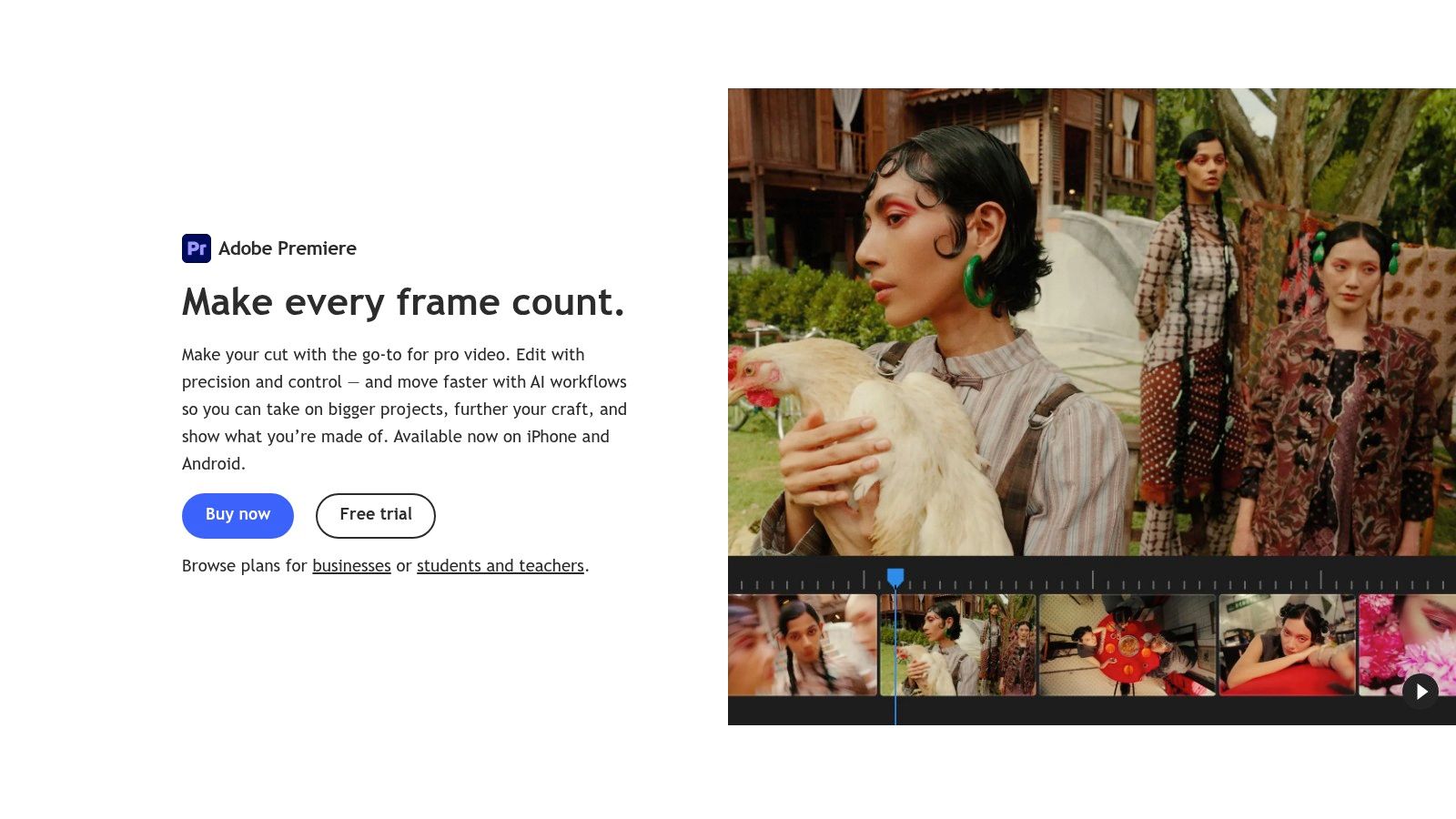
Adobe Premiere Pro is the practical choice when captions must stay inside the professional timeline from the first edit through final delivery. Its Speech to Text workflow generates transcripts and captions directly in Premiere, so editors can correct text while keeping timing anchored to the cut.
That integration removes a common source of friction. Importing a subtitle file from a separate browser tool can create version mismatches, especially after editors trim the video, change pacing, or move dialogue. Premiere keeps the caption track alongside the media and the rest of the finishing work.
Why professional editors choose the timeline
Premiere supports transcript-to-caption generation, editable caption styling through Essential Graphics, and the broader export and finishing controls expected in a professional non-linear editor. Editors can refine the video, audio, graphics, and subtitle track in one project rather than treating captions as a final overlay created elsewhere.
The workflow is especially suitable for longer projects, client review, and deliverables that need careful timing. It also lets the editor judge subtitles in their final visual context. A caption that looks acceptable in a transcript panel may cover a lower-third, conflict with safe areas, or become difficult to read after color and graphics are added.
The main drawback is commitment. Premiere requires an active Creative Cloud subscription, and users who only need rapid social captions may find the application excessive. It also doesn’t center the trendy animated caption styles that creator-first tools prioritize, so producing a highly kinetic vertical treatment can require more manual design work.
Use Premiere when timeline integrity matters more than one-click speed. For a quick talking-head clip with decorative captions, a browser editor may involve fewer steps. For a project with multiple revisions and a professional handoff, keeping captions in the same timeline is often the more maintainable choice.
9. DaVinci Resolve Studio Auto Subtitles
DaVinci Resolve is a strong fit for editors who already finish projects in Resolve and want automatic captions without exporting the timeline to another application. The Studio version provides Auto Caption from audio, with punctuation and grammar handling, while subtitle tracks remain editable as timeline clips.
That structure is valuable for teams managing picture, color, audio, and deliverables together. Captions can be checked against the graded image and final mix rather than an earlier offline version. Resolve also supports SRT and WebVTT export, which covers common platform and handoff requirements.
A timeline-first option for finishing teams
Resolve’s expanded transcription language support is available through its Extras Download Manager. That gives multilingual teams more flexibility, but language support still needs to be tested with the actual accents, terminology, and audio conditions in the project. A language listed in a product menu doesn’t guarantee clean segmentation or low correction effort.
The Studio requirement is the central commercial trade-off. Users of the free version can’t treat automatic subtitling as an assumed part of the same workflow, so teams should confirm that the license level matches their production plan. Resolve also has a steeper learning curve than browser-based caption tools, particularly for creators who only need social exports.
Its strength is not decorative caption automation. It is control. Subtitle clips can be positioned, timed, and reviewed alongside professional audio and color workflows, which makes the application better suited to documentaries, branded films, and post-production teams than to rapid meme-style captioning.
Choose Resolve when the project already lives there. Switching to another auto subtitle generator to create a first draft may add an avoidable export and reconform step.
10. Clipchamp Microsoft
Clipchamp is a low-friction option for organizations that already work inside Microsoft 365. Its auto-caption and transcript features are accessible through a lightweight editor, while templates and quick editing support short-form outputs for users who aren’t trained in professional video software.
The most important advantage is organizational familiarity. A Microsoft-centered team may prefer a tool that fits existing accounts, permissions, and governance expectations over a separate specialist service that requires another workspace and approval process.
Governance over visual ambition
Clipchamp is appropriate for internal communications, simple marketing clips, and routine social content where non-editors need to produce captioned videos quickly. Business tenants can access transcript translation on a pay-as-you-go basis, which provides a route to multilingual content without adopting a specialized subtitling platform for every project.
Its caption animation and styling controls are less extensive than those of creator-focused tools. That limitation is reasonable if the priority is consistent, governed production rather than a distinctive kinetic-caption look. Teams can also use this guide to adding auto captions for TikTok when evaluating how much caption styling their social workflow needs.
Feature access and entitlements vary by Microsoft 365 plan and license. Verify whether the required transcription, translation, export, and collaboration functions are included before standardizing on Clipchamp. A familiar interface won’t compensate for a missing export option at the end of a project.
Clipchamp wins on accessibility within an existing business environment. It isn’t the strongest choice for advanced post-production, specialist subtitle formats, or highly animated creator captions. It is a practical governance-led option when the users, files, and approvals already sit in Microsoft’s ecosystem.
Top 10 Auto-Subtitle Generators, Feature Comparison
| Tool | Core features | Caption & Styling (✨) | Workflow & Quality (★) | Target audience (👥) | Price / Value (💰) |
|---|---|---|---|---|---|
| VEED | Auto Subtitles, brand kit, templates, API, web editor | Animated styles (karaoke/word-highlight) ✨ | ★★★★ Web-first, collaborative, fast | Creators & small teams | 💰 Free w/ watermark; Pro tiers |
| Kapwing | Auto captions, translation, SRT/VTT export, templates | Stylized animated captions, quick presets ✨ | ★★★★ Clean UI, easy fine-tune | Social creators & teams | 💰 Free limits/watermark; paid export |
| Submagic | Auto captions, silence trimming, auto-reframe, templates | Flashy, creator-style captions & emojis ✨🏆 | ★★★ Rapid, trend-focused outputs | TikTok creators, trend-driven | 💰 Minute/plan limits; verify terms |
| Descript | Text-based editing, transcription, filler removal, SRT | Transcript-driven captions (precise, editable) ✨ | ★★★★ Script-to-edit; strong team review | Podcasters, editors, content teams | 💰 Paid tiers + AI credits for full features |
| Happy Scribe | Broad-language AI + human transcription, many export formats | Professional subtitle formats (burn-in/options) ✨ | ★★★★ High accuracy; pro delivery | Localization & compliance teams | 💰 Pay-as-you-go / credits; paid exports watermark-free |
| Zubtitle | Auto subtitles, brand presets, progress bars, SRT | Simple brand styling & progress overlays ✨ | ★★★ Very fast, minimal setup | Solo creators & small teams | 💰 Clear monthly video limits; affordable |
| Nova A.I. | Auto subtitles, translation, TTS/dubbing, storage, minute allowances | Basic styling + dubbing/TTS options ✨ | ★★★ Predictable minute quotas; batch-friendly | Teams batching many clips | 💰 Minute-based plans; top-ups likely |
| Adobe Premiere Pro (Speech to Text) | On-timeline Speech-to-Text, Essential Graphics, full NLE | Broadcast-grade caption control; manual styling ✨ | ★★★★★ Professional finishing & delivery | Studios, professionals, agencies | 💰 Creative Cloud subscription required |
| DaVinci Resolve Studio (Auto Subtitles) | Auto Caption (Studio), timeline subtitle tracks, pro finishing | Frame-accurate captions; pro export formats ✨🏆 | ★★★★★ Pro post pipeline; steeper learning curve | Post teams, colorists, pros | 💰 One-time Studio license + extras |
| Clipchamp (Microsoft) | Auto-captions, templates, MS365 integration, governance | Basic caption styling; gov/enterprise-friendly ✨ | ★★★ Simple editor; low friction for MS users | Microsoft-centric teams & brands | 💰 Varies by MS365 plan; pay-as-you-go options |
Choose the Workflow You Can Maintain
The right auto subtitle generator is the one your team can review, style, export, and correct without creating a second production bottleneck. Recognition quality matters, but it only solves the first part of the job. A tool that generates a fast transcript but forces repeated reformatting, awkward file conversion, or manual timing fixes may be slower overall than a less flashy tool that fits the destination workflow.
Choose a creator-focused browser tool when the primary output is a fast vertical social video with visible, animated captions. VEED and Kapwing suit teams that want on-canvas styling and collaboration. Submagic is more specialized for kinetic creator captions, silence trimming, and social-ready talking-head clips. Zubtitle is the simpler option when branding, progress bars, and quick exports matter more than advanced editing.
Choose a transcript-first editor when the content needs structural editing before caption delivery. Descript is better suited to interviews, podcasts, and multi-clip projects where removing filler words, correcting names, reviewing speakers, and changing the cut are central tasks. Its value comes from keeping the transcript and video connected, not from offering the most elaborate caption animation.
Choose a dedicated subtitling service when multilingual delivery, human review, or professional export formats determine success. Happy Scribe is the clearest fit in this group because its workflow supports broad language coverage, collaborative review, multiple delivery formats, and an optional human subtitling path. This is also the category where teams should be most skeptical of an unreviewed AI output. One institutional summary described automatic captions as averaging about 60% to 70% accuracy in many real-world conditions, while stronger systems reached the 80s or low 90s under ideal conditions, still below the 99% standard expected for television captions (the caption accuracy summary).
Choose Premiere Pro or Resolve when captions must remain inside a professional timeline. That choice reduces reconforming risk and lets editors check text against the final picture, audio, graphics, and delivery version. The extra learning curve and license cost are justified when a project has repeated revisions or demanding post-production requirements.
Test every shortlisted tool with the same representative footage. Include names, accents, overlapping speakers, background music, jargon, punctuation, line breaks, speaker changes, and the exact export format your destination accepts. Measure correction effort rather than relying on a vendor accuracy label. Also verify current plan limits, translation coverage, watermark rules, AI credits, minute allowances, and export entitlements before purchase.
ClipOven is a relevant adjacent option for teams turning horizontal footage into polished vertical shorts. Its AI agent Eddie can assemble cuts, captions, and effects through chat before refinement in the full editor, with subject-centric reframing and 2K vertical export. It isn’t a dedicated subtitle platform, but it can reduce the number of handoffs when captions are part of a larger Shorts or TikTok editing process.
ClipOven combines AI-assisted vertical reframing, animated captions, chat-based editing with Eddie, and a full timeline editor for final corrections. If your team wants to turn horizontal footage into captioned Shorts or TikTok videos without splitting assembly and refinement across several tools, visit ClipOven and test the workflow with your own footage.