 clipoven
The most popular advice about choosing a vertical video editor online is to compare features and pick the tool with the longest list. That’s a poor shortcut. Highlight detection, animated captions, and a multitrack timeline solve different problems, and buying all of them won’t help if the editor struggles with your actual footage.
Start with the job you need done. A Twitch streamer repurposing a long broadcast needs help finding moments and preserving gameplay context. A creator with a finished talking-head clip needs accurate captions and clean pacing. A freelance editor building branded Reels needs control over cuts, layered graphics, and framing.
Short-form production is worth treating as a repeatable workflow, not an occasional formatting task. In HubSpot’s marketing statistics, 21% of marketers identify short-form video as the format delivering the highest return on investment. That doesn’t tell you which editor to buy, but it does explain why reliable production matters more than an impressive demo.
Choose for the bottleneck: Find moments, finish dialogue, or control the edit. Test the tool on whichever task currently takes you longest.
The tools below serve those different workflows, with some crossing categories. Don’t judge them by a clean promotional sample. Use footage with overlapping speech, moving subjects, awkward pauses, and the overlays you publish, then inspect the exported file before subscribing.
Table of Contents
- 1. clipoven
- 2. VEED
- 3. Kapwing
- 4. OpusClip
- 5. Submagic
- 6. Descript
- 7. InVideo
- 8. FlexClip
- 9. RejiAI
- 10. Microsoft Clipchamp
- How the 10 Vertical Video Editors Compare on Core Attributes
- Match the Tool to Your Workflow Before You Subscribe
1. clipoven
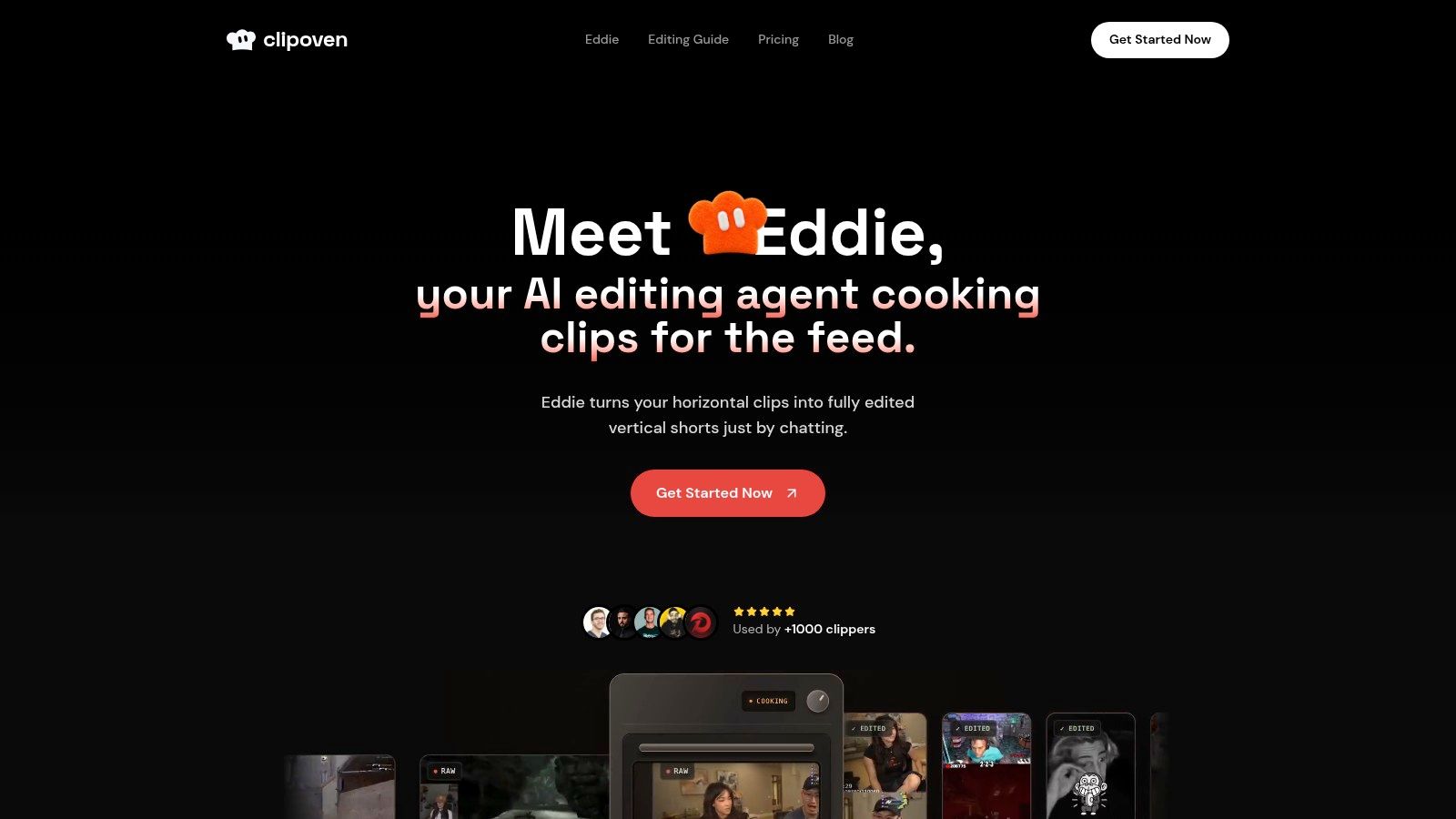
Workflow fit: AI assembly with a manual finishing pass. Our purpose-built editing agent, Eddie, takes horizontal footage and a creative brief, then assembles a vertical short with subject-focused reframing, captions, cuts, and effects. You can keep refining through chat or open the full editor to adjust the result yourself.
That handoff is the useful distinction. A conversational request works well for direction, such as tighter pacing or a different caption style. A timeline is better when you need to trim a reaction precisely, delay an effect, or preserve the beat before a punchline.
Where automation should stop
Eddie converts footage to 9:16 with the subject in focus, but the editor still needs to decide what the audience must see. In gaming content, the speaking face isn’t always the important subject. The opponent, inventory, scoreboard, or teammate’s movement might explain the entire moment.
Our full editor lets you refine cuts, timing, captions, and effects, with layers for audio effects, images, GIFs, and stickers. Finished vertical clips export in 2K. Treat that resolution as an output specification, not proof that every caption or crop is ready for publishing.
- Included access: Hobby and Pro both include Eddie, the full editor, unlimited daily projects, and 2K exports.
- Usage constraint: Plans use credits, and clip estimates depend on the model and editing complexity. Unlimited project creation doesn’t mean unlimited AI processing.
- Practical test: Give Eddie a clear brief, then inspect how much manual correction the draft needs before it matches your intended story.
Don’t select a credit allowance from the easiest possible sample. Use a representative edit with captions, effects, and the revisions you’d normally request.
Best fit: Clippers, streamers, and Shorts creators who want AI assembly without giving up final control. Failure mode to check: A polished crop or fast cut that removes the visual context needed to understand the moment.
2. VEED
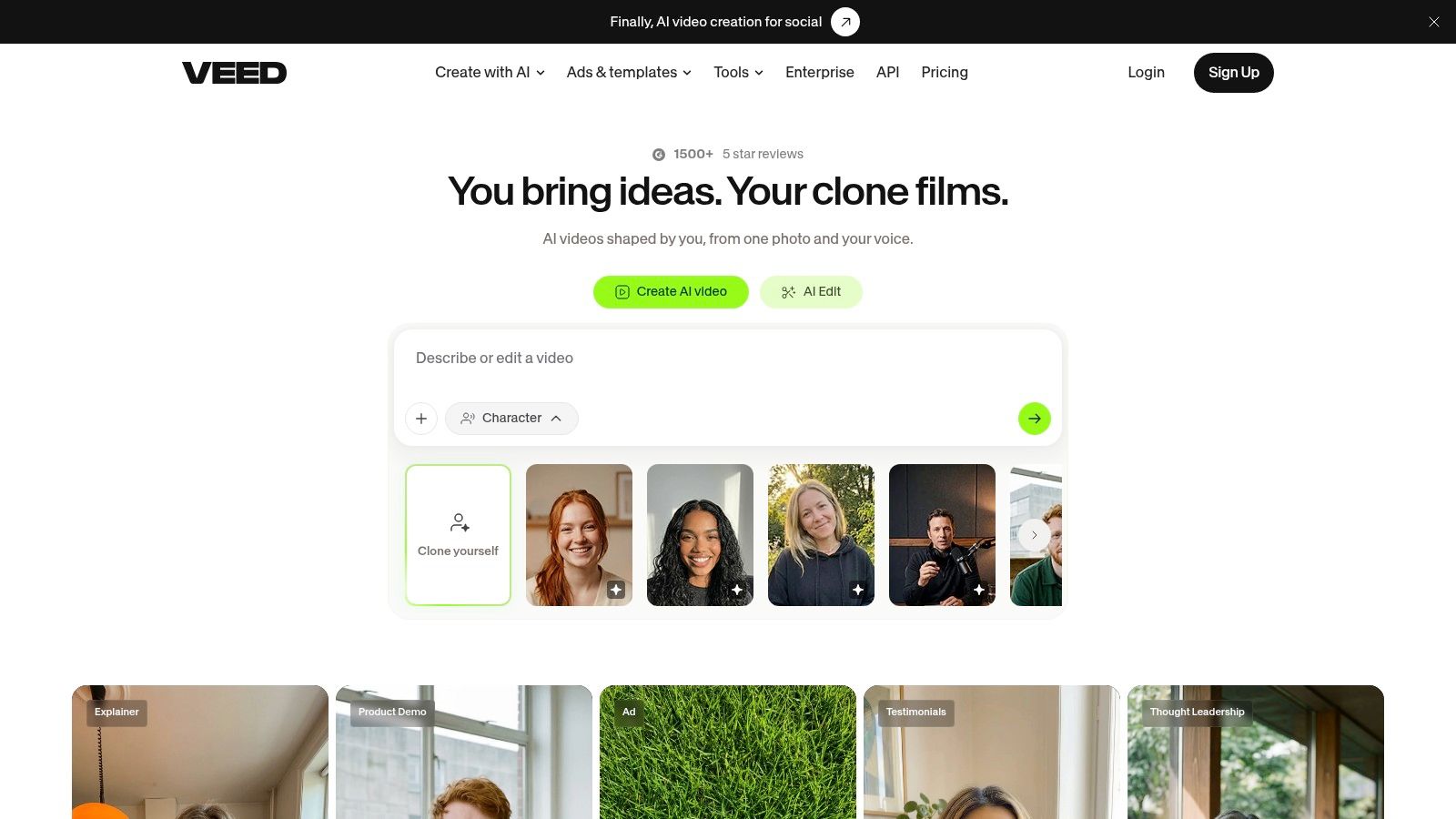
A podcast producer often needs both automated suggestions and conventional editing. VEED covers that middle ground with AI Clips, auto-framing, subtitles, filler-word removal, and a browser-based timeline.
Its advantage is continuity. You can generate candidate clips and then fix their boundaries, framing, and text without treating the AI output as final. That’s useful when a strong interview answer begins with a reference to something said earlier.
Say a guest opens with “That’s why we stopped doing it.” The sentence may sound intriguing, but viewers still need to know what “it” means. Extend the opening, add a concise context label, or choose a more self-contained passage.
An all-rounder still needs editorial review
VEED is a reasonable shortlist option when your work mixes talking-head clips, interviews, and social explainers. Stock media and manual editing also help when a clip needs supporting visuals rather than captions alone.
The limits are practical: free exports carry a watermark, and AI access and export capabilities depend on the plan. Test the full route from upload to download, not just the editing interface.
- What works: Moving from automated clipping into manual cleanup within a browser workflow.
- What needs attention: Filler-word removal around breaths, emphasis, and sentence transitions.
- What to inspect: Whether auto-framing follows the right speaker when someone gestures or another person enters the shot.
Best fit: Social managers and dialogue-focused creators who need a general-purpose editor alongside automated clipping. Failure mode to check: An apparently fluent edit with abrupt audio joins or a missing setup.
3. Kapwing
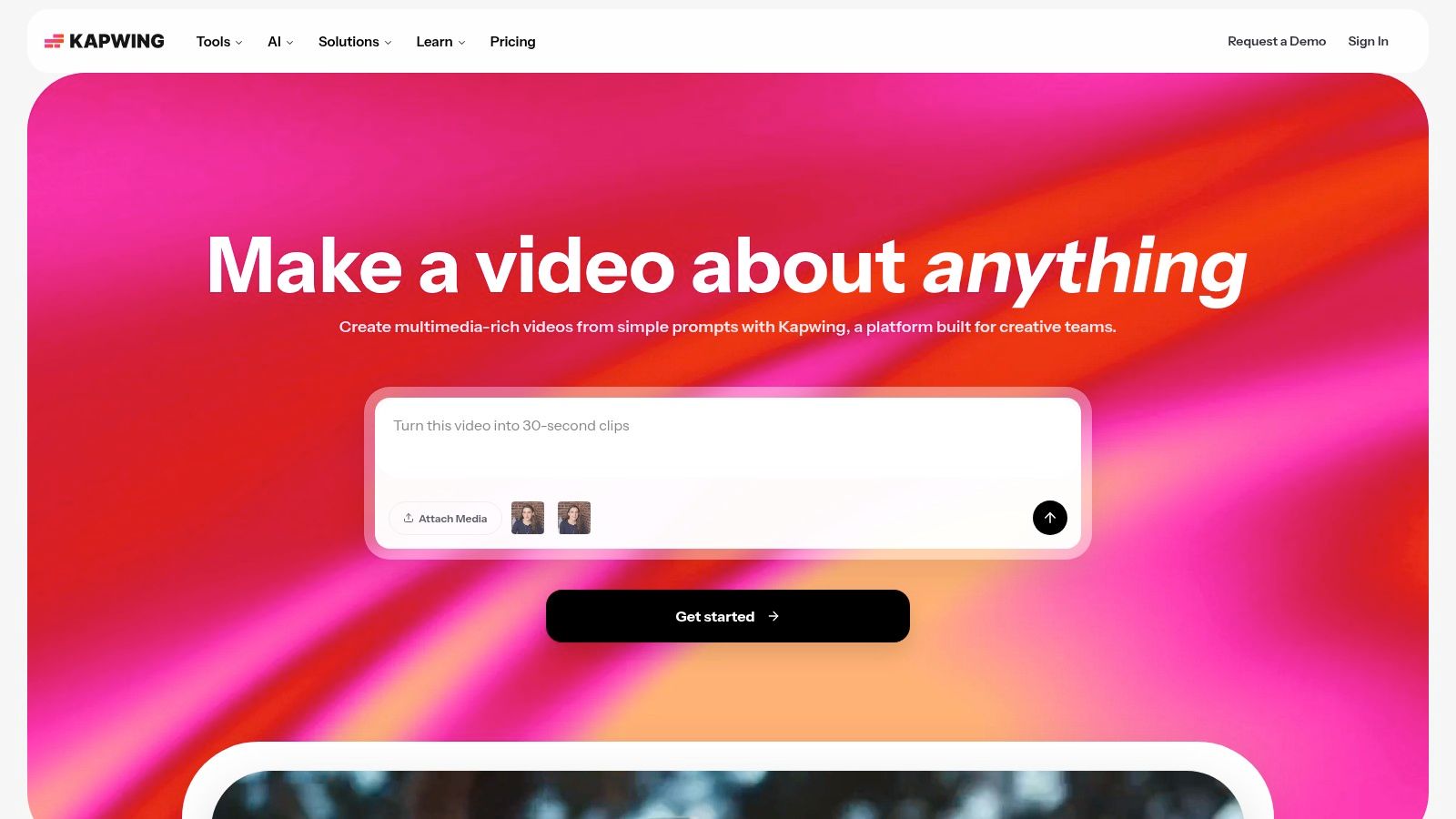
Kapwing makes more sense when an editor already knows what the clip should be. Its drag-and-drop timeline, layered media, subtitles, audio cleanup, and shared workspaces support deliberate assembly rather than relying primarily on automated moment selection.
For a small agency, that distinction matters. A client may want a specific opening line, a product image at a particular beat, and a disclaimer that remains visible. Kapwing gives the team a browser-based place to build that edit and work on shared projects.
The trade-off is manual effort. Don’t choose it expecting to upload a broadcast and receive a finished editorial selection without reviewing the recording.
Collaboration doesn’t replace layout checks
Brand consistency requires more than applying the same font. Check the relationship between captions, logos, footage, and the platform interface.
Quest Studio’s vertical safe-zone workflow explains why usable screen space changes with platform interfaces and viewing conditions, rather than following a universal margin. A logo can sit inside the exported frame and still compete with buttons or descriptive text after upload.
- Use it for: Layered social edits, shared production, and assets that need deliberate placement.
- Expect to handle: Clip selection, pacing decisions, and platform-specific layout adjustments.
- Check before paying: Free exports have a watermark and tighter resolution and project-length restrictions than paid access.
Build a sample containing your actual disclaimer and longest likely caption. A tidy template with placeholder text won’t expose the same problems.
Best fit: Freelancers, agencies, and brand teams that prioritize hands-on editing and collaboration. Failure mode to check: A clean shared project whose branding or captions become obscured in the publishing interface.
4. OpusClip
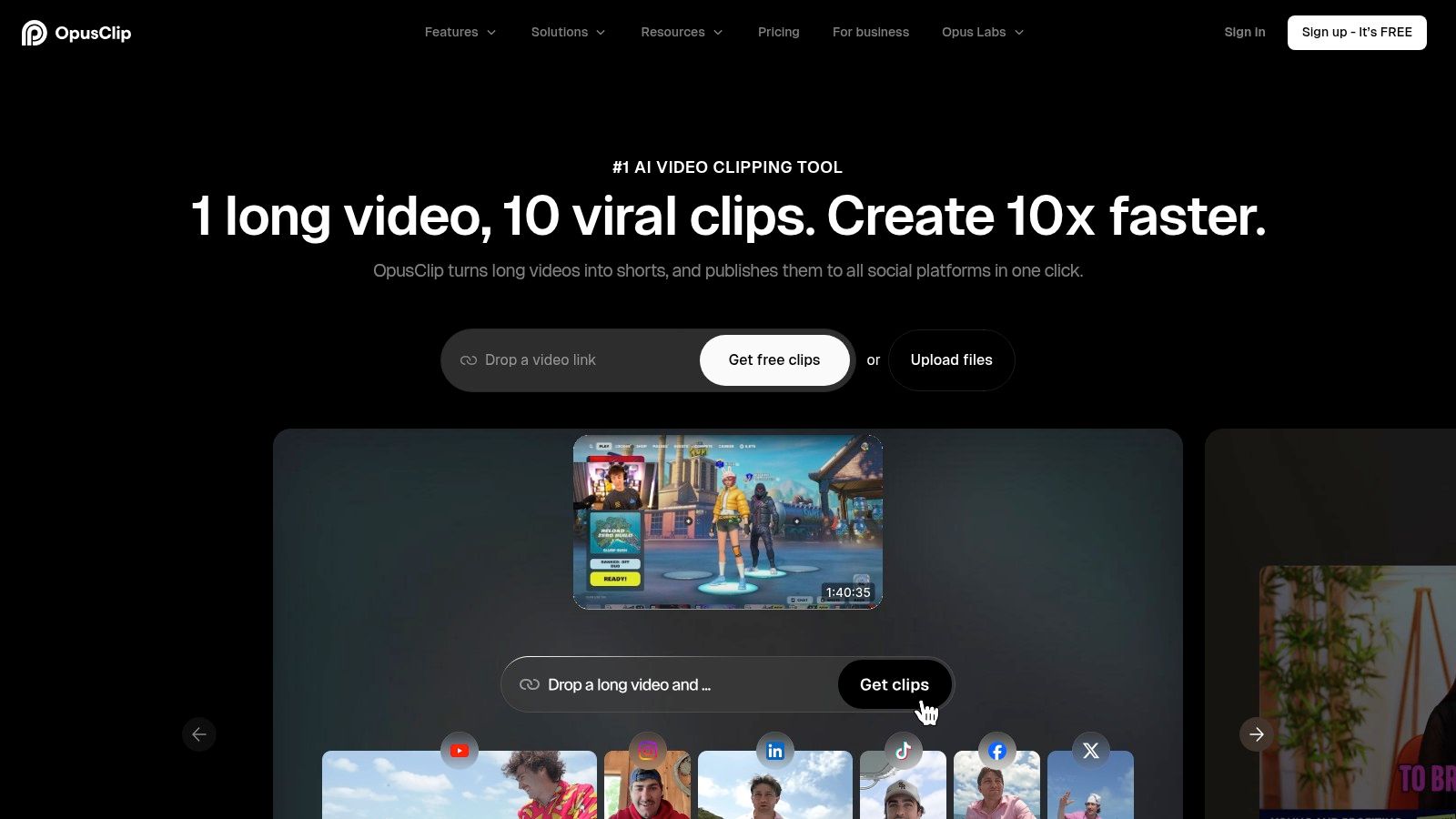
A long recording creates a selection problem before it creates an editing problem. OpusClip addresses that with AI highlight detection, short-clip generation, vertical reframing, and animated captions.
Start here when finding candidate moments is the slowest part of production. Podcasts, interviews, livestreams, and back-catalog recordings suit this approach better than footage you’ve already trimmed into a clear short.
Supported plans also offer imports from recording and publishing services, along with editing, brand templates, and scheduling. Those conveniences matter only after you’ve established that the selected moments are usable.
A clip-finder should give you candidates worth reviewing. It shouldn’t get the final vote on whether a moment makes sense.
Judge the setup, not just the payoff
Gaming footage is a demanding test. A loud reaction might be easy to identify, while the quiet decision that caused it happened earlier. Keep enough setup for viewers to understand the achievement, mistake, or joke.
The broader AI video clipper workflow is most useful when you treat selection and finishing as separate editorial decisions. Inspect the opening, the payoff, and the ending before spending time styling captions.
OpusClip’s free plan has meaningful restrictions: exports are watermarked, editing isn’t included, and clips remain exportable only for a limited period. Don’t assume a successful generation test also proves that the free workflow can finish your project.
Best fit: Streamers, podcast teams, and publishers regularly repurposing long recordings. Failure mode to check: A compelling reaction isolated from the gameplay, question, or explanation that gives it meaning.
5. Submagic
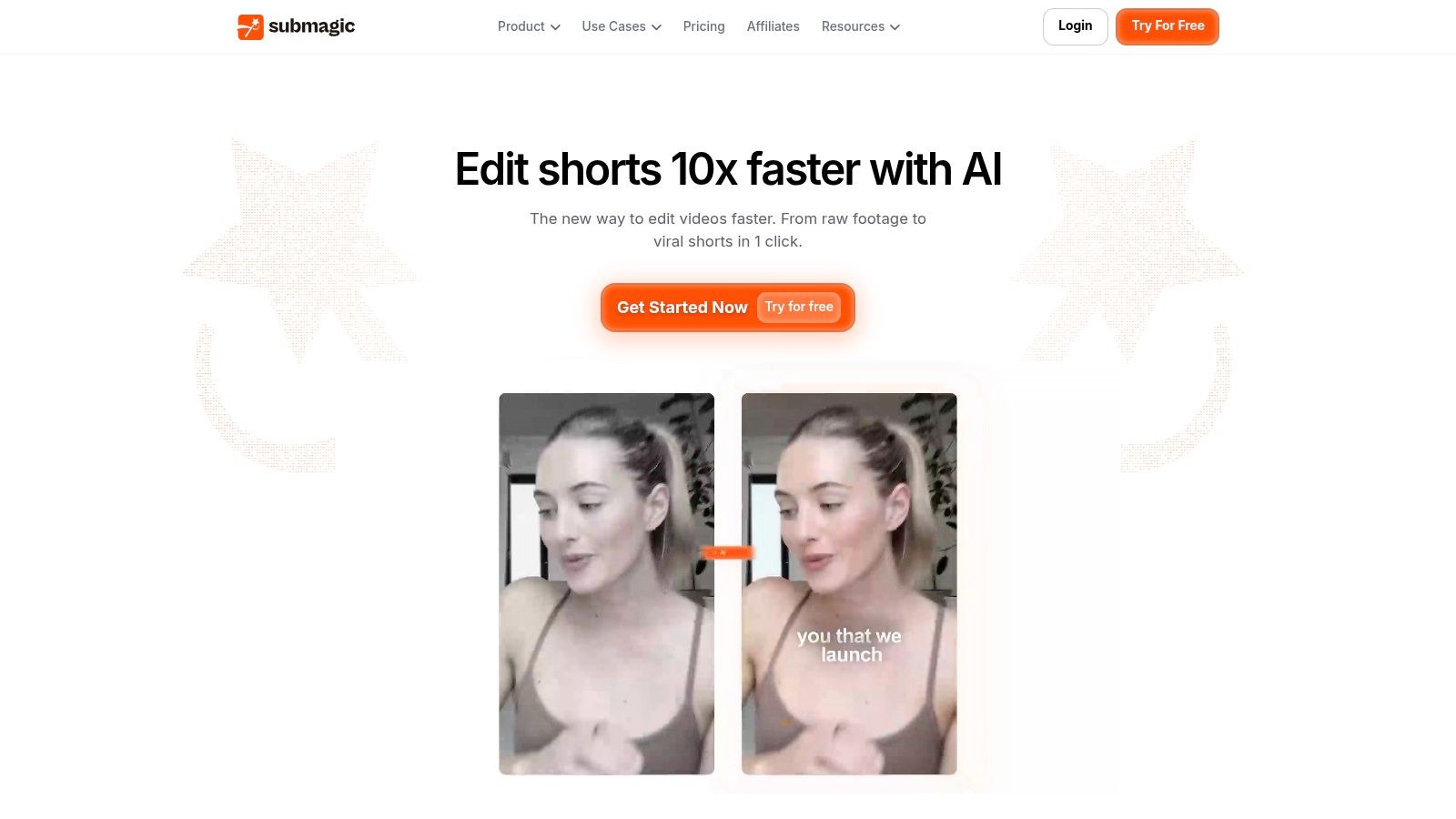
Already have the right moment? Submagic is a more natural fit for caption-first finishing than for treating an entire archive as an editorial discovery project.
Its workflow combines automatic captions with transcript-based trimming, silence and filler-word removal, reframing, zooms, B-roll, and sound effects. That’s useful for commentary, educational clips, and direct-to-camera footage that needs tightening rather than rebuilding.
The danger is adding polish before verifying the words. An animated caption can look convincing while getting a player name, technical term, or negation wrong.
Accuracy before animation
SocialPreviewHub’s caption and safe-zone guidance flags problems with specialized terminology and rapid speech in automatic captions. Gaming creators should check item names, character names, abbreviations, and slang before adjusting colors or emphasis.
A sensible auto-subtitle generator workflow separates transcription correction from visual styling. Fix meaning and timing first, then decide which words deserve emphasis.
- Keep useful pauses: Removing every silence can flatten a joke or make an explanation feel rushed.
- Review added visuals: B-roll should clarify the point, not distract from footage viewers need to inspect.
- Understand allowances: Plans use credits and impose video-count or duration limits. Paid watermark-free exports don’t remove those constraints.
Test a clip with fast speech and a difficult proper noun. That will tell you more than a slowly delivered script.
Best fit: Talking-head creators and social editors with selected footage that needs captions and finishing. Failure mode to check: Attractive captions or aggressive silence removal that changes meaning, rhythm, or tone.
6. Descript
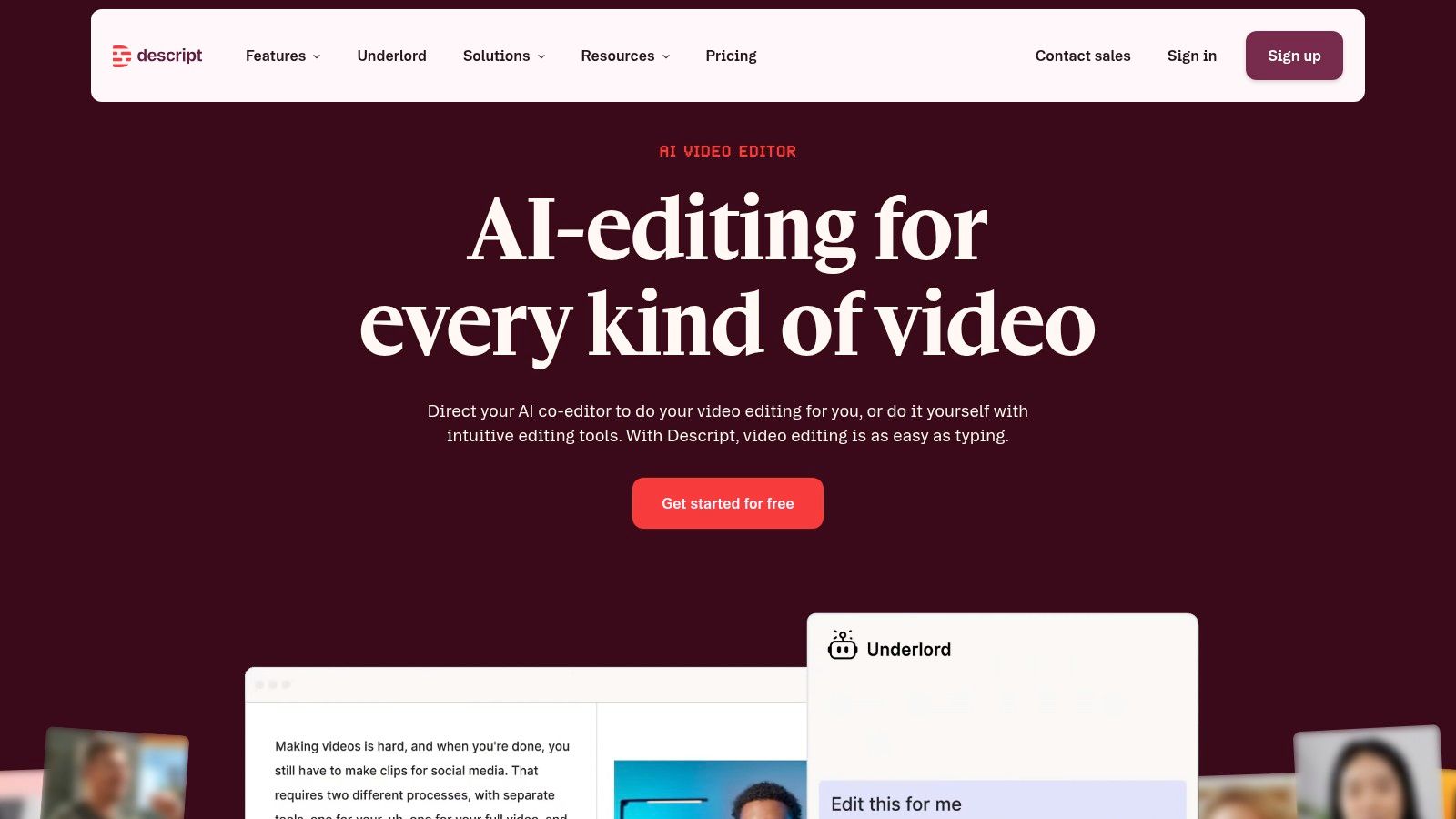
Choose Descript when the spoken argument is the structure of the video. Editing an interview through its transcript can be more direct than repeatedly searching a waveform for the same phrase.
Descript lets users edit spoken video by changing transcript text, with tools for clip creation, filler-word removal, and dynamic captions. Podcasts, tutorials, interviews, and creator commentary are natural fits.
The boundary is visual storytelling. A transcript won’t tell you that a game objective changed hands, a cursor clicked the wrong control, or an on-screen demonstration needs to remain visible after the sentence ends.
Read the edit, then watch it
Text-based editing makes it easy to remove repetition. It also makes it easy to produce a sentence that reads well but sounds unnatural when assembled from separate passages.
After editing the transcript, play the clip without reading along. Listen for changes in room tone, clipped consonants, misplaced breaths, and abrupt shifts in delivery.
- Strong use case: Restructuring a spoken explanation before adding social formatting.
- Weaker use case: Gameplay montages or effects-heavy sequences where visual timing drives the edit.
- Plan constraint: Media-hour and AI-credit allowances need to match both your source recordings and the processing you expect to use.
Vertical composition and social finishing can require additional manual work. Don’t mistake a clean transcript for a finished mobile layout.
Best fit: Podcasters, educators, and commentary creators whose content depends on spoken ideas. Failure mode to check: A readable text edit that sounds patched together or cuts away from an essential demonstration.
7. InVideo
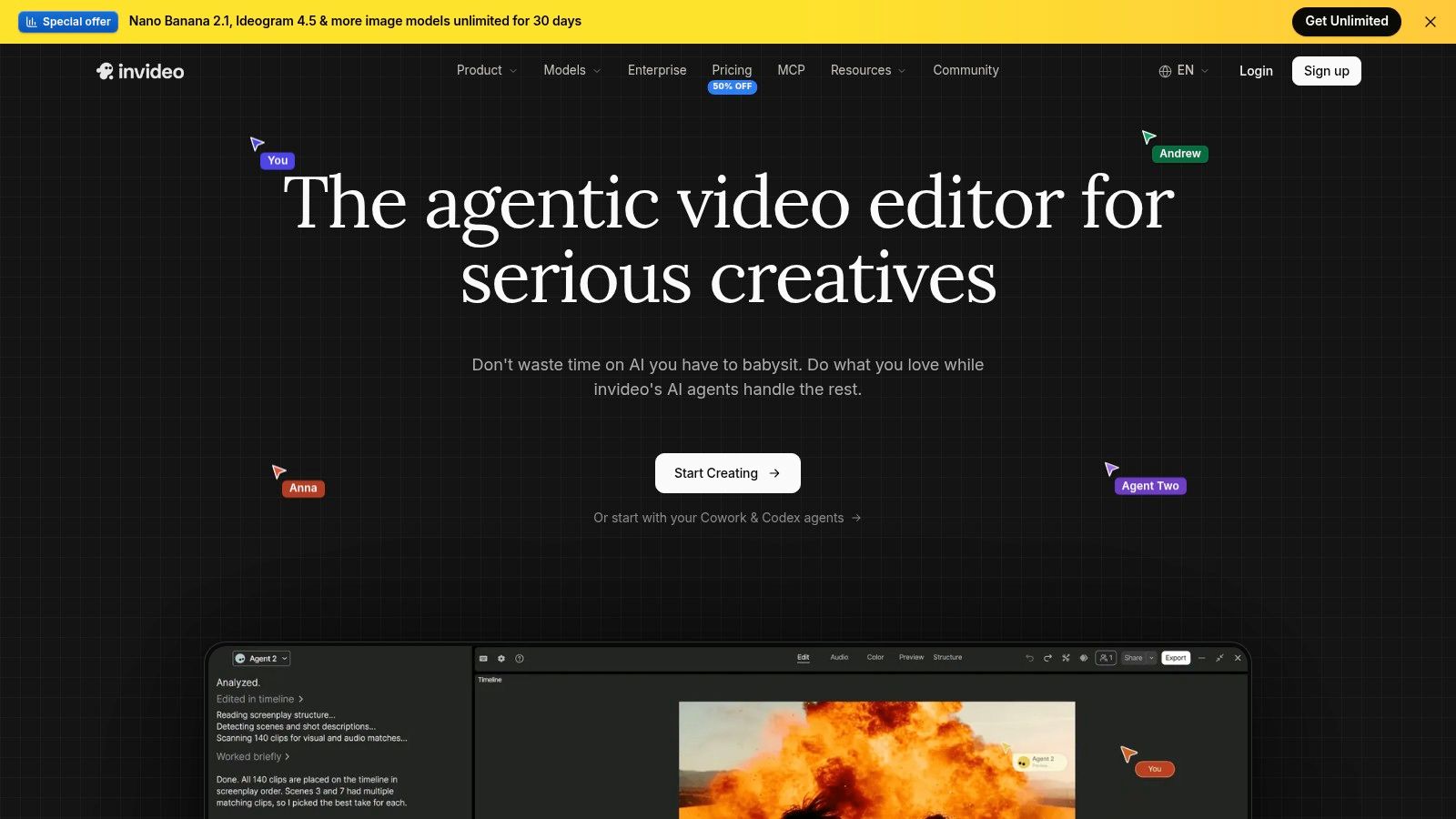
A product explainer needs different decisions from a stream highlight. InVideo suits template-led production with timeline refinement, particularly when existing footage needs supporting stock, text, and branded graphics.
Its Shorts workflow includes vertical reframing and editing controls for cuts, B-roll, transitions, text, color, and audio. Templates and brand kits help establish a repeatable visual structure, while multitrack editing allows changes beyond the initial layout.
That breadth is useful for marketing work. It can also be unnecessary overhead if you only need to crop a short recording and add captions.
Test the editing path you’ll actually use
Separate editing existing footage from generating new material. A convincing AI-generation demo doesn’t establish how easily you can adjust the timing of your own clips, replace B-roll, or revise a caption.
- For promotional content: Use templates to establish hierarchy, then replace decorative elements that compete with the message.
- For creator footage: Keep the original action visible rather than covering it with loosely related stock.
- For recurring production: Confirm which AI operations consume credits and which exports your intended plan includes.
The practical test is revision. Change the opening line, replace a supporting shot, and move a text overlay after the first draft. If those routine adjustments feel cumbersome, the template’s initial speed may not translate into a faster publishing workflow.
Best fit: Social managers and creators producing explainers, promotions, and template-based Shorts. Failure mode to check: A polished template that takes too much work to adapt to the actual footage or brand requirements.
8. FlexClip
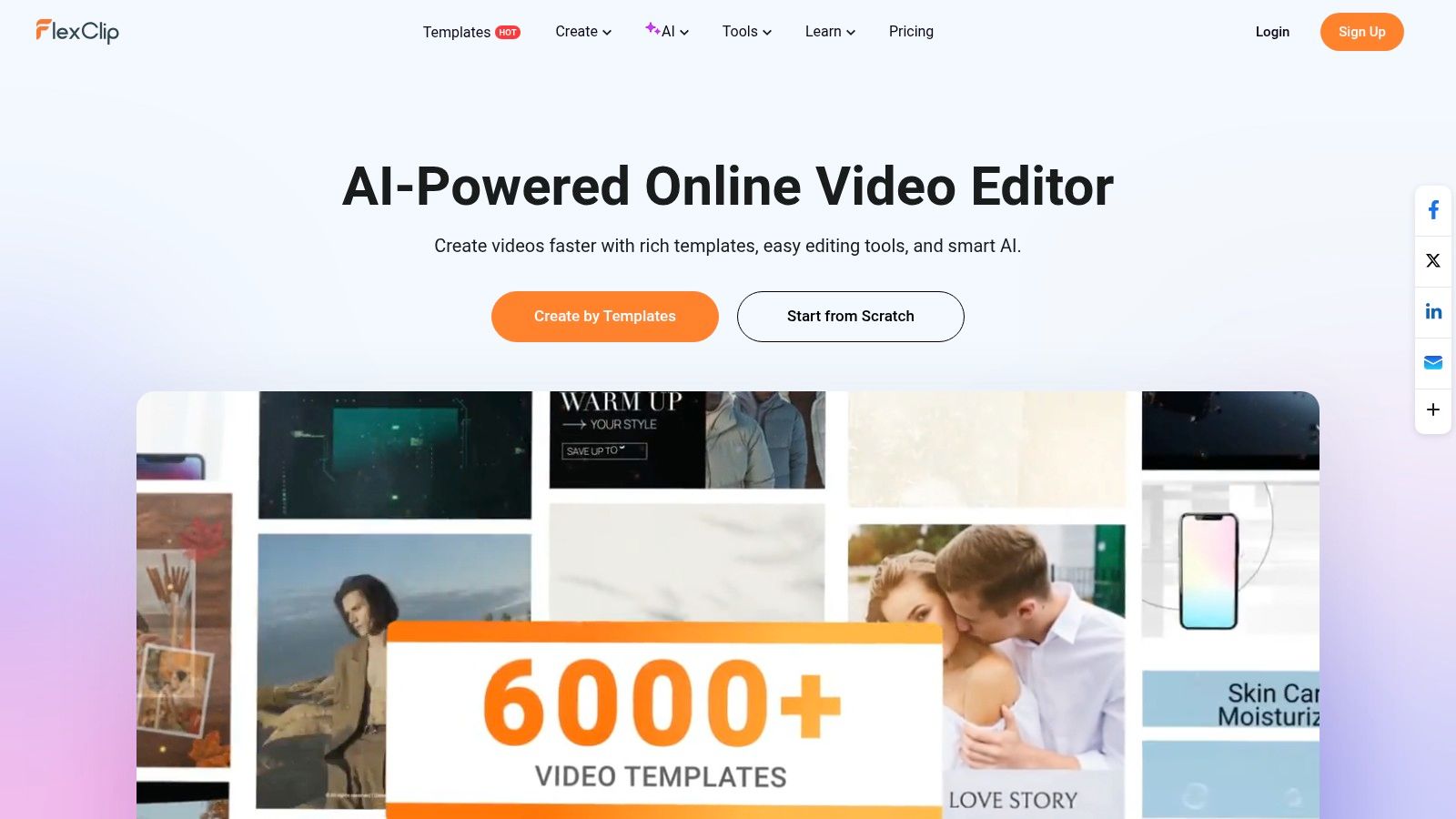
FlexClip is a general-purpose online video maker, not primarily a system for discovering highlights in long recordings. That’s a useful distinction, not automatically a weakness.
For a small business or social manager, the task may be assembling an event announcement, product demonstration, or promotional Reel from selected assets. Templates, stock content, a browser timeline, automatic subtitles, and text-to-speech address that job directly.
For a streamer with an unreviewed broadcast, those same tools leave the hardest editorial task untouched. You still need to find the moment worth publishing.
Use a template to organize the message. Don’t rewrite a good message merely to fill every box in the template.
Good for assembly, less focused on discovery
FlexClip can support vertical social videos alongside broader marketing projects. Paid plans add capabilities such as cloud storage, brand tools, and improved export options, depending on the tier.
The free plan is useful for exploring the workflow, but project count, video length, stock access, AI tools, and export quality can constrain a finished production. Test with your own assets rather than relying entirely on a prebuilt example.
A practical evaluation is to assemble a promotional clip, replace its stock footage, correct the subtitles, and change the closing message. Inspect whether the template remains easy to manage after those substitutions.
Best fit: Small teams making straightforward social promotions and asset-led videos. Failure mode to check: Choosing a flexible video maker when the need is automatic highlight extraction from long footage.
9. RejiAI
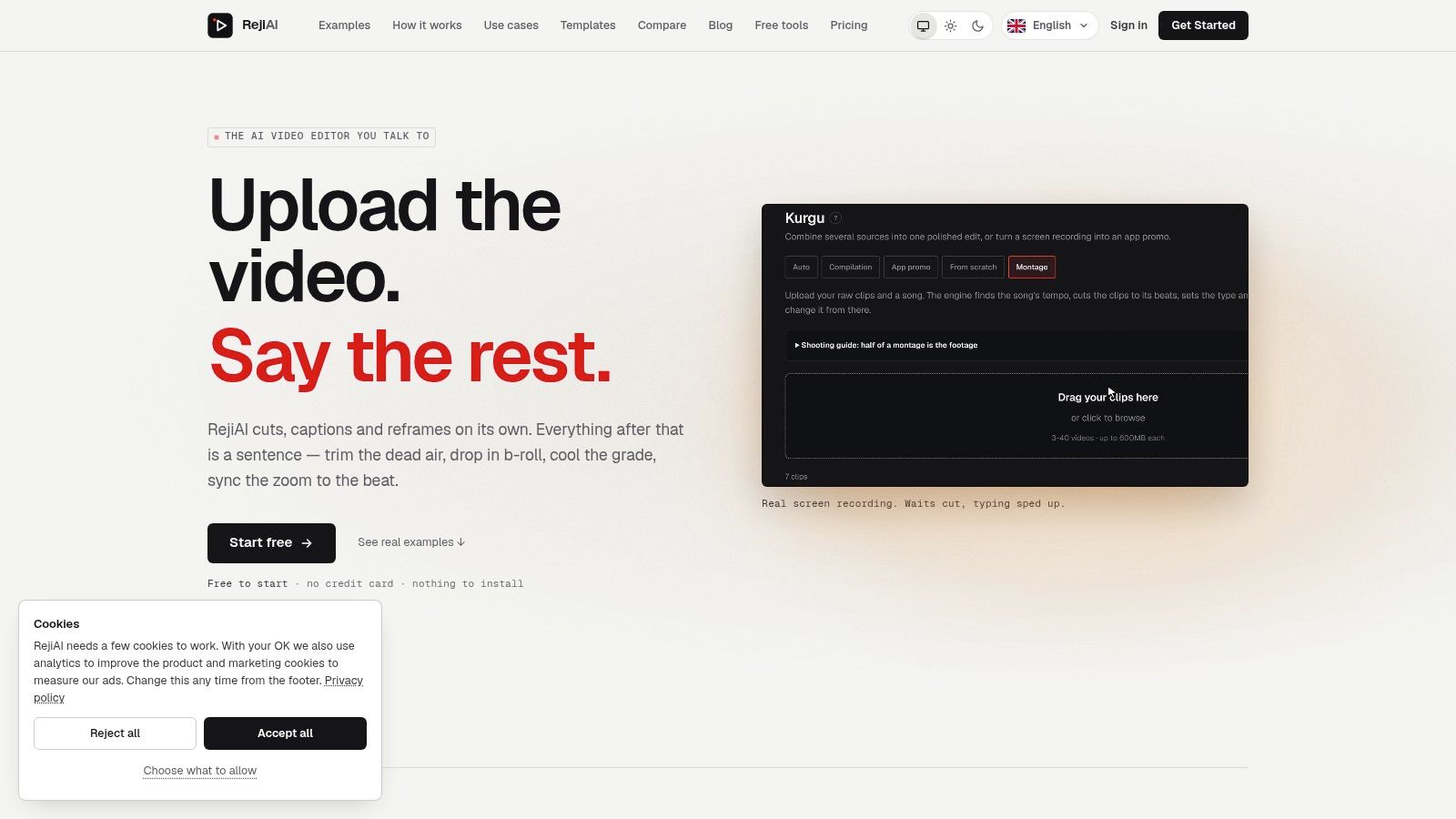
Some creators can describe an edit more easily than they can build it with timeline controls. RejiAI centers its workflow on that preference: upload footage, give plain-language instructions, and request revisions conversationally.
Its Klip feature creates short vertical clips from longer videos with captions and reframing. This puts it closer to instruction-led assembly than conventional timeline-first production.
The appeal is approachable direction. The limitation is precision: “make it punchier” leaves much more room for interpretation than specifying the exact cut or caption you want changed.
Test a revision, not only the first draft
A useful trial should include a deliberate correction. Ask to preserve the setup before a reaction, remove an unnecessary zoom, or keep an important object visible.
- Be explicit: Name the moment and the intended change rather than relying on mood words alone.
- Protect the story: State which explanation, reaction, or gameplay event must remain.
- Watch usage: Published plans use render-minute allowances, which may constrain frequent exports or revision-heavy work.
Free exports carry a watermark. Also, inspect how reliably the tool follows changes without disturbing parts of the edit that were already correct.
Conversational editing can simplify a rough assembly, but it shouldn’t turn a tiny timing adjustment into repeated ambiguous requests. If you need exact control throughout the clip, prioritize a workflow that makes those corrections direct.
Best fit: Creators who prefer describing edits and reviewing results over operating detailed editing controls. Failure mode to check: Repeated revisions that still don’t land the precise cut, crop, or timing you requested.
10. Microsoft Clipchamp
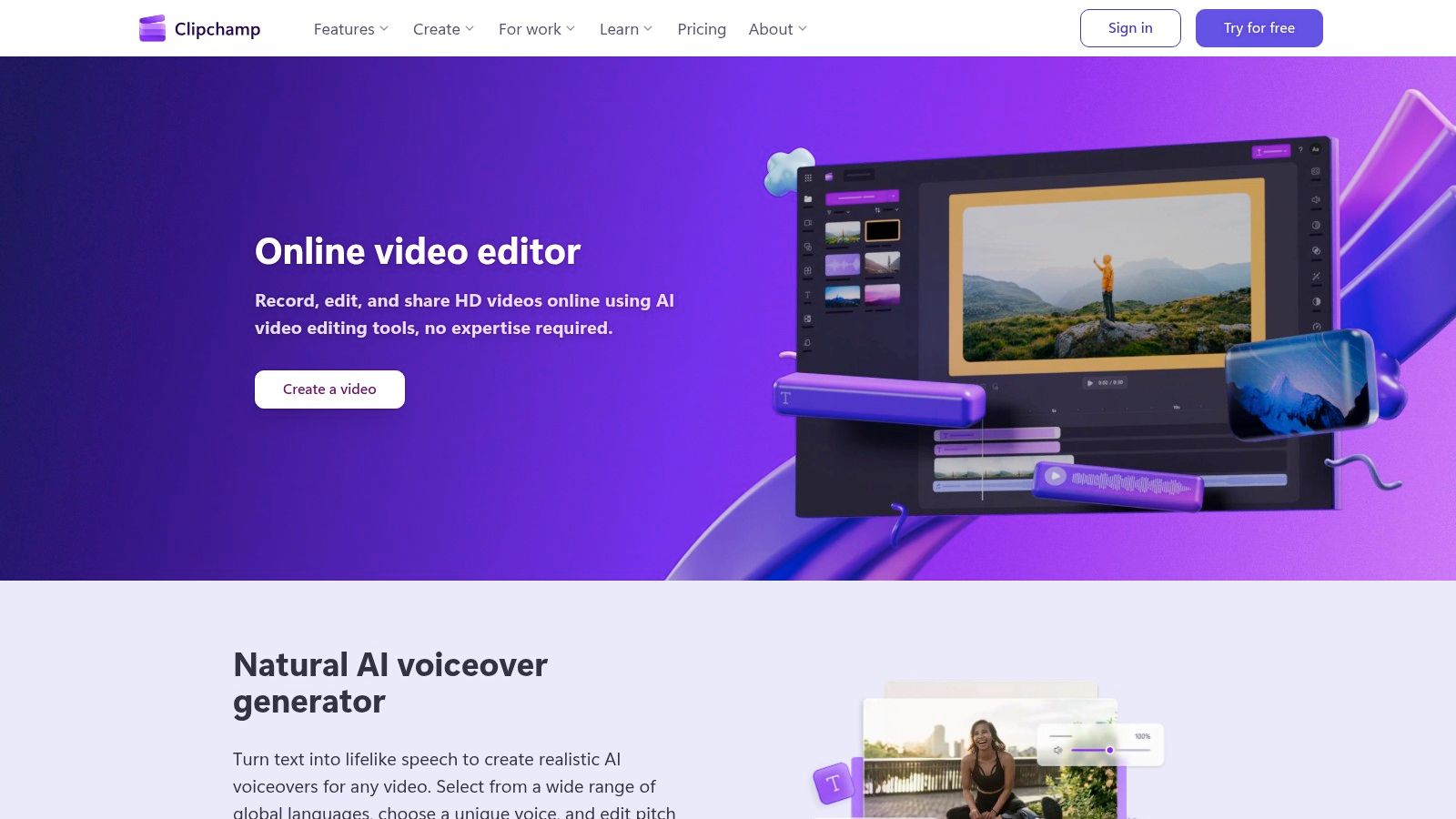
For straightforward manual vertical edits, Microsoft Clipchamp is a practical starting point. It offers browser-based timeline editing, aspect-ratio resizing, cropping, trimming, rotating, subtitles, voiceovers, and silence removal.
Microsoft Clipchamp is especially relevant when you’ve already selected the footage and don’t need automated highlight discovery. Its free plan supports watermark-free exports, making it useful for testing a complete basic workflow rather than only previewing an edit.
The important distinction is between changing the canvas and intelligently following the action. Resizing a wide-format recording doesn’t guarantee that the speaker, gameplay target, or demonstration remains visible.
Manual control means manual responsibility
Check the crop wherever the subject moves. If the important action travels across the original frame, a fixed vertical composition can lose it even though the opening looks correct.
- Use it for: Trimming selected footage, adding text, and preparing simple vertical layouts.
- Don’t assume: Automatic resizing will identify the story’s most important subject.
- Check access: Premium assets and higher-resolution export options require the appropriate paid access.
For creators weighing browser convenience against a broader computer-based setup, the YouTube Shorts editor for PC guide offers another way to think about the editing workflow.
Clipchamp is less specialized for bulk short-form extraction than dedicated clipping tools. That matters if reviewing the source recording, rather than executing the edit, consumes most of your time.
Best fit: Beginners and low-volume creators making basic manual social edits. Failure mode to check: A technically correct vertical export that crops out the action because the framing never follows it.
How the 10 Vertical Video Editors Compare on Core Attributes
| Item | Best For | Free Plan | Highlight Detection | Top Export Resolution |
|---|---|---|---|---|
| ClipOven | AI-assisted vertical short-form editing | Hobby plan: 1,000 monthly credits | Not specified | 2K |
| VEED | Automated clipping with browser-based editing | Yes; some AI tools, watermark on exports | Yes, with AI Clips | Not specified |
| Kapwing | Collaborative, hands-on social video editing | Yes; watermarked exports up to 720p and four minutes | Not a focus; mainly manual editing | Up to 4K on paid plans |
| OpusClip | Turning long videos into short clips | Yes; watermark and limited export period | Yes | Not specified |
| Submagic | Caption-focused social video polishing | Not specified | Not specified | Not specified |
| Descript | Editing podcasts and dialogue-heavy videos | Not specified | AI clip creation; highlight detection not specified | Not specified |
| InVideo | Template-led video creation and Shorts editing | Not specified | Not specified | Up to 4K |
| FlexClip | Template-led social and marketing videos | Yes; up to 720p with project and length limits | Not a focus | Up to 4K, depending on plan |
| RejiAI | Conversational AI-directed editing and clipping | Yes; exports carry a watermark | Yes, through its Klip feature | Not specified |
| Microsoft Clipchamp | Basic manual vertical video editing | Yes; watermark-free exports up to 1080p | Not specified | Up to 4K with Microsoft 365 |
Match the Tool to Your Workflow Before You Subscribe
Start by deciding where your clips come from. If you mainly repurpose long streams or podcasts, test a clip-finder on a representative recording and inspect its selections for context. A usable candidate needs a comprehensible opening, a worthwhile payoff, and an ending that doesn’t cut off the thought.
If you already have selected footage, prioritize captions, reframing, and finishing. Submagic suits caption-centered polishing, while Descript is more natural when you need to restructure speech through a transcript. VEED spans automated suggestions and conventional editing, but you should still judge the completed export rather than the convenience of generating a draft.
Match the trial to your hardest recurring edit
Hands-on editors should test the revisions they make repeatedly. Kapwing, InVideo, FlexClip, and Clipchamp serve different versions of manual assembly, collaboration, and template-led production. The right choice depends on whether you spend your time placing brand assets, arranging supporting visuals, or trimming and reframing selected footage.
For conversational tools, evaluate the handoff from instructions to corrections. A strong first draft is useful, but your workflow also needs a reliable way to fix the wrong word, preserve an important beat, or reposition a graphic. Don’t let the convenience of chat distract from the quality of the final edit.
- Compare finished results: Use the same source material and the same intended story in each trial.
- Track correction work: Note where you repeatedly fix captions, restore context, or repair crops.
- Include ordinary revisions: Change the opening, adjust the pacing, and replace an asset before deciding.
- Inspect plan restrictions: Watermarks, processing allowances, export access, and project limits affect different stages of production.
Validate the file where people will watch it
Watch the export with sound, then without it. With sound, check pacing, audio joins, and whether effects interrupt the message. Without sound, check whether the captions preserve meaning and whether the visuals explain what’s happening.
Then preview the clip against the interfaces where you’ll publish. Faces, game information, disclaimers, and calls to action all need usable space. A sharp file isn’t automatically a readable or accessible post.
Choose the tool that leaves you with the least consequential cleanup, not the largest feature list. Run a complete project through the available trial or free workflow before committing to recurring credits. Your monthly volume matters, but so does how much attention each finished clip still requires.
Clipoven combines Eddie’s chat-based vertical editing with a full timeline editor for refining cuts, captions, timing, and effects. Visit clipoven to try your horizontal footage and evaluate the complete path from a creative brief to a finished vertical short.