 clipoven
Most advice about choosing a video editor with effects starts in the wrong place: count the filters, compare the transitions, and pick the largest library. That doesn’t tell you how much work it takes to turn a streamer’s recording into a readable vertical clip, or how awkward the next client revision will be.
Every video editor with effects makes you edit differently. A template-led app asks you to fit footage into an existing look. A timeline editor lets you apply and adjust presets around your cut, while node-based compositing lets you build the image-processing chain yourself. An agentic editor starts with your instructions and produces an assembly you can revise.
The distinction matters more than catalog size. In HubSpot’s video marketing statistics, 21% of marketers identified short-form video as the format delivering the highest return on investment. That doesn’t mean every creator needs more animated text; it means the path from source footage to an approved short deserves attention.
Choose the workflow that makes your usual revision easy, not the tool that makes an impressive demo.
For gaming creators, that revision might be moving captions away from the HUD. For an agency, it might mean replacing a branded animation across several deliverables. The editors below suit different versions of that work, with meaningful differences in effect control, asset access, and finishing effort.
Table of Contents
- 1. clipoven
- 2. CapCut
- 3. DaVinci Resolve
- 4. Adobe Premiere Pro
- 5. Wondershare Filmora
- 6. Final Cut Pro
- 7. CyberLink PowerDirector
- 8. Movavi Video Editor
- 9. Lightworks
- 10. Adobe After Effects
- Video Editors With Effects at a Glance
- Picking Your Effects Workflow, Not Just Your Editor
1. clipoven
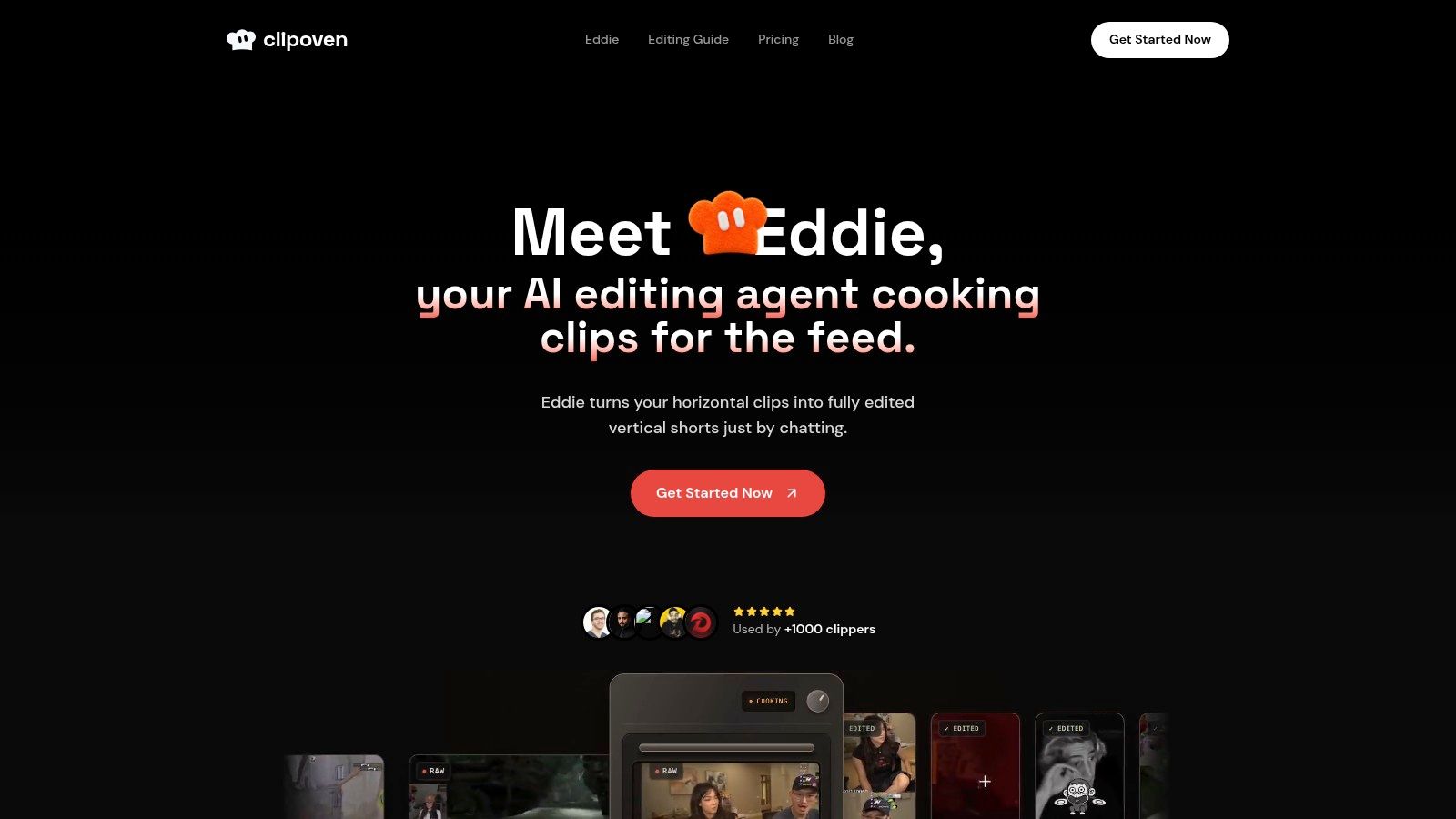
ClipOven uses an agentic workflow, rather than asking you to build the first cut effect by effect. Bring horizontal footage, describe the intended vibe to Eddie, and the agent assembles cuts, subject-focused vertical reframing, animated captions, and effects.
For a streamer’s reaction clip, give an editorial brief rather than a vague request to make it engaging. Specify the payoff, what context must survive, and whether the viewer needs to see the player, gameplay, or both. Eddie can then produce an editable starting point instead of leaving you to assemble every element manually.
Chat first, timeline when precision matters
After the assembly, keep refining through chat or open the full editor to adjust cuts, timing, captions, and effects yourself. That handoff matters when a caption lands before the punchline or a reaction needs a slightly longer hold.
Eddie’s effects include Hook, Zoom, Sound effect, Shake, and Grayscale. You can also layer audio effects, images, GIFs, and stickers, then export a vertical clip in 2K for TikTok or YouTube Shorts.
- Best fit: Clippers and creators repeatedly converting horizontal footage into vertical shorts.
- Main trade-off: AI assemblies still need editorial review, especially for gaming terminology, joke timing, and subject framing.
- Scope limit: This is a short-form workflow, not a replacement for a general-purpose long-form post-production suite.
Hobby and Pro both include Eddie, the full editor, unlimited daily projects, and the same export capability. Hobby includes 1,000 monthly credits, estimated at around eight one-minute clips; Pro offers 3,000, 7,000, or 10,000 credits, estimated at around 30, 70, or 140 one-minute clips. Those are planning estimates, not guaranteed output: model choice and editing complexity affect consumption.
2. CapCut
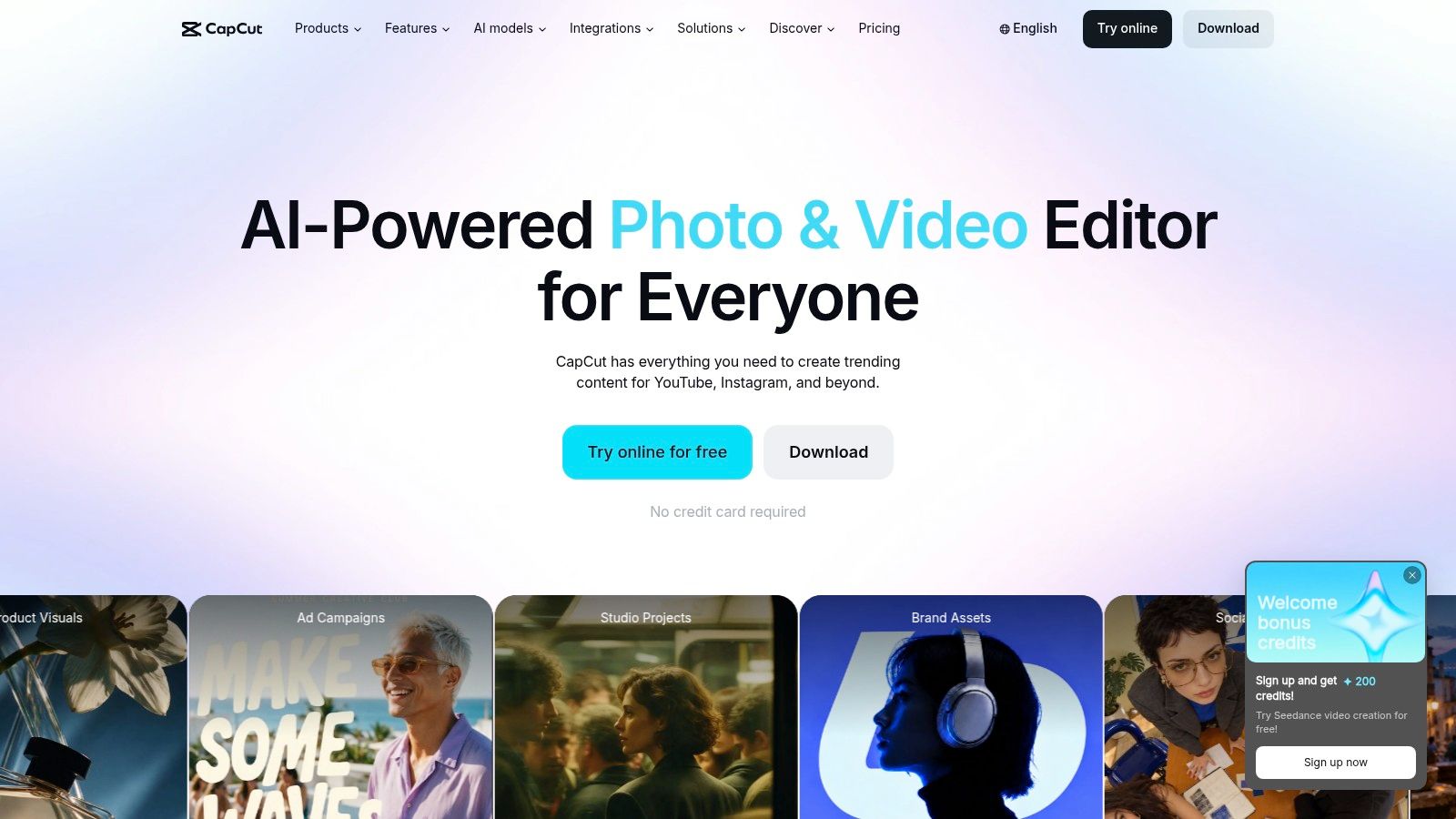
A trending transition is useful when you want to participate in a familiar visual format. CapCut suits that job because its templates, text styles, filters, and effects put recognizable social-video treatments close to the edit.
Its strength is template-led speed with timeline adjustments available afterward. You can start with a prepared look, replace the footage, then correct timing and text without designing the whole treatment from scratch. Mobile, desktop, and browser options also suit creators who don’t always edit at the same workstation.
Where the shortcut becomes a constraint
A template is less helpful when its rhythm fights the footage. If a gaming payoff needs a pause before the reaction, don’t force it into a sequence of preset beats just to preserve the animation.
- What works: Trend-oriented shorts, quick promotional edits, and creators who prefer adapting a look to building one.
- What needs checking: Some effects, templates, and AI tools require Pro, even though a free plan is available.
- Agency limitation: A recognizable template may need substantial changes to match a client’s visual identity.
Subscription availability and pricing can vary by region and platform, so assess the actual assets you intend to use before committing. The practical distinction in choosing a free AI video editor is whether you can finish your intended edit without replacing gated effects at export time.
3. DaVinci Resolve
DaVinci Resolve is the strongest fit here for editors who want to construct effects, not just select them. Its Fusion page uses nodes for compositing and motion graphics, alongside editing, color, and audio workspaces.
A node graph makes the processing order explicit. You can isolate a subject, treat the background separately, merge graphic elements, and inspect each stage instead of managing everything as a stack of timeline effects. That control is valuable for agency work with custom graphics or difficult composites.
Pay for control with learning time
Resolve FX also provides effects within editing and color workflows, so you don’t need Fusion for every blur or stylized treatment. Start with the simplest tool that solves the shot; a complicated node setup isn’t an achievement if a basic effect would survive revisions more easily.
Practical rule: Build a custom composite when the shot requires it, not merely because the software allows it.
The free version is highly capable, while Studio adds effects and advanced features. Check whether your intended treatment belongs to the version you’re evaluating rather than assuming every demonstrated effect is free.
For longer-form projects and mixed finishing work, Resolve offers room to grow. For straightforward captioned shorts, its learning curve and hardware demands can outweigh that flexibility, particularly when complex effects make playback difficult.
4. Adobe Premiere Pro
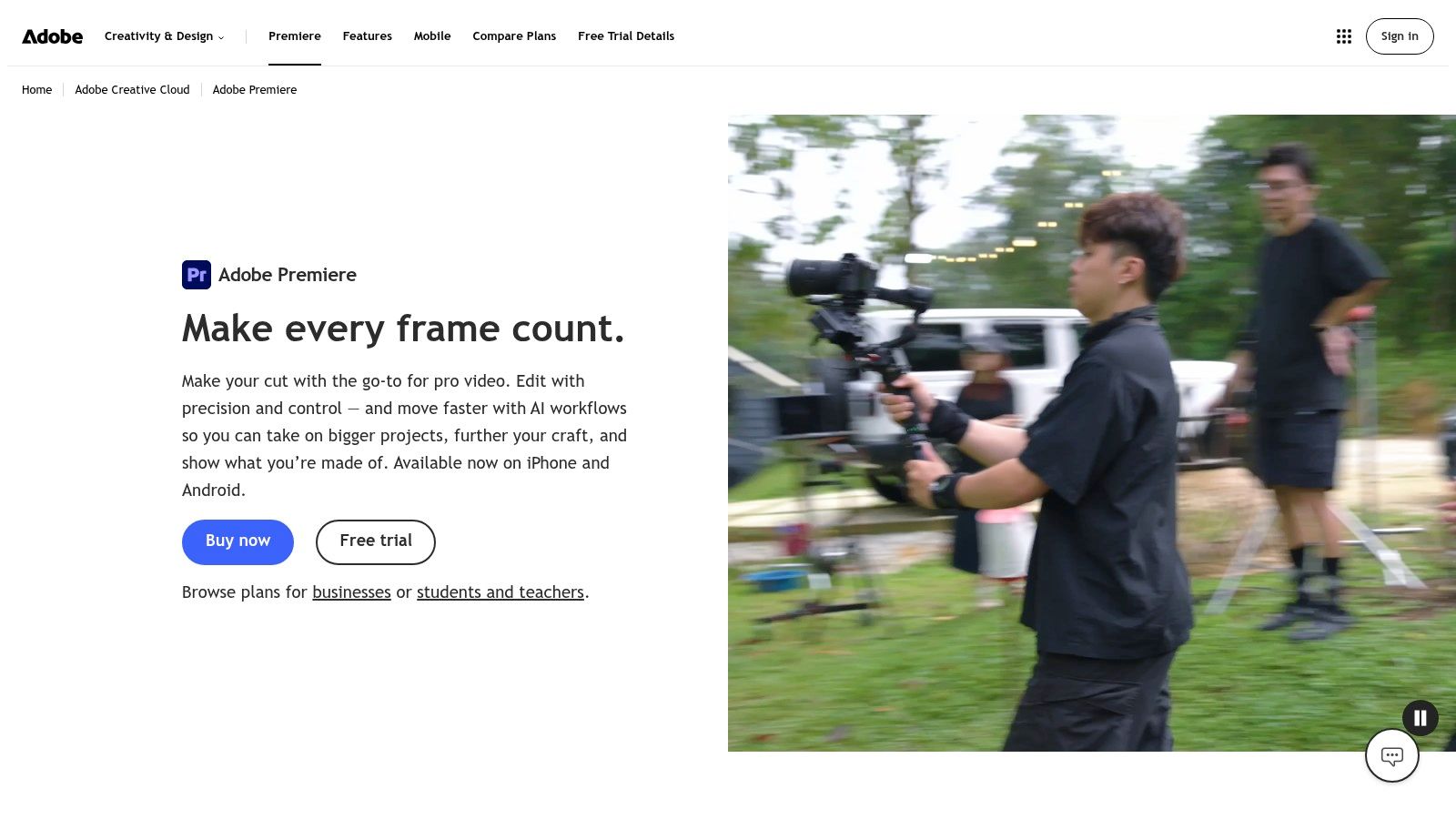
Say an agency needs a promotional film, a shorter social cut, and revised client titles. Adobe Premiere Pro fits that kind of work because the timeline remains the center of the project, with effects, transitions, titles, and audio adjustments applied around the assembly.
Its effects workflow is largely timeline-led and parameter-driven. Apply a treatment, adjust its controls, animate changes where necessary, and keep refining the cut without rebuilding the project around a template.
Strong assembly, specialist effects elsewhere
Premiere makes sense when editorial changes are frequent and the effects need to follow them. Its connections with Adobe’s other creative applications also help when a project outgrows built-in titles or straightforward compositing.
- Best use: Agencies and freelancers producing both short-form and longer-form work.
- Cost consideration: Access requires a subscription; plugins or companion applications can add further expense.
- Workflow boundary: Bespoke motion graphics and demanding composites may be better handled outside Premiere.
Don’t confuse a professional timeline with an automatic short-form workflow. You still need to make decisions about reframing, caption placement, pacing, and which visual accents deserve attention.
For editors weighing broader production needs, this video editing software comparison provides useful context. Premiere is a sensible choice when the same editor must handle varied deliverables, but it’s more application than a creator needs solely to add captions and punch-ins.
5. Wondershare Filmora
Filmora occupies the middle ground between adapting templates and operating a professional post-production suite. In Wondershare Filmora, you assemble footage on a timeline, then add effects, overlays, titles, transitions, stickers, and AI-assisted treatments.
That balance suits a creator who wants to decide exactly where a reaction starts without building every graphic from scratch. It also suits small-brand promotional work where a clean title, controlled transition, and consistent color treatment are enough.
Separate the editor from the asset library
Filmora’s approachable interface doesn’t eliminate the need to understand what your plan includes. Some creative assets require a separate subscription, and software access isn’t the same thing as unrestricted access to every effect shown in the library.
- Useful shortcut: Begin with a restrained title and transition style, then reuse that visual language throughout the project.
- Purchase check: Distinguish the editor license from optional Filmora Creative Assets access.
- Technical ceiling: Choose a deeper compositing tool when the brief depends on complicated tracking, masks, or layered image construction.
Perpetual and subscription options are available on some plans, but the important question is which effects remain usable under the arrangement you choose. For recurring agency work, document the assets used in each project so another editor can reproduce the finish.
Filmora works best when you want approachable manual control. It becomes less compelling when you spend more time replacing stock treatments than shaping the cut.
6. Final Cut Pro
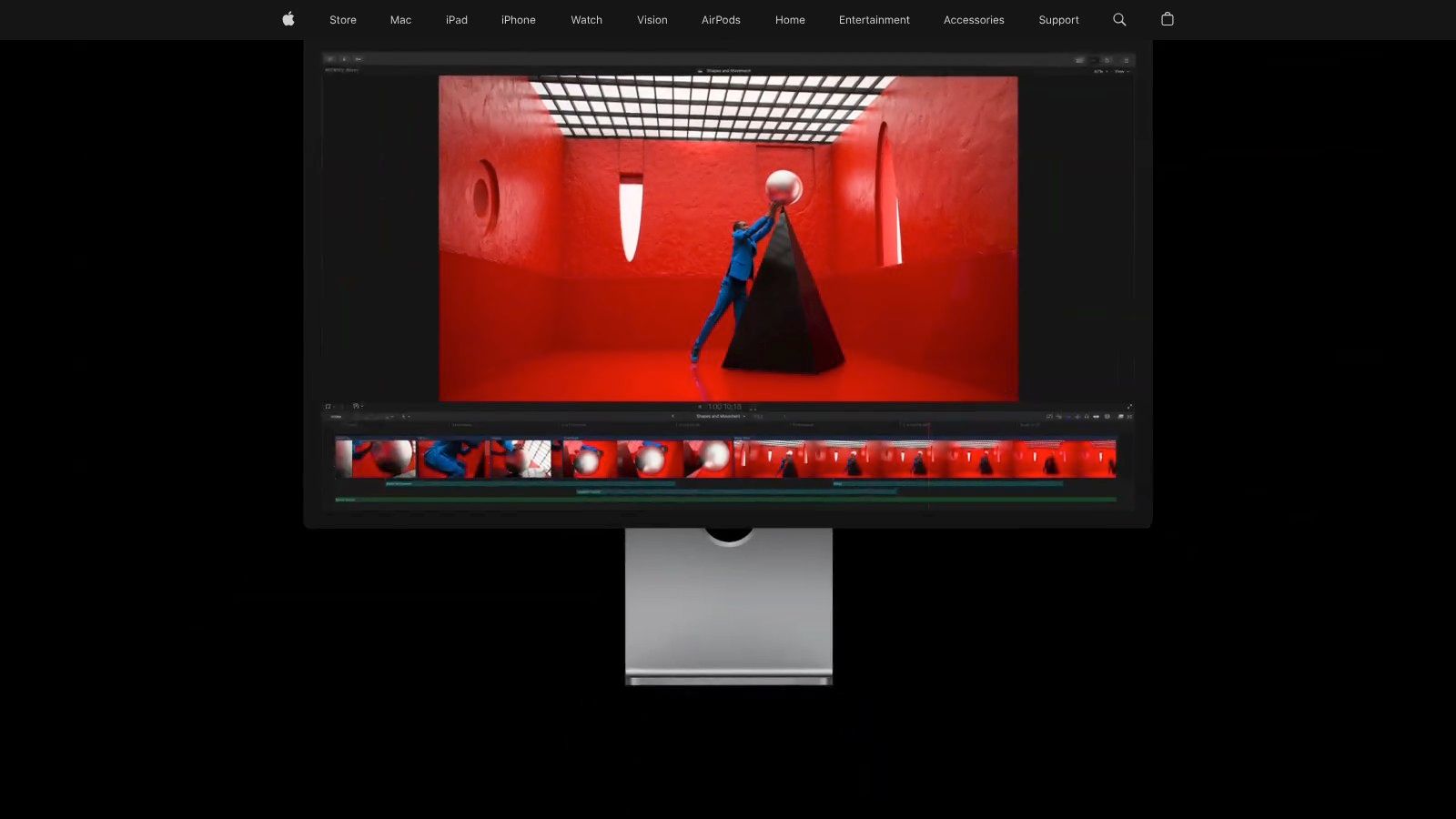
The magnetic timeline is the deciding factor in Final Cut Pro, not the effects catalog. Editors comfortable with its approach can assemble and revise projects without treating every change as conventional track management.
Customizable titles, transitions, and effects handle everyday finishing. The FxPlug ecosystem offers additional treatments, while Smart Conform helps adapt projects for vertical or square delivery.
Reframing still needs editorial approval
Automatic adaptation is a starting point, not approval of the composition. In gameplay footage, the main character may remain visible while the crop removes the scoreboard, subtitles, or an opponent that explains the reaction.
A technically centered subject isn’t necessarily a complete story. Review the crop for information, not just faces.
Final Cut suits Apple-based creators and agencies that want a professional editing environment with adaptable effects. It’s available across Mac and iPad offerings, but don’t assume platform editions or third-party plugins provide identical workflows.
The main adjustment is conceptual: editors trained on fixed tracks need time to understand how clips and connected elements behave during revisions. Test a real restructuring task, not just a clean assembly, before deciding whether the magnetic timeline suits you.
Third-party plugins can extend the look, but they also introduce separate purchasing and compatibility decisions. For quick, basic shorts, that setup may be unnecessary; for an Apple-centered production pipeline, it can be a practical foundation.
7. CyberLink PowerDirector
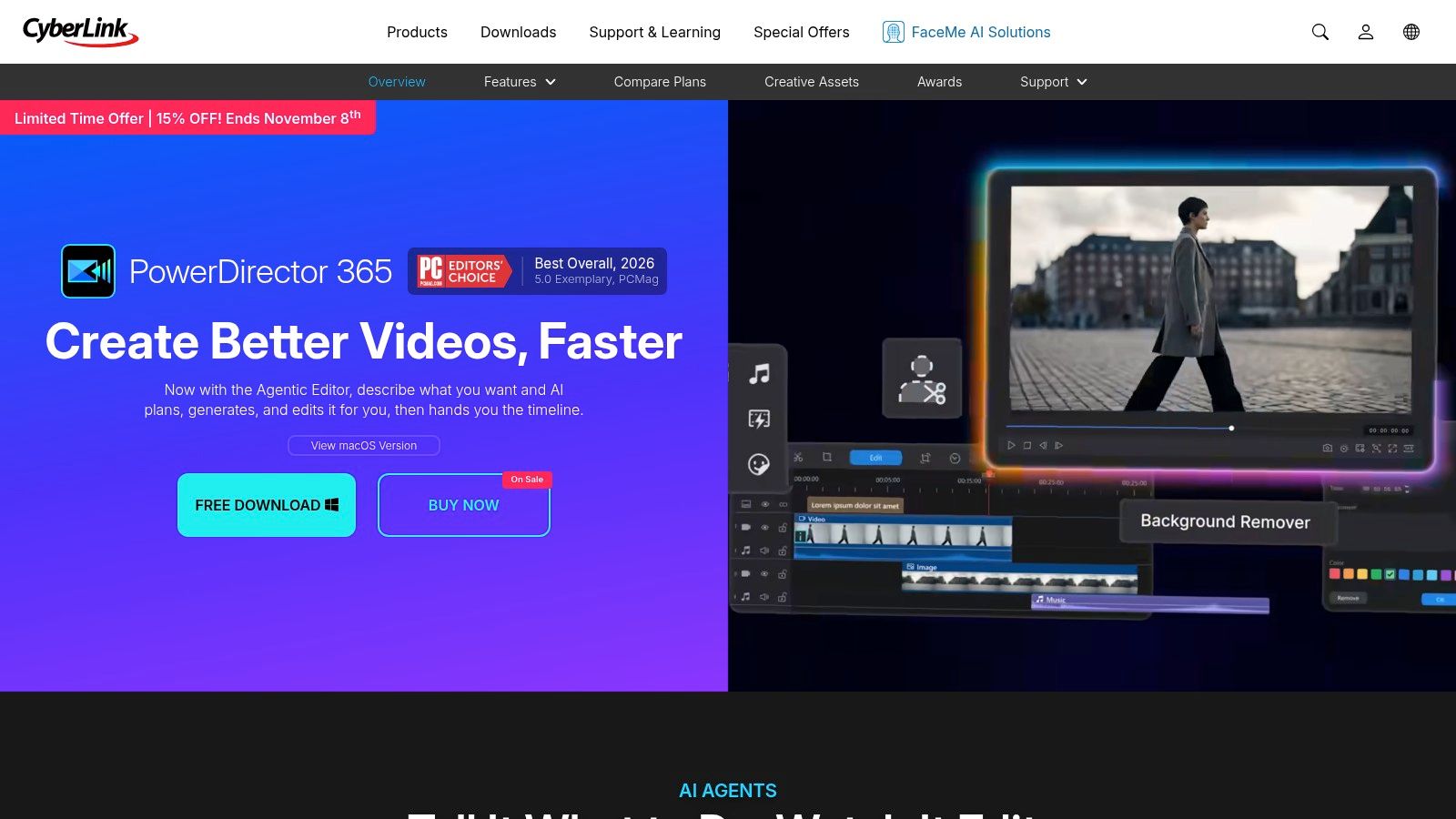
CyberLink PowerDirector favors an accessible timeline with a broad preset catalog. Effects, titles, transitions, LUTs, and stickers support creators who want visible results without learning node compositing.
The useful distinction from a template-first app is that you can shape the assembly yourself and then decorate it selectively. A tutorial, gaming highlight, or small-business promotional edit can share the same editing environment without sharing the same visual template.
License choice affects the creative toolbox
PowerDirector offers perpetual and subscription choices, but those aren’t interchangeable routes to the same catalog. Subscription plans add premium effects, content updates, and AI or generative-AI tools, while some content may need add-ons or separate access.
- Choose for: General-purpose editing with readily available visual treatments.
- Check by platform: Windows and Mac editions may not include identical features.
- Check by entitlement: Confirm whether stock content, cloud storage, and the effects you want belong to the selected plan.
For freelancers, the hidden work is maintaining consistency between projects made under different asset allowances. A preset isn’t a dependable part of your house style if another workstation can’t access it.
PowerDirector is a practical alternative to deeper professional suites when most requests involve familiar effects and ordinary timeline changes. It’s less suitable when you need to build a distinctive compositing system rather than adjust catalog treatments.
8. Movavi Video Editor
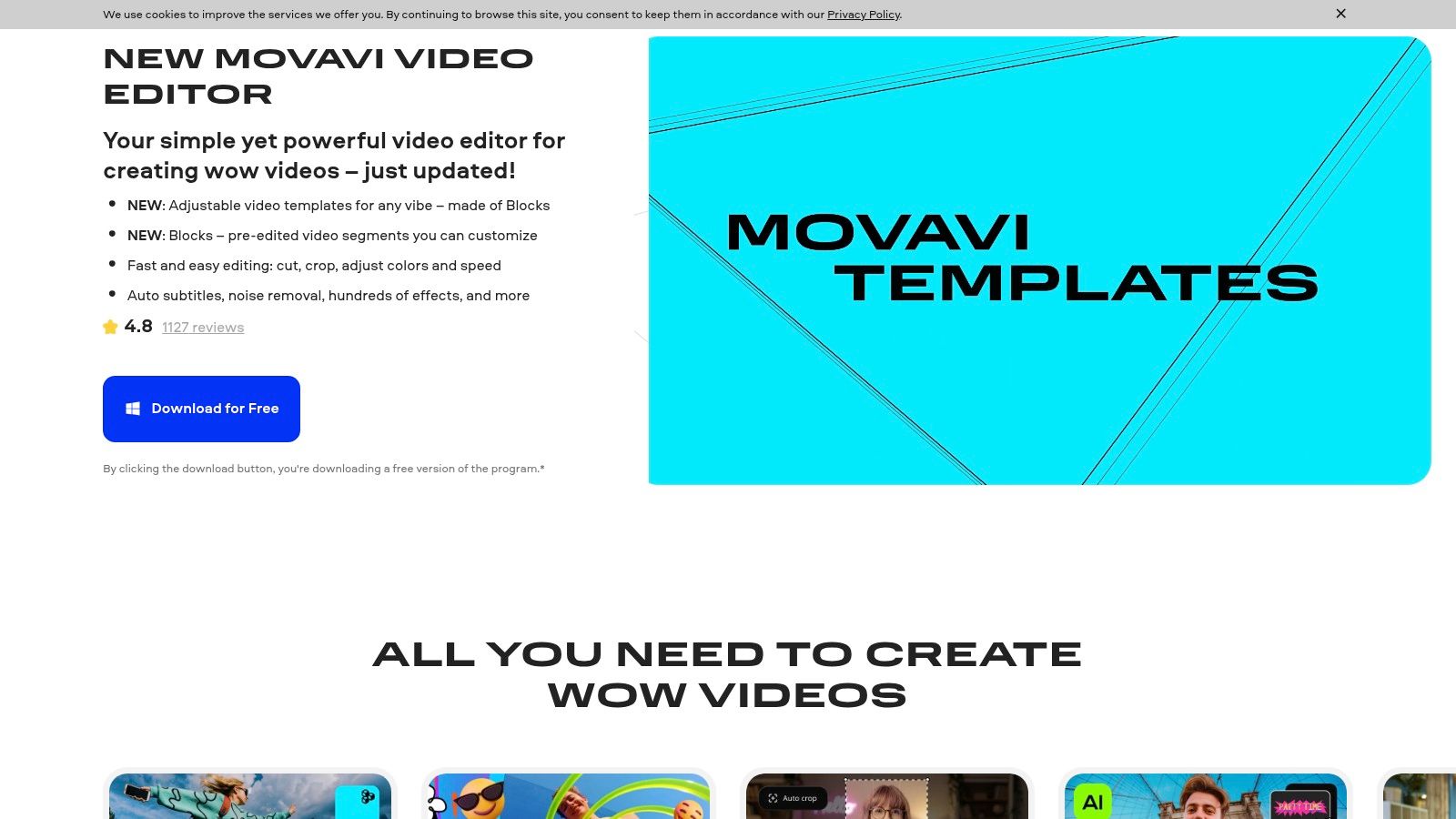
A clean cut with readable subtitles often needs less software than a creator expects. Movavi Video Editor fits everyday projects built around trimming, joining clips, adding titles, and applying straightforward effects or overlays.
Its appeal is a relatively approachable timeline-preset workflow. You retain control over the sequence without needing to understand a full compositing environment, and AI-assisted tools and automatic subtitles can reduce setup work.
Review captions before styling them
Automatic text isn’t finished text. Check names, gaming terminology, overlapping dialogue, and punctuation before choosing an animation, then review whether the vertical crop leaves the captions enough space.
A review of caption accessibility studies found that caption presence didn’t guarantee completeness or accessibility. For practical editing, that means reviewing speaker changes and meaningful non-speech audio as well as correcting recognized words.
- Good fit: Everyday creator videos and uncomplicated promotional edits.
- Separate expense: The optional Movavi Effects subscription expands the asset library beyond editor access.
- Poor fit: Advanced composites that depend on extensive tracking, masks, or interconnected animation.
The purchasing trap is treating the editor and the expanded effects collection as a single entitlement. Decide which treatments the project needs before adding an asset subscription.
Movavi makes sense when simplicity helps you finish. If the edit repeatedly requires workarounds for custom graphics, move that work to a more specialized application rather than stacking additional presets.
9. Lightworks
Lightworks is an editing environment first, not a social-template destination. Its timeline, built-in effects, transitions, and color tools suit editors who want to assemble a coherent sequence before applying a finish.
That distinction matters for interviews, commentary, and longer gaming edits where pacing depends on selecting and arranging material. A library of animated stickers won’t solve weak structure; a usable trimming workflow is more relevant.
Test delivery limits before committing
Lightworks offers Free, Create, and Pro tiers, with export capabilities and advanced tools depending on the plan. Higher tiers expand delivery options and access to features such as advanced formats and OpenFX compatibility.
- Best fit: Editors who prefer a general-purpose timeline across Windows, macOS, and Linux.
- Learning consideration: The workflow can feel unfamiliar compared with beginner-first apps.
- Plan consideration: Effects access alone doesn’t establish whether a tier supports your required final delivery.
For agency use, test the complete route from imported footage to an accepted export. Include the actual title treatment, audio requirements, and delivery format rather than judging only how comfortably you can cut a sequence.
Lightworks isn’t the obvious choice for someone seeking fashionable captions with minimal setup. It is more relevant when the editor wants to work deliberately with footage and add effects as supporting elements.
I’d shortlist it for an editing-led workflow, not an effects-led shopping list. The distinction keeps expectations realistic and prevents paying for advanced features that won’t solve the actual production bottleneck.
10. Adobe After Effects
Adobe After Effects isn’t a conventional all-purpose video editor. It’s a specialist companion for compositing, animation, motion graphics, tracking, and layered visual effects.
Choose it when the effect itself needs design work. A branded caption system, tracked graphic, custom transition, or animated title sequence is a different assignment from applying a filter to an assembled clip.
Build reusable graphics, not an entire rough cut
After Effects uses a layer-and-composition workflow, rather than Resolve Fusion’s node graph or a standard editing timeline. That suits detailed animation, but it isn’t the efficient place to select dialogue and assemble a long recording.
- Agency strength: Create a bespoke visual system instead of adapting a recognizable social template.
- Production cost: Subscription access, learning time, and demanding previews all belong in the decision.
- Practical handoff: Make the editorial choices in an editor, then use After Effects for shots or graphics that need it.
For gaming content, a tracked callout can explain an otherwise invisible detail. The same animation becomes counterproductive if it covers the action or competes with captions.
Understanding the purpose of different effects in video editing helps separate useful emphasis from decoration. After Effects gives you substantial freedom, but that freedom only pays off for custom motion or compositing that simpler tools can’t comfortably deliver.
Video Editors With Effects at a Glance
The key difference between these editors is how you build and revise effects: through templates, a timeline, nodes, or chat followed by hands-on editing. Use the workflow column to spot the trade-off before comparing platforms and pricing.
| Editor | Effects Workflow | Best For | Pricing Model | Platform |
|---|---|---|---|---|
| ClipOven | Chat-based AI editing with timeline refinement, animated captions, and layered effects | Turning horizontal footage into vertical short-form videos | Hobby and Pro plans with monthly credits; prices not listed | Web-based |
| CapCut | Templates, effects, filters, transitions, text styles, and AI tools | Social videos for TikTok, Shorts, and Reels | Free plan; some features require Pro | Mobile, desktop, and web |
| DaVinci Resolve | Resolve FX plus node-based compositing and motion graphics in Fusion | Editing, color grading, effects, and audio post-production | Free version; paid Studio version | Mac, Windows, and Linux |
| Adobe Premiere Pro | Timeline effects, transitions, titles, and audio tools; integrates with other Adobe apps | Social, promotional, and longer-form projects | Subscription | Mac and Windows |
| Wondershare Filmora | Timeline effects, filters, transitions, titles, stickers, and AI tools | Beginners and intermediate editors seeking accessible creative control | Perpetual and subscription options; some assets cost extra | Desktop |
| Final Cut Pro | Built-in effects, customizable titles, transitions, and third-party plugins | Creators working in Apple-based workflows | One-time purchase | Mac and iPad |
| CyberLink PowerDirector | Effects, transitions, titles, LUTs, stickers, and AI tools | General-purpose editing with a large effects catalog | Perpetual license or subscription; add-ons may cost extra | Windows and Mac |
| Movavi Video Editor | Effects, transitions, titles, overlays, AI tools, and automatic subtitles | Everyday projects and quick creator workflows | Perpetual and subscription options; optional effects subscription | Windows and Mac |
| Lightworks | Timeline effects, transitions, color tools, and OpenFX support | General-purpose editing across desktop platforms | Free and paid tiers | Windows, macOS, and Linux |
| Adobe After Effects | Compositing, visual effects, motion graphics, and layered animation | Custom animation, titles, transitions, and visual effects | Subscription | Mac and Windows |
Picking Your Effects Workflow, Not Just Your Editor
Feature count is a weak way to choose a video editor with effects. A crowded catalog can still slow every revision when it pushes the work through a process your team cannot repeat. Match the editor to the treatment you change most: swapping a prepared look, retiming a cut, rebuilding a composite, or converting another horizontal recording into a vertical short.
CapCut follows template-led logic. A prepared look helps fast social output, and the cost appears when a requested revision conflicts with the template’s structure. Filmora, PowerDirector, Movavi, and Lightworks use a more conventional timeline-preset path. Common effects remain easy to reach, while you stay responsible for pacing and assembly.
Match the workflow to the production burden
Resolve, Premiere Pro, and Final Cut Pro suit larger editorial and finishing environments, with node-based control in Resolve where color work needs more precise adjustment. After Effects is the specialist companion for custom animation and compositing. Choose among these tools by checking handoffs, hardware, revision habits, and whether another editor can reopen the project with the required assets and effects intact.
An agentic workflow serves a different production burden. In ClipOven, you describe the desired treatment to Eddie, review the assembled vertical clip, then keep refining through chat or correct cuts, timing, captions, and effects in the full editor. That pattern fits recurring horizontal-to-vertical work. A one-off composite still belongs in an editor built for manual control.
- For streamers: Check whether gameplay context and the reaction survive the crop.
- For social teams: Test how quickly captions, crops, and recurring treatments can be revised.
- For agencies: Confirm that another editor can reopen the project with its assets and effects.
- For freelancers: Compare software cost, gated catalogs, plugins, and expected revision time.
Don’t treat visual intensity as a performance strategy: every effect should clarify a beat, direct attention, signal a change, or reinforce the joke. If you cannot identify its job, remove it and compare the cut.
Run a real recording through the candidate: difficult dialogue, a framing change, and a moment that needs precise timing. Judge the accepted export, including caption corrections and client revisions, because the first attractive preview rarely shows the cost of the next round.
Choose the workflow your team can repeat under deadline. Finish one real project before committing to the software, an asset subscription, or a new production process.
ClipOven turns horizontal footage into vertical shorts. Eddie assembles cuts, captions, and effects through chat, and the full editor gives precise control over cuts, timing, captions, and effects. Test a real highlight clip with clipoven to see whether chat direction plus timeline control fits your process.