clipoven
You’ve cut a song into a vertical clip, found the chorus, and generated captions. On the phone screen, though, one line appears before the singer reaches it, another sits over the artist’s face, and the hook is hard to read before the viewer swipes away. That’s the work in lyrics and video: choosing the right format, getting the words right, syncing them to the vocal, and making sure the finished file is readable and cleared to publish.
Table of Contents
- Choose the Lyric Format That Fits Your Clip
- Copyright Checks Before You Post Lyrics
- Check the Transcript Before You Style Anything
- How to Time Lyrics to the Vocal Step by Step
- Caption Animation Styles and Where Motion Hurts
- Export Settings and Safe Zones for TikTok and Shorts
- Test One Clip Before You Build the Series
Choose the Lyric Format That Fits Your Clip
A full-song lyric video is a common default, but it isn’t automatically the right edit. It requires line-level timing across the track, even when the release goal is to give people a short, memorable reason to find the song. Start with what the clip needs to do, then choose how much lyric editing that job requires.
| Format | Sync effort | Best use |
|---|---|---|
| Full-song lyric video | High, line-level across the track | Search and long-form YouTube |
| Vertical verse or chorus clip | Medium, one hook section | TikTok and Shorts discovery |
| Word-by-word karaoke | Very high, word-level | Sing-along hooks with repeated words |
| Static line subtitles | Low, one line at a time | Rap, spoken verses and dense lyrics |
| Hybrid teaser | Medium, chorus only | Release week, linking to the full video |
A full-song lyric video makes sense when viewers need the whole track and you want a long-form asset that can be found through search. A vertical verse or chorus clip focuses the work on a single passage, while a hybrid teaser adds a clear route from that hook to the full video. Word-by-word karaoke needs the tightest sync because every highlighted word has to land on the vocal. Static lines trade motion for more reading time, which can suit dense rap or spoken delivery.
Say you’re releasing a two-minute indie track with a nine-second chorus hook. Instead of timing karaoke through the whole song, make one chorus clip and a second post using a static-line verse. The chorus gives viewers a short phrase to repeat; the verse gives the words more room. Repeated words and short hooks tend to be easier to join in with than a crowded verse, so pick a passage that sounds clear and looks manageable on a phone.
Decision rule: Choose the format from the clip’s job, then sync only what that format shows.
Copyright Checks Before You Post Lyrics
A lyric clip can involve two separate rights. The composition covers the lyrics and melody, usually controlled by a publisher or songwriters. The sound recording is the particular recorded performance, usually controlled by a label or the artist. Putting lyrics on screen over a recording can require permission for both, so owning a video editor or having access to a track file doesn’t settle the rights question.
Platform music libraries aren’t a universal clearance pass. A track made available for use inside TikTok or YouTube may be licensed for that platform’s use, without permission to export the same edit to another channel, a client website, or a paid campaign. Check the actual license terms for the account, platform, territory, and use you have in mind.
Run this clearance checklist
- Identify both owners. Check the release metadata for the sound-recording owner and the publisher or publishers for the composition.
- Check the destination platform’s library. Confirm whether it offers a licensed version of the track for the exact account and use.
- Ask about lyric display. Get a sync license or written permission from the publisher for pairing the lyrics with the audio.
- Verify cover-song rights. If you’re using a cover recording, confirm that the composition’s mechanical license is in place. Don’t assume a license to record a cover also permits every video use.
- Keep the paperwork together. Save receipts, license terms, and permission emails with the project files so another editor can verify the clearance.
- Prepare for Content ID. Official recordings may trigger a match even when you have permission. Keep the evidence ready and follow the documented process for responding to a claim.
- Treat short quotations carefully. If you’re quoting only a few lines for commentary, remember that quotation defenses vary by country. Don’t assume a short excerpt is automatically permitted.
The practical distinction is whether you’re making a clip for a specific platform under its terms or exporting an asset for broader use. A file that’s cleared for one destination may not be cleared for another, and the lyric rights still need attention even when the audio is available in an app.
For a commercial release, ask the publisher before you publish if the rights are unclear. This is general information, not legal advice.
Check the Transcript Before You Style Anything
A lyric can look polished and still be wrong. Automatic captions on short-form video often contain noticeable word errors, so check every transcript before styling it. A font or animation cannot repair a misheard word, and a late caption can make an accurate line hard to follow.
Use two passes
Pass one is transcription. Generate a verbatim transcript with word-level timestamps, then place it beside the audio or in your editing timeline. Automation provides a quick first draft, but it can confuse a sung vowel with a nearby word, merge repeated hook lines, or miss an artist’s intentional spelling. Treat the generated text as a starting point, not finished copy.
Pass two is editor QA. Check the words, timing, spelling, speaker changes, and non-speech cues such as ad-libs or crowd vocals. Decide whether ad-libs stay in parentheses or are omitted, and keep a spelling sheet for artist names, song titles, stylized words, and non-English lyrics. Applying those decisions consistently prevents repeated lines from changing across the edit.
Track four measures on your clips: transcription word-error rate, timestamp drift in milliseconds, the share of lines needing manual correction, and whether captions are visible in the first three seconds. These checks measure different problems. Word errors show where the text differs from the vocal; timestamp drift shows whether the caption appears at the right moment. Neither alone tells you whether the lyrics are easy to read, so check comprehension separately before approving a style.
Before styling, make the transcript pass this go/no-go check:
- Every word matches the vocal, including repeated hook lines.
- Names, stylized spellings, and non-English words are verified.
- Each timestamp has been checked against the vocal entry.
- Speaker changes, ad-libs, and non-speech cues follow a consistent rule.
- No line has been merged with another or dropped without a record.
If any item fails, fix the text or timing first. Don’t animate a transcript you wouldn’t approve as plain text.
How to Time Lyrics to the Vocal Step by Step
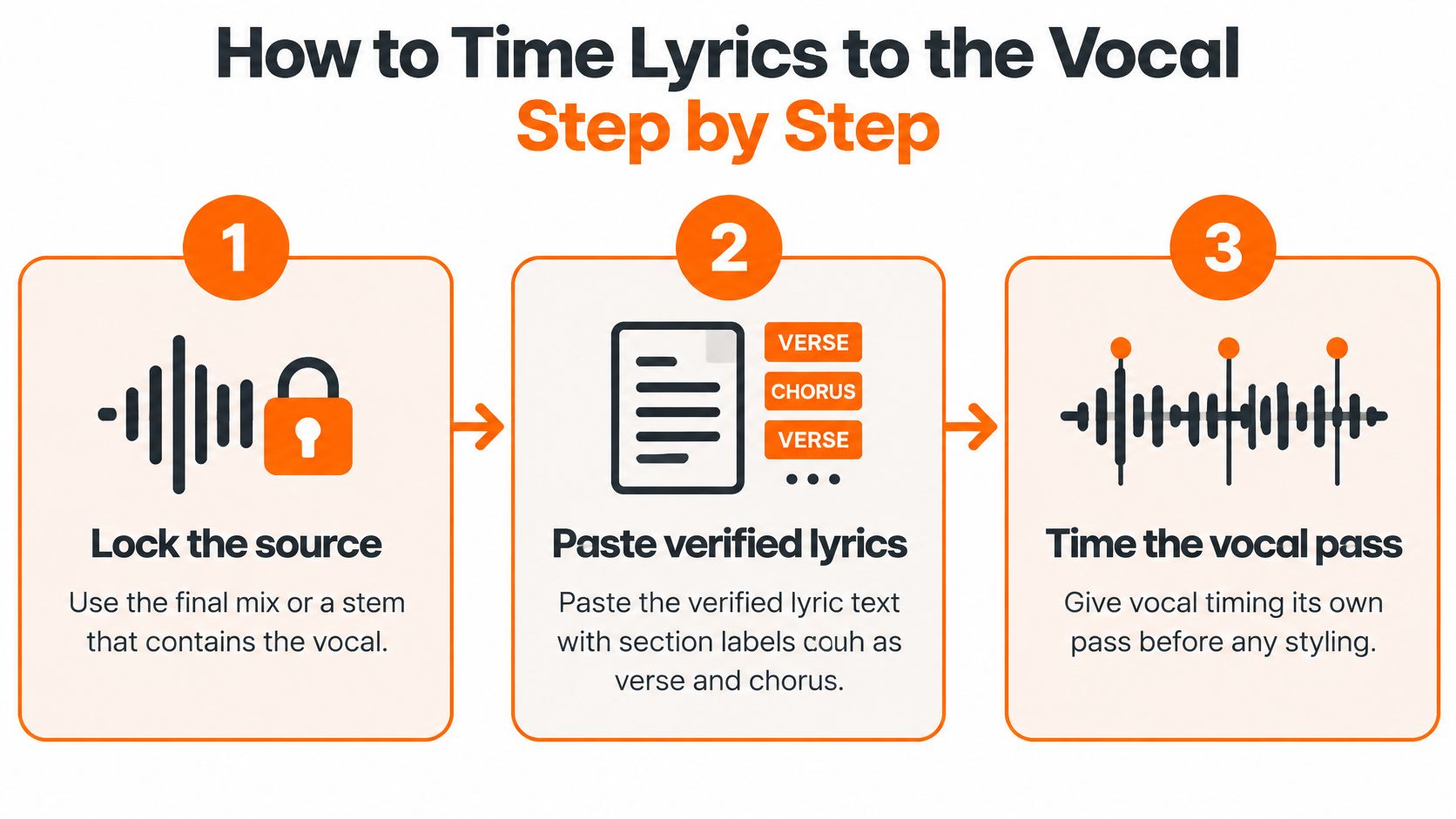
Give vocal timing its own pass before choosing colors, effects, or animation. The workflow below keeps the source, words, and phrase boundaries steady so you’re not restyling captions every time you correct a line.
-
Lock the source. Use the final mix or a stem that contains the vocal, then paste in the verified lyric text with section labels such as verse, pre-chorus, chorus, bridge, and interlude. If the mix changes later, the vocal timing may shift, so don’t build precise captions against a draft and assume they’ll still fit.
-
Mark the sections. Put timeline markers at the start and end of each section before placing individual lines. This makes repeated choruses easy to compare and helps you see whether a line belongs to the vocal or to a musical gap.
-
Find each vocal entrance. Scrub the track and place the marker at the first consonant of each line, not automatically on the beat grid. A singer can lead or lag the beat, especially in a rubato passage, so use the sound of the vocal as your reference.
-
Break lines at phrase ends. Keep a line short enough to read comfortably in a 9:16 frame, roughly six to eight words as a working target. Split at a natural pause rather than breaking a phrase where the text fits the box but the singer hasn’t finished the thought.
-
Set motion at line level first. Start with a restrained fade or slide of about 0.2 to 0.3 seconds, then reserve word-level emphasis for the hook. That lets you judge the basic reading pace before adding motion that can obscure timing.
-
Check at two speeds. Play each section at full speed to hear whether the captions feel natural, then at half speed to spot lines that enter early or late. Mark suspect lines instead of nudging them by guesswork while the track is playing.
-
Preview on a phone. Check the edit with sound on and sound off, and hold each line long enough for a viewer to read it twice. A caption that makes sense only with the vocal audible may fail when someone watches without sound.
-
Measure the test export. Export a short cut and inspect the caption timing against the vocal. At 30 fps, treat drift beyond about three frames as a fix, not as an acceptable stylistic variation. If your project uses a different frame rate, check how to change a video’s frame rate before you adjust timing to suit an export that doesn’t match the source.
The common slip is to snap every line to the beat grid. That works for a vocal that lands squarely on the beat, then falls apart on a slowed bridge or a rubato phrase. Spot-check those sections by ear before you call the timing finished.
Caption Animation Styles and Where Motion Hurts
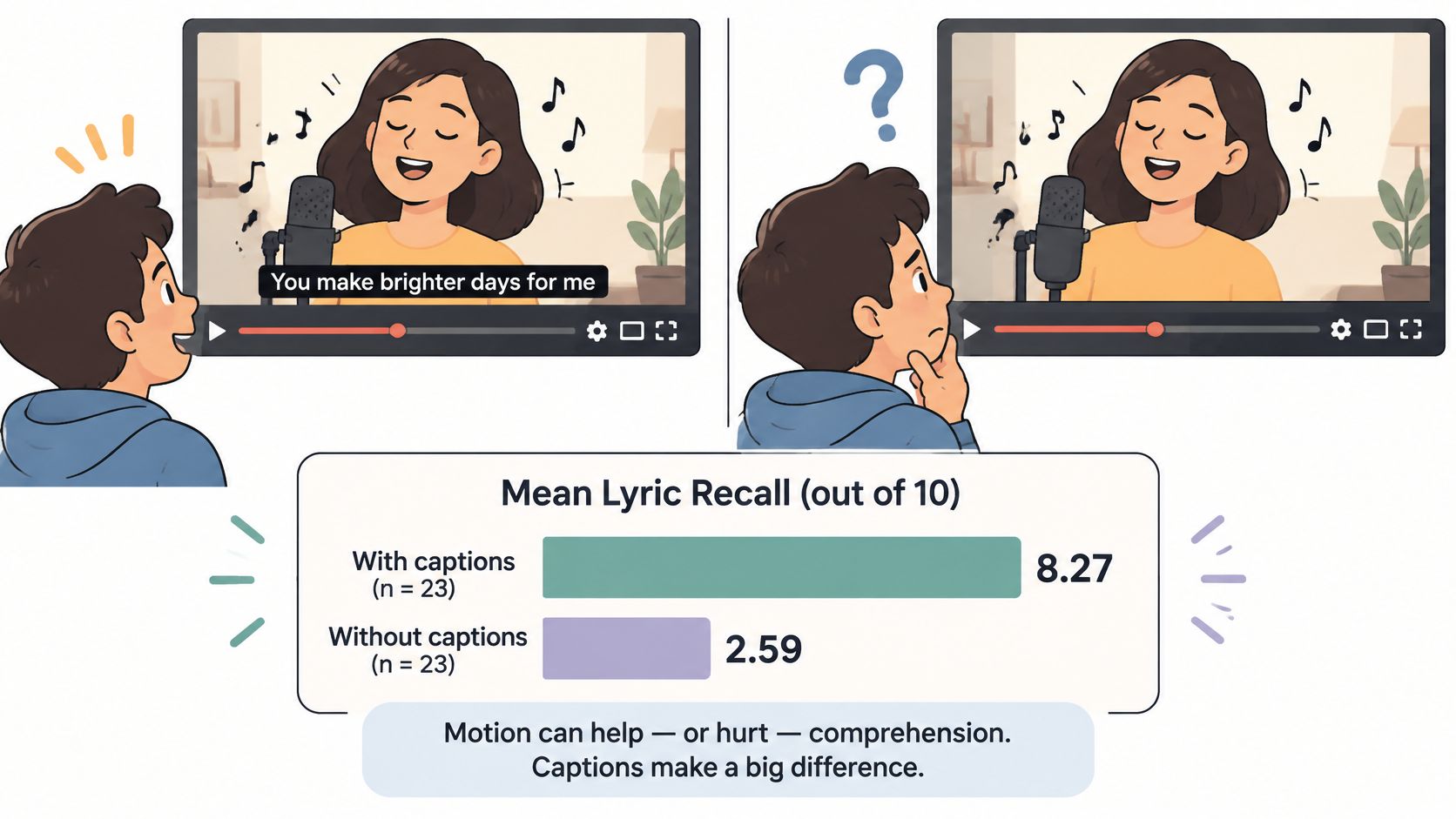
Caption animation is a timing and readability choice. A language-learning study reported mean recall scores of 8.27 with captions and 2.59 without captions. In its caption-mode comparison, animated full captions scored 7.47, below static full captions at 8.75. These results describe recall in that test, not lyric reading or the effects of animation in general. See the caption presentation study.
| Style | Motion | Readability | Best for |
|---|---|---|---|
| Static full line | Line appears and holds | High | Dense verses and spoken lyrics |
| Line fade-in | Line fades or slides in and holds | High | Most verses and bridges |
| Word highlight | Current word changes color | Medium | Chorus hooks and sing-along lines |
| Karaoke bounce | Word scales and lifts on the beat | Low to medium | One short hook, not full verses |
| Per-word kinetic pop | Every word animates separately | Low | Short title cards or single words only |
A static full line keeps the phrase stable while the viewer reads. A line fade-in adds a restrained entrance without moving each word. Word highlight draws attention to the sung word, while karaoke bounce adds rhythmic movement and makes the line less stable. Per-word kinetic pop demands the most visual tracking, so reserve it for a title or single word rather than a full lyric.
Animate emphasis on the sung word or hook, and keep the full line still long enough to reread.
Avoid animating every syllable. Keep repeated words in partial captions, and do not cover the singer’s face. Check the caption against the app’s interface as well: controls can overlap text that looked clear in the editing preview. Use high contrast and keep lyrics distinct from both the subject and screen controls. For placement and styling options, see this guide to on-screen text.
For a three-part clip, use a one-color line fade-in for the verse, highlight the current word in the chorus hook, then hold a static outro line on the final frame. The contrast gives the hook a visual cue without making every lyric compete for attention. Preview at phone size with sound on and off before settling on the animation.
Export Settings and Safe Zones for TikTok and Shorts
A lyric line can be timed correctly and still fail on a phone if the export softens the text or the app controls cover it. Set a vertical master, then check the exported file inside each platform before publishing.
| Setting | Recommended value | Why it matters |
|---|---|---|
| Aspect ratio | 9:16 vertical | Fills the full phone feed |
| Resolution | 1080 × 1920, or 1440 × 2560 for sharper text | Keeps thin lyric fonts crisp on phones |
| Frame rate | Match the source, usually 30 fps | Avoids re-timing lyric frames on export |
| Video codec | H.264 in an MP4 container | Widely accepted by both platforms |
| Audio | AAC stereo, 48 kHz, high-quality bitrate | Keeps vocals clear without bloating the file |
| Length for hook clips | 15–60 seconds | Gives one hook room without turning the edit into a full-song post |
| Maximum length for Shorts | Within the platform’s current limit | Limits change, so confirm the current maximum in the upload screen before exporting a longer cut |
Keep lyric lines in the central band of the frame, with space around the text. Leave the top clear of account and search elements, avoid the lower area where descriptions and captions may cover lyrics, and reserve the right edge for platform icons. Treat these interface zones as occupied even when the editing canvas looks empty.
A 1080 × 1920 file is a practical standard for phone viewing. Choose 1440 × 2560 when thin fonts or small captions need extra sharpness; ClipOven supports crisp 2K vertical exports. For more detail on choosing an output file, see the guide to YouTube Shorts export settings.
Lyric clips usually benefit from burned-in text, since platform captions can appear differently across apps. You can also attach an SRT file for accessibility, but preview both layers together so viewers are not forced to read competing text. Export from the final timeline once, rather than uploading a compressed copy of a compressed copy, and check the exact file you plan to post.
Play the export in both TikTok and Shorts. Confirm that each lyric clears the interface elements and appears in sync with the vocal. The phone check is part of the export, not an optional final glance.
Test One Clip Before You Build the Series
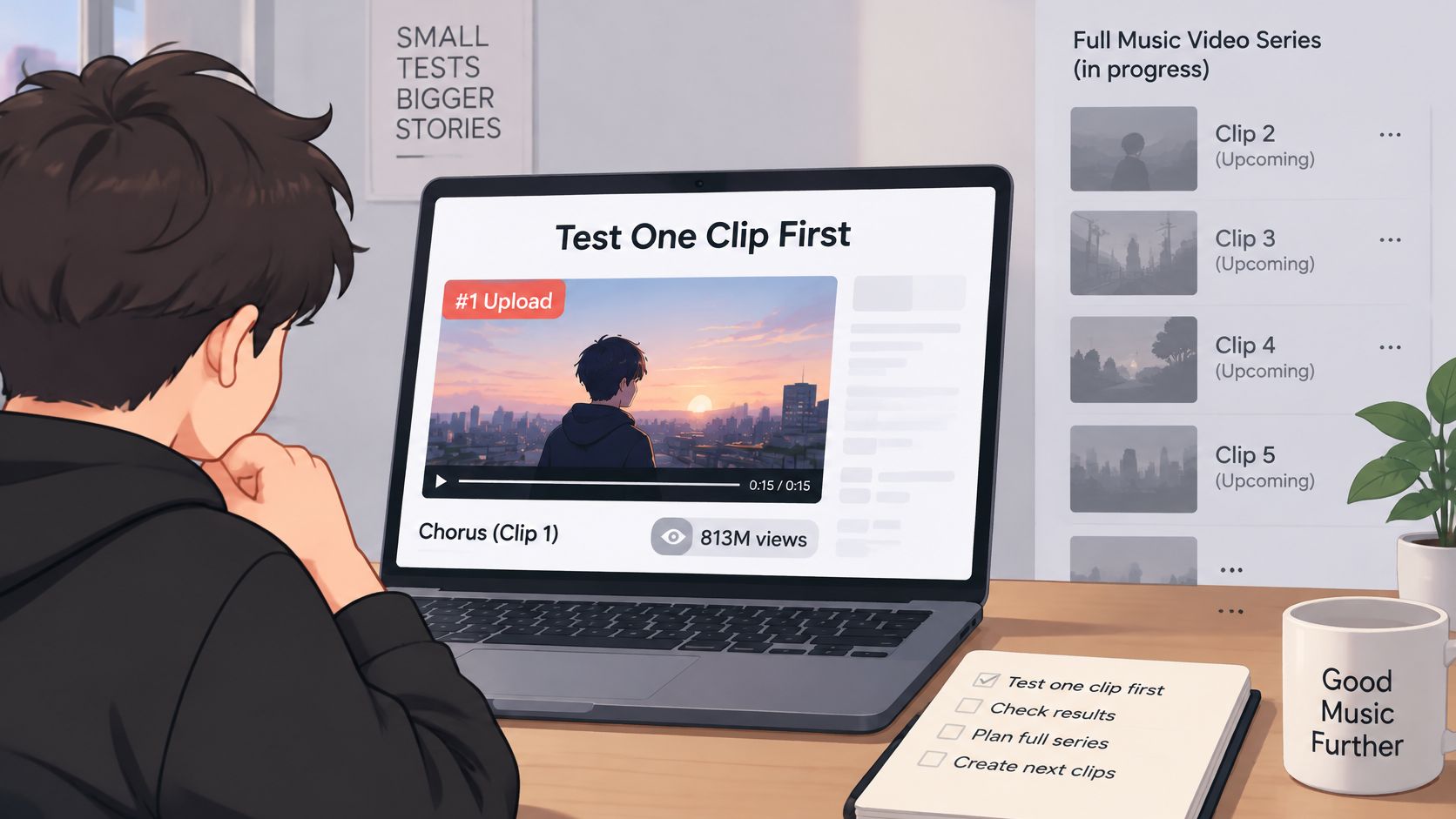
Publish one chorus clip first, then decide whether it deserves a series. A 2025 industry analysis found that a lyric video for “Golden” reached 813 million views, making it the most-viewed music video in its dataset; the same analysis reported averages of about 1.1 billion Spotify streams versus 374 million YouTube views for hit songs, according to Tubular Labs’ analysis of social video trends. The takeaway for a creator isn’t to chase someone else’s numbers. It’s to test whether a lyric moment works as a short-form discovery asset instead of assuming listeners will watch a full video.
Measure the clip over a two-week test period. Track the first-three-second hold rate, average watch percentage, replays, saves, comments that quote lyrics, and clicks through to the full track. Compare the results with your own earlier posts, not a universal target that ignores your audience and account history.
If the chorus clip performs better than your earlier posts on both hold rate and replays, use the same timeline to build verse and bridge edits. If it doesn’t, test a different hook before spending time re-animating captions; the issue may be the selected moment rather than the motion design.
You can also see a short music-video editing example below.
Export one chorus clip this week, check its rights and phone readability, then measure the response before you make a second.
ClipOven turns horizontal footage into vertical shorts with AI-assisted cuts, reframing, and captions, then lets you refine the result in a timeline editor. Use clipoven to prepare a lyric clip for TikTok or Shorts and adjust its timing, text, and effects before export.